
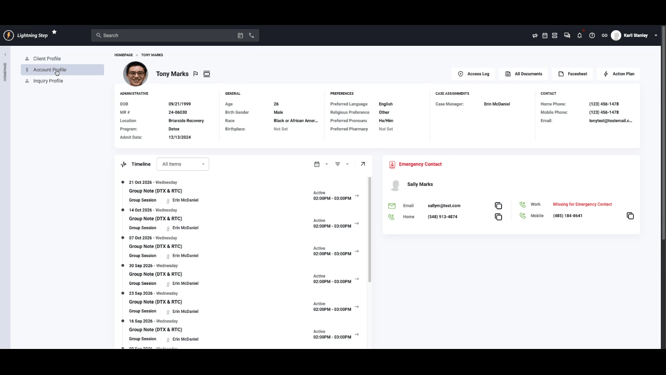
Step 1: Open the navigation menu on the left and select Account Profile within the client’s Profile.
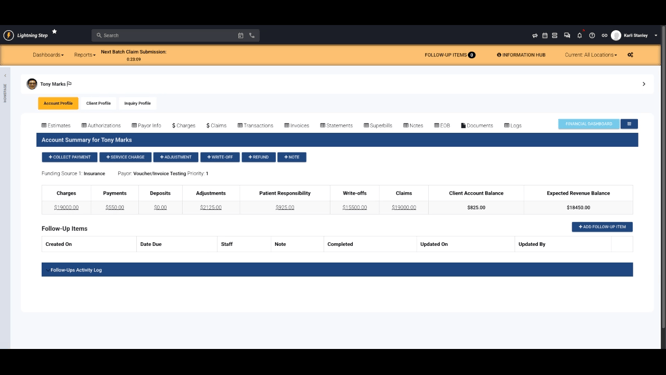
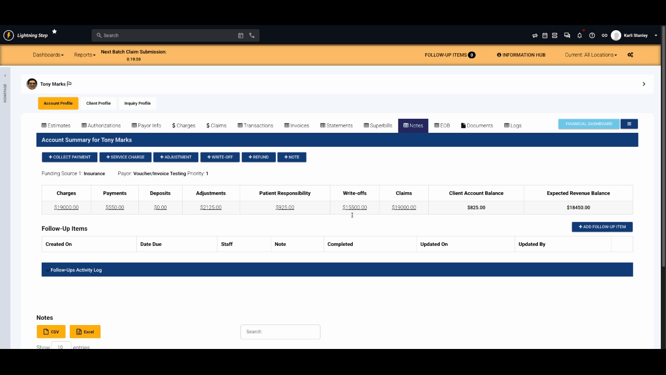
You’ll land on the default Account Summary view. This section shows charges, payments, deposits, adjustments, patient responsibility, write-offs, claims, and the client's current account and expected revenue balances. You’ll also see follow-up items and can add new ones or perform actions like collecting payments, creating manual charges, issuing refunds, or adding account notes.
Step 2: Click the Estimates tab to see an overview of all estimates created within the client’s profile.
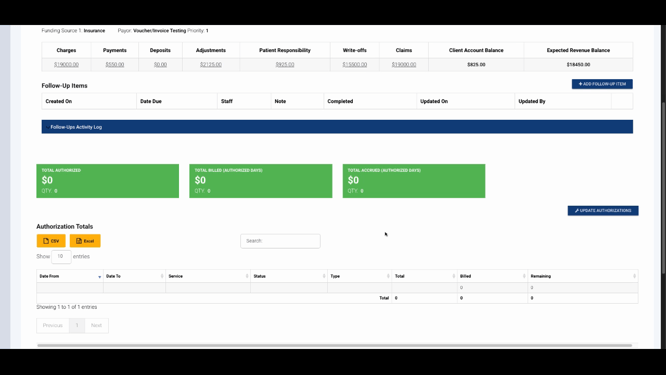
Step 3: Select the Authorizations tab for a summary of authorized charges, how many days have been billed or accrued, and review specific authorization records.
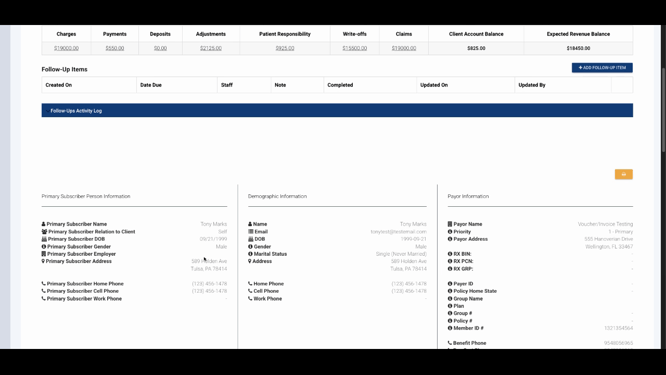
Step 4: Open the Payer Info tab for a quick reference to the client’s payer details—helpful when verifying billing information.
Step 5: Go to the Charges tab to view all approved charges, separated by insurance and private pay.
-
In the Private Pay section, you’ll see both true private pay and patient responsibility charges.

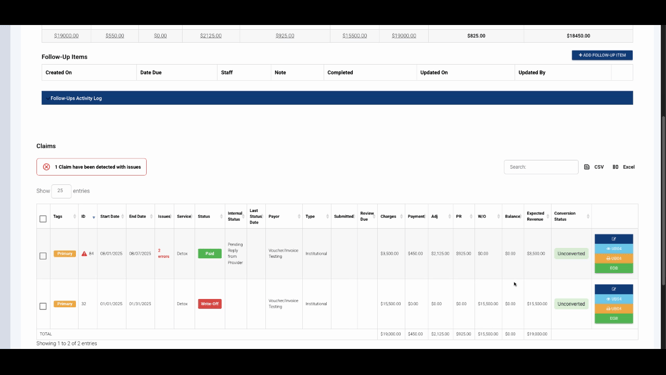
Step 6: Use the Claims tab for an overview of claims, access and edit claims, check claim statuses, and review payment and expected revenue information.
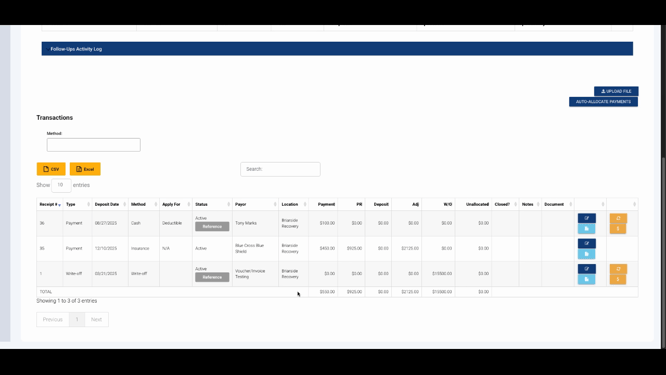
Step 7: Head to the Transactions tab to see every record of payments, deposits, write-offs, and adjustments.
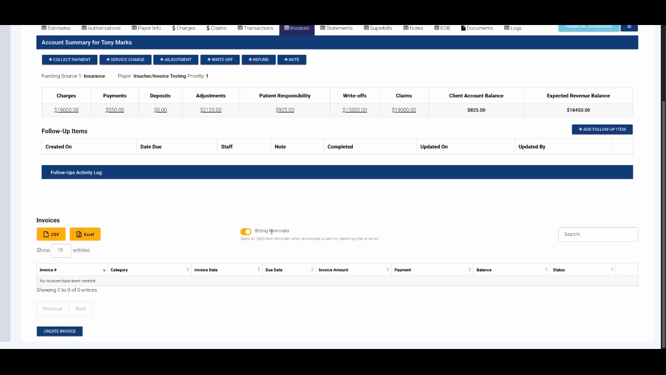
Step 8: Click the Invoices tab for existing invoices or to create blank invoices as needed.
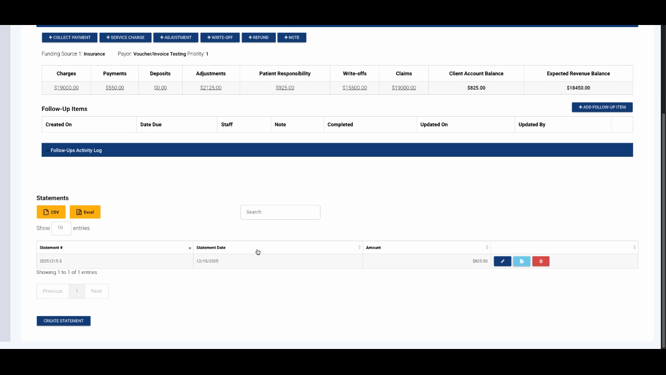
Step 9: Use the Statements tab to view all account statements and create new ones. The Super Bills tab offers access to create or manage Super Bills.
Step 10: Find account notes in the Notes tab. Use the EOB tab to access insurance payments and uploaded explanation of benefits.
Step 11: Store and retrieve financial documents in the Documents tab.
Step 12: If you have the necessary permissions, use the Logs tab to search financial logs—making it easy to track changes to charges, claims, payments, invoices, and statements.
The Account Profile centralizes all billing and payment information for each client, making financial management transparent and actionable. For more details, check your internal documentation or connect with the support team if any questions come up.
