
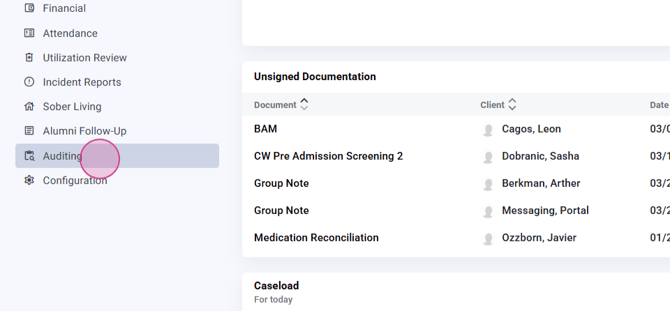
Step 1: After logging in, navigate to the Action Plan Dashboard by selecting it from the auditing left menu.
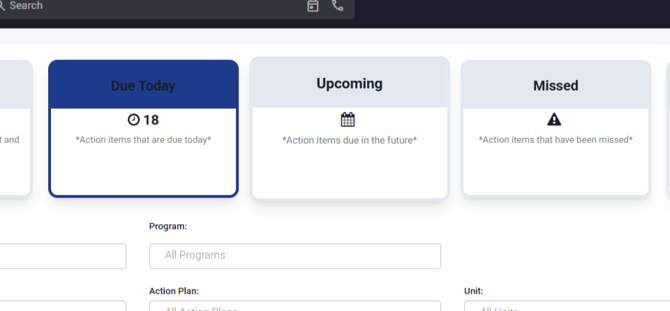
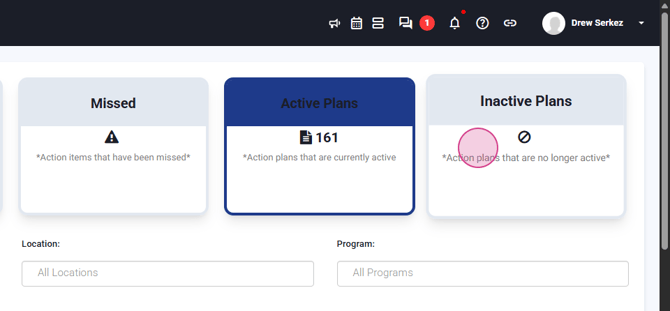
Step 2: Observe the six tabs across the top of the Action Plan Dashboard. These tabs include: Compliance action plans due today, Action plans, Upcoming missed action plans, Active action plans, and Inactive action plans.
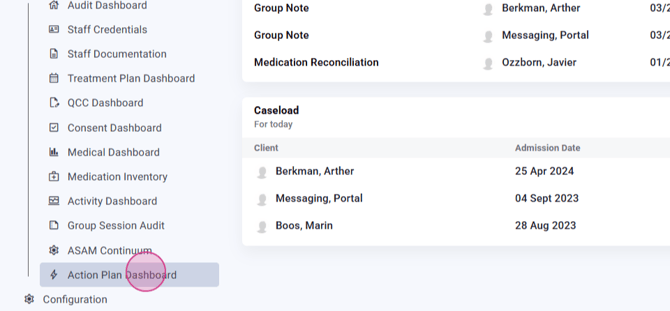
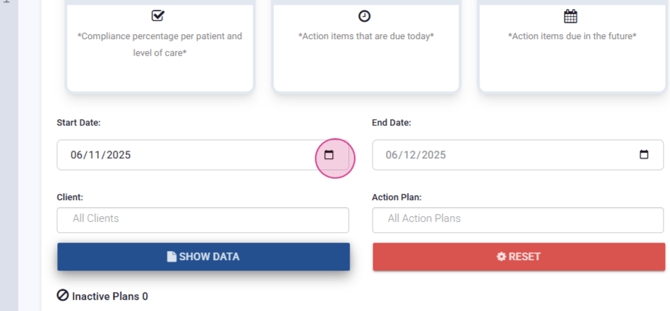
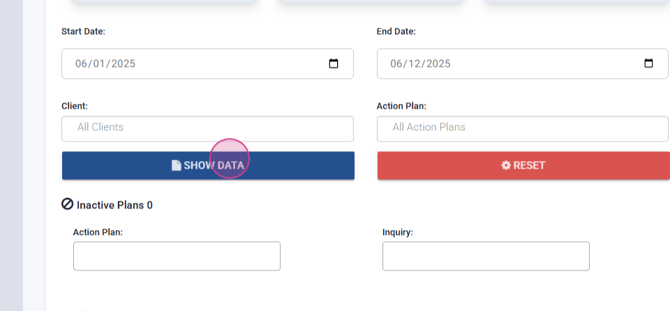
Step 3: Click on the Compliance tab. Here, set your start date for the action plan and pre-filter based on location, program client, type of action plan, and patient's assigned unit. You also have the option to download a version before generating it. After setting your preferences, click on Show Data.

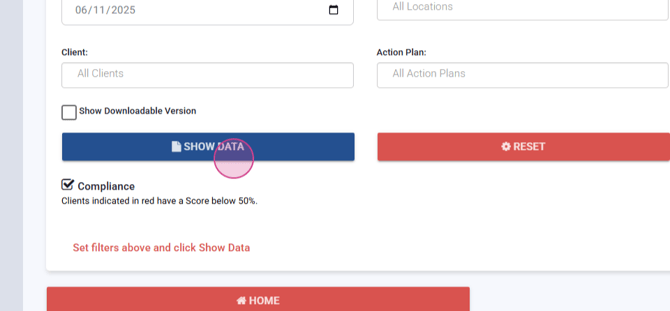
Step 4: Review the generated action plans. For more details on a specific plan, use the right carrot to expand the details.
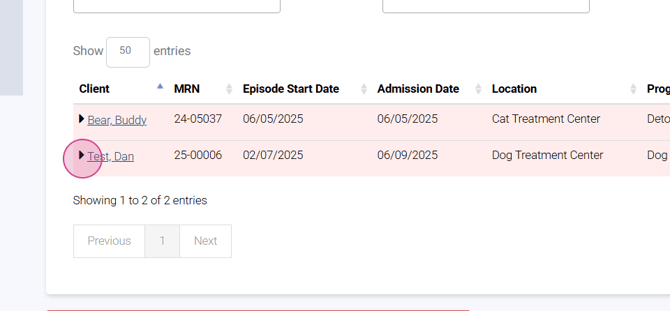
Step 5: In the expanded details, you'll find information such as the action's frequency, its current status, due date, completion date, and the category for the plan. The status will display missed plans, due plans, upcoming plans, and completed plans.
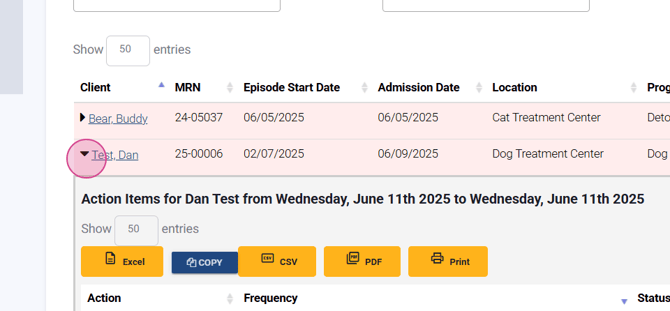
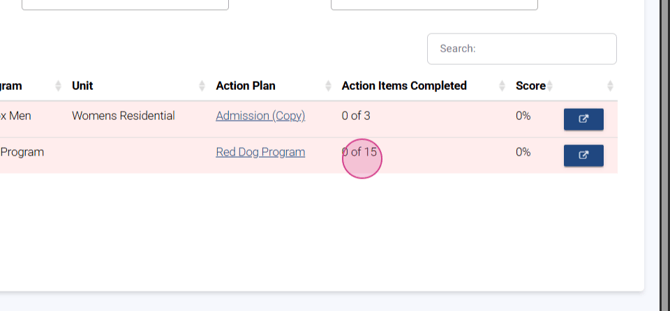
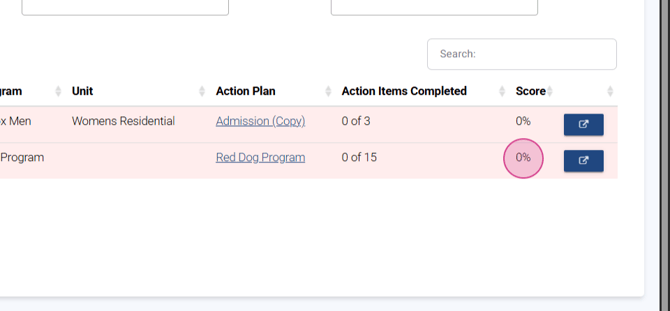
Step 6: The single line for each patient shows the number of completed action items and the percentage score of open items versus completed ones.
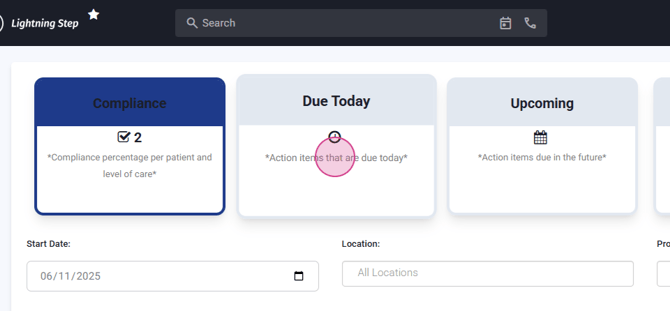
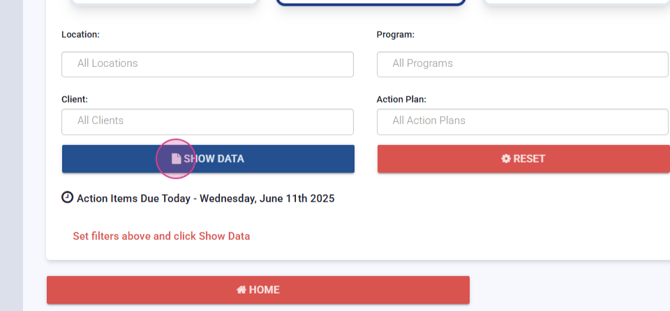
Step 7: In the Due Today column, you can show data and filter based on the same filter options. This will display line items of action plans due for the current day.
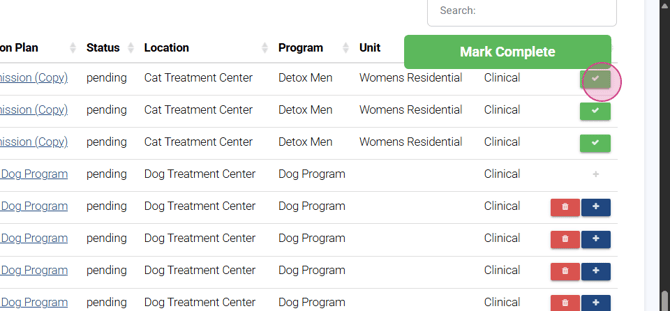
Step 8: From this menu, you can mark actions as completed with the green check mark. You also have the option to remove an action item or create a document from the action item due today.
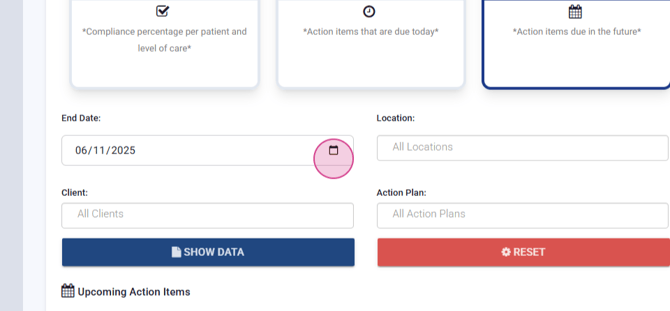
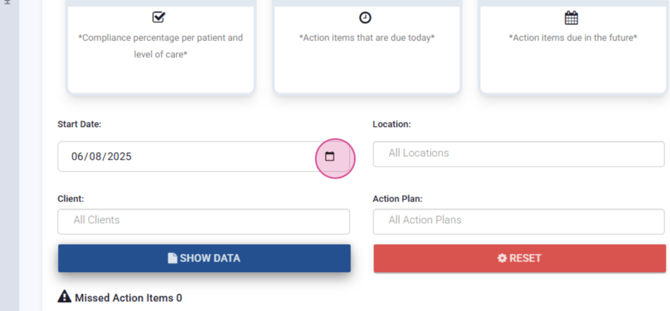
Step 9: The Upcoming tab allows you to select a future date to view upcoming action plan items. After selecting a date, click on Show Data.
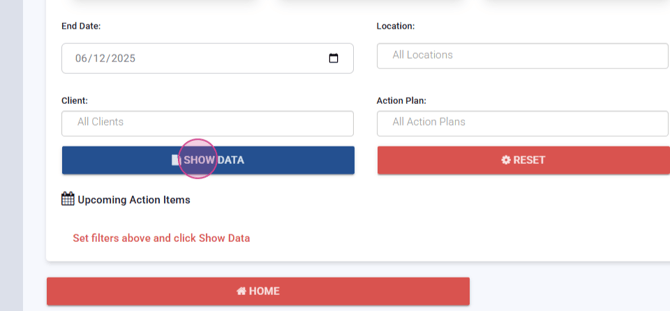
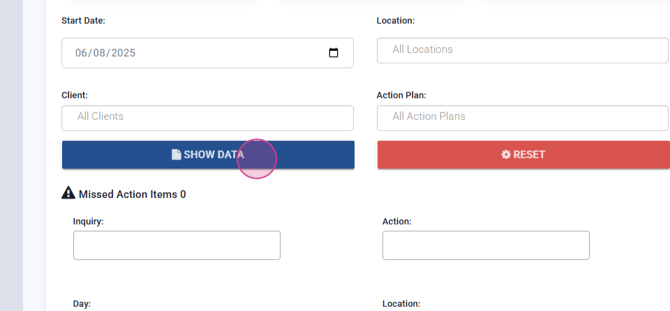
Step 10: The Missed tab lets you generate a list of missed action items based on a selected start date.
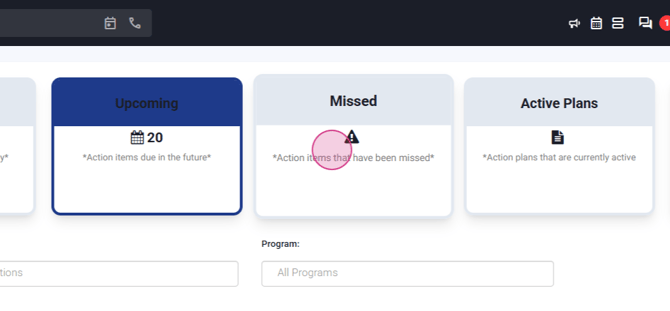
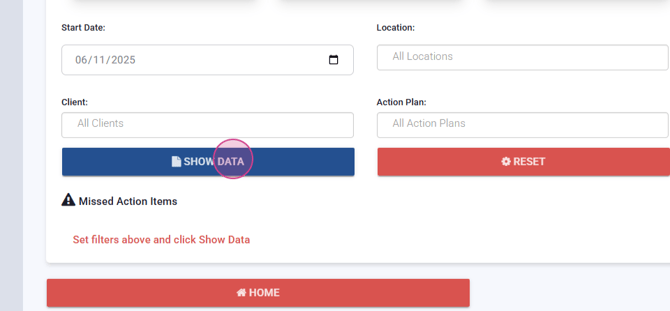
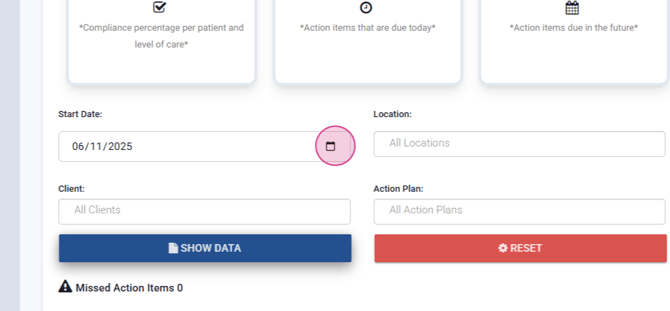
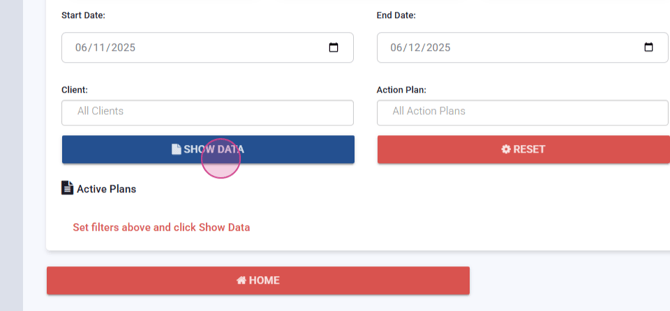
Step 11: The Active Plans tab displays all active action plans based on your selected start and end date. After setting your dates and filters, click on Generate.
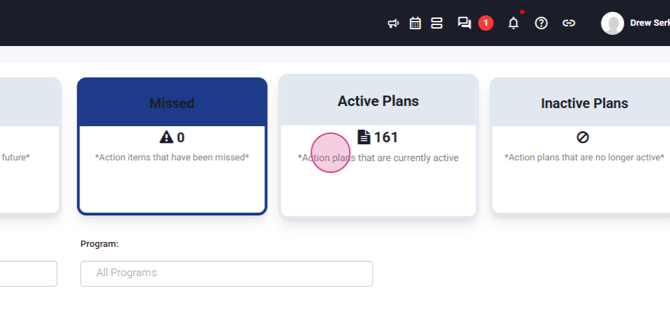
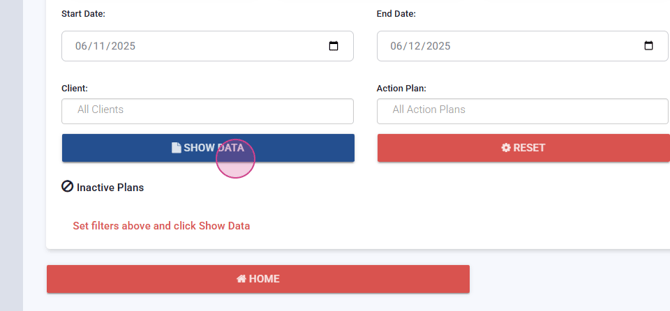
Step 12: The Inactive Plans tab shows all action plans that are no longer active. After generating, you'll see a list with the same columns of inactive plans.
That's it! You've now learned how to navigate and utilize the Action Plan Dashboard.
