
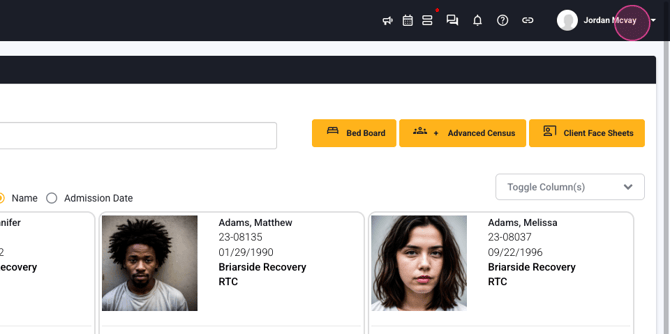
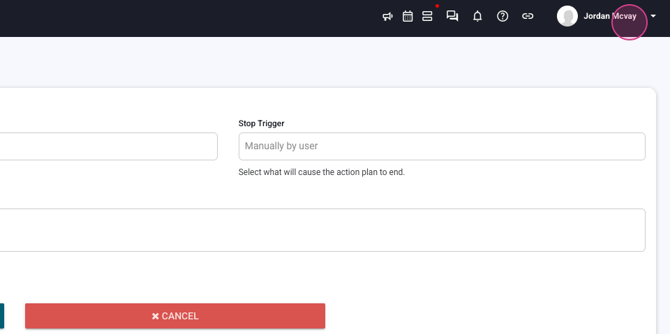
Step 1: Start by navigating to your name menu.
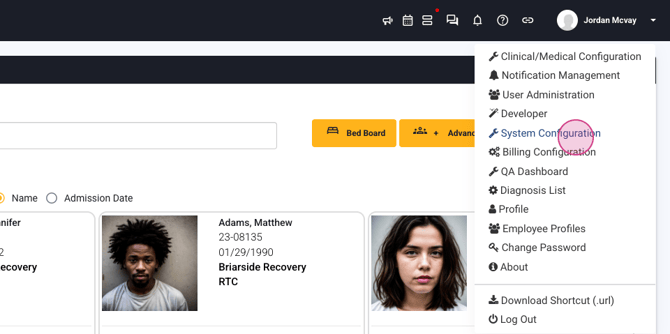
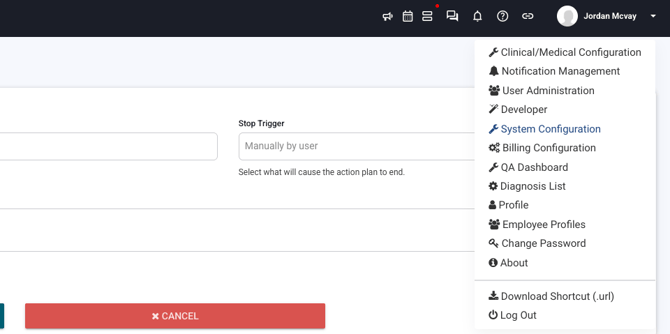
Step 2: Proceed to the system configuration.
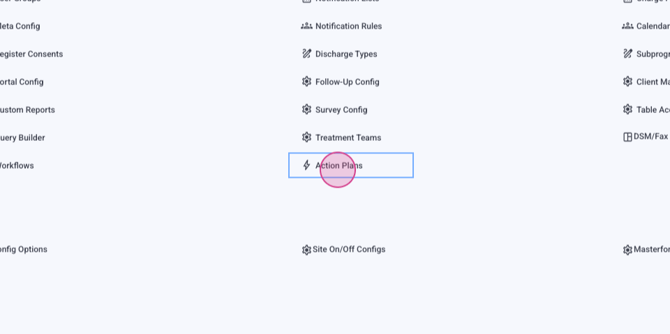
Step 3: From there, select Action plans.
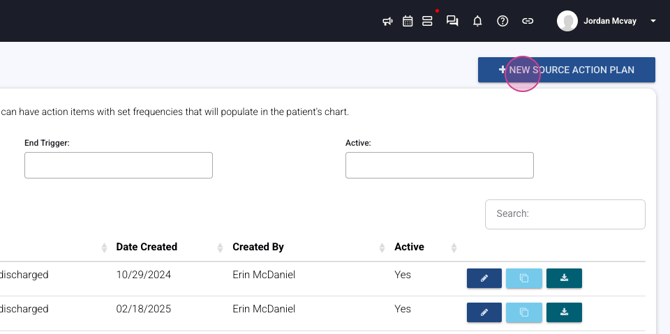
Step 4: Under Action plans, choose New source Action Plan.
Step 5: Configure your title.
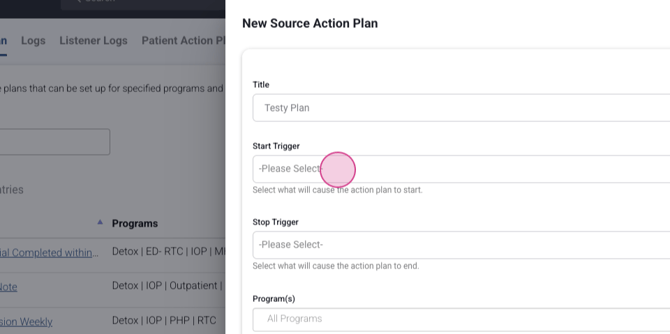
Step 6: Establish your Start trigger. For this example, we're selecting manually.
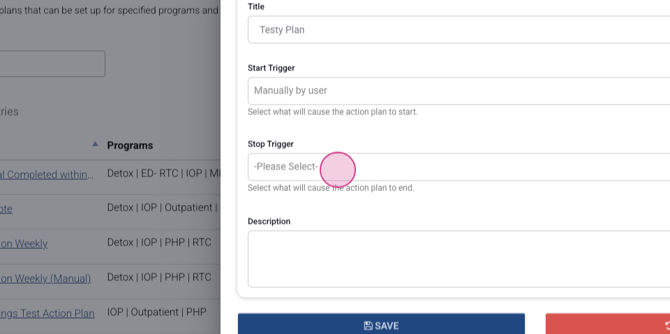
Step 7: Your only stop trigger will be manually by user. However, if you're automatically initiating these action plans, you have other options for the stop trigger. For this example, we're selecting manually.
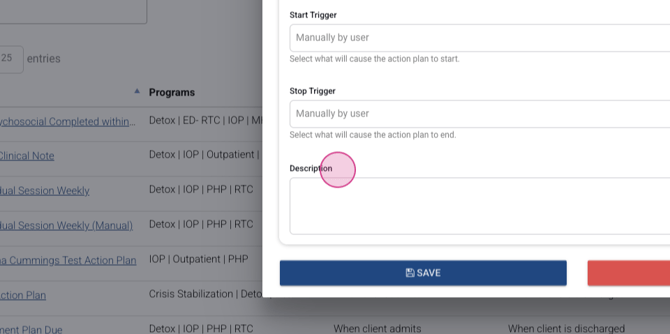
Step 8: Add any necessary description for this plan.
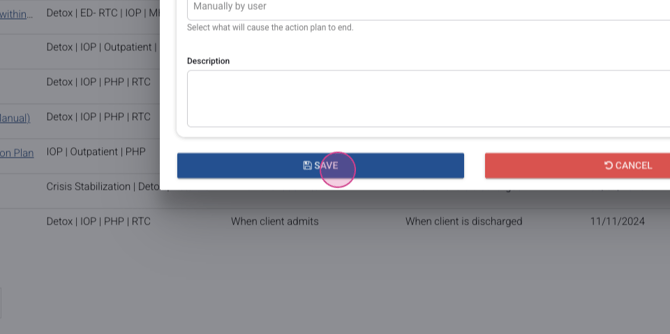
Step 9: Save your settings. This will bring you to the draft action plan.
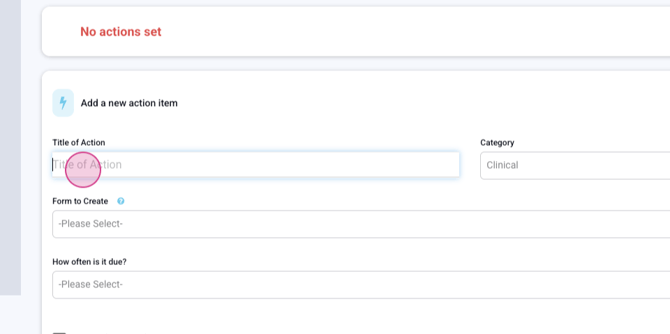
Step 10: Scroll down and select your title of action. For this example, we're selecting history and physical.
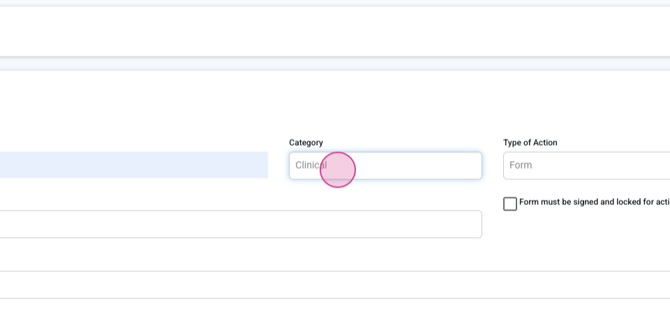
Step 11: Choose your category and type of action. For this example, we're selecting Clinical and form.
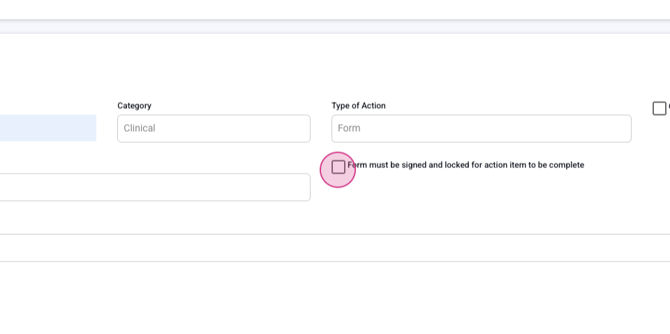
Step 12: Select the form you want to create. For this example, we're selecting physician note.
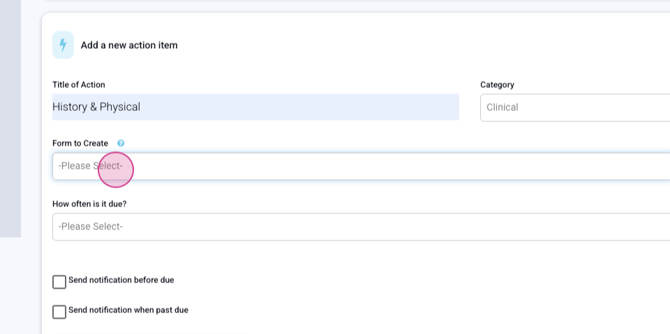
Step 13: Determine how often it is due. For this example, we're setting it to be due once within 24 hours.
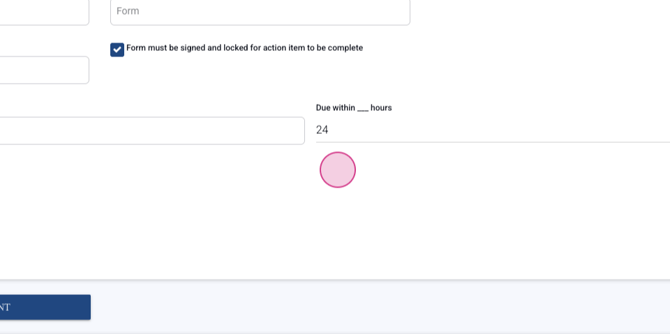
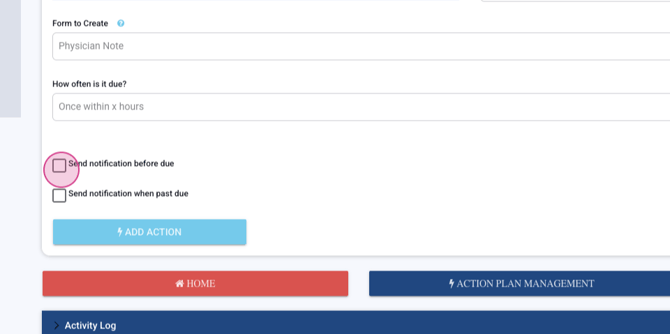
Step 14: Set up notifications for before it's due and when it's past due.
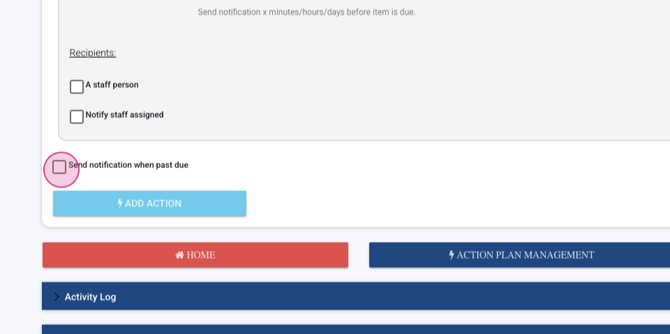
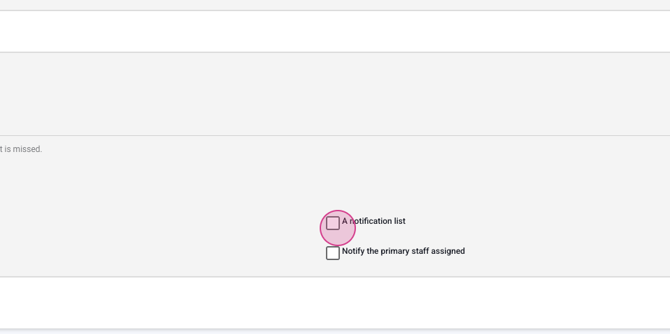
Step 15: Select your notification list.
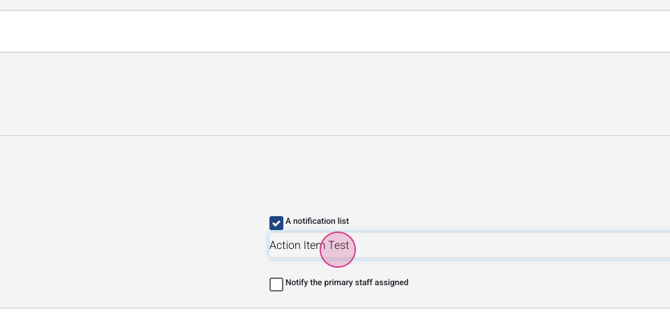
Step 16: Add the action.
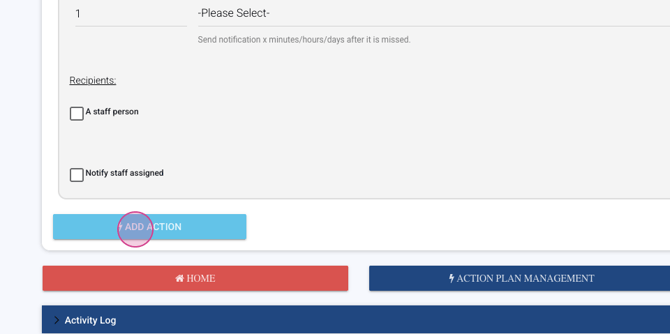
Step 17: If you don't see your form selection in the drop-down, go back to your name menu.
Step 18: Navigate back to system configuration.
Step 19: Find Table Access.
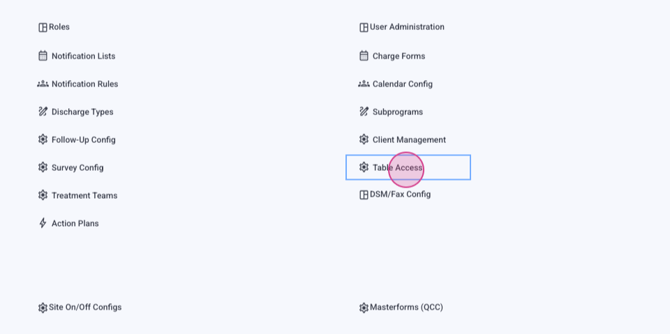
Step 20: Here, you can search for your specific document. If it's a custom form, it will be indicated.

Step 21: Select Action Plan to make it available for selection.
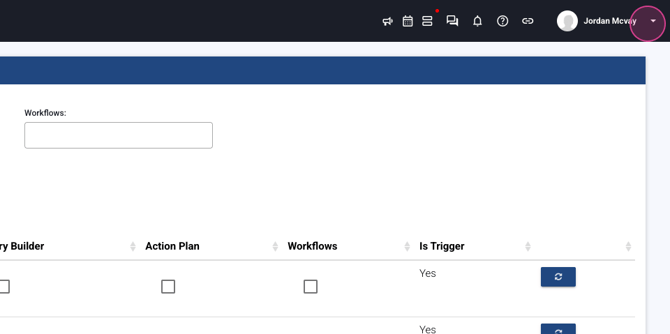
Step 22: Go back to your system.
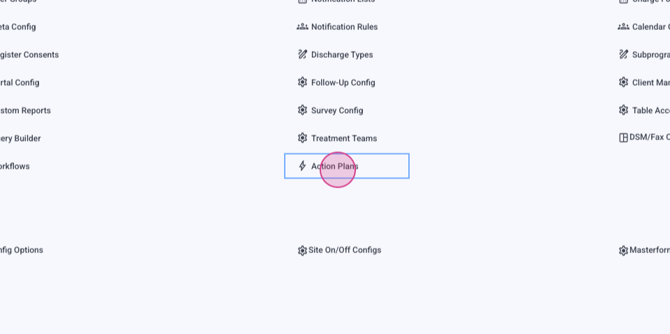
Step 23: Navigate back to your action plan. You should see your plan here.

Step 24: Click on it to return.
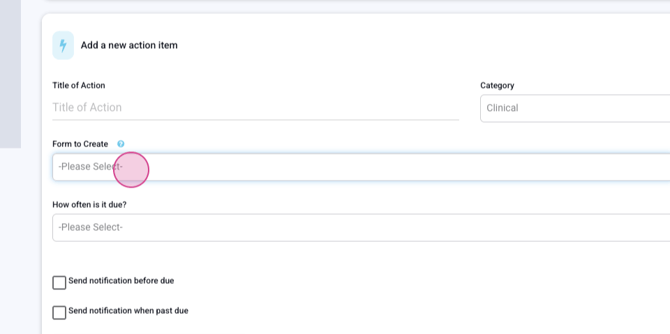
Step 25: Now, when you go to select your form, you should see your custom form. This is how you make more forms available to include in your action plans.
Enjoy building action plans and making life easier for your end users!
