
Step-by-Step Instructions
Step 1: Find the relevant claims by clicking Search Client. A pop-up appears.
Step 2: Search for your client using first name, last name, MRN, or claim number. Using the MRN provides the most exact results. Locate the appropriate claim.

Step 3: Click the claim row to add it to the remit. The selected row will show as deactivated.
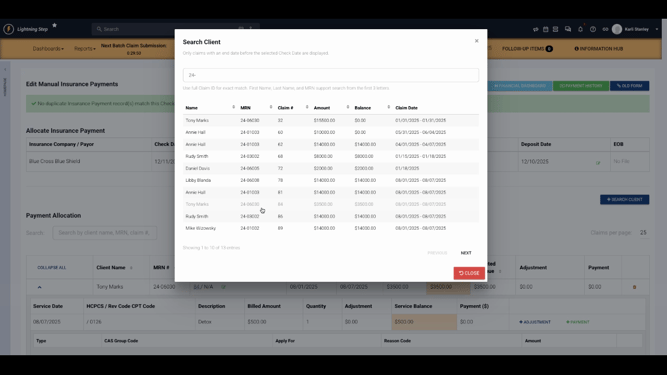
Step 4: Continue searching and adding any additional claims as needed.

Step 5: If you don’t see an expected record, click Next to browse additional pages.
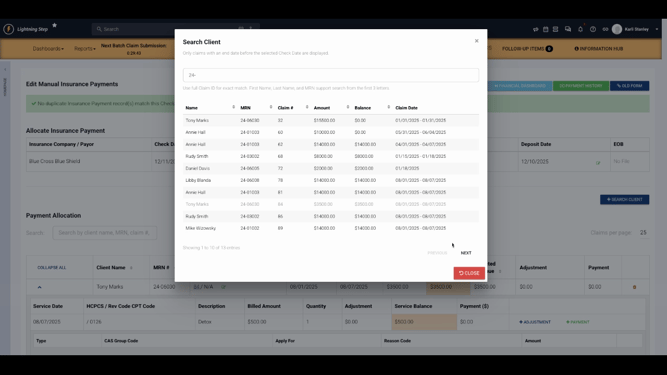
Step 6: When you’ve selected all claims, click Close.
Step 7: Review the updated payment allocation section. Collapse or expand claims for a condensed or detailed view. Expand the rows you need to work with.
Step 8: When you expand a claim, yellow highlights indicate unbalanced claim balances. Aim to allocate the full check amount so every claim and charge balances to $0.
Step 9: Identify remaining claim balances and reference your paper remittances.
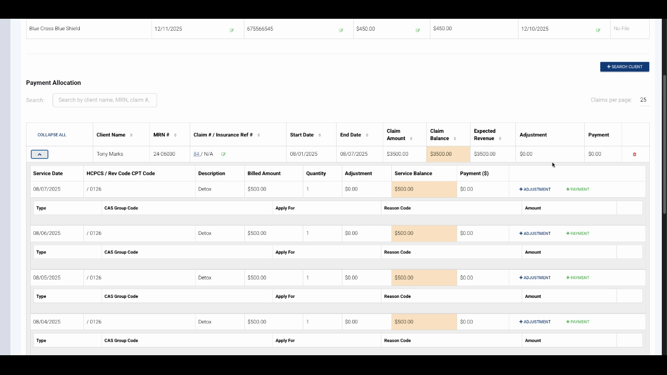
Step 10: Start allocating payments by clicking Payment. A new line appears where you enter the payment amount for that service line.
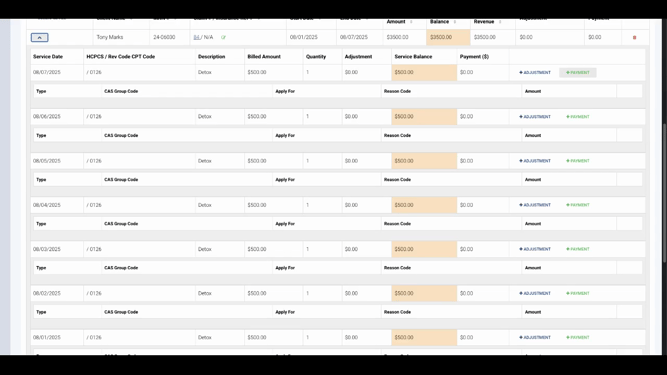
Step 11: Type the payment amount. As you do, the claim and service balance update automatically.

Step 12: If a claim isn’t balanced after the payment, continue to post remaining adjustments by selecting +Adjustment.
Step 13: On the adjustment line, set the Group Code, apply the code if necessary, choose a Reason Code, and enter the adjustment amount.
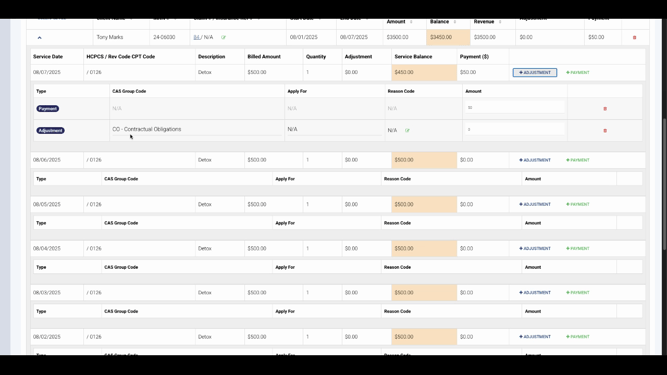
Step 14: Continue to add adjustments as needed. If you over-allocate, the balance field turns red. Correct the amount until the field is white, indicating balance.
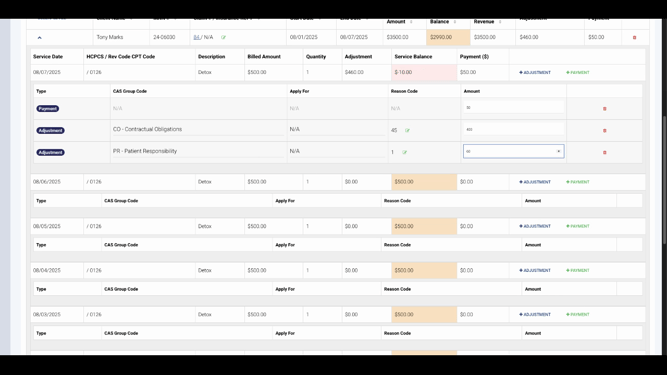
Step 15: Continue posting payment and adjustments for each line until all balances reach zero.
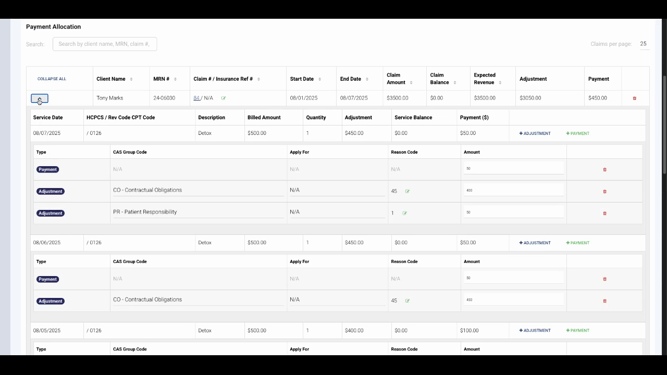
Step 16: Collapse all rows to review the summary page. Check claim totals, ensure balances are zero, and verify the expected revenue and unapplied balance match the check total.
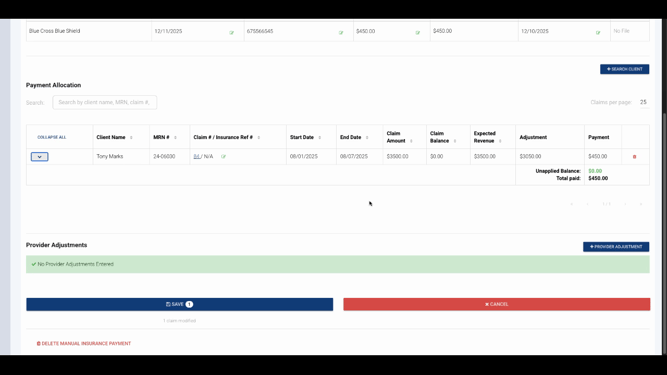
Step 17: Once confirmed, click Save.
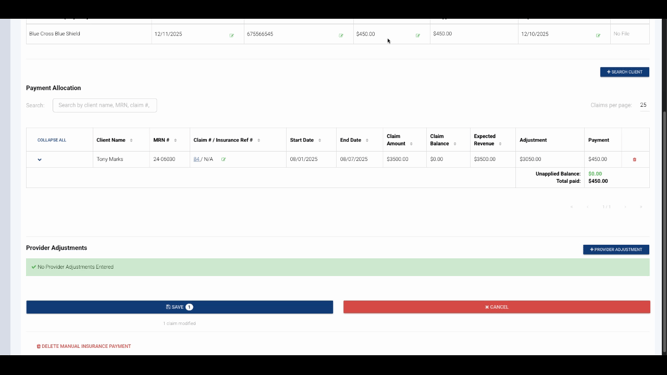
Allocated payments now move to the Allocated Insurance Payments bucket within the Unallocated Insurance Payment tab.
Step 18: For large remittances, save periodically to prevent data loss from system logouts.
Step 19: Remove a claim from a remittance using the Trash Can icon, or remove allocations at the service line level if needed.
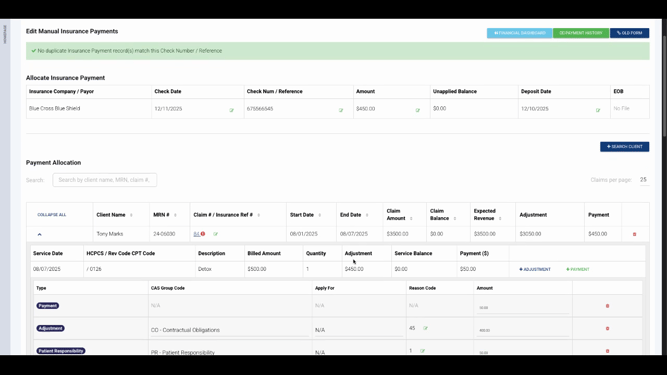
After saving, all allocations update across claim balances, patient responsibility entries, and reporting.
Conclusion
Allocating manual insurance payments in Lightning Step updates your claims and balances throughout the system, ensuring financial accuracy. Regularly review claim summaries and save your progress, especially with large remittances. For more details, consult your internal documentation or reach out to the support team.
