
Step 1: In the client profile, click Financial from the side menu.
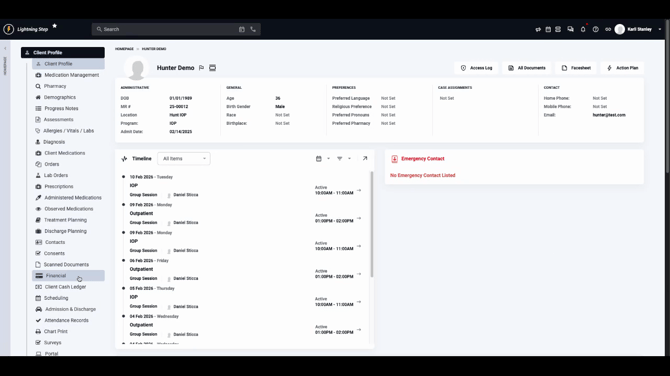
Step 2: Select Benefit Authorization.
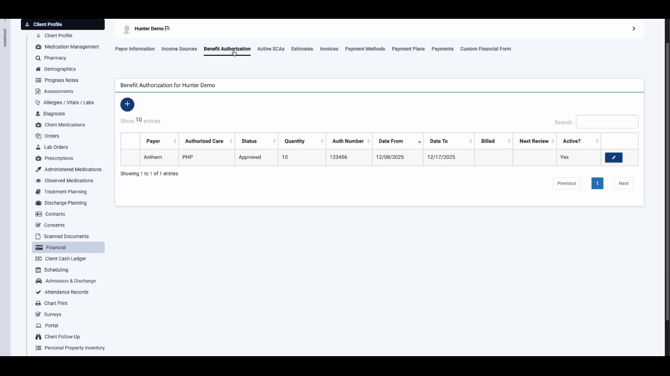
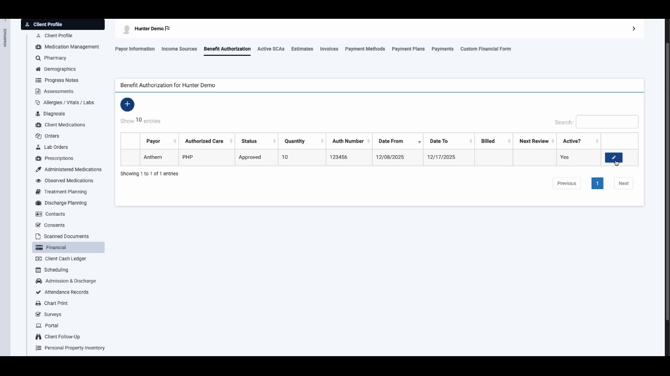
Step 3: Create a new authorization with the plus sign or edit an existing one with the pencil icon.
Step 4: Review the authorization expiration date. If you need to monitor it, check the box for Next Review Scheduled. This opens a section to schedule your review.
Step 5: Set the date and time of review, typically a few days before the authorization expires.
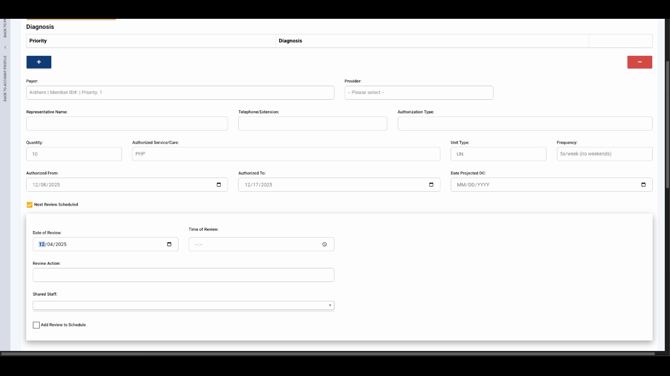
Step 6: Add a brief review action describing what needs to happen at review.
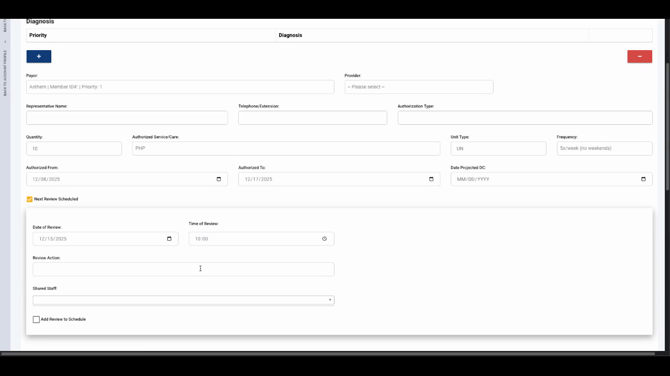
Step 7: Select the staff who should receive the review reminder.
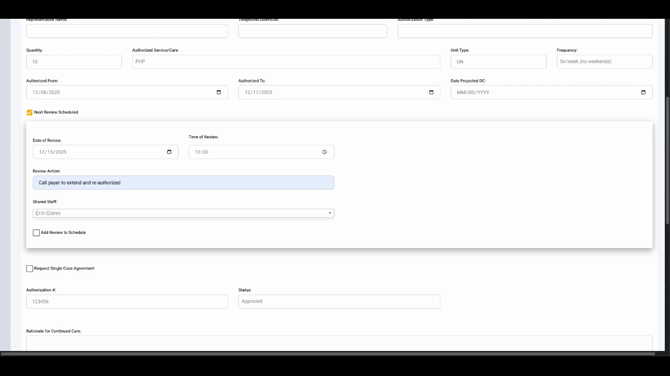
Step 8: Click Add Review to schedule.
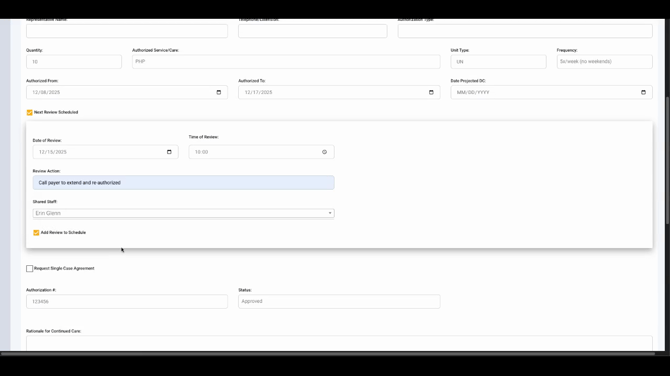
Step 9: Save the authorization. The system will now show your next review due date.
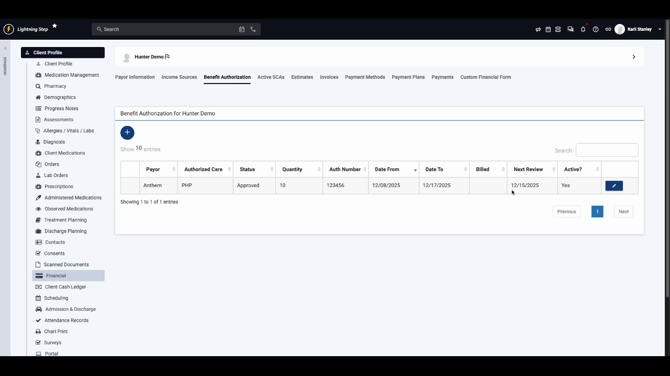
Step 10: Head to the calendar. On the set review date, the selected staff members will see a calendar event with the review action noted.
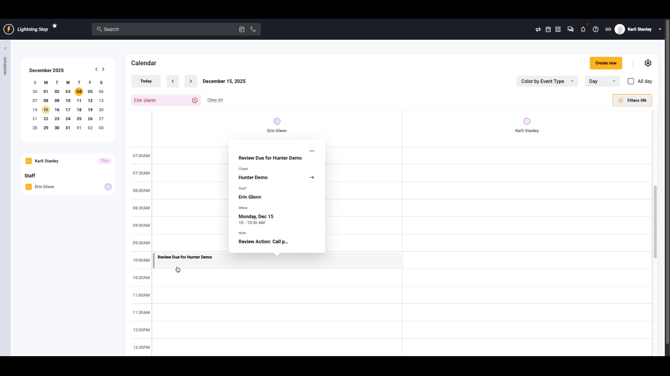
You’ve now scheduled and tracked your prior authorization expiration. Staff will get reminders, so you never miss a renewal or extension opportunity.
For more details, check your internal documentation or contact the support team.
