
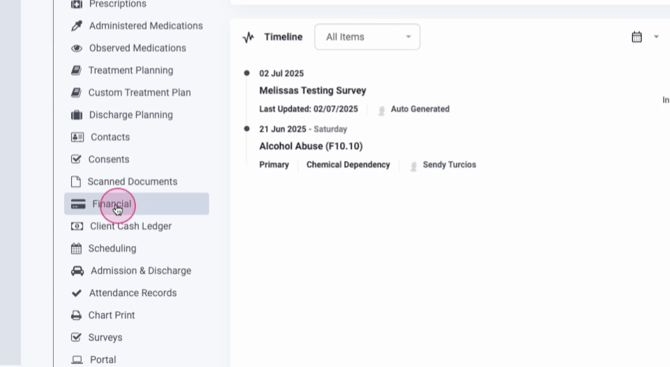
Step 1: Navigate to the client profile and click on the Financial tab.
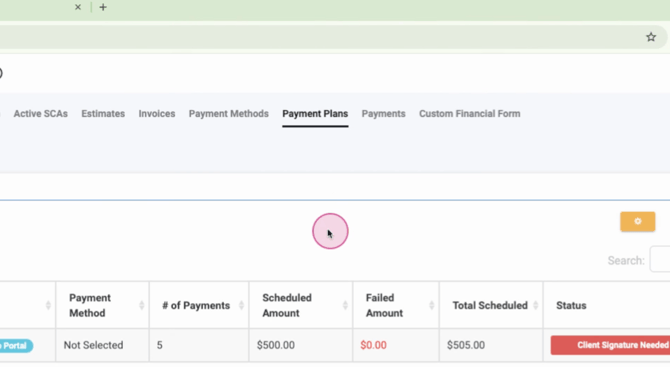
Step 2: Look for the section labeled Payment Plans.
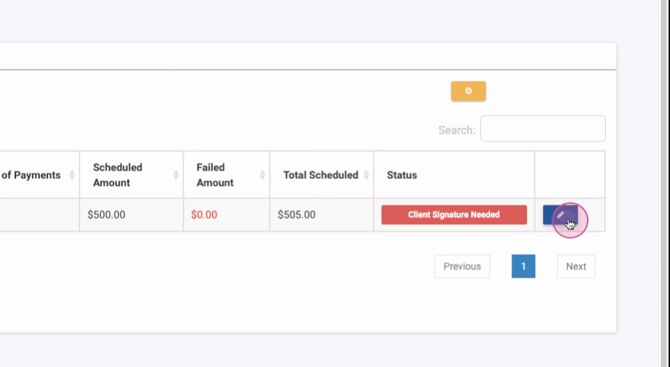
Step 3: Here, you're able to create a new payment plan or edit an existing one.
Step 4: Enter your desired payment schedule and the client's credit card or ACH information.
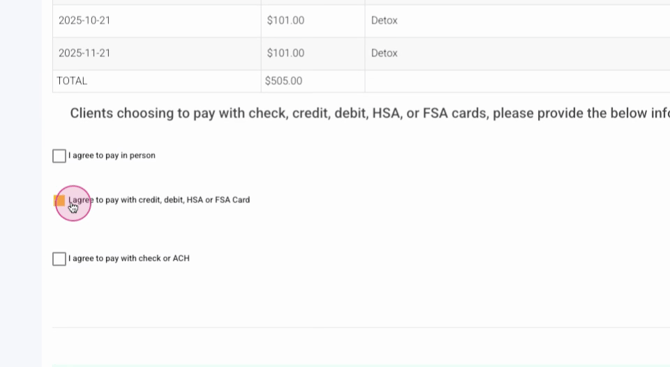
Step 5: Choose whether to use a previously stored payment method or store a new one.
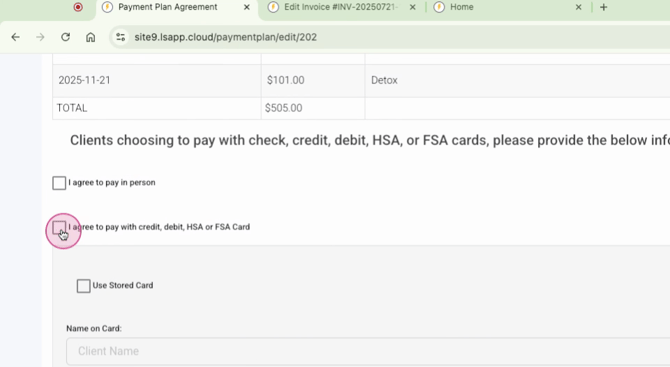
Once the payment plan is signed, Lightning Step will automatically process payments according to the schedule you've set. You also have the option to save and send this payment plan to the client portal.
Step 6: In the client portal, under the Billing section and then Payment Plans, the client will see the payment plan ready for signature.
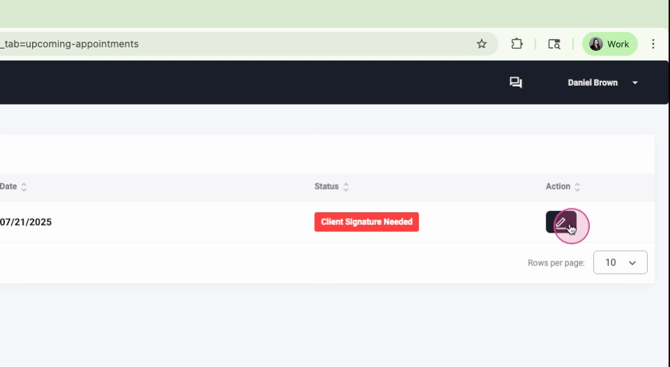
They can review the payment schedule, enter their payment information, and sign to activate the plan. Once signed, Lightning Step will automatically process payments according to the schedule.
Step 7: You also have the option to link payment plans with invoicing. To do this, go to the Configuration Options inside the invoice and click Create Payment Plan.
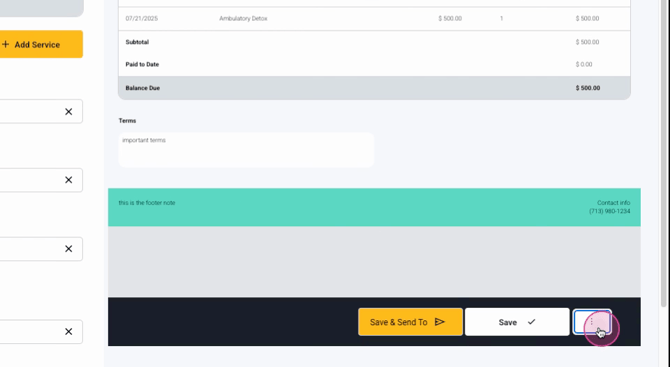
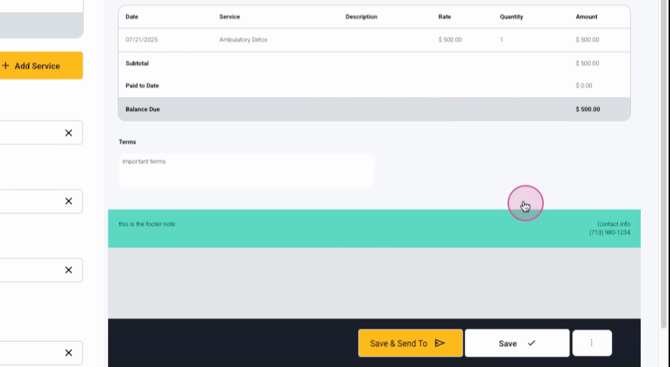
This will take you to the Payment Plan screen where you can enter the payment schedule and other necessary information.
Step 8: Any existing payment plan in Lightning Step can be connected to an invoice.
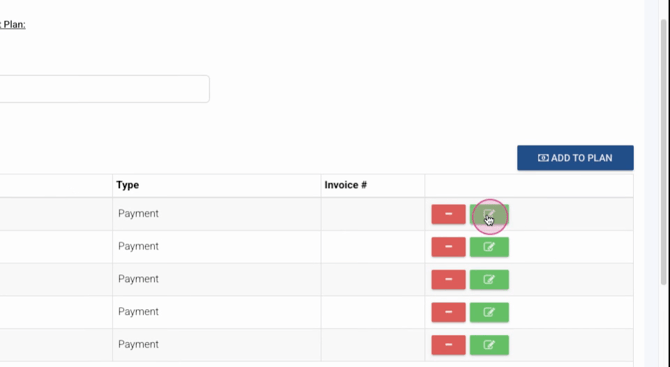
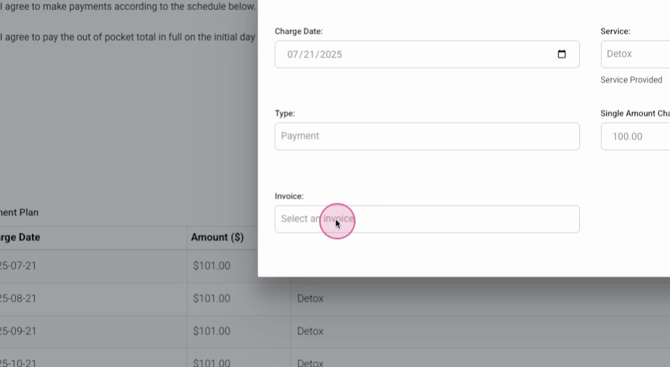
This feature is particularly useful when clients need to pay in installments, as it allows you to directly link the payment plan to the invoice for easy tracking.
