
Step 1: Find a client’s billing cycle under their account profile
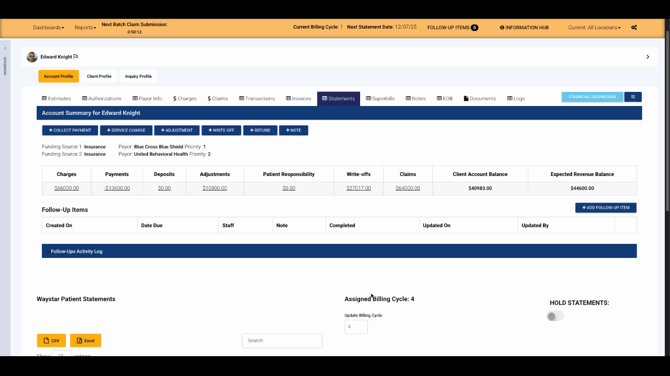
Open a client’s profile and go to the Statements tab. Here, you’ll see which of the four billing cycles the client’s account is currently assigned to. Lightning Step distributes clients evenly across cycles to balance workflow and cash flow.
If you ever need to, change a client’s assigned billing cycle or place their account on statement hold to pause automatic statement generation.
Step 2: View generated statements on the client profile and portal
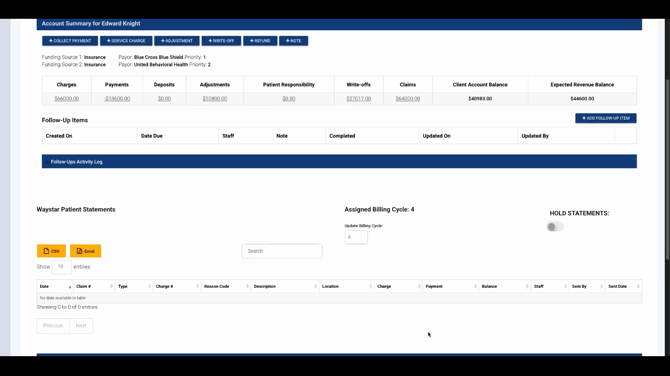
After generation, statements appear on the client’s account profile. They’re also sent to the client’s portal, where clients can review them and make payments. Only clients with a balance greater than zero receive new statements, so you’ll avoid sending out unnecessary documents.
Step 3: Configure automatic statement timing in Billing Configuration
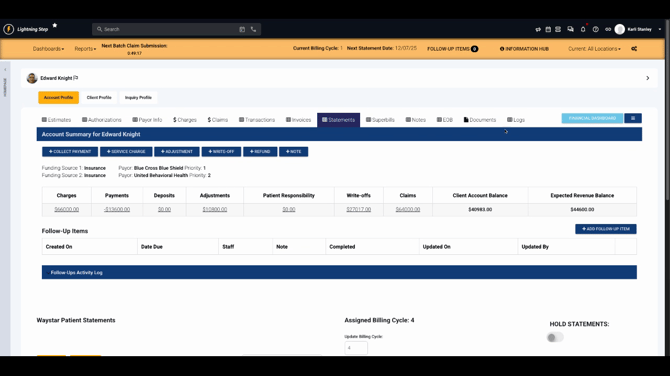
Go to Billing configuration in your account.
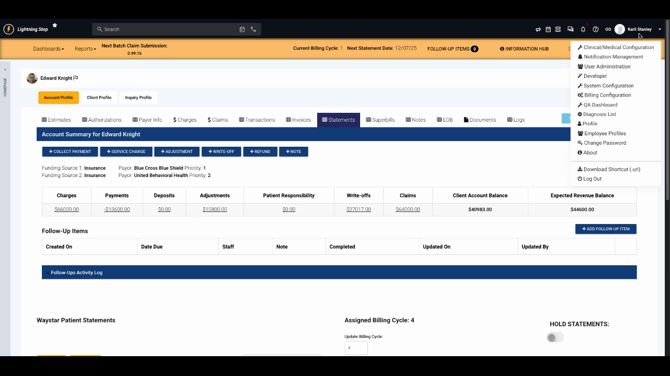
Select Billing documents and then choose Statements. Here, access all settings for statement automation.
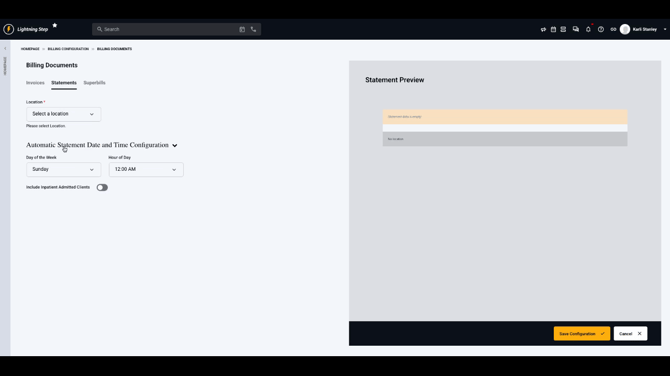
Set the preferred day of the week and hour for statement file generation. This schedule will apply across all your locations to keep things consistent.
Step 4: Choose whether to include admitted inpatient clients
Toggle the switch to include or exclude clients currently admitted to programs in the statement process. By default, these clients are excluded, but turning on this option will include them as needed. The scheduled times use the time zone set on your customer account.
Automating statement generation with Lightning Step ensures a predictable, organized workflow and keeps your clients informed. For more details, check out your team’s internal documentation or contact support if you have questions.
