
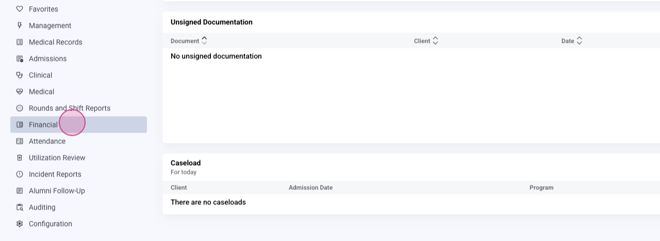
Step 1: Navigate to the financial tab from the home screen.
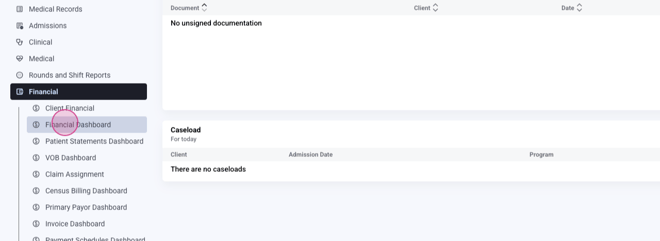
Step 2: Enter the financial dashboard.
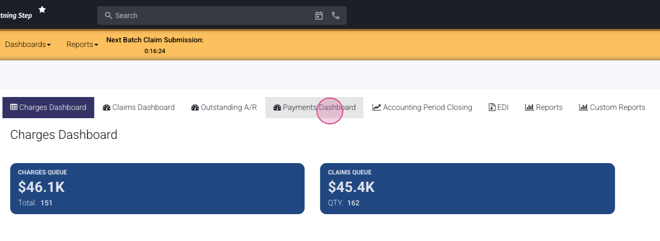
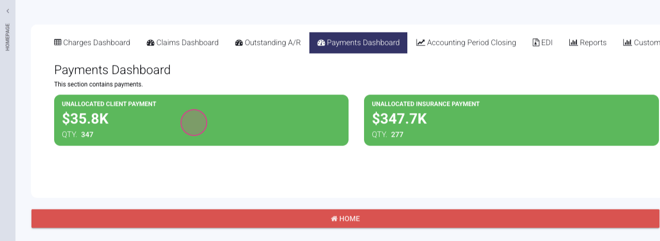
Step 3: Proceed to the payments dashboard.
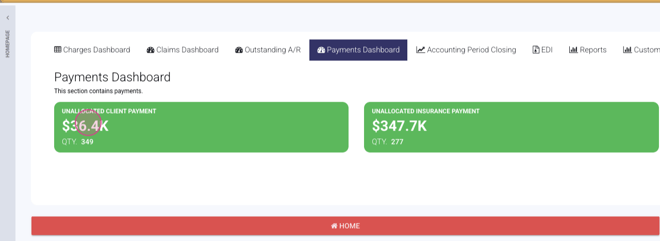
Step 4: In the payments dashboard, choose the unallocated client payment.
Step 5: Look for the charges icon in orange on the far left side of each payment entry. This icon indicates that there are charges for this payment to be allocated against.
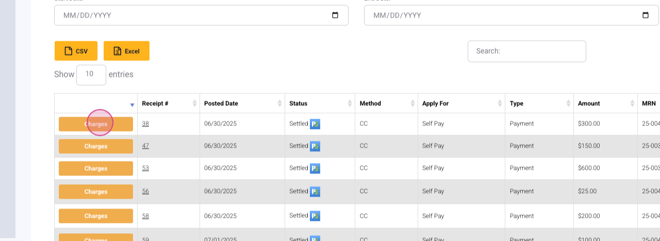
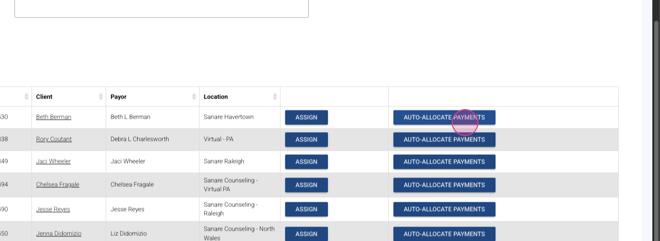
Step 6: Use the auto allocate payments button.
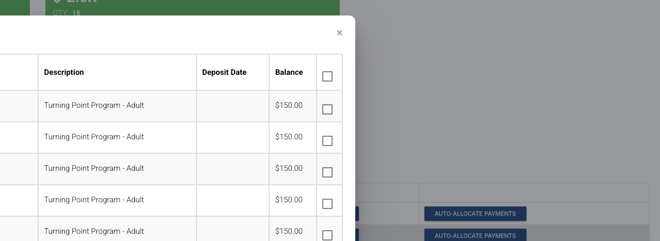
Step 7: Select all from the top of the box. This action will allocate all payments.
Step 8: Continue the process until the unallocated balance is zero.
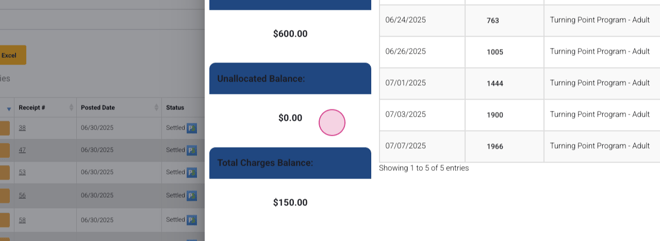
Step 9: The system will display any remaining balance due to the client.
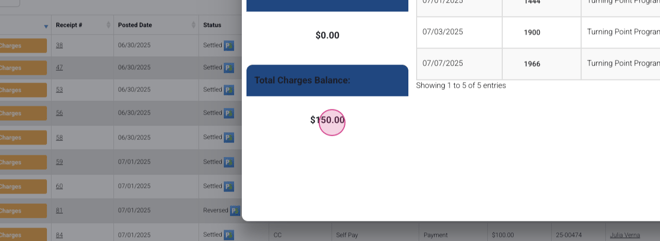
Step 10: Click on auto allocate and save.
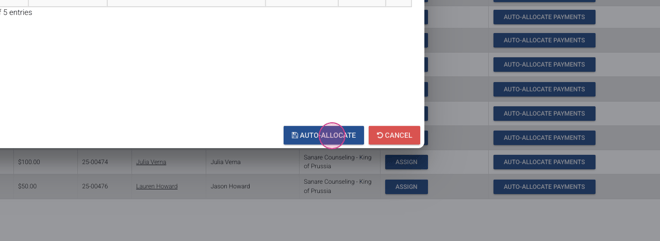
Step 11: Repeat the process for the next line.
Step 12: Now, you'll notice that some charges, particularly for credit cards, do not have a charge icon.
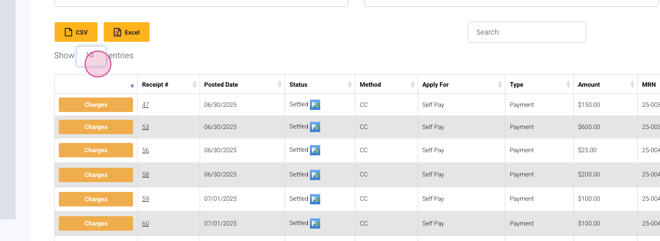
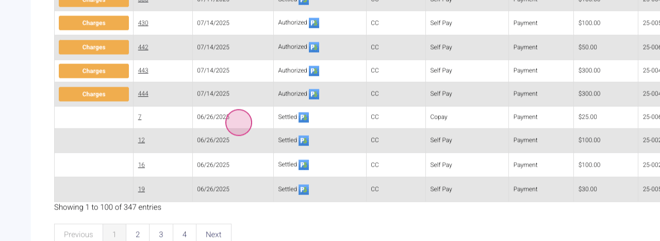
These are typically for copays and deductibles, or payments collected upfront before services are rendered or before service charges are generated, and potentially not until insurance claims adjudicate.
