
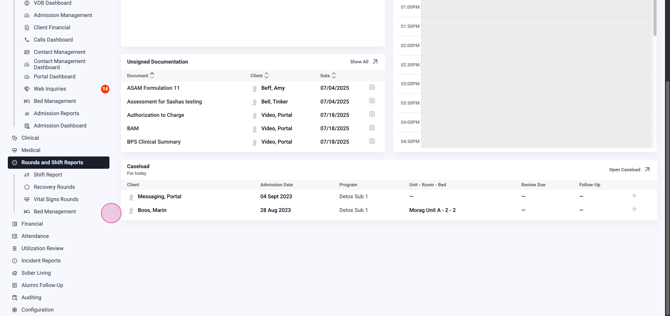
Step 1: Access the Bed Management Tool Start by opening Bed Management. You’ll locate it under either the Admissions menu, or under the Rounds and Shift Reports menu after logging in. Your access may depend on your role in Lightning Step.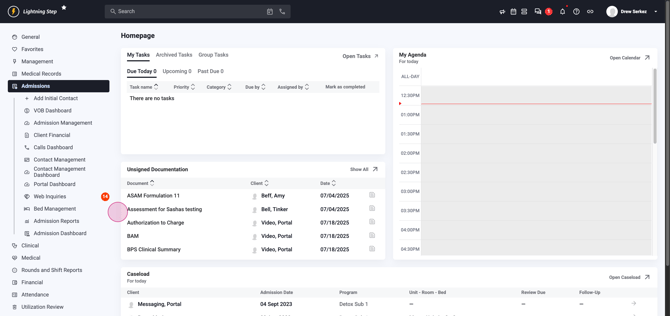
Step 2: Open the Bed Management Board Click on Bed Management to move to the bed board.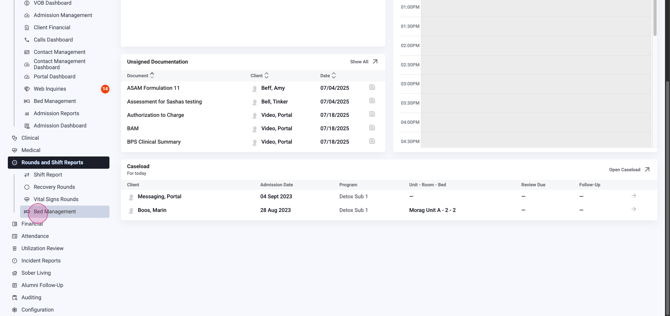
Step 3: Apply Bed Board Filters Utilize the filters for location,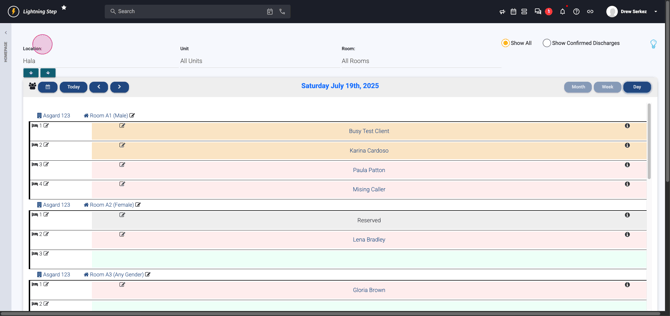 unit,
unit,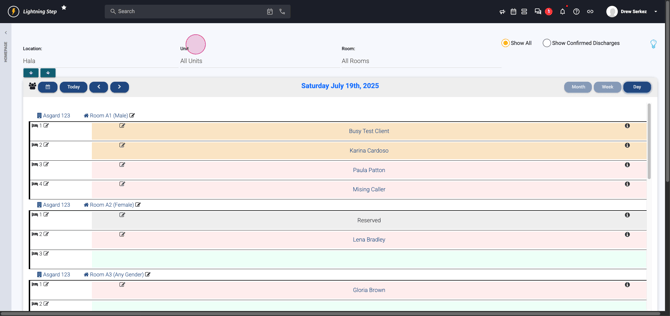 and room.
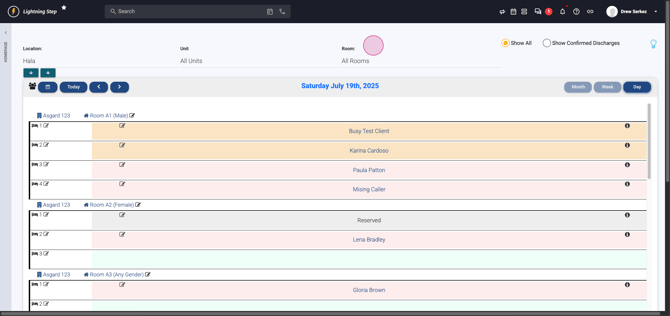 When a filter updates, the board refreshes automatically.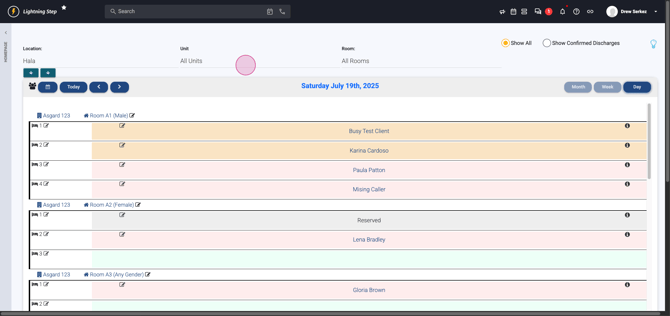
Step 4: View Bed Availability Check the expandable panel for bed availability stats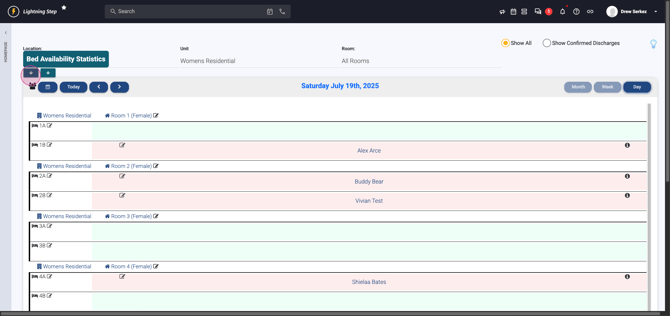 based on your active filters.
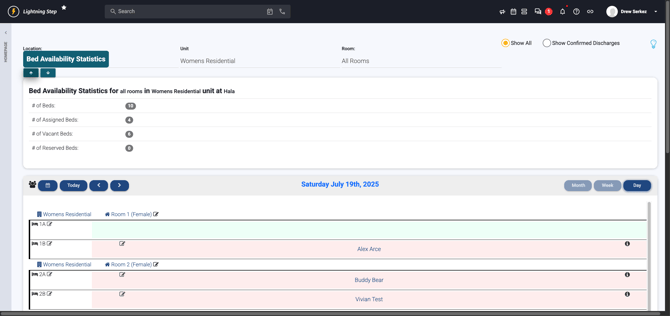 Jump to specific days using the date picker,
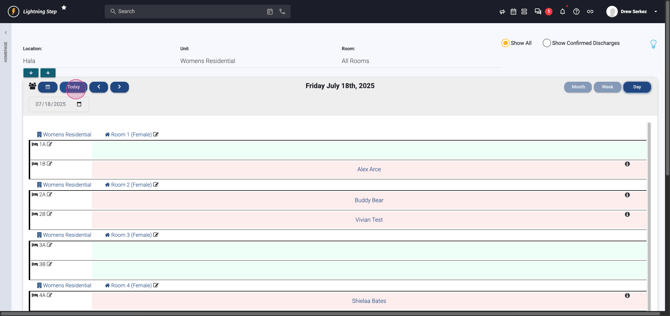
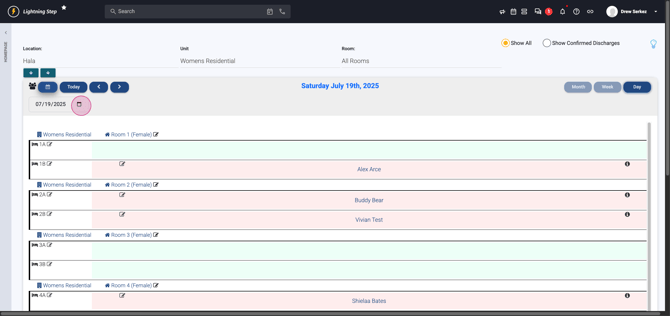 the Today button,
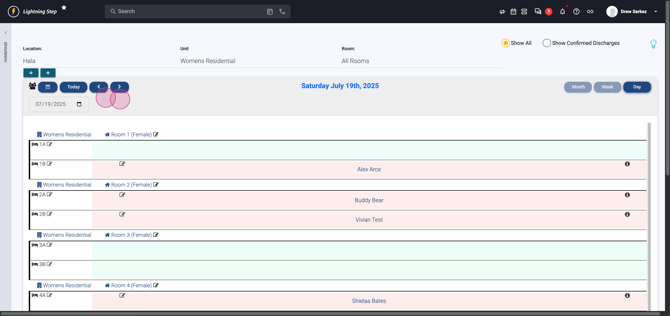
 or scroll day by day with the left and right arrows.
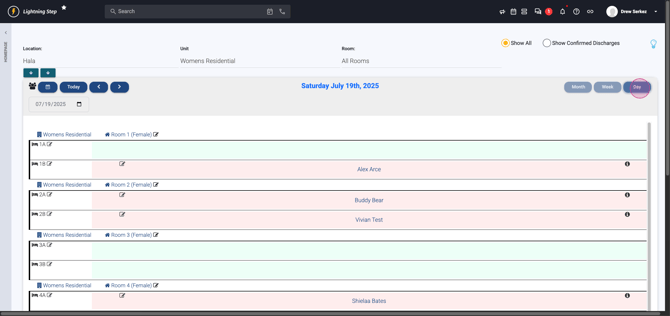
 Switch between Day View,
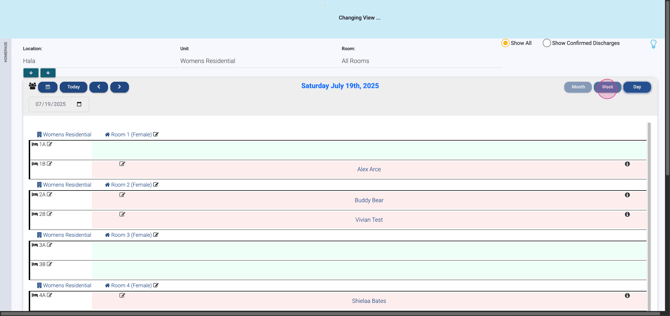
 Week View,
 or Monthly View
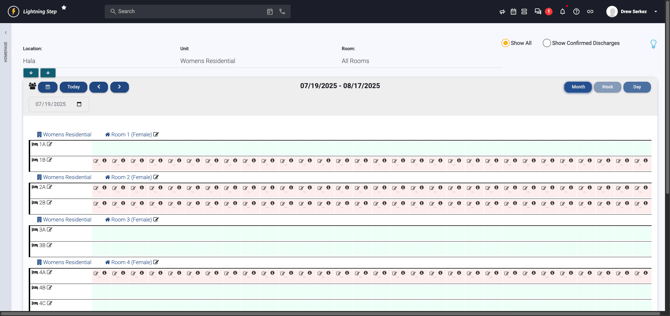 as needed.
Step 5: Assign Beds via Pop-Up Click any open cell.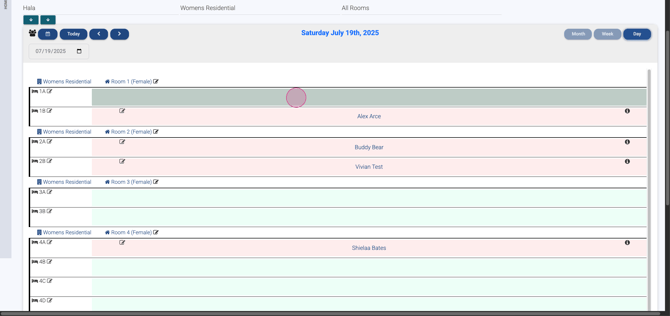 A pop-up appears where you pick assignments from a drop-down: make beds available, unavailable (cleaning or maintenance), out of service, reserved, assigned to a patient, or reserved for an inquiry.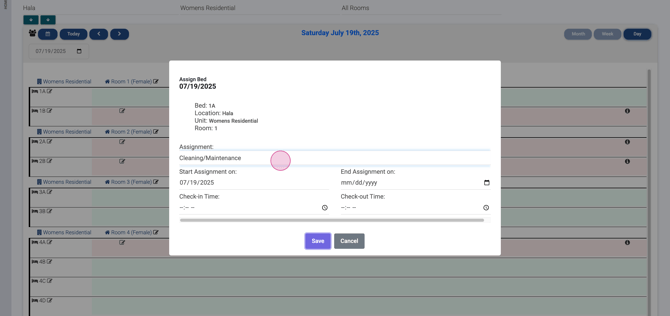
When assigning to a patient, enter the start assignment date,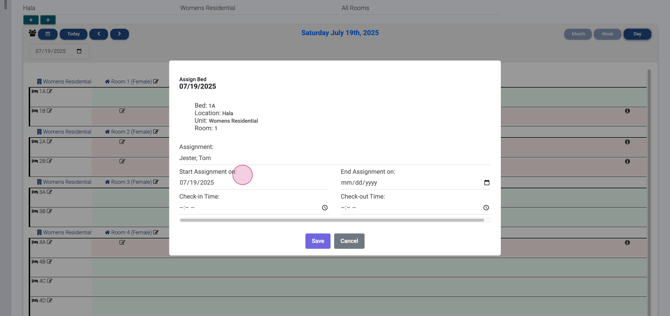 check-in time,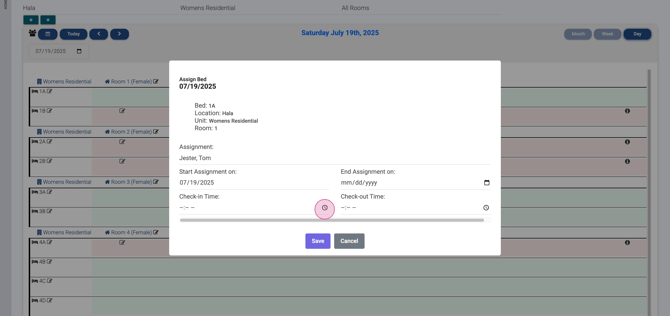
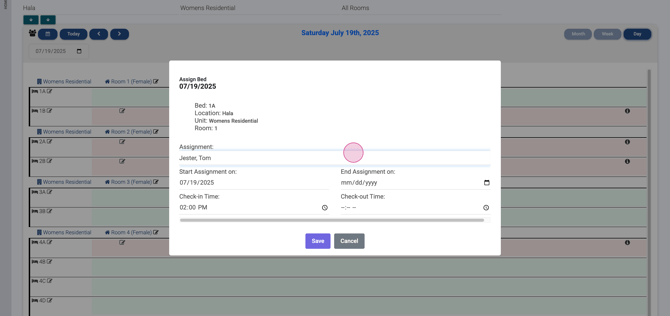 and, if you know it, the end assignment date for a finite stay.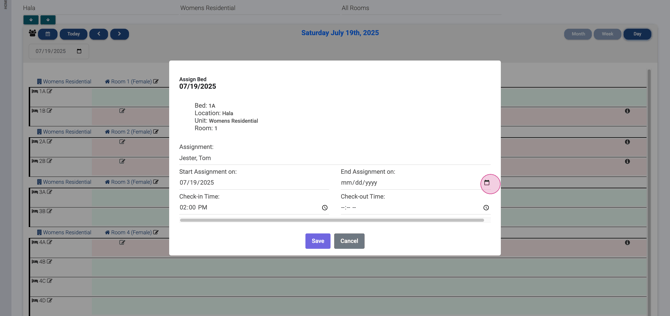
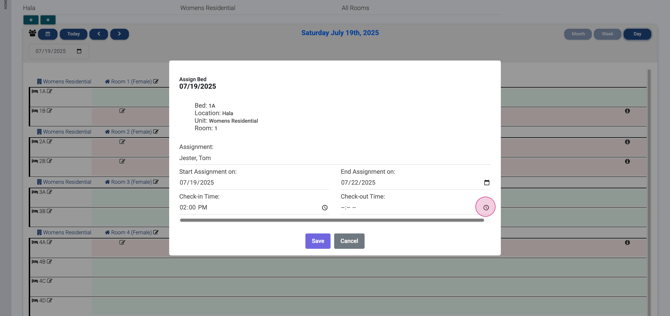 Click Save to confirm.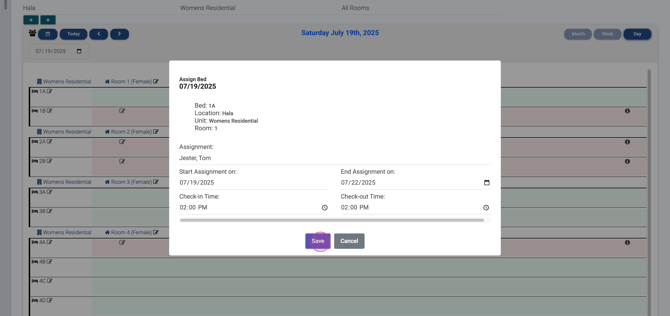
Step 6: Assign Beds via Drag and Drop To use drag and drop, click the icon just below the location filter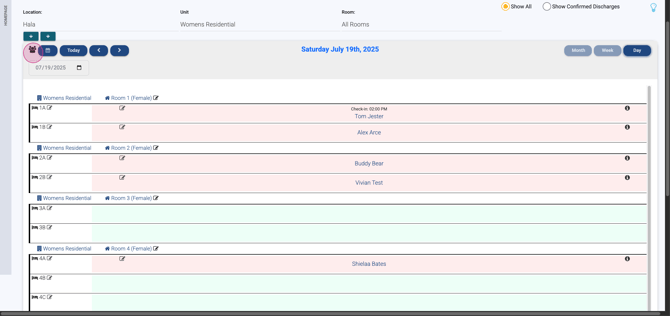 . Drag active patients or inquiries from the left panel into an open cell.
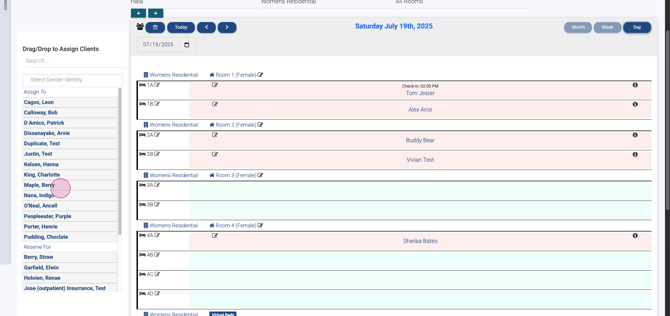 This assigns that person to a bed. Click the icon again
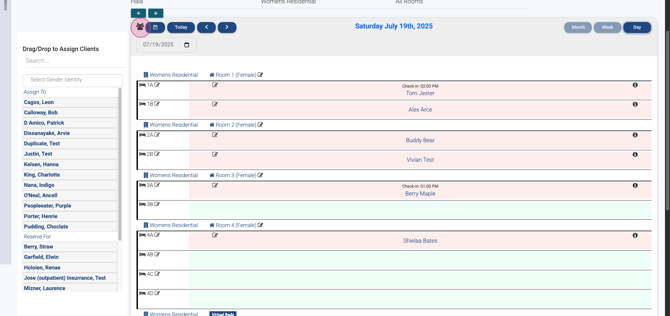 to collapse this panel.
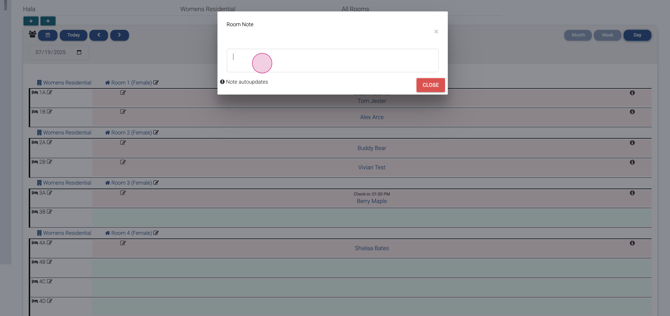
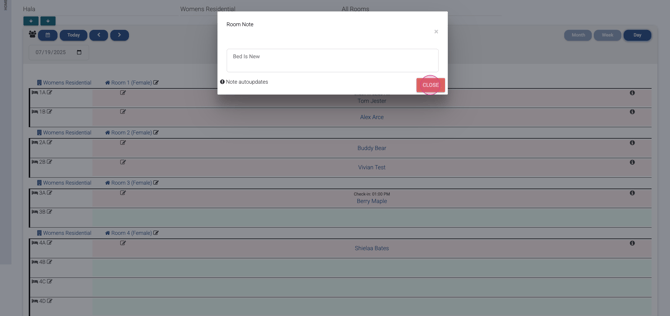
Step 7: Add Notes to Rooms or Beds Every unit allows note entry for its rooms/beds. For any entry, look for the pencil icon.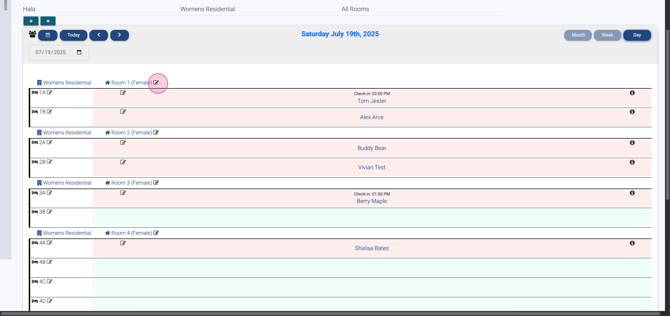 Click to open a pop-up, enter a note, and the update will display after refreshing.
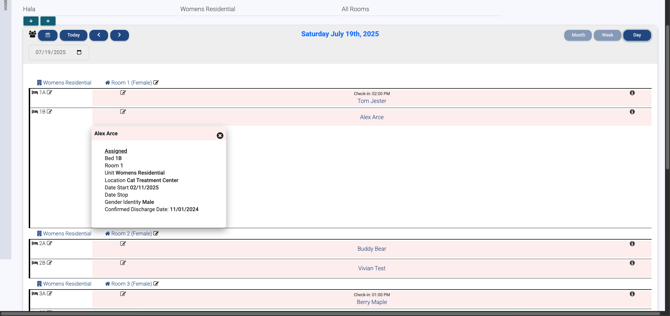
Step 8: View Details for Assigned Beds Click the 'i' icon to the right of a bed's cell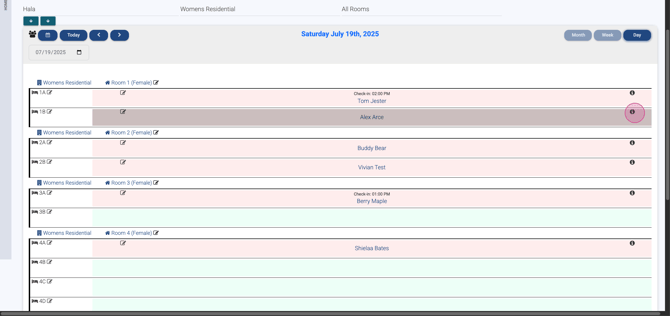 to expand client info. To close this view, hit the 'X' on the pop-up.
Step 9: Check Out or End Bed Assignment If someone needs checkout, click the pencil icon on their cell.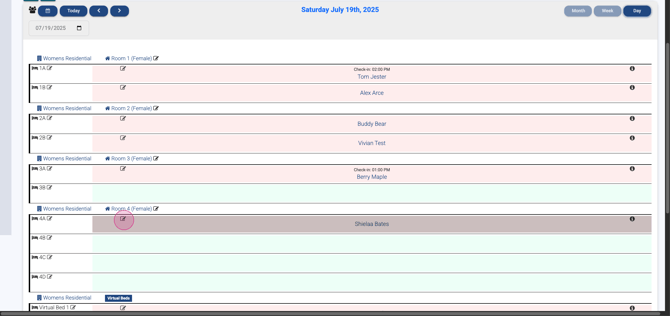 Enter an end assignment date as prompted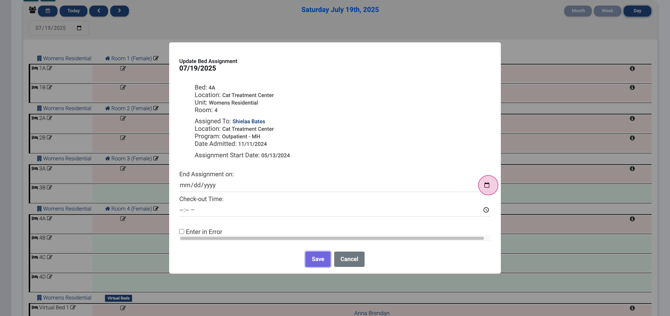
 and click Save.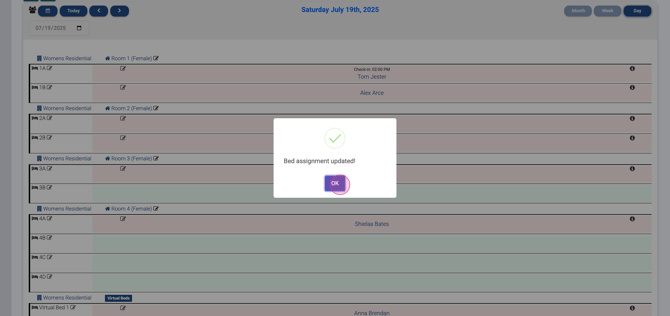
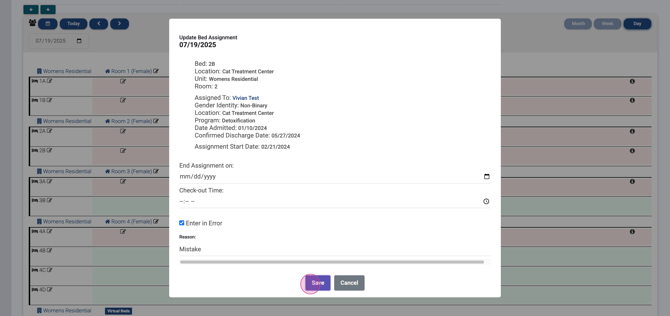
Step 10: Correct Assignment Errors To fix a mistake, use the pencil icon and pick Entered in error.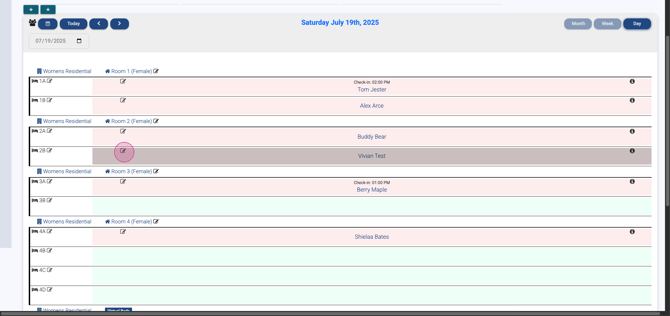
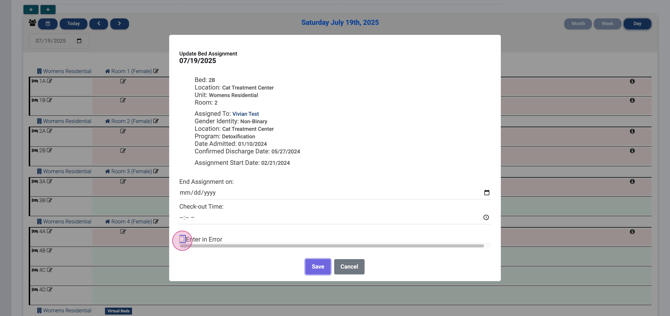 Provide a reason, click Save, and the assignment’s removed.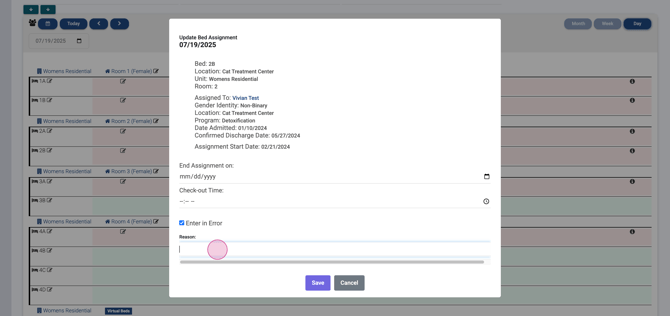
Step 11: Recognize Color Codes Refer to the color key at the bottom for quick status: 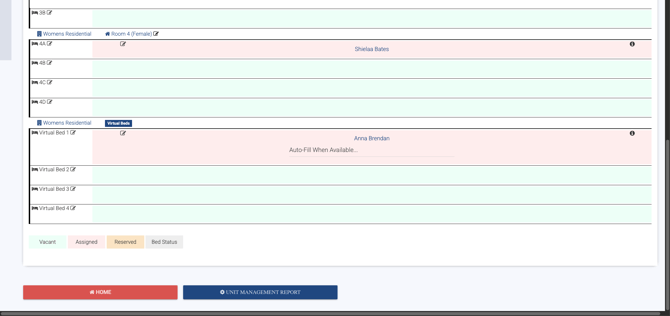 - Green: Vacant beds
- Red: Assigned beds
- Tan: Reserved beds
- Gray: Out of service, out of use, or in maintenance
Step 12: Access Reports & Exit At the bottom, find the Unit Management report.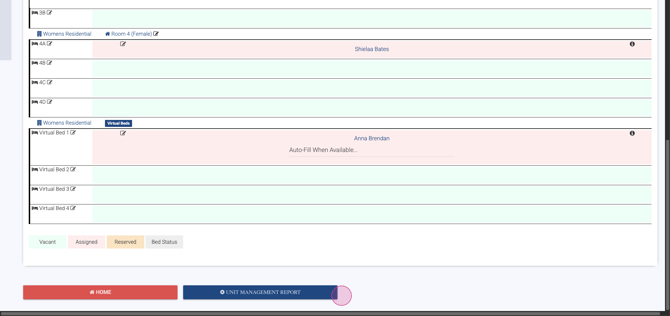 Click the red Home button to exit Bed Management.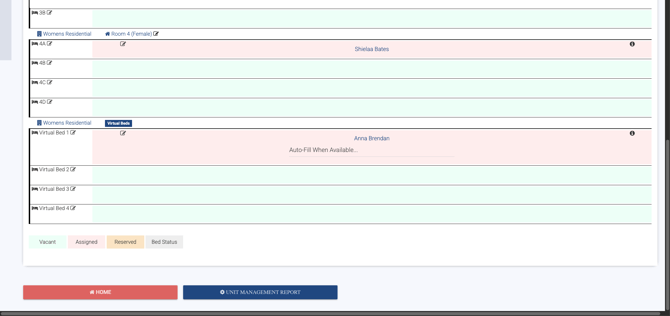
You're now ready to efficiently manage beds and patient assignments with Lightning Step!
