
Step 1: From the home screen, go to the Calendar.
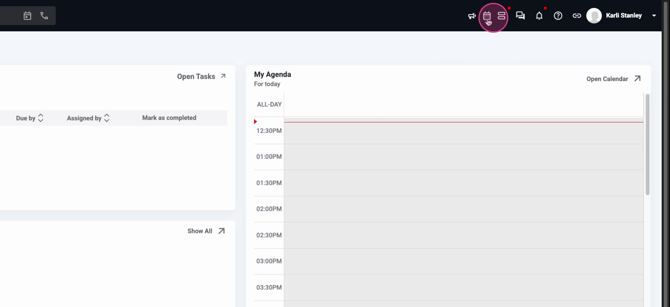
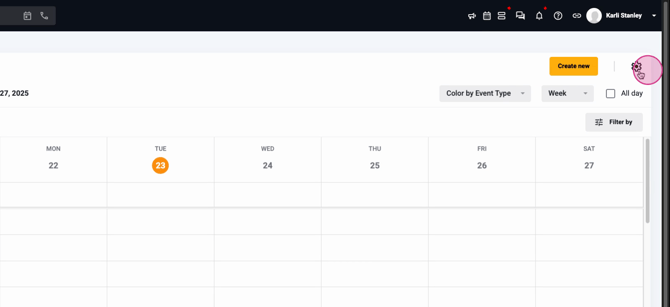
Step 2: Click the Settings icon.
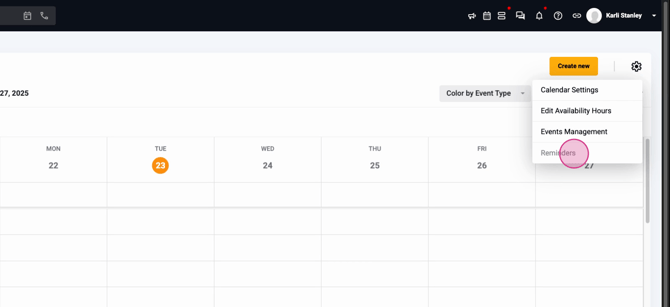
Step 3: Select Reminders.
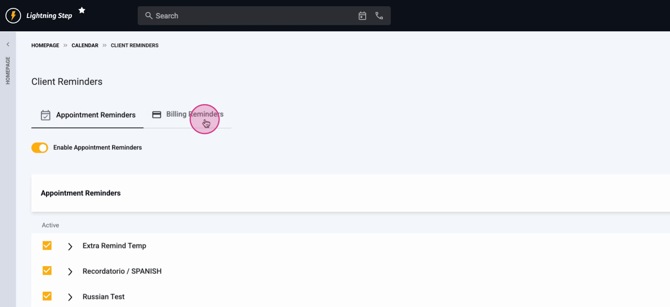
Step 4: Open the Billing Reminders tab.
Step 5: Turn on the toggle labeled Enable Billing Reminders.
Step 6: Expand the Default Template container. Add your custom billing reminder text. Preview how the message will look to clients on the right.
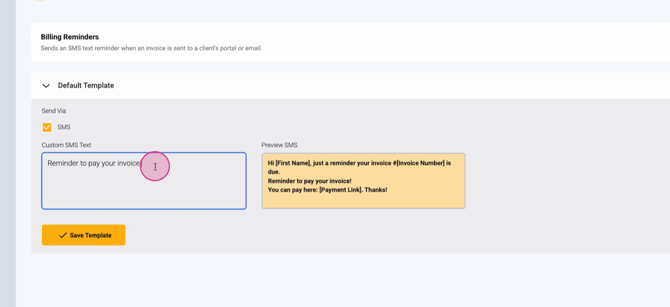
Clients will always see their first name, invoice number, your custom message, and a secure payment link in the SMS.
Step 7: Click Save to store your template.
Step 8: Once enabled, billing reminders are active for your practice.
Step 9: Visit a client’s account profile. You’ll see a toggle for billing reminders on each individual profile.
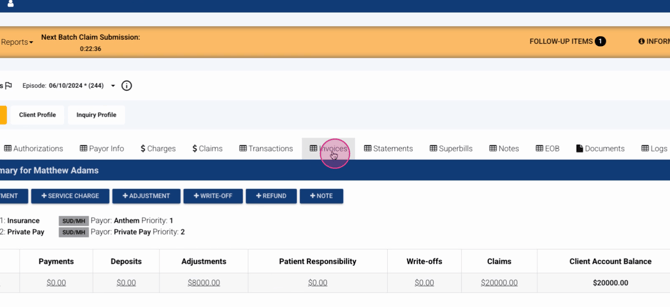
Step 10: Use this setting to keep billing reminders enabled practice-wide, but turn them off for specific clients as needed.
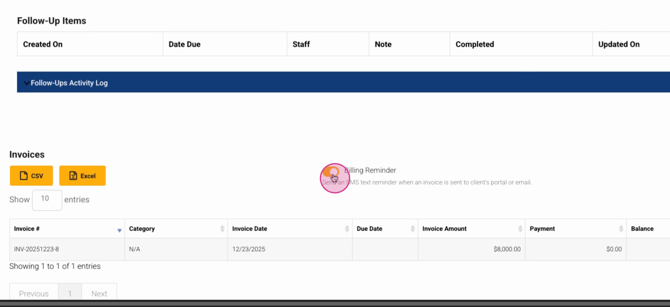
If a client opts out of SMS reminders, the toggle will automatically disable itself and can’t be manually re-enabled.
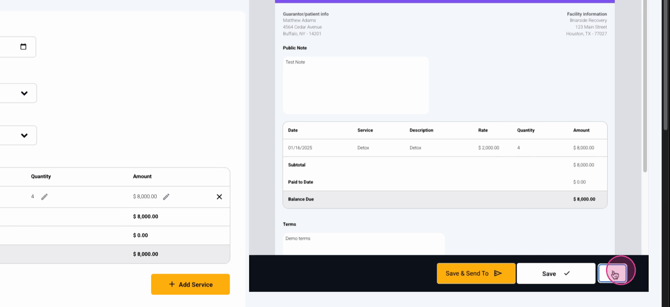
Step 11: When you send an invoice, SMS logs appear on each invoice record. Review when each reminder was sent, the recipient, their number, whether they’ve clicked the link, and the status of the reminder.
Billing reminders help practices avoid missed payments and keep clients informed. For more detail, consult your internal documentation or reach out to support.
