
Step 1: Open the Clinical Menu Select the Clinical menu.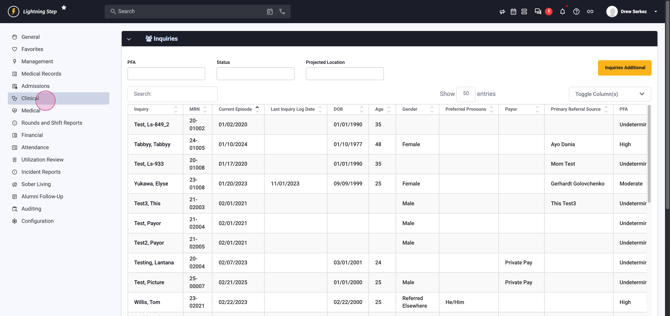
Step 2: Access the Case Management Dashboard Choose Case Management Dashboard from the submenu.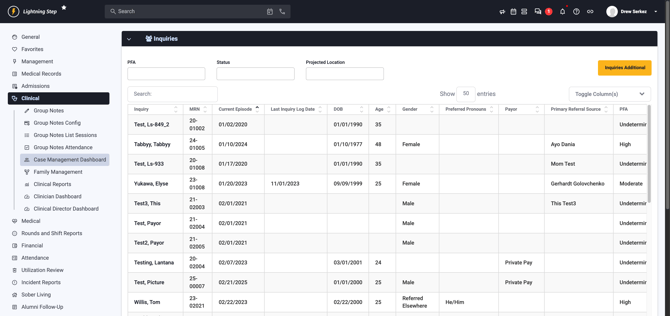
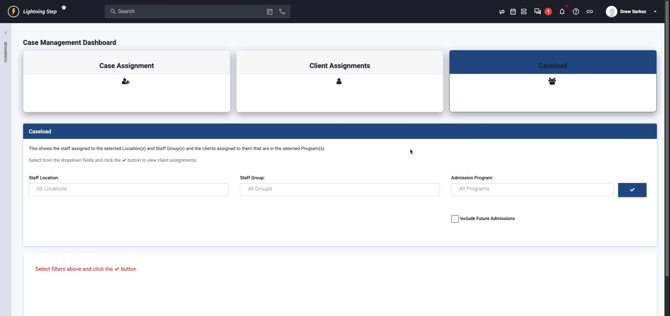
Step 3: Review Dashboard Layout The dashboard includes three main tools: - Case Assignment - Case Assignments - Caseload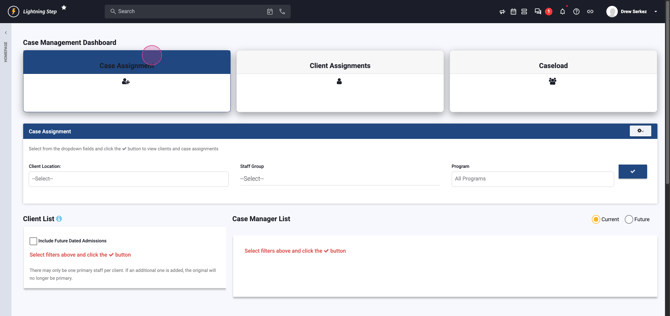
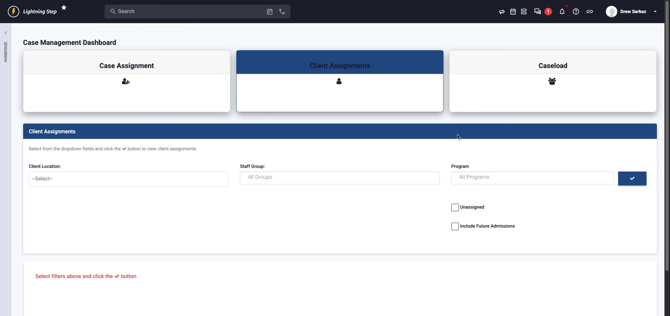
Step 4: Use Case Assignment for Assigning Cases In the Case Assignment section, pick a location and staff group.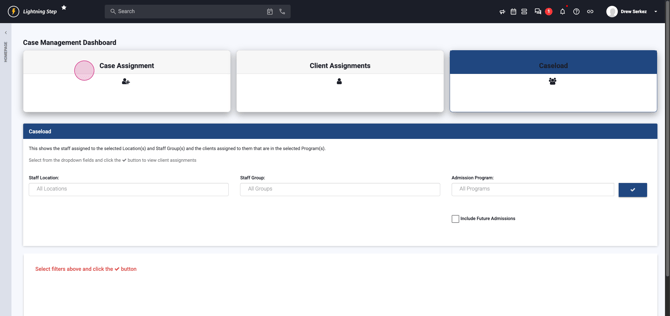 Choose from available locations and staff groups. For example, select counselor.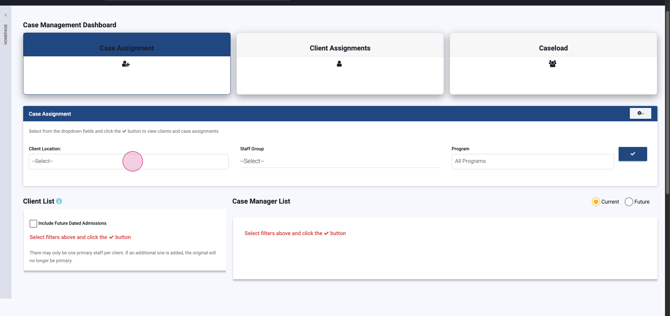
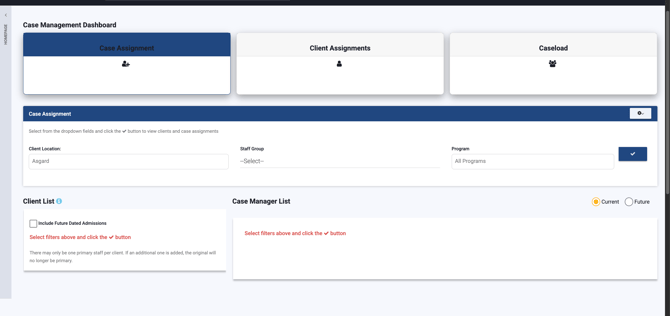
Step 5: Filter by Program Pick a program using the program filter.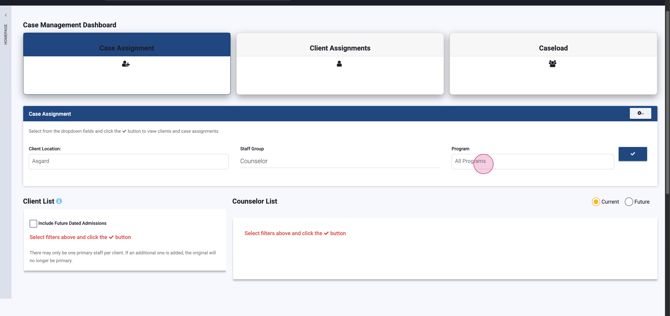
Step 6: Display the Assignment Table Click the check button to view the list of clients and counselors.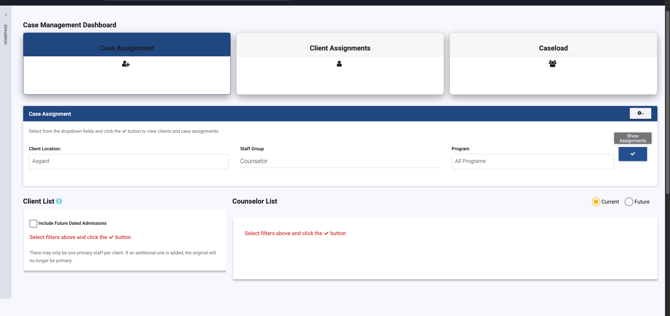 The resulting table lets you see clients and which counselor each is assigned to.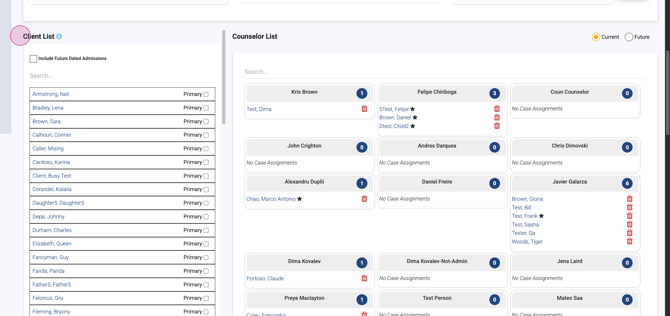
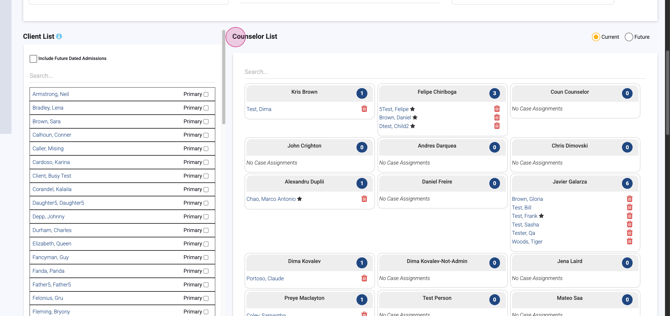
Step 7: Assign Clients to Counselors Assign a caseload by dragging a client from the list and dropping them onto a counselor’s cell.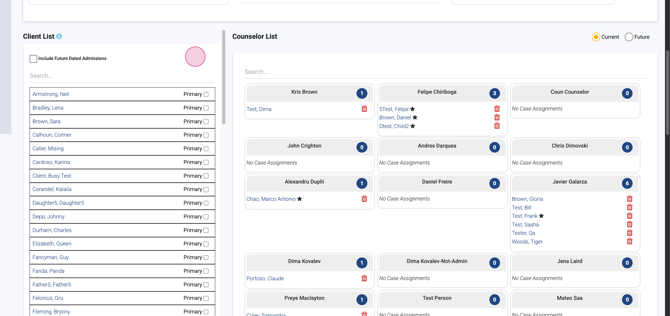 If the assignment is primary, tick the Primary checkbox for that client before dragging.
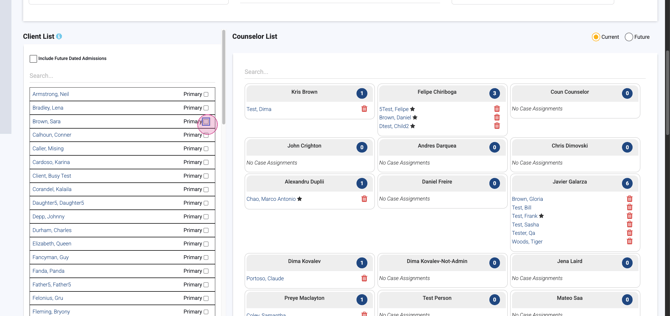 Drop the name in the counselor’s cell area.
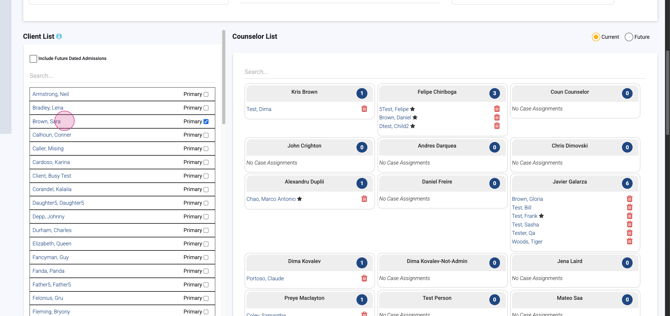 A pop-up will appear confirming the assignment. This drag-and-drop feature is ideal for quickly managing multiple clients or large teams.
Step 8: Include Future-Dated Admissions (Optional) You can choose to include clients with future admission dates.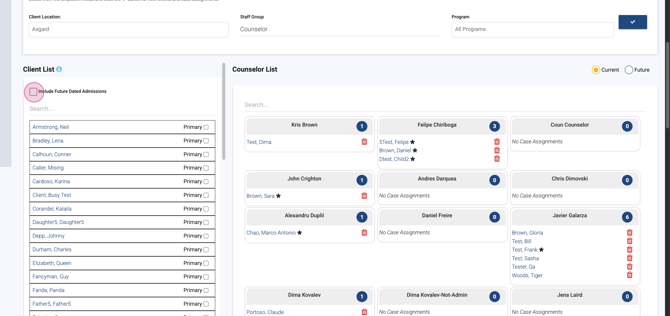
Step 9: Use Case Assignments to View All Active Assignments Switch to the Case Assignments tool to see every case assignment in a spreadsheet format.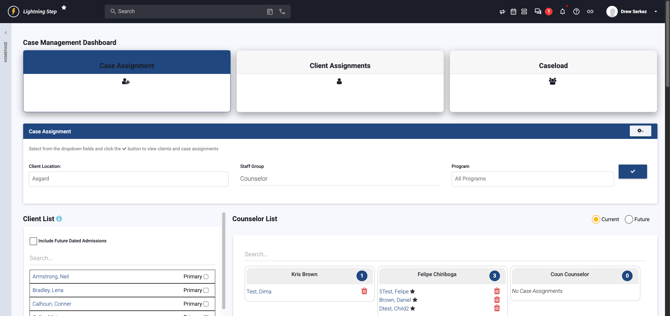 Select a location, staff group, and desired program to filter results.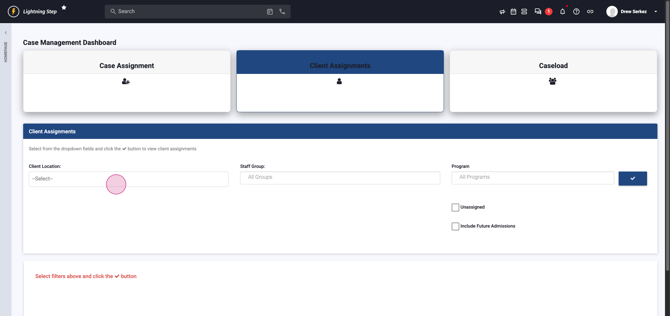
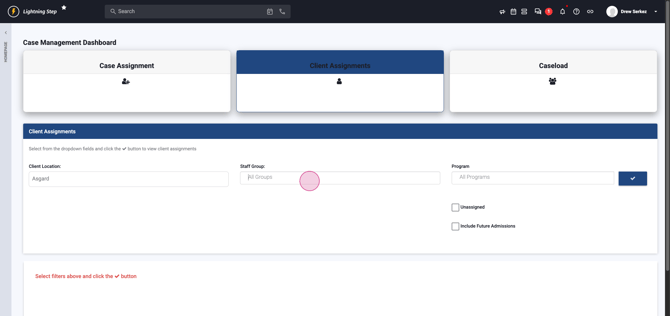
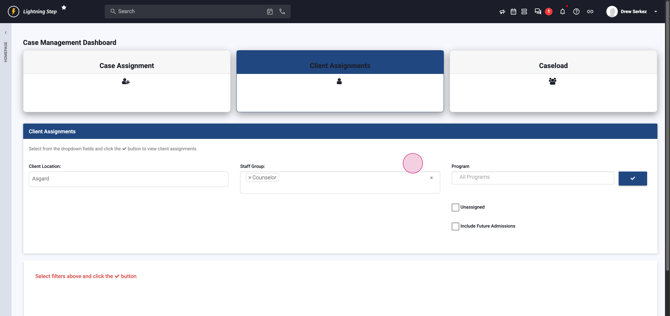 Staff groups and programs support multi-selection.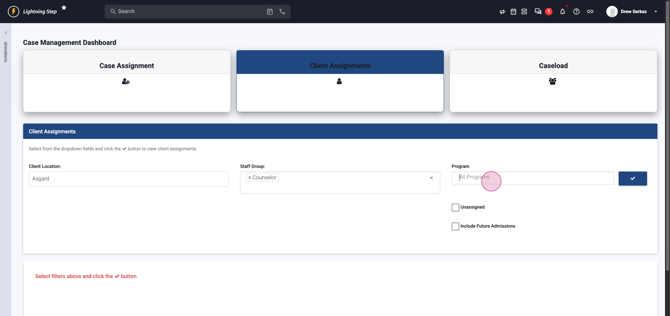
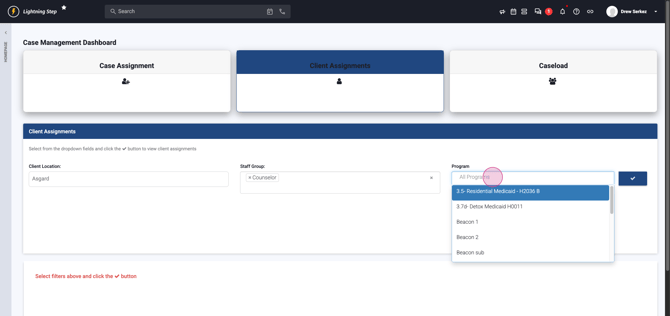 Leaving a section unselected displays all options. Click the blue check button to load assignment data.
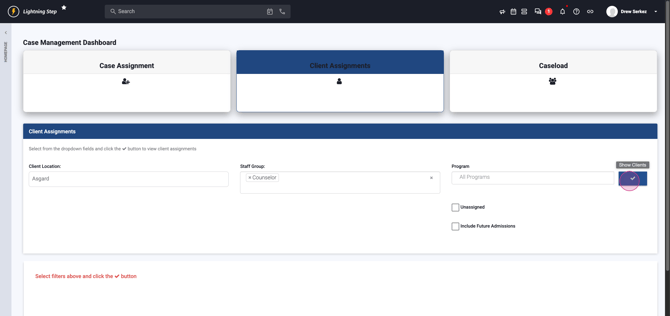 The table includes patient names, counselors, admission dates, locations, and programs.
Step 10: Use Caseload to Review Staff Assignments Use the Caseload section to see staff assigned to specific locations and groups along with their current caseloads.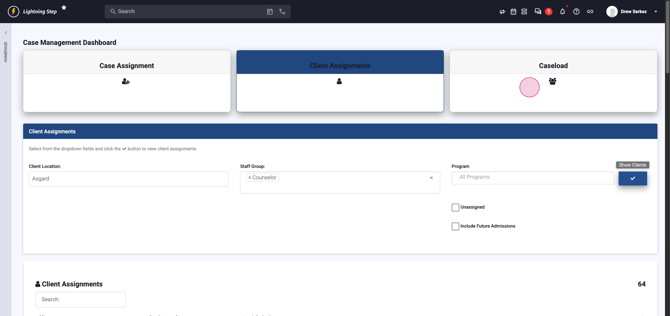 Choose a location, staff group, and a program.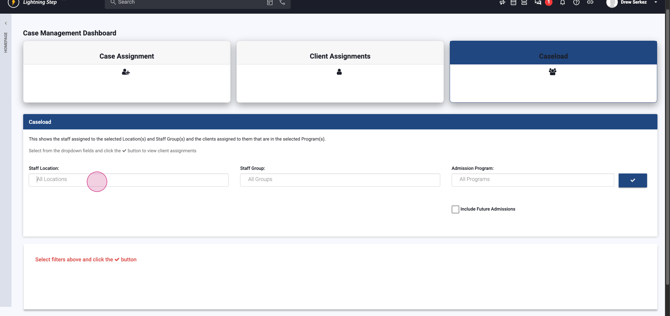
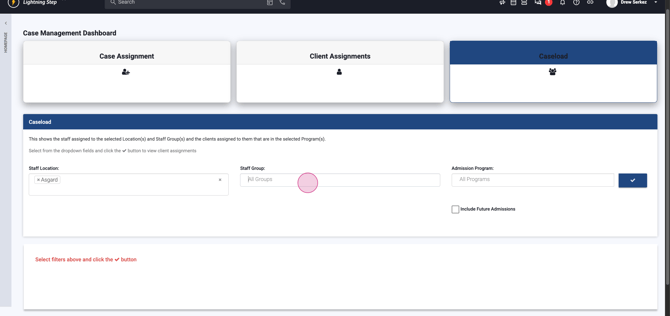
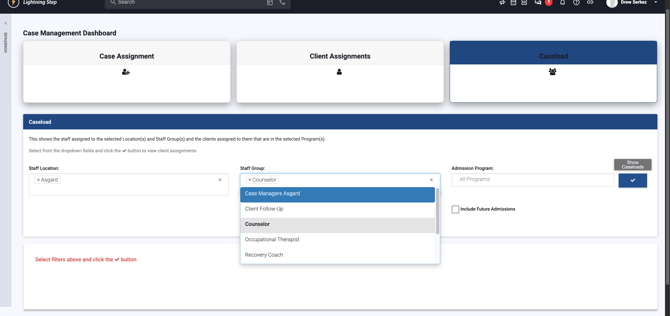
Select the checkbox to display caseloads for your selections. This view helps when staff have caseloads across multiple groups.
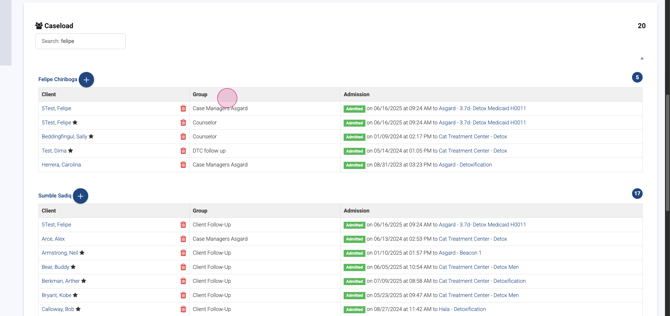
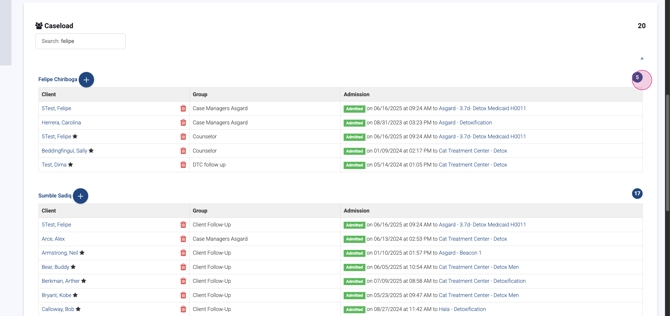
Step 11: View Caseload Breakdown For example, Felipe is assigned to several groups: case managers, counselors, and follow-ups.
Browse the columns to see client names, assigned group, and admission info.
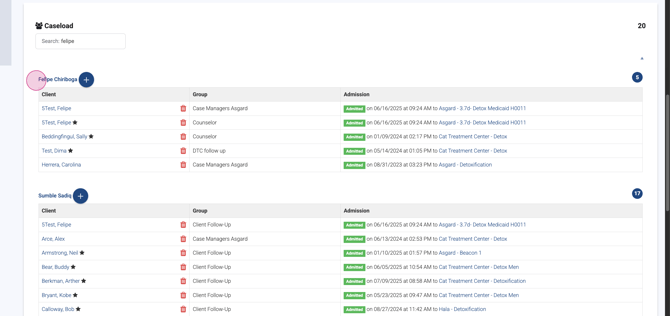
Find the total assignment count at the top right of each staff table.
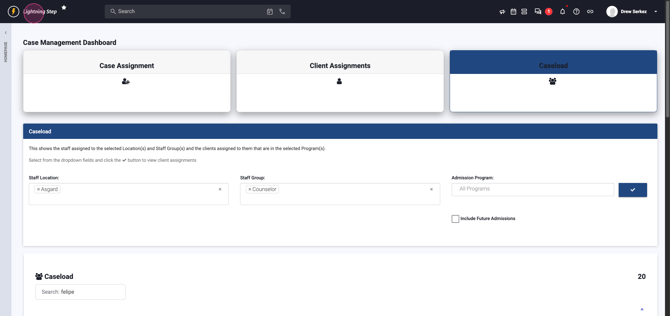
Step 12: Exit the Dashboard To leave the Case Management Dashboard and return home, click the lightning step icon.
You’ve now learned the main steps for assigning and managing cases and caseloads using the Case Management Dashboard.
