
Navigating to the Charges Dashboard
Step 1: Open the Navigation menu and select Financial, then choose Financial Dashboard.
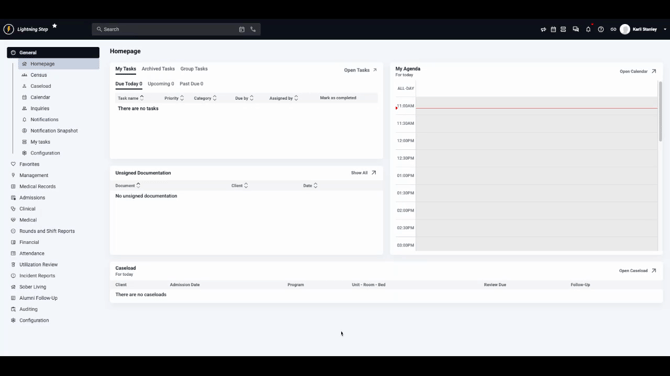
Step 2: Click the Charges Dashboard tab to access its features.
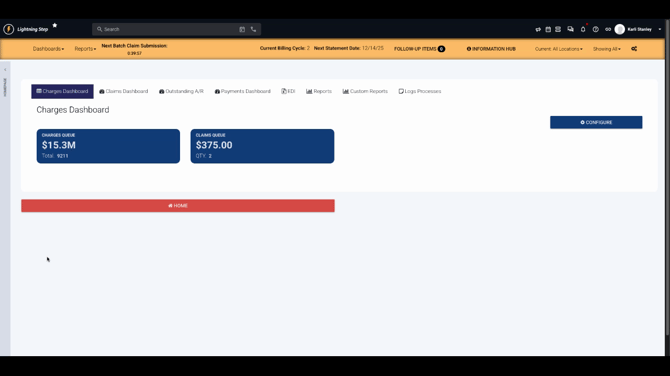
The Charges Dashboard has two main sections: the Charges Queue and the Claims Queue.
Working with the Charges Queue
This section lists unbilled charges that the system has generated automatically from census, attendance, or signed documentation. These aren’t official charges yet; review them before approval.
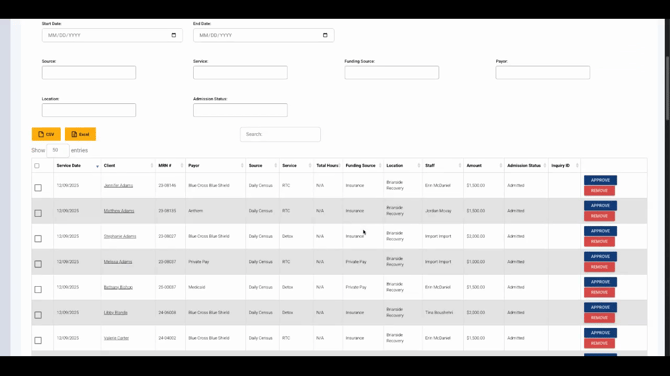
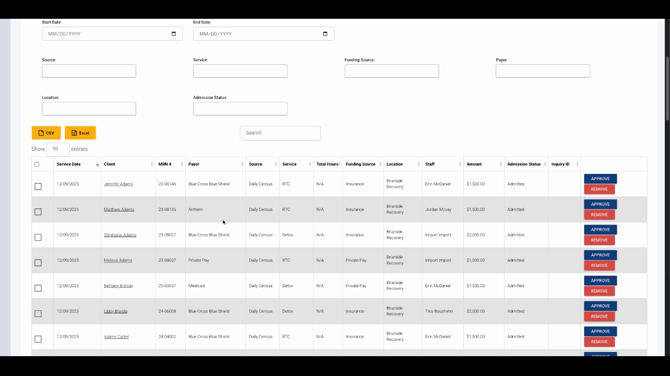
Step 1: Filter the Charges Queue using available fields like Service Date, Source Service, Payer Location, and others. Use filters to help your team focus on relevant data before approving charges.
Step 2: To remove an individual charge, click the Remove button next to the charge.
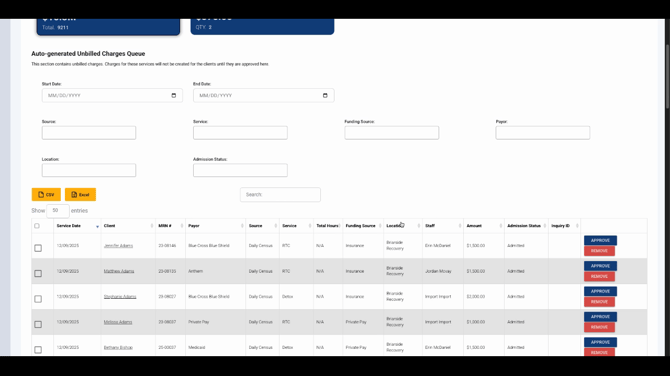
Step 3: To remove multiple charges, select them and use Remove Selected User.
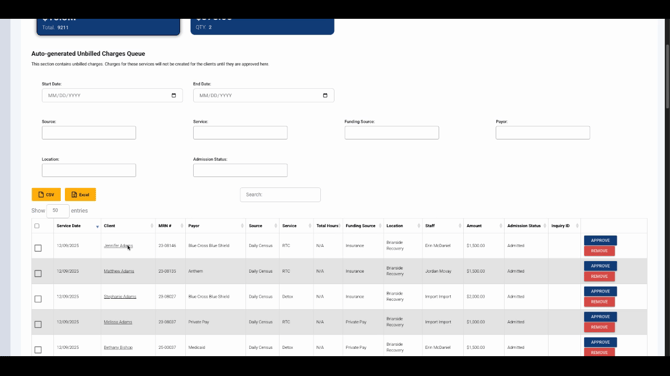
Step 4: If you don’t see the bulk remove option, click the gear icon at the top right. Ensure Show Delete selected is enabled.
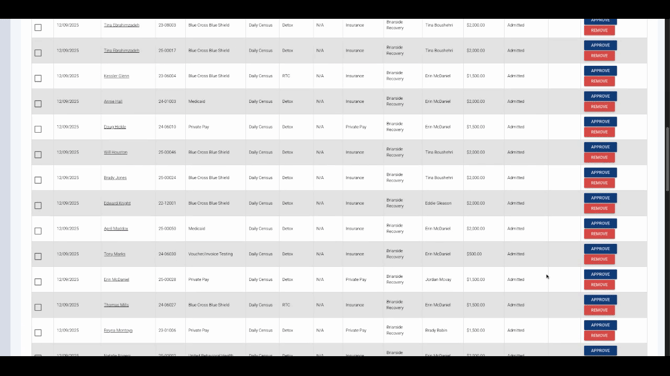
Important: Charge removal is permanent. If a charge is deleted by mistake, contact support for assistance.
Step 5: Approve charges one at a time using the Approve button in each row.
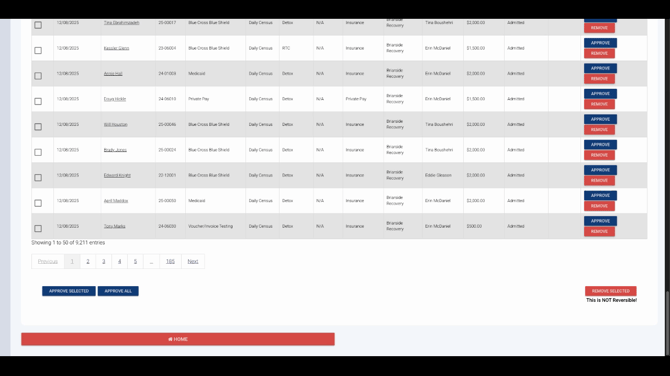
Step 6: For group approval, check the boxes for multiple charges, scroll down, and click Approve Selected to process them together.
During approval, items may display as "processing." Once approved, charges disappear from the Charges Dashboard.
-
Private pay charges move to the client's account profile.
-
Insurance charges transfer to the Claims Queue.
Managing the Claims Queue
The Claims Queue contains insurance charges that are approved but haven’t been assigned to claims yet. You’ll find similar filters and layout as in the Charges Queue, with added billing details for claim processing.
Step 1: Review charge details—authorization, billing code, rate, and expected revenue—to check readiness for claims.
Step 2: To generate a claim for a single item, click the Create Claim button.
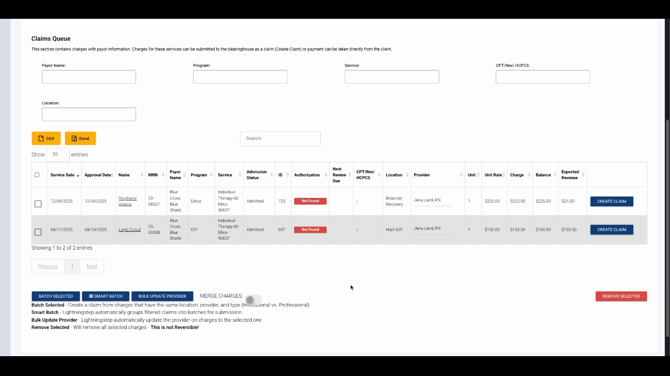
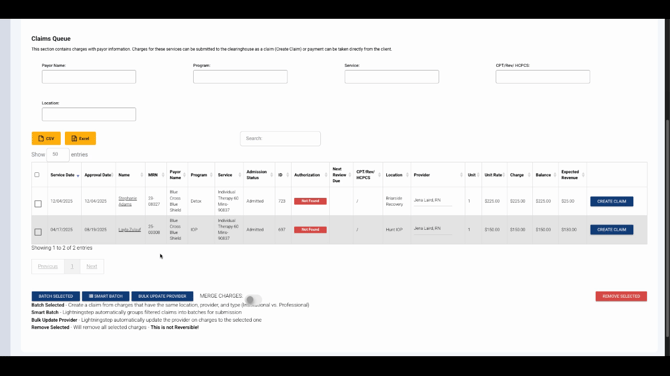
Step 3: For multiple charges, select them and use Batch Selected or smartbatch:
-
Batch Selected: Groups only the checked charges.
-
Smartbatch: Groups all charges meeting the filter criteria, whether checked or not.
Once claims are created, those entries disappear from the Claims Queue and move to the Claims Dashboard.
Step 4: Use other bulk actions as needed—update the provider for multiple charges, merge charges for combined claim lines, or bulk remove charges using Remove Selected.
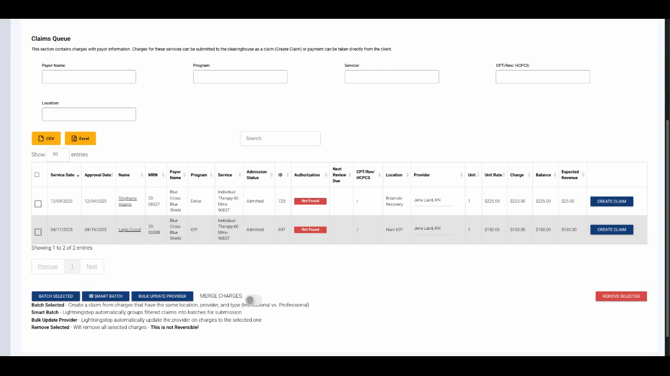
If you remove charges from the Claims Queue, they’ll reappear in the Charges Queue for review.
Conclusion
The Charges Dashboard gives your team precise control over unbilled services and efficient claim creation. Review, filter, and manage charges with care to keep billing accurate and timely. For advanced details or troubleshooting, check your internal documentation or reach out to the support team.
