
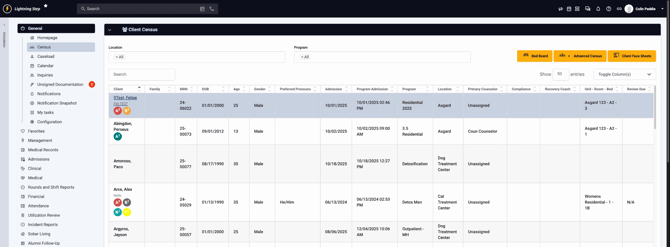
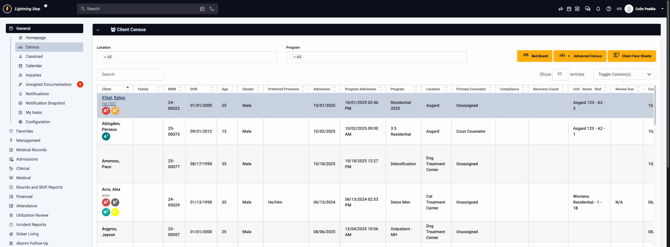
Step 1: From the main census, find the client you want to update and click their name to open their profile.
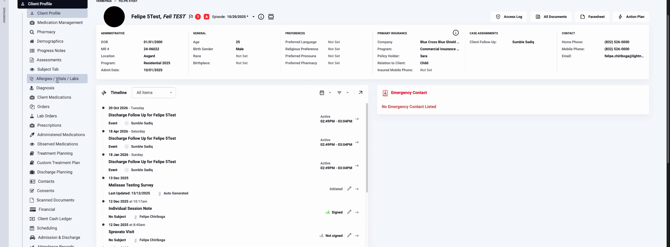
Step 2: Scroll down to the Allergies, Vitals, and Labs section.
Step 3: Click the Allergies, Vitals, and Labs tab to expand it.
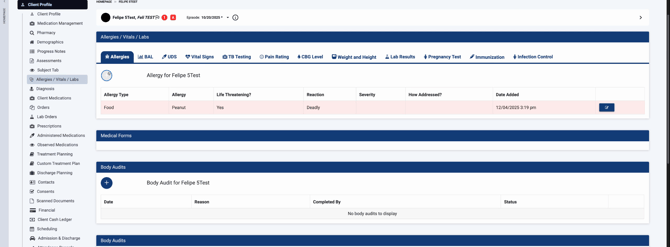
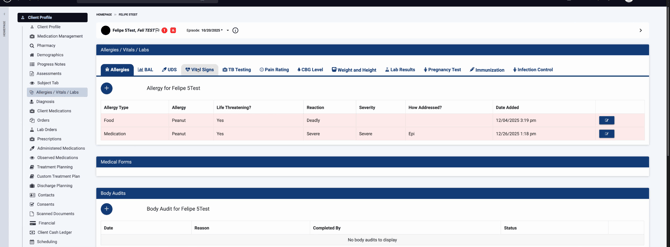
Step 4: Under Allergies, select the Allergies button to bring up the allergies chart.

Step 5: Click the plus (+) icon to add a new allergy.
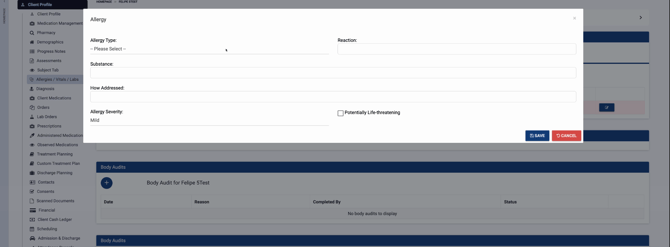
Step 6: Fill in the allergy details:
-
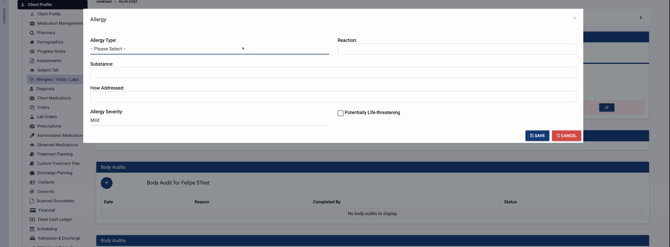
Choose the allergy from the dropdown menus provided.
-
If needed, adjust configurable fields to match the organization’s requirements.
-
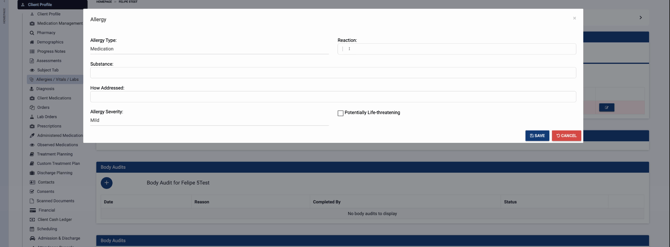
Select the reaction severity.
-
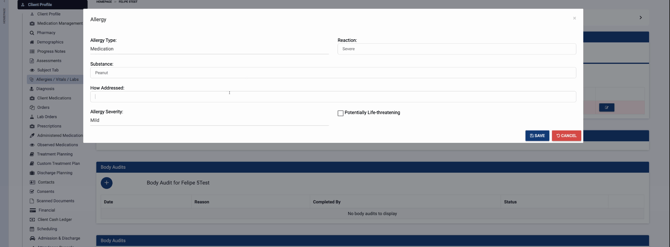
Type the substance, such as “peanut”.

-
Add how the allergy was addressed.
-
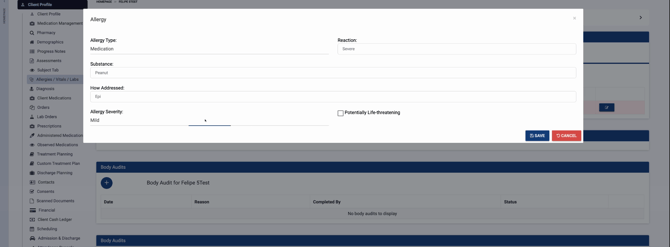
Pick the severity of the allergy.
-
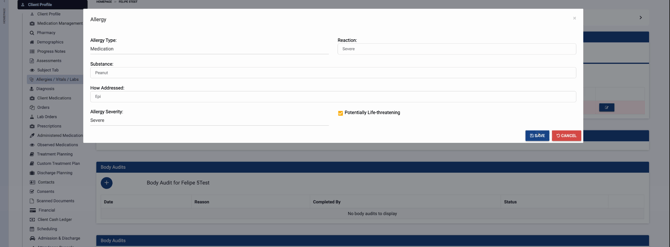
If the allergy is potentially life-threatening, check the corresponding box.
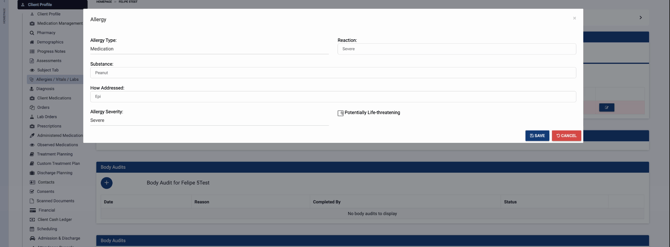
Step 7: Save your entry by clicking Save.
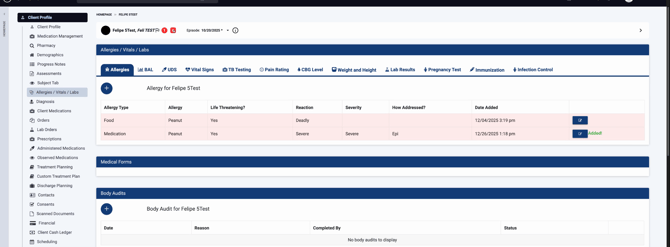
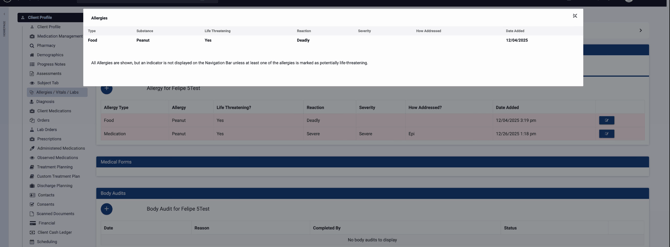
Step 8: Confirm the allergy now appears in the client’s chart, indicated by the “A” icon.
Charting Vital Signs
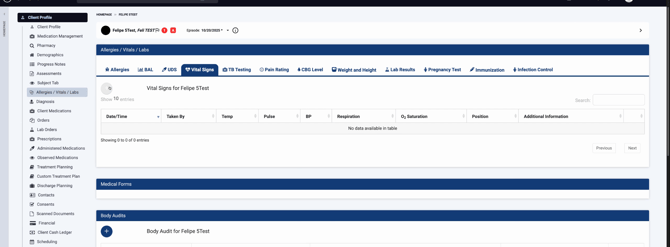
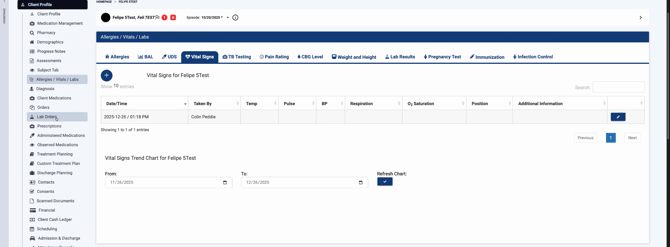
Step 1: Click the Vital Signs tab.
Step 2: Select the plus (+) icon to input new vital signs.
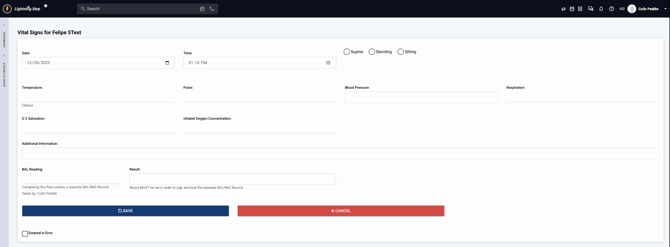
Step 3: Complete the vital signs fields as appropriate.
Step 4: If needed, remember that when you create medication orders, it’s possible to require a vital signs check at the time of medication administration. This ensures you can record vital signs while administering a medication.
Adding Lab Orders & Viewing Lab Results
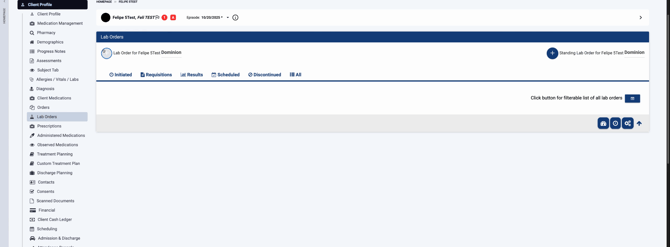
Step 1: Open the Lab Orders section.
Step 2: Click the plus (+) icon to add a new lab order for the client.
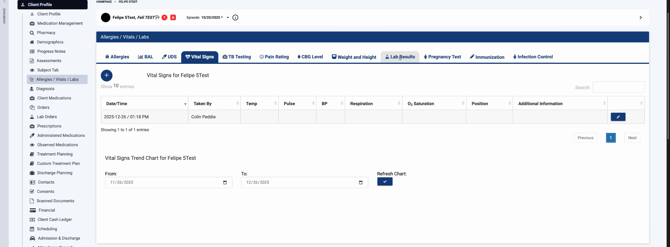
Step 3: When results are available, return to the client’s profile and look for the Lab Results bar at the top of the Allergies, Vitals, and Labs tab. Lab results display here.
Accurate allergy, vital, and lab documentation supports safe care and enhances every client’s record. If you have questions or need further help, see your organization’s documentation or reach out to support.
