Accessing Client Profiles
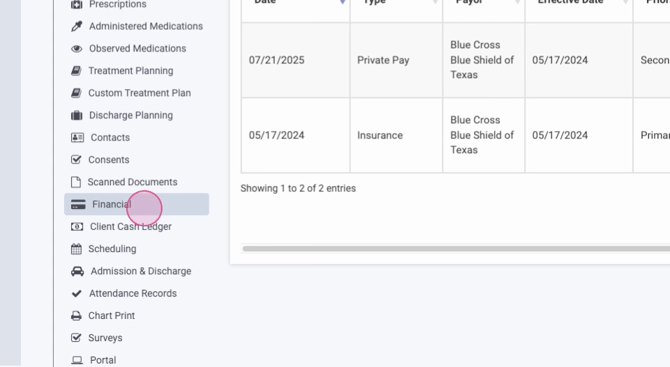
To get started, locate the client's financial information by opening their profile. Access the Financial tab in the Client Profile, Inquiry Profile, or Account Profile, where you can manage client payment records.
Creating or Editing Invoices
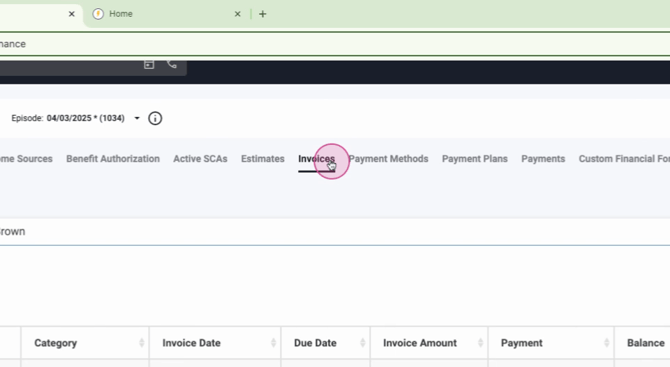
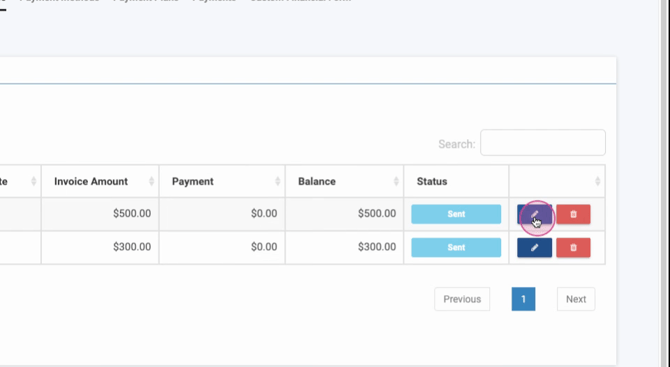
From the client's Financial tab, either create a new invoice or edit an existing one. This ensures the record reflects all billable services before you move on to payment collection.
Step 1: Choose Create Invoice or select an existing invoice to modify.
Configuring Invoice Details
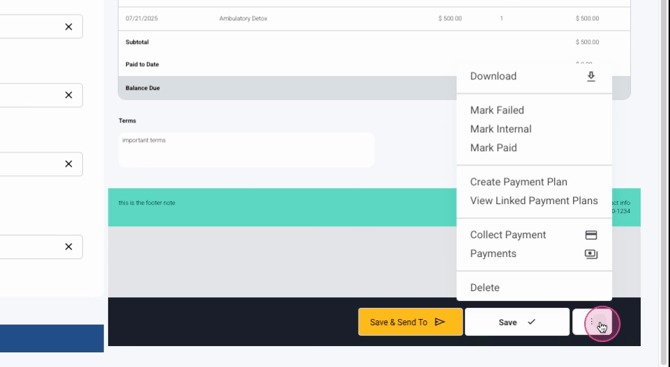
After selecting or creating the invoice, configure all necessary details. Specify the location, choose a payment type, apply any discounts, and add the relevant services.
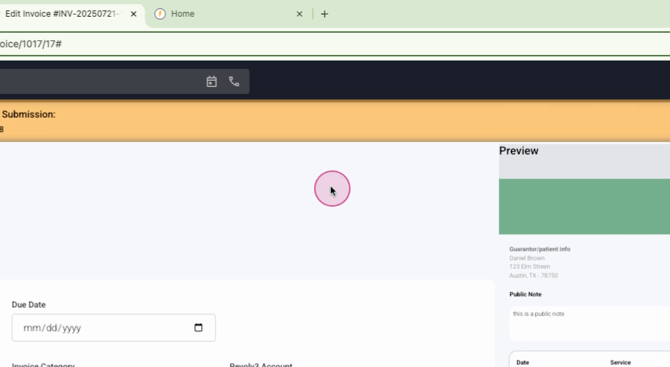
Step 2: Adjust invoice settings, review the line items, and click Save when finished.
Collecting Payment
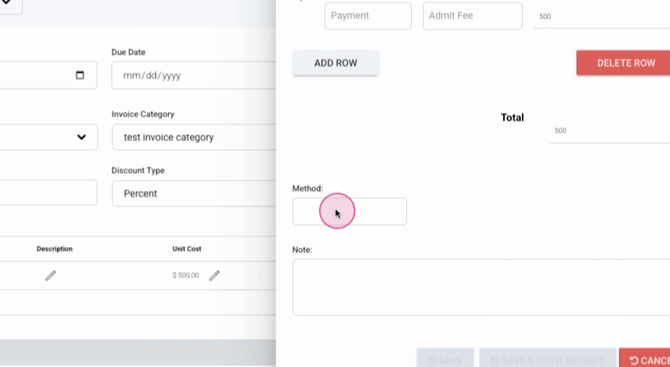
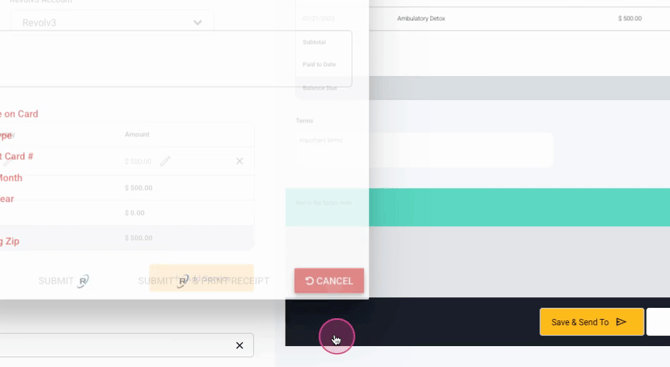
With invoice details set, collect the payment directly or set up payment options. Enter the patient's name, select a payment method (credit card or ACH), or store card details on file for future use.
Step 3: Enter payment information and choose options such as storing the card on file or using a saved card as default.
Sending the Invoice
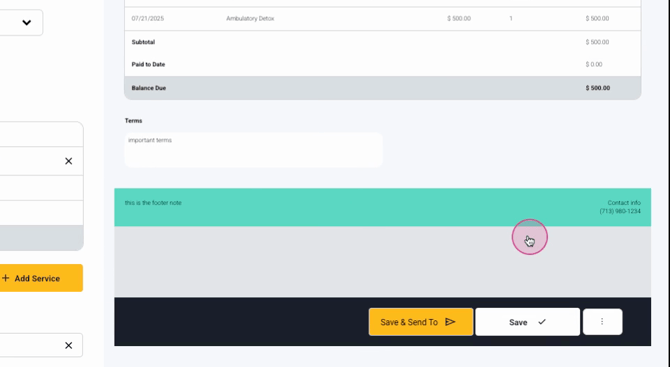
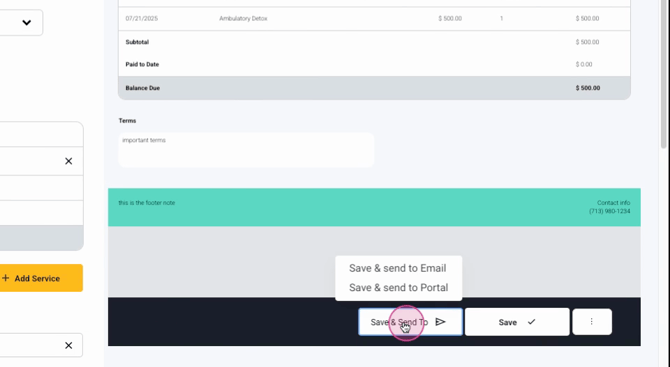
After saving, send the invoice to the patient. You can either send an email directly or post the invoice to the patient portal for access.
Step 4: Choose to send the invoice by email or upload it to the portal based on the patient's preference.
Patient Payment Process
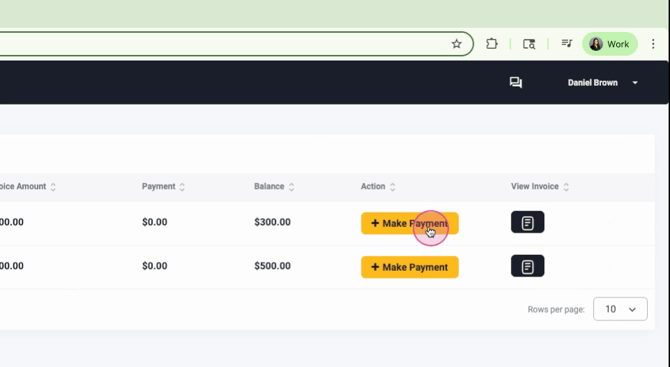
Once the invoice is accessible through the portal, the patient sees all outstanding invoices in the billing section. They follow the payment prompts using their preferred method.
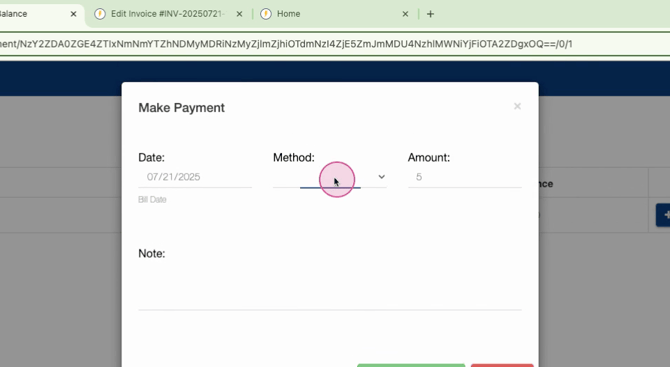
Step 5: Patients view their invoices in the portal's billing section and select a payment method such as check or credit card. The payment screen provides options to store a card for future transactions.
One-Time Payment Options
For patients receiving the invoice by email, there's a fast way to pay without logging into the portal. The email includes options to make a one-time payment or log in for additional functionality.
Step 6: Upon receiving the emailed invoice, the patient chooses between one-time payment or portal login.
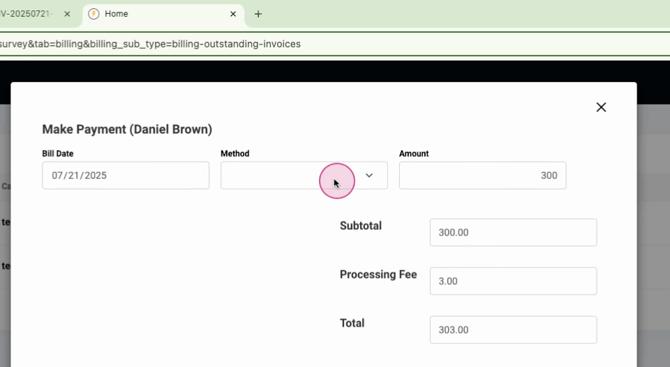
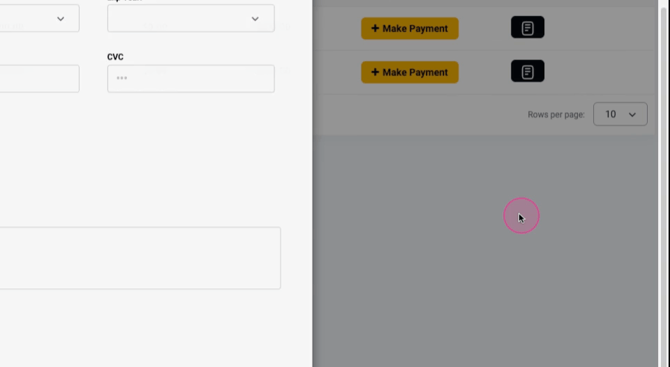
Step 7: If the patient selects "one-time payment," they're brought to a secure payment screen displaying all invoice details.
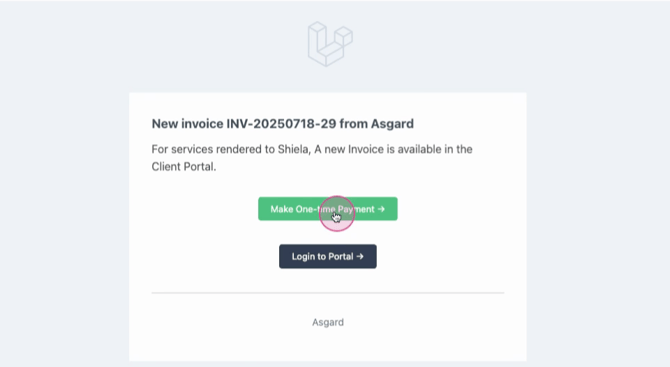
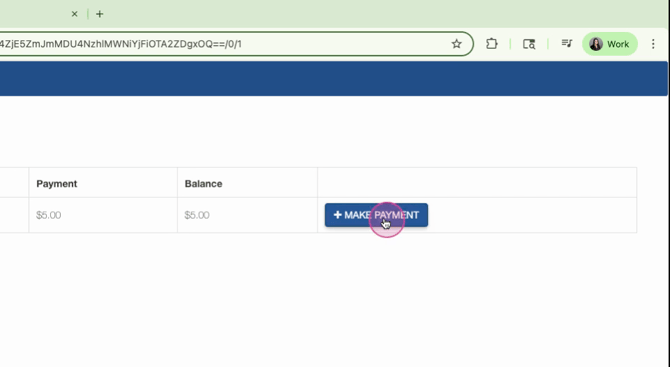
Step 8: The patient completes the payment easily without logging into the portal for maximum convenience.