
Step 1: Go to the menu from the home screen.

Step 2: Click system configuration and find portal config in the list.
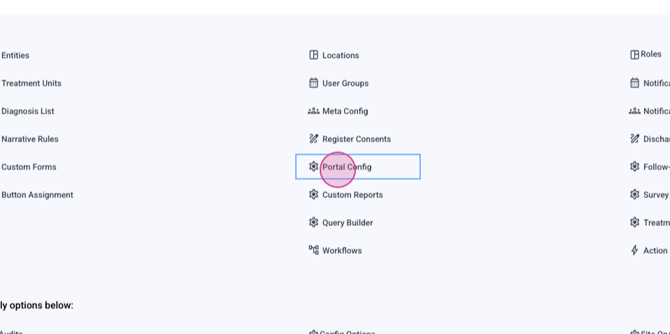
Step 3: Select portal config. You'll see main portal as the only option.
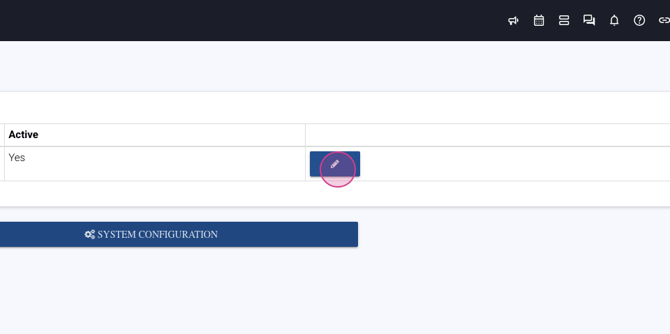
Step 4: Click the blue pencil icon to edit. This opens the configuration area.
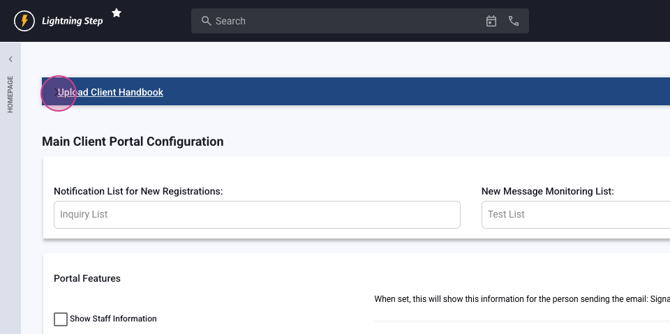
Step 5: Upload a client handbook for download. Set up notification lists to decide who gets notified when someone registers.
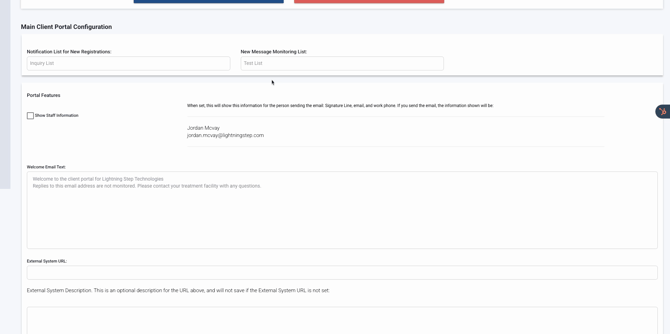
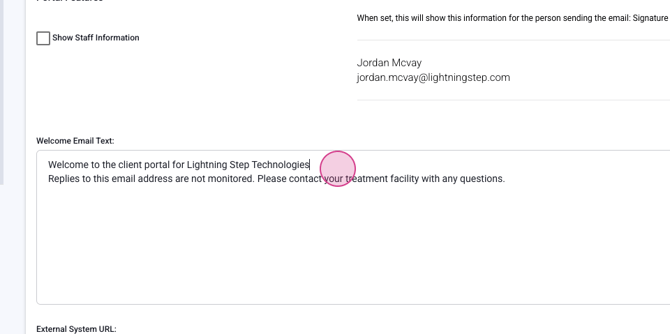
Step 6: Allow clients to send messages from the portal. If enabled, they can message their provider. You can also choose if staff information appears in signature lines or messages. By default, this is off.
Step 7: Edit the welcome email text. The default is "Lightning Step Technologies." Replace it with your organization's name and any extra details.
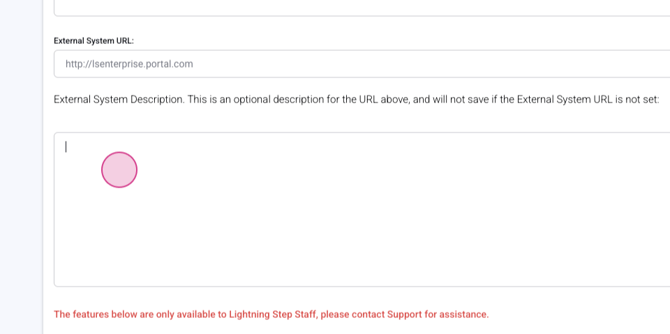
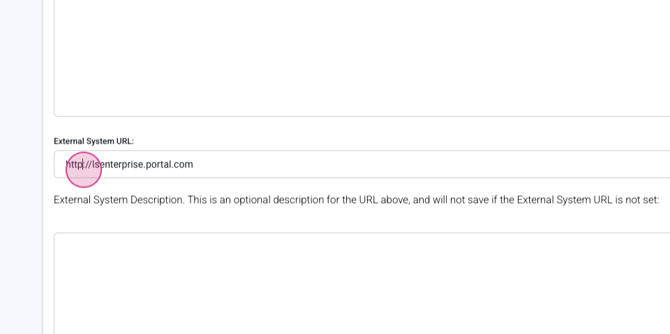
Step 8: Add an external system URL if needed. By default, it uses your facility name followed by .portal.lightningstep.com.

Step 9: The portal name is optional. If not set, it defaults to your organization's short name or location public name, depending on your settings.
Step 10: Add portal intro text and terms of service. Customize the password email text if needed. For this step, you'll need assistance from Lightning Step (LS).
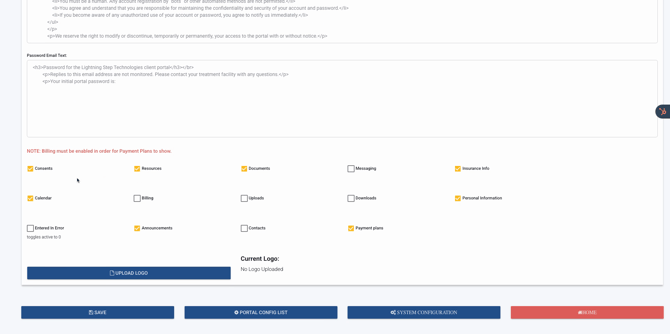
Step 11: Choose what features are available in the portal, like consents, resources, documents, messaging, billing, calendar, and more. For this step, you'll need assistance from Lightning Step (LS).
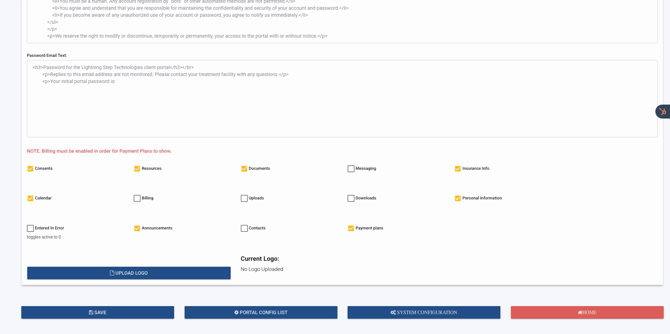
Step 12: Add contacts, emergency contacts, and decide if payment plans will be shown in the portal. For this step, you'll need assistance from Lightning Step (LS).
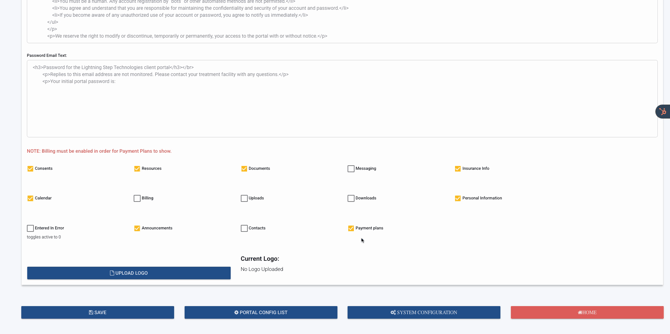
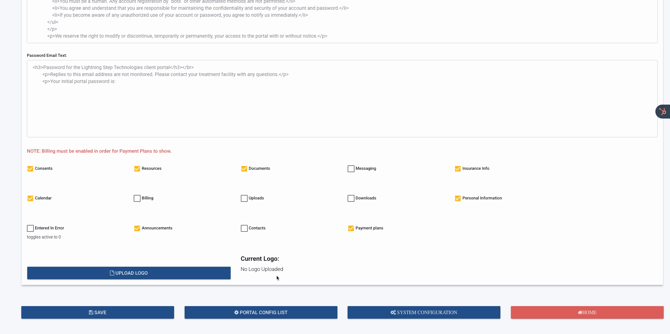
Step 13: Upload your logo to brand the portal. More branding options will come later. For this step, you'll need assistance from Lightning Step (LS).
That's it! Your client portal is now set up and ready to use.
