
Step 1: Click the main menu to begin.
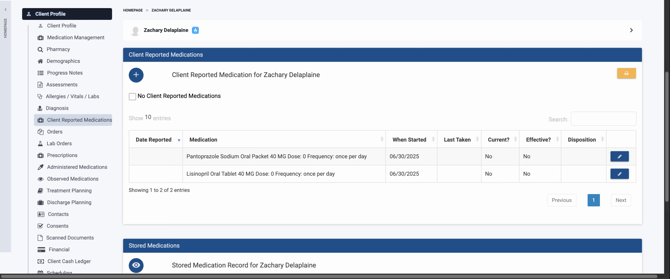
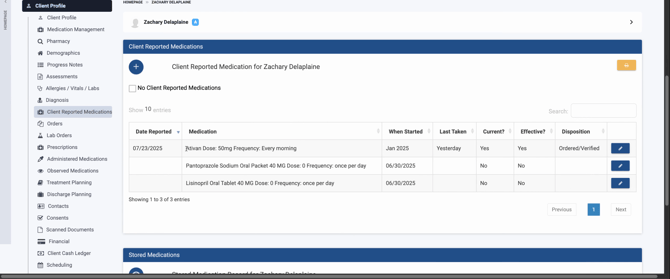
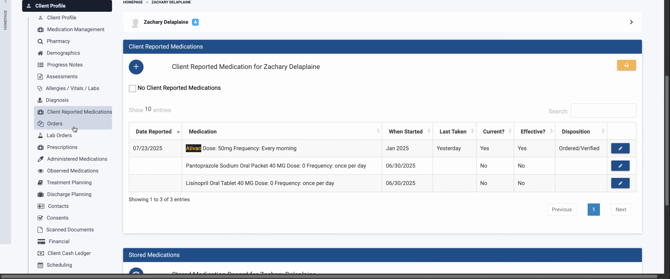
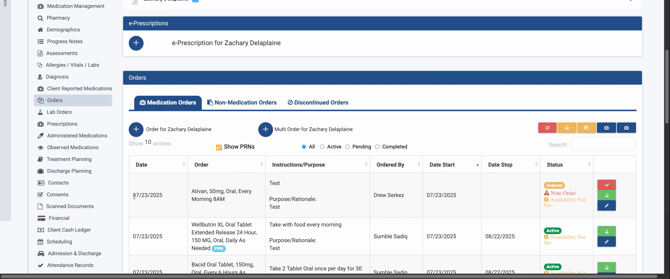
Step 2: Select the Medication Orders option.
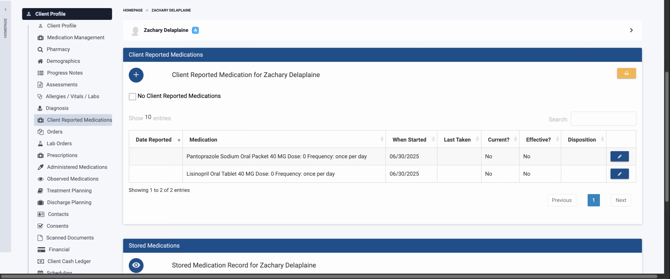
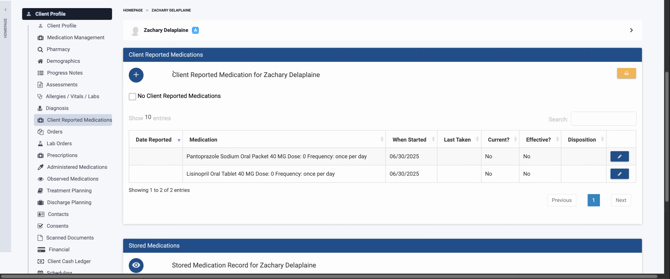
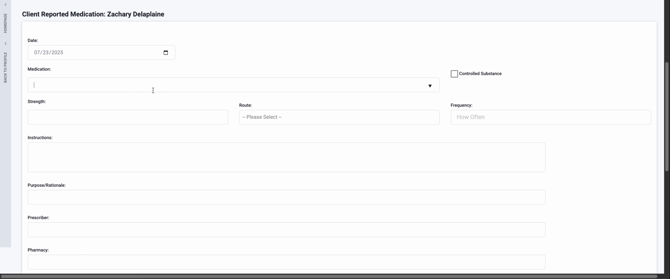
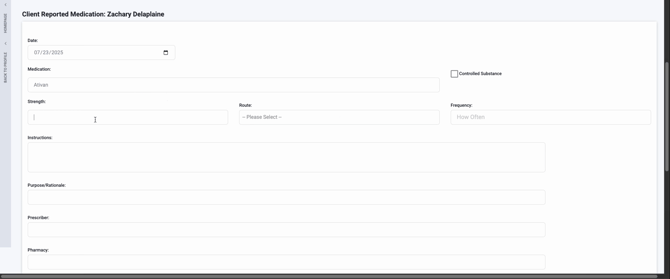
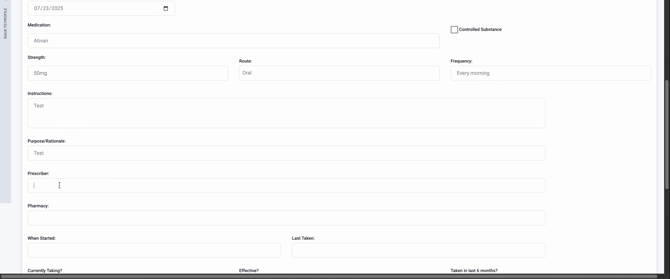
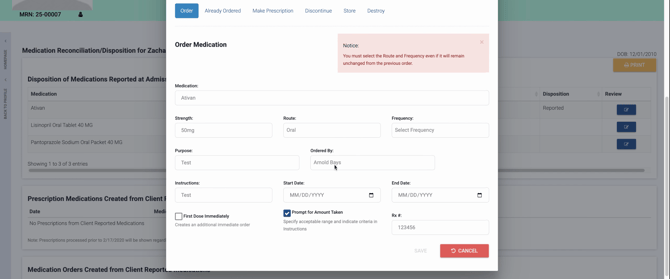
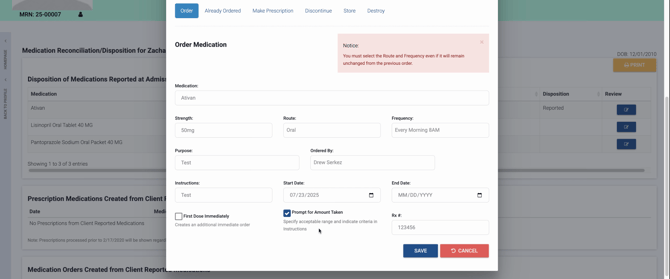
Step 3: Enter the medication name in the Medication field.
Step 4: Fill in the client identifier in the appropriate field.
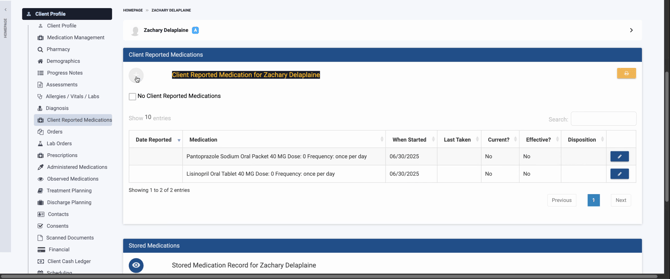
Step 5: Click the Add New Order button.
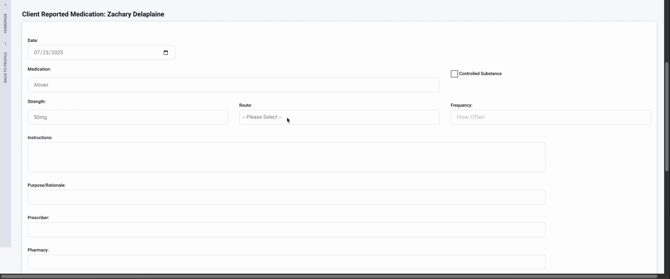
Step 6: Input the medication strength in the designated field.
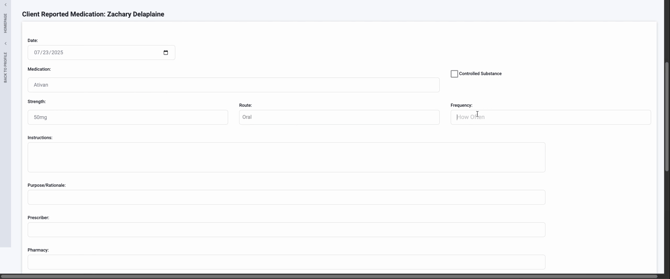
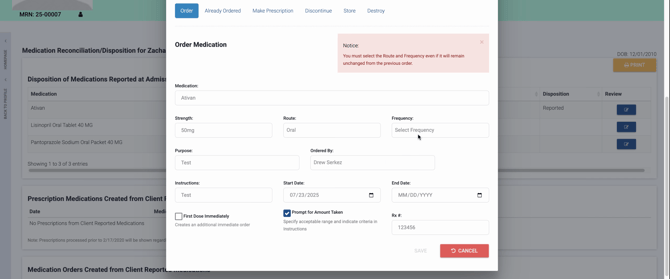
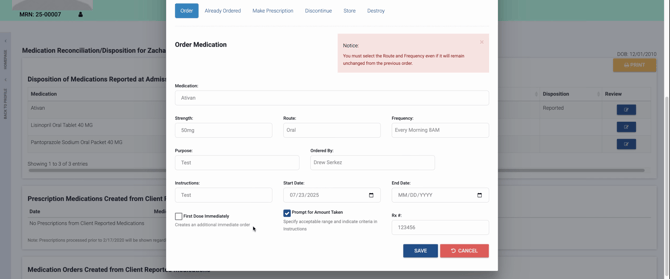
Step 7: Click Frequency to display schedule options.
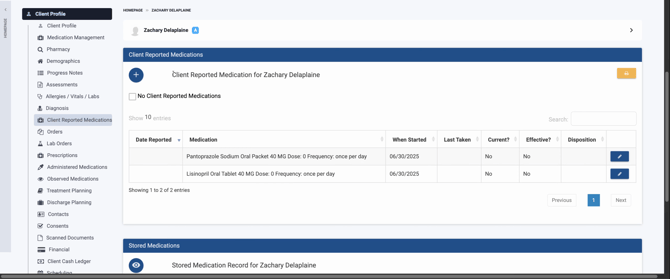
Step 8: Select the administration route.
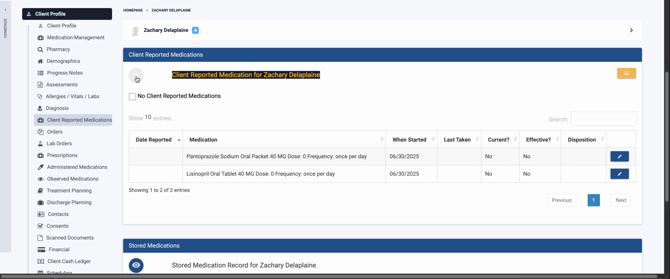
Step 9: Enter the frequency or times of administration.
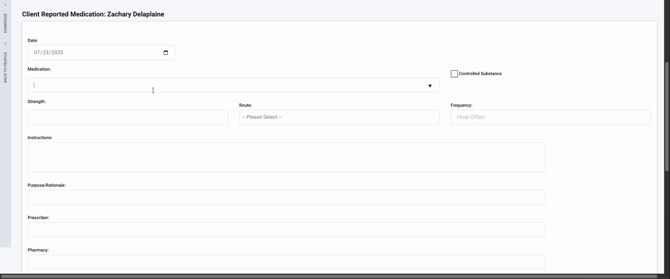
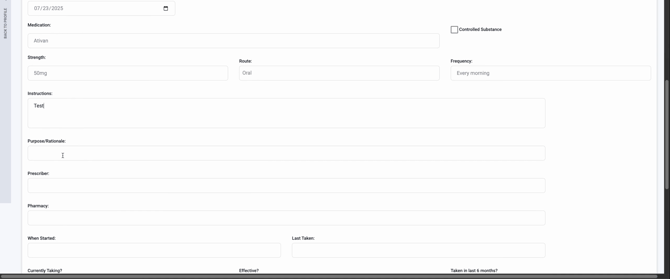
Step 10: Specify the purpose of the medication.
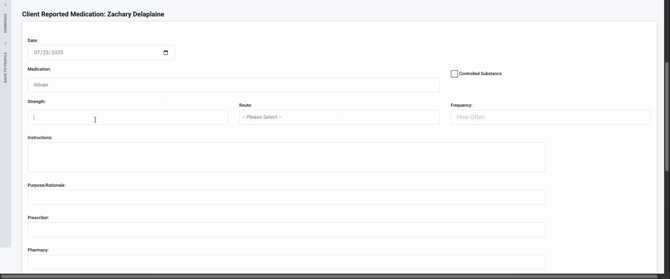
Step 11: Type in the rationale for the prescription.
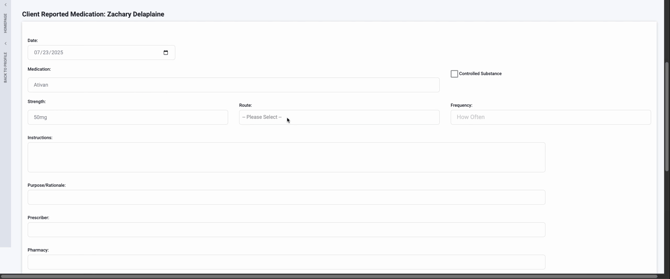
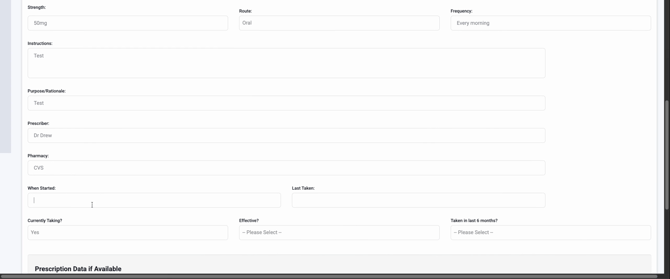
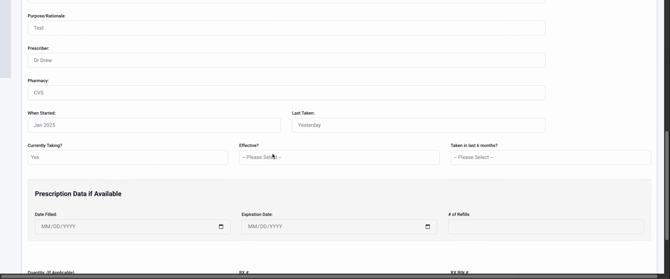
Step 12: Enter the pharmacy or dispensing site, if required.
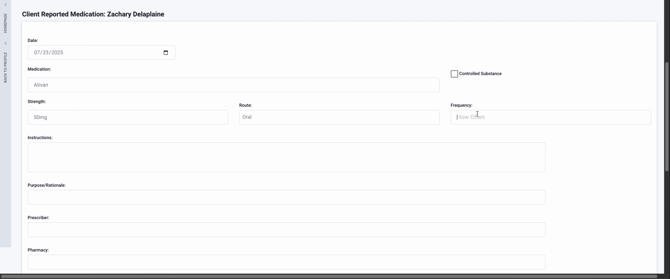
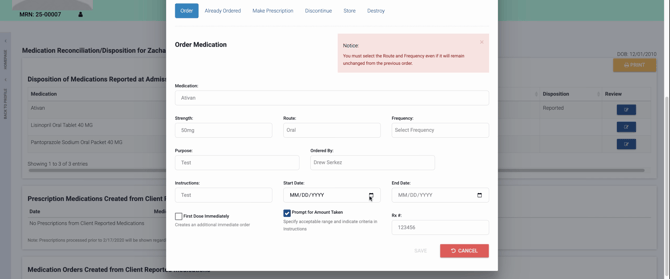
Step 13: Click Prescriber to select the ordering professional.
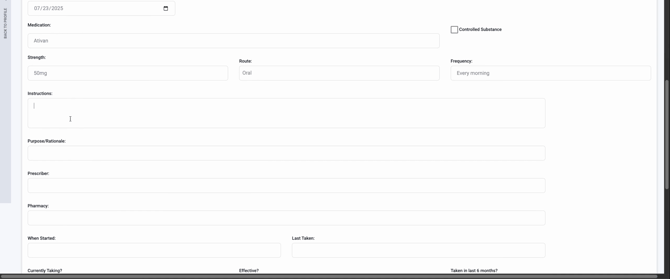
Step 14: Choose the appropriate staff member from the list.

Step 15: Input the prescriber’s order number (Rx #).
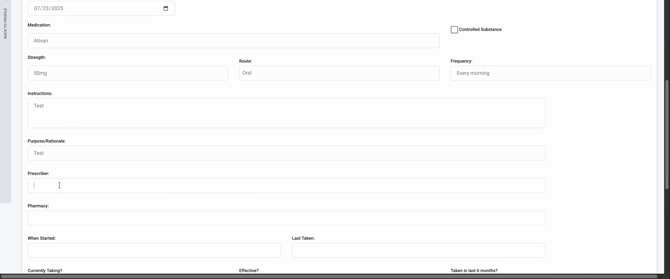
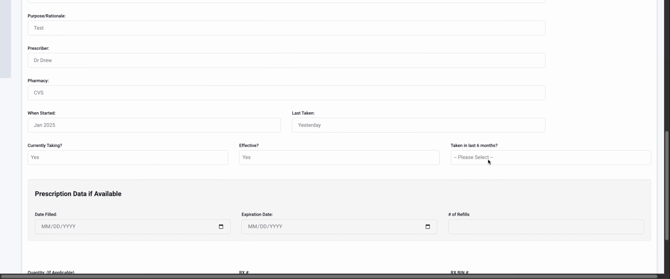
Step 16: Type in the quantity of medication available.

Step 17: Enter the number of refills authorized.

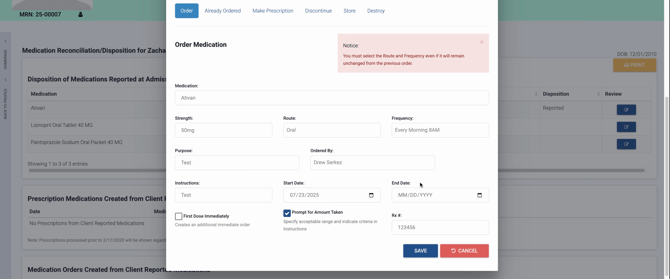
Step 18: Fill in the starting date for the order.
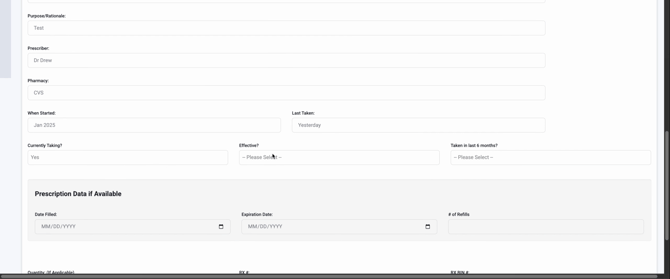
Step 19: Specify the end date for this medication order.
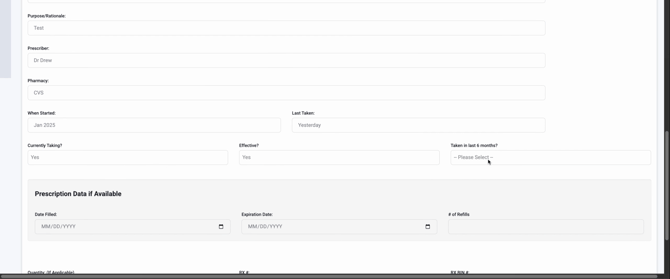
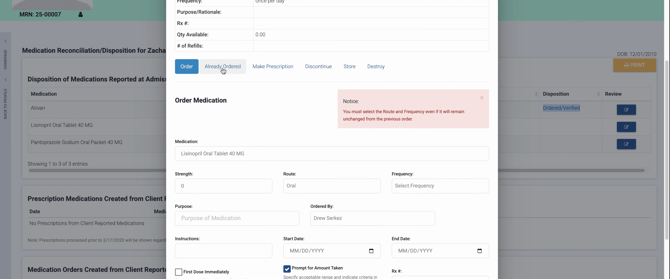
Step 20: Assign the route and frequency—these fields must be selected, even if unchanged from a prior order.
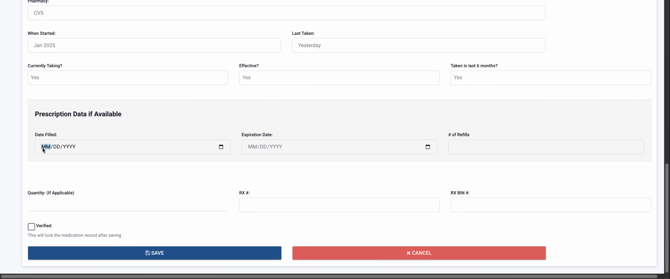
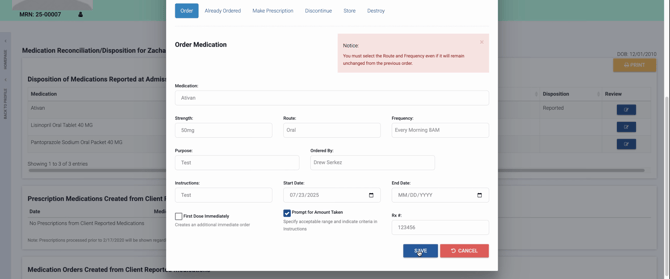
Step 21: Click 'Save' to record your entries.
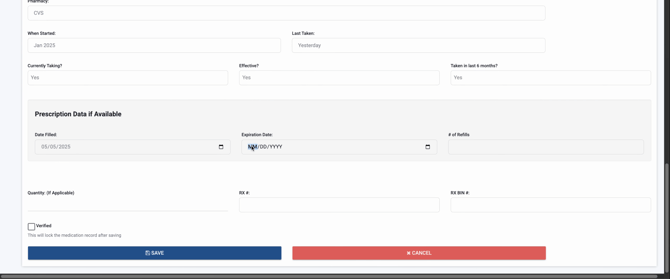
Step 22: Navigate through additional actions using the order action bar.
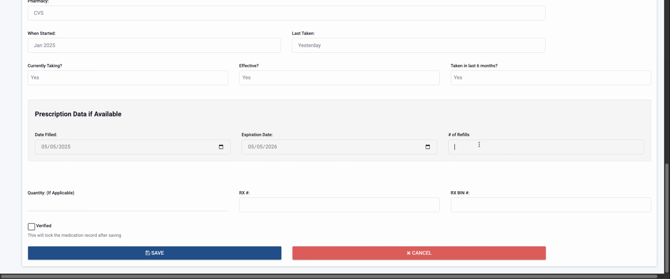
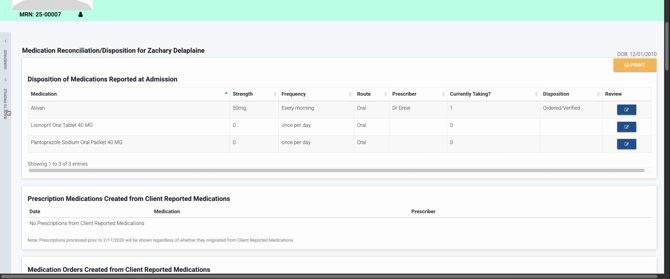
Step 23: Review or update reporting on this medication, such as strength, quantity, and order details.
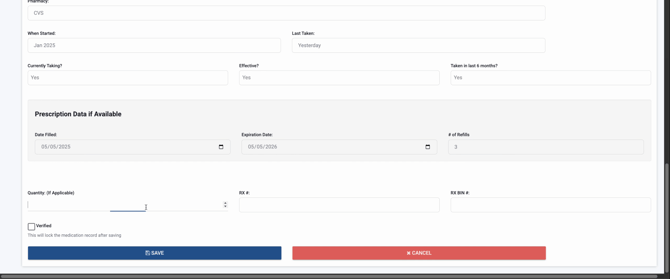
Step 24: To view the medication’s full detail, click the medication entry.

Step 25: For more information, open the order details panel.
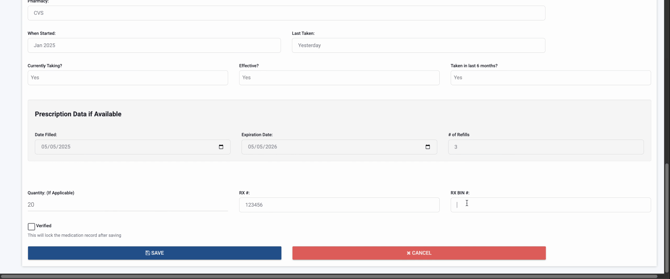
Step 26: Refer to the specific medication panel listing name, strength, route, frequency, rationale, prescription number, quantity, and other relevant information. Select additional actions as needed.
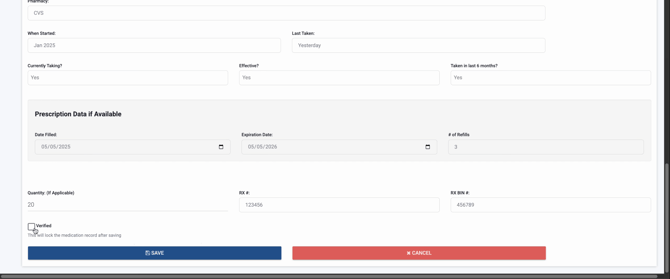
Step 27: Review who ordered the medication and see the professional’s listing.
Step 28: Confirm the strength and route for administration.
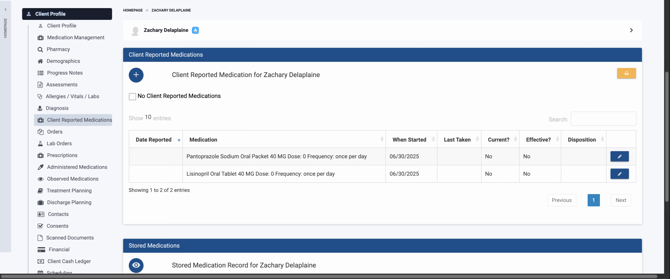
Step 29: Choose from available medication routes, like IM, lotion, oral, subcutaneous, or sublingual.
Step 30: Check the frequency drop-down for administration options, ranging from as-needed to scheduled.
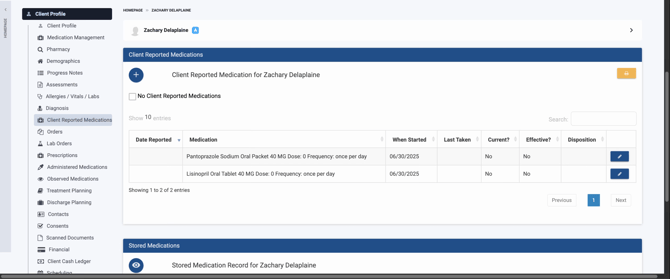
Step 31: Review or update the medication’s purpose.
Step 32: Confirm or change the listed prescriber from available personnel.
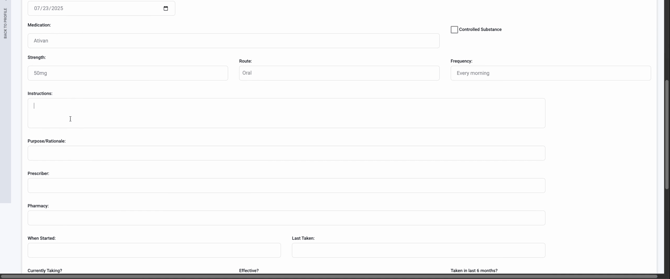
Step 33: Enter administration instructions for staff or clients.
Step 34: Set or update the medication’s start date.
Step 35: Indicate an end date if the medication isn’t ongoing.
Step 36: If an immediate dose is required, select 'First Dose Immediately' to create an additional order.
Step 37: Record the amount to be taken, setting allowable ranges or specific dosing criteria as needed.
Step 38: Enter or verify the pharmacy-provided Rx number.
Step 39: Click 'Save' to finalize your order changes.
Step 40: Select 'Cancel' if you wish to discard changes.

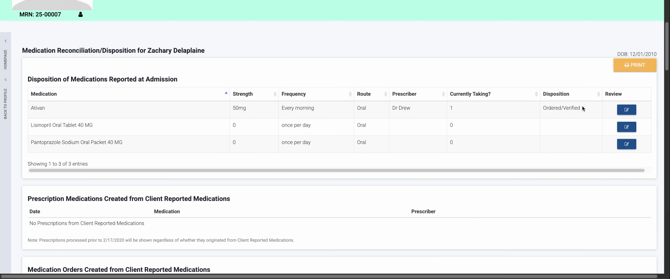
Step 41: Review the updated documentation indicating your order’s saved status.
Step 42: When saving, note that a server function is called to submit the order.
Step 43: A POST request is sent to record the new order.
Step 44: Orders already placed will be indicated in the order list.
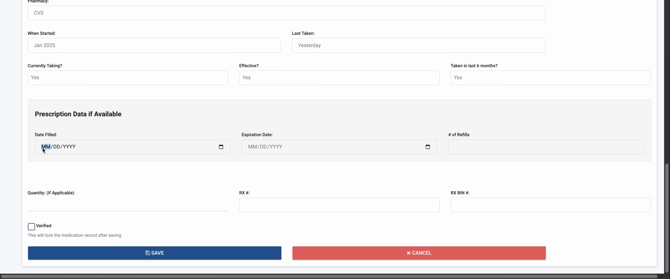
Step 45: If further changes are needed, you may save or cancel edits as before.
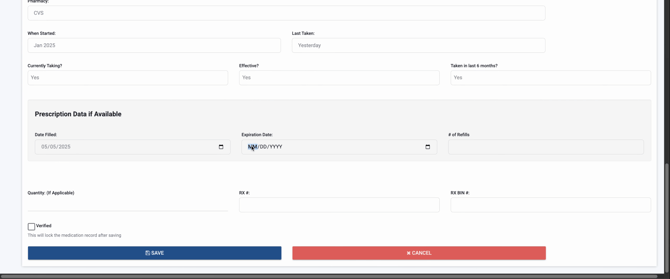
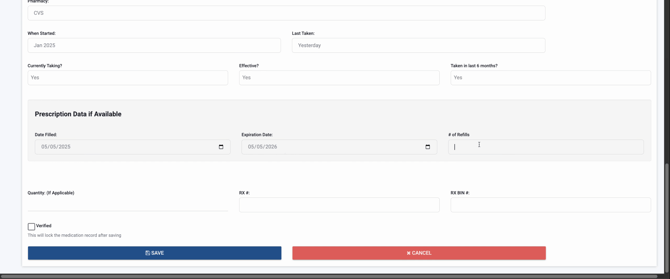
Step 46: Your documentation remains ready for further action and review.
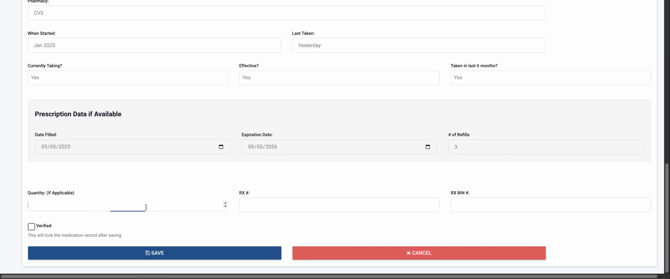
Step 47: For successful prescriptions, the system updates the record and display accordingly.

Step 48: System tasks like removing entries and updating fields are triggered upon saving.
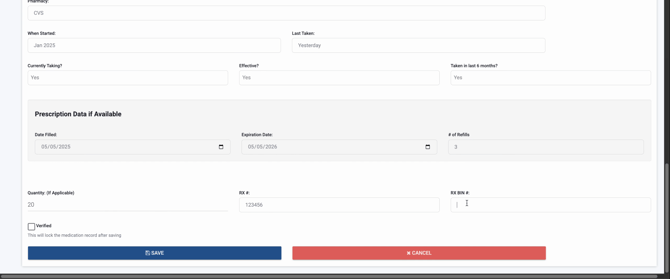
Step 49: Confirming the prescriber and drug name ensures accurate order attribution.
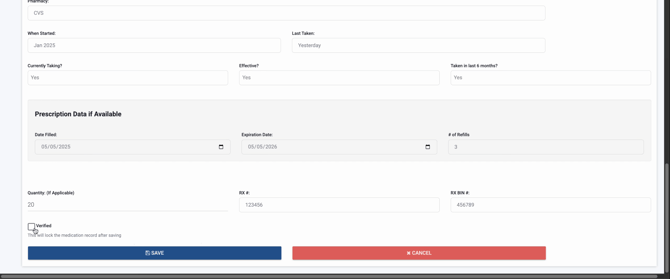
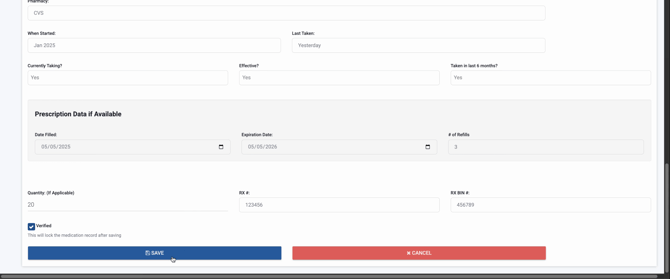
Step 50: Review the medication summary panel for all active prescription details, including dates, strengths, and ordering information.
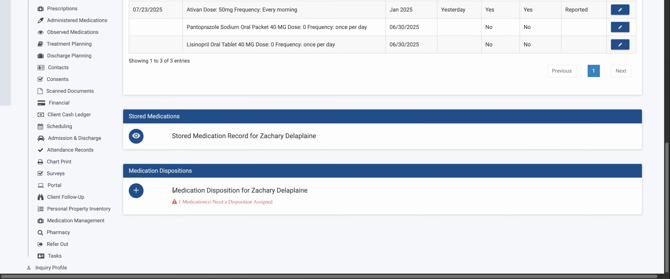
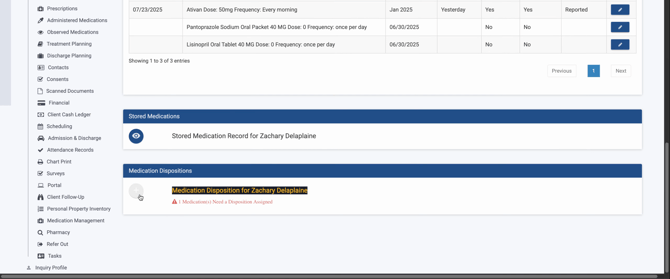
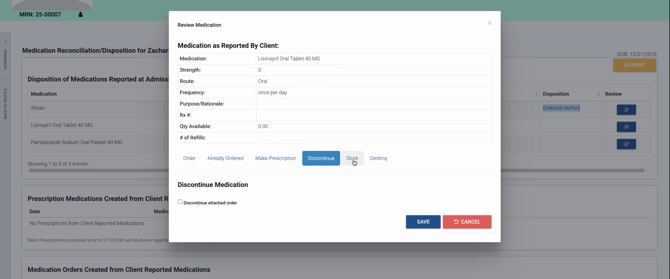
Step 51: To discontinue a medication, click 'Discontinue Medication.'
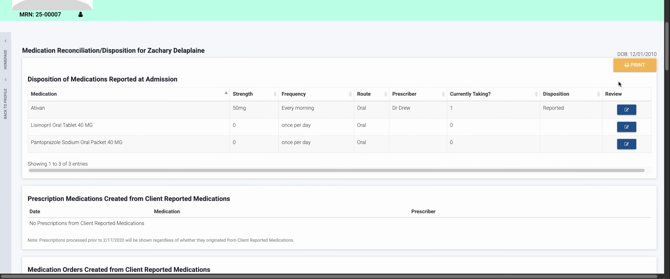
Step 52: Confirm the action to discontinue, then choose to save or cancel.
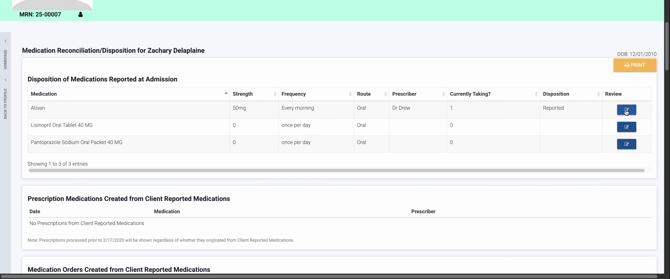
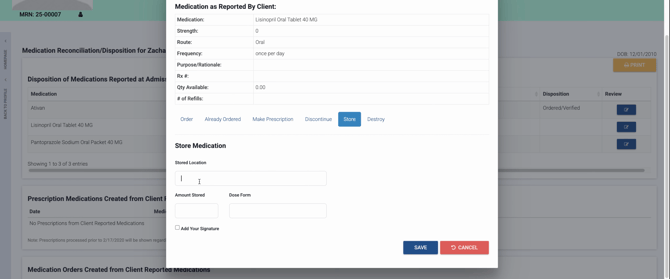
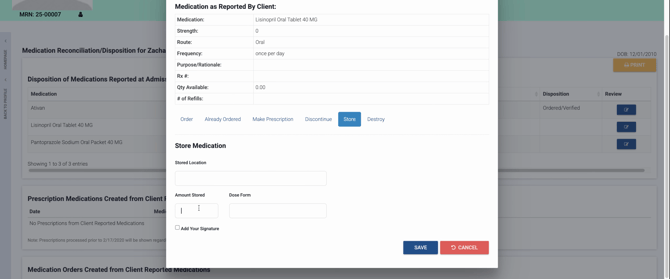
Step 53: To store medication, use the store function and enter required details.
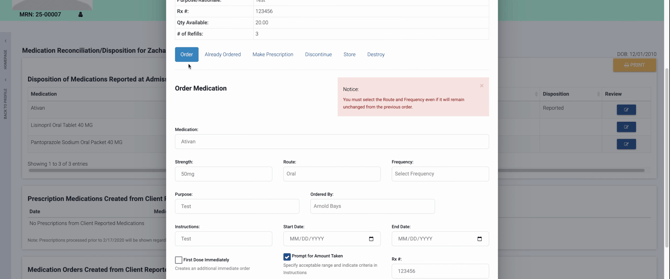
Step 54: Returning medication requires entering the returned amount and signing as returned. Save changes as needed.
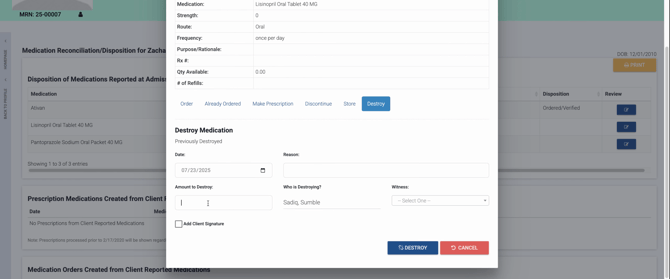
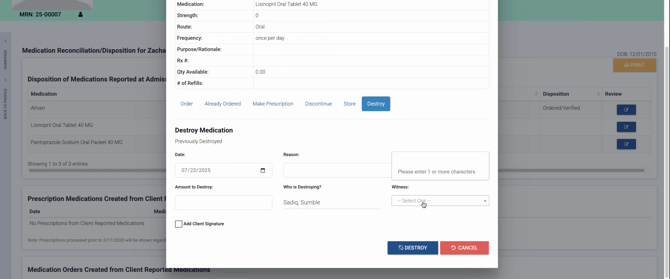
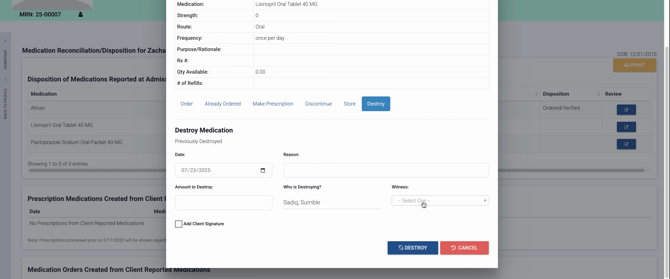
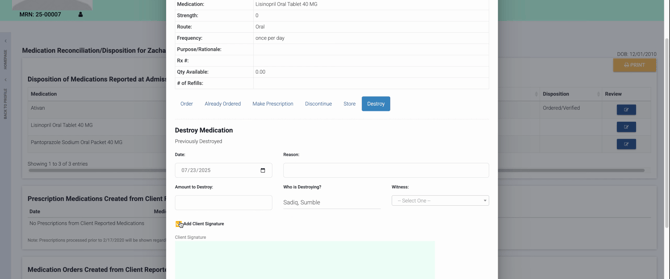
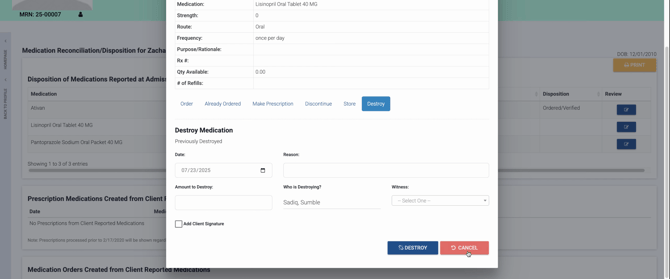
Step 55: To destroy medication, enter the destroyed amount, sign as destroyed, and save or cancel the action.
Medication Destruction Process
Step 1: Open the destruction log to view previously destroyed medications.
Step 2: Review prior destruction records for date, reason, and amount.
Step 3: Note the staff member responsible for destruction.

Step 4: Fill out the destruction details: date, reason, amount, and destroyer.
Step 5: Collect the client’s signature to authorize destruction.
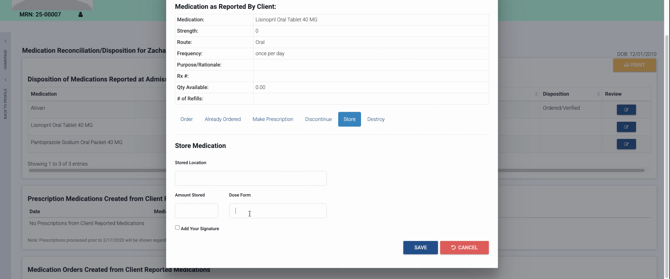
Step 6: Once all information is complete, proceed to destroy the medication.

Additional Medication Management Actions
Step 1: Click the Add button.
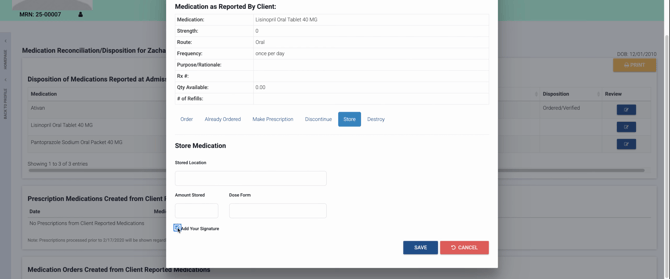
Step 2: Enter required details in the field.
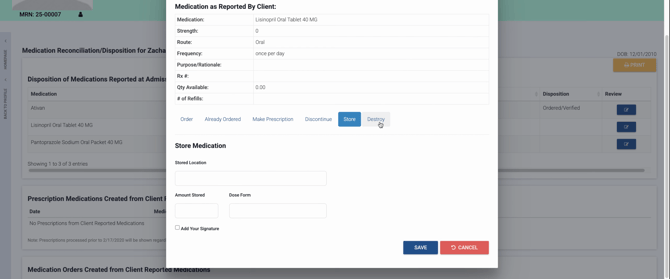
Step 3: Click to confirm your entry.
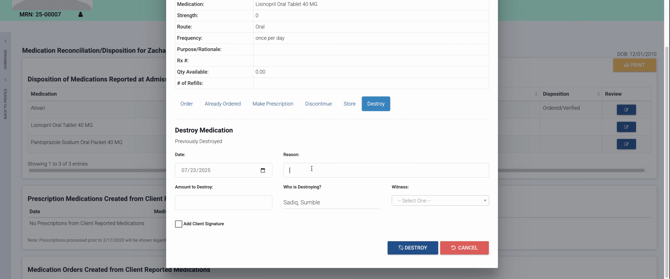
Step 4: To create an immediate order, select 'First Dose Immediately.'
Step 5: Confirm the action.
Step 6: Select an end date for the order.
Step 7: Click 'Save' to finalize the medication record.

Step 8: Click into the medication record for further actions.
Step 9: Make desired changes and save.
Step 10: Enter any additional required data.
Step 11: Click 'Cancel' to exit if you wish to discard changes.
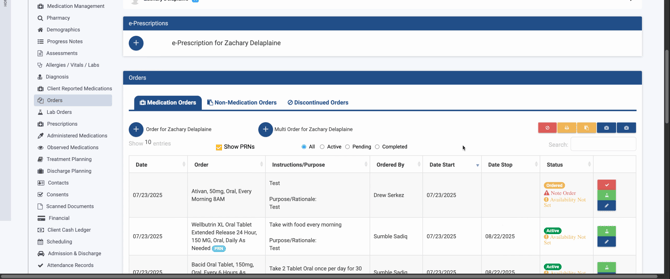
To see all medication records, select 'All Active Pending Completed.' This gives a full overview of current, pending, and completed medication management tasks for your review and continued compliance.
