
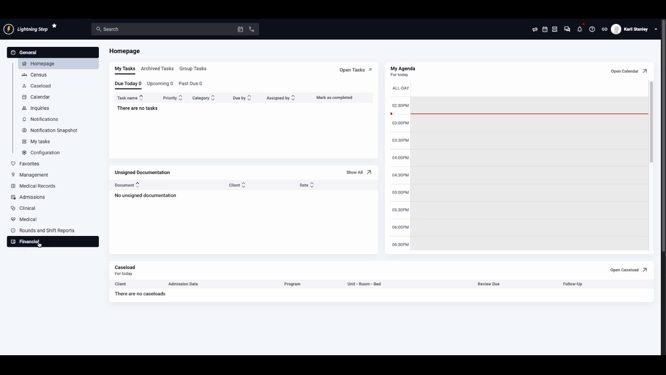
Step 1: Go to the Financial Dashboard.
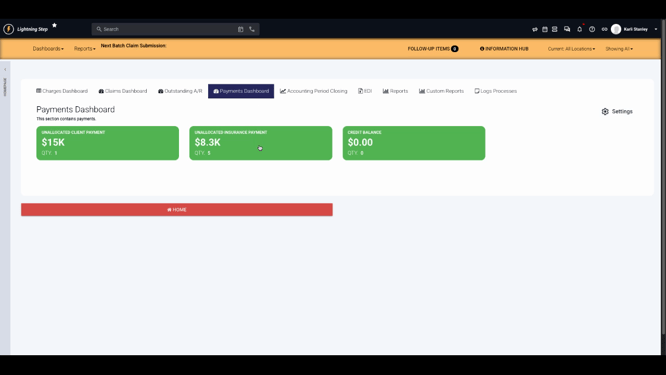
Step 2: Select the Payments Dashboard.
Step 3: Click on the Unallocated Insurance Payments tab.
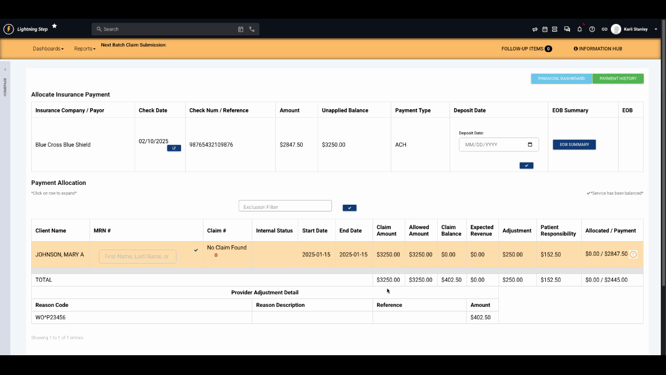
Step 4: Open a remit to view payment allocation details.
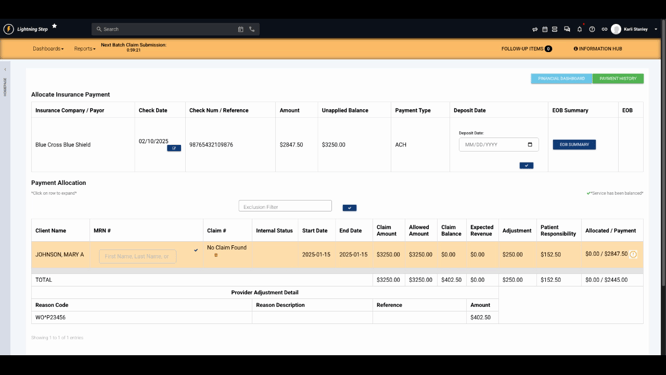
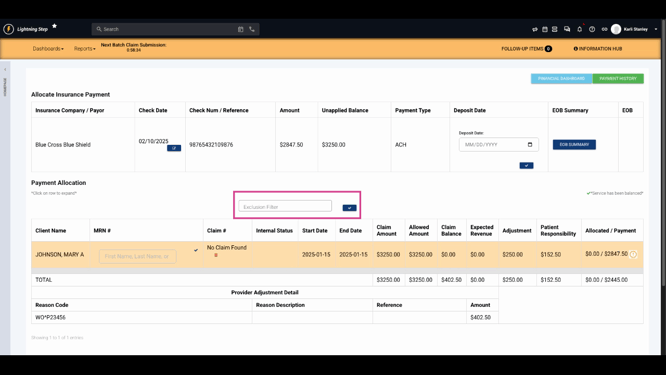
Step 5: Review warning indicators on the payment allocation screen.
-
A full line highlighted in bright yellow shows an issue matching the payment to a claim. This might happen if remittance details (client, insurance info, or amounts) don’t match the claim, or if the claim wasn’t submitted through LightningStep.
-
Yellow circle with an exclamation mark signals potential overpayment.
-
Red triangle with an exclamation mark signals potential underpayment.
-
These warnings don’t block you from posting the payment; they highlight records for closer review.
Step 6: Fix unmatched remittances by searching for the correct claim number or client in the system.
Step 7: When using auto allocation for posting remittances, any records the system can’t automatically post will be flagged as exceptions. Filter to see these exceptions and post them manually using the ERA allocation screen.
Manual Remittance Warnings
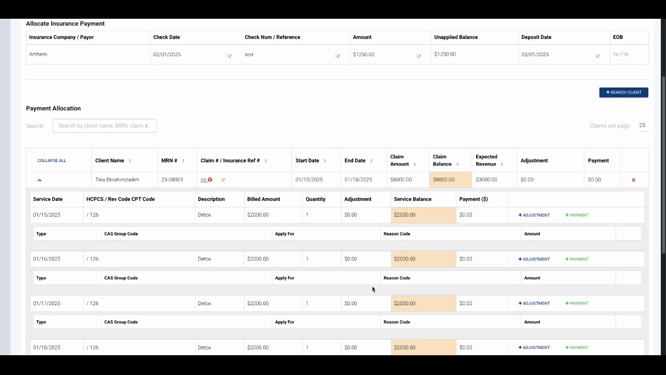
Step 1: When posting payments manually, look for colored cell highlights on the allocation screen.
Step 2: Yellow cells flag line items that aren’t balanced to zero. A remaining balance means the claim or service line still needs attention. Enter payments or adjustments that match the balance to resolve the warning.
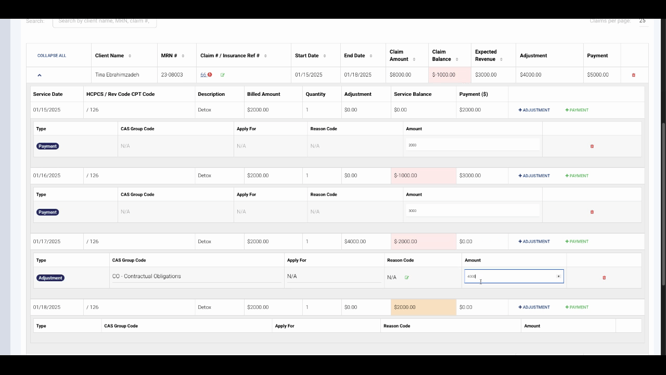
Step 3: Red cells mean the value is over-allocated. For example, if a payment exceeds the claim amount (like entering $3,000 instead of the correct value), the cell turns red so you can quickly spot and fix the error. The same applies to adjustments that cause imbalance.
Step 4: Check the bottom of the screen for bright red highlights in the unapplied balance area—these also indicate over-applied or over-allocated payments.
LightningStep’s exceptions and warnings make the payment posting process safer and more transparent. Paying attention to these alerts ensures accurate records and smoother workflows. If you require more detail, check out the video, or contact the support team if you have further questions.
