
Method 1: Completing a Group Session from the Dashboard
Step 1: Open your dashboard.
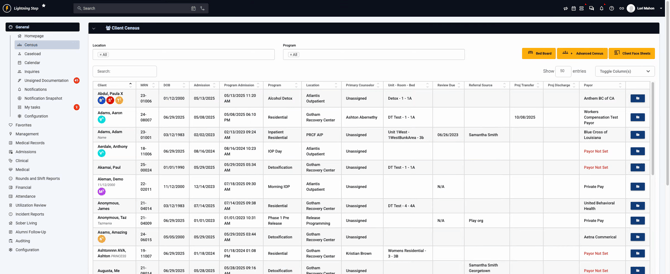
Step 2: Click Clinical in the main menu.
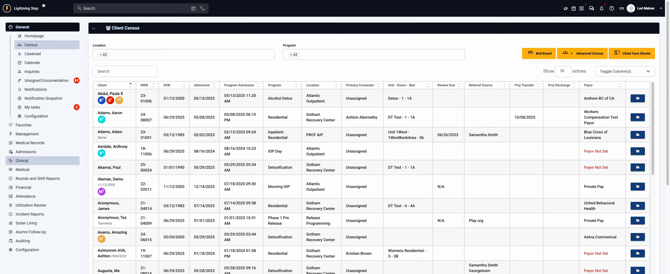
Step 3: Select Group Notes.
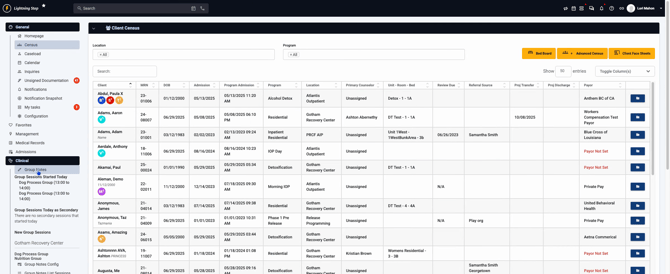
Step 4: Choose your group—for instance, the dog process group. Fill in the date, start time, end time, duration, indicate if it’s billable, select the provider, and add any overall notes for the session.
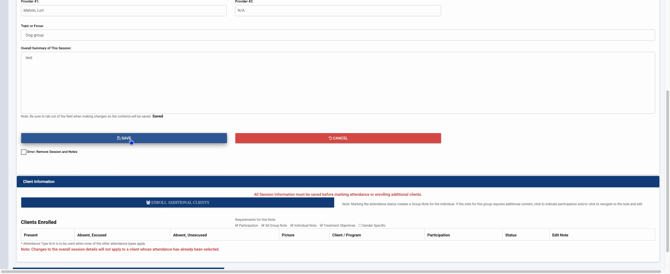
Step 5: Click Save.
Step 6: Scroll down to the Enrollment section. You’ll see everyone listed who attended the group. If someone didn’t show up, click the minus sign next to their name to remove them.
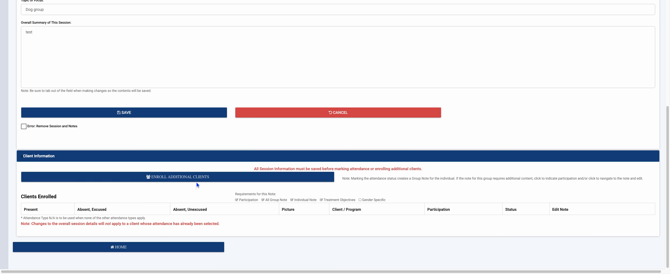
Step 7: Click Save again to finalize the attendance.
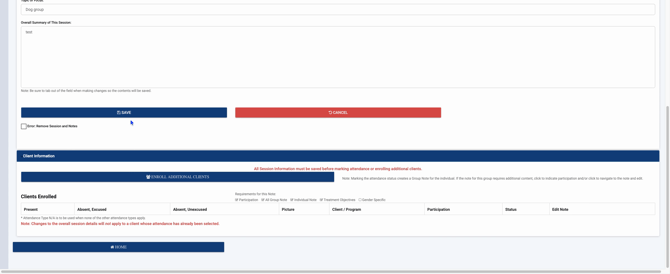
That’s it! Your group note is now complete.
Method 2: Completing a Group Session from the Calendar
Step 1: Go back to your dashboard.
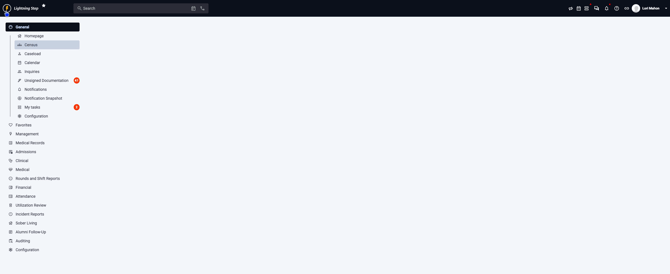
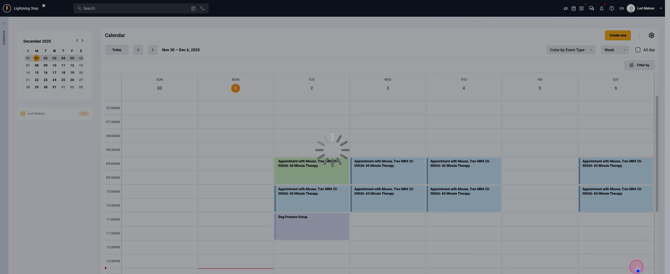
Step 2: Open the calendar view.
Step 3: Navigate to your group and start your session.
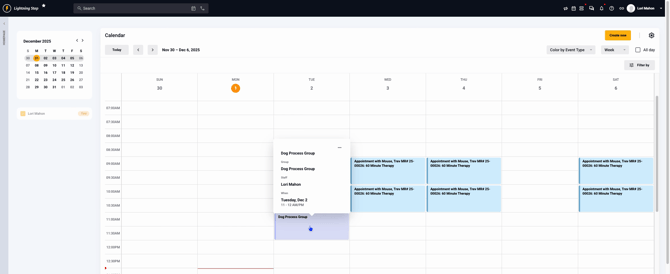
Step 4: Review the enrollment list. Uncheck any participants who aren’t attending if needed.
Step 5: Click Save Revisions to proceed.
Step 6: Fill in the session note details as needed. If you need to update attendance, adjust the participant list.
Save your work and you’re done! Both paths make it easy to record group session notes, track attendance, and keep everything organized. Choose the method that fits your style and keep your records accurate.
