
Scheduling and Starting a Telehealth Session
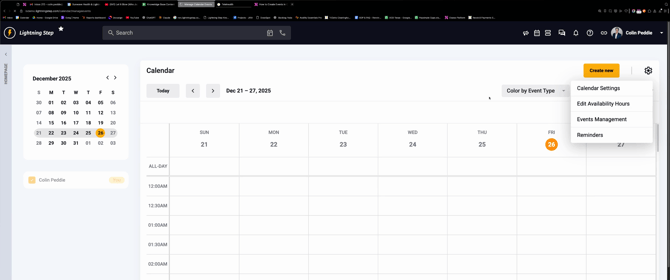
Step 1: From the Home page, go to the Calendar.
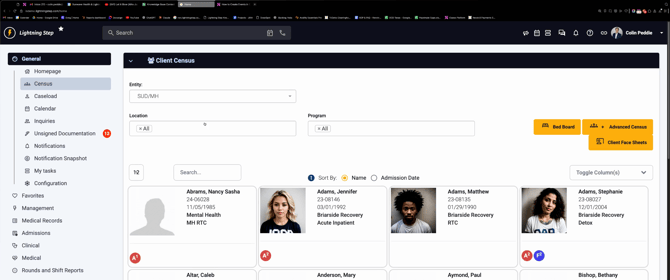
Step 2: Locate the date for your session.

Click the time slot to add your new telehealth appointment.
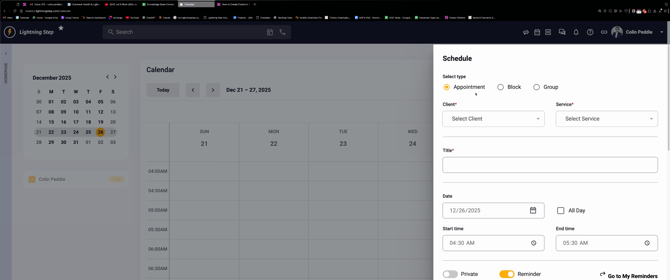
Step 3: Choose whether this is an Appointment (for a one-on-one) or a Group Session.
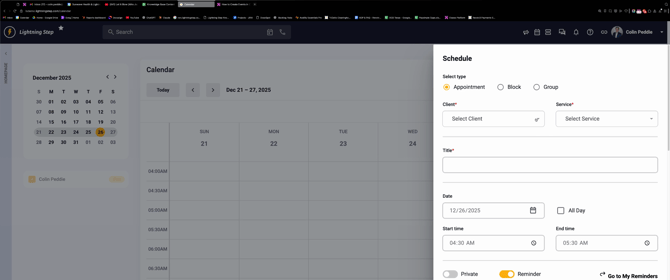
Step 4: Select the Client and then pick the relevant Service type.

Step 5: Set up Reminder templates and preferences.
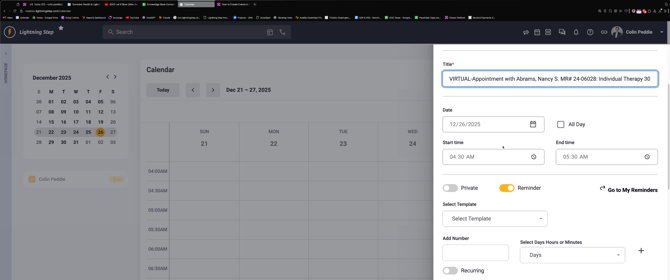
Step 6: Toggle Schedule as Telehealth Session.

Then click Save to confirm the appointment.
Step 7: Find the scheduled Telehealth session in your calendar.
Look for the camera icon to confirm it’s virtual.
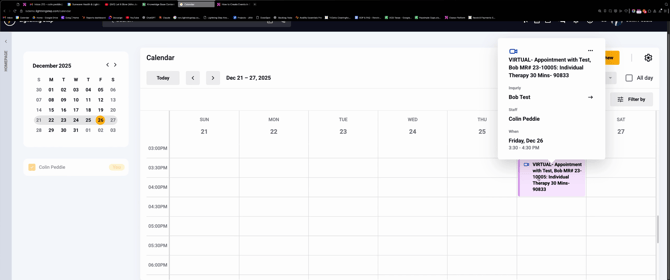
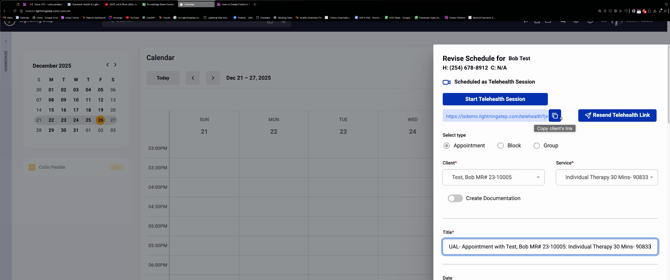
Step 8: To join as the clinician, click the clinician’s Join Link. Clients use a separate link; copy it and send as needed.
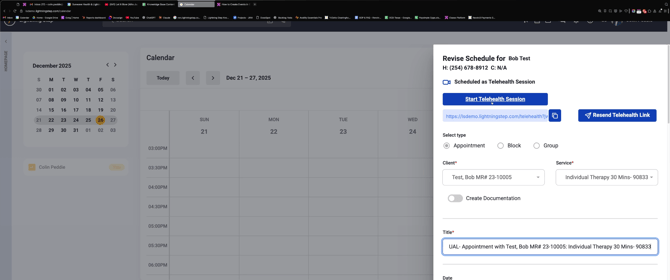
Step 9: To resend an invite, select Resend Telehealth Link. This resends the joining info to everyone, including all group participants.
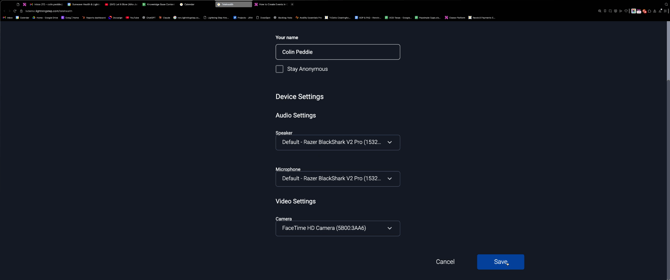
Step 10: Click Start your session. Your name will be pre-filled, but you can update it if necessary—clients who prefer anonymity may leave their name blank or use a pseudonym.
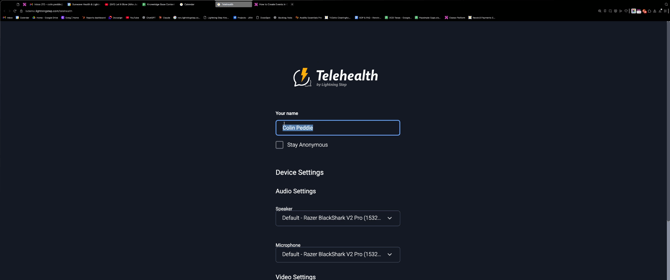
Step 11: Choose your preferred Speaker, Microphone, and Camera. All connected and Bluetooth devices appear as options. Save your choices.
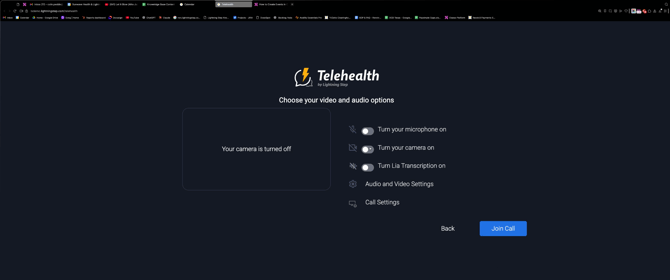
Step 12: Toggle your microphone and camera as needed. You can enable Lia transcription for automatic note capture, then click Join to enter the call.
Step 13: Inside the meeting, host the session, use Screen Sharing, and chat as needed. You can change settings—like devices or transcription—at any time.
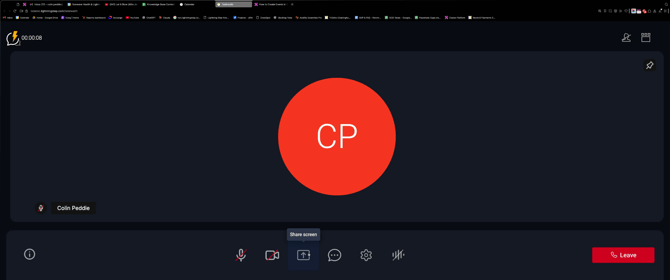
Step 14: Your account info and the meeting name appear in the upper left.
Step 15: On the upper right, check participant count and use the person icon to show or hide participant video feeds, based on your needs.
Documenting Telehealth Sessions
Step 1: While in session, keep the client’s chart open on the left side of your screen and the meeting window on the right. This layout lets you document notes while you talk.
Step 2: To take notes, select and open the client’s Profile.
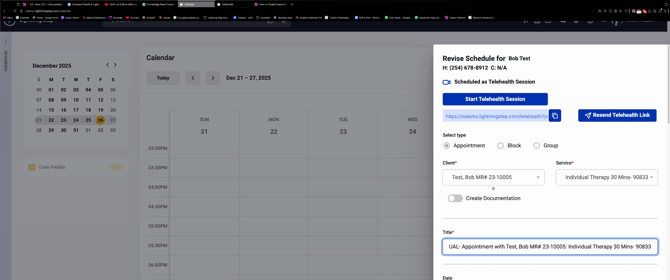
Step 3: Toggle Create Documentation and save the appointment to be directed into the document for the service. You can also search for the client and manually add the documentation.
Step 4: Move back and forth easily between the session and documentation as needed.
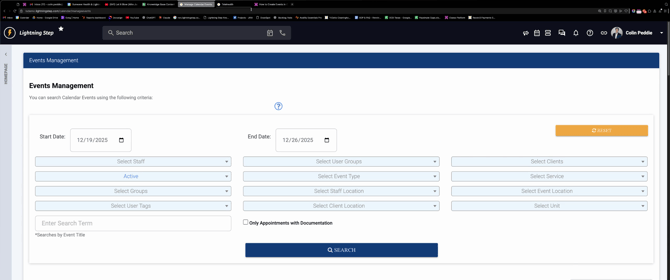
Step 5: To review or analyze session data, go to Event Management via the calendar. Here, you can filter sessions by date, type, attendance, and attached documentation for compliance and tracking.
With this workflow, you’ll stay organized, compliant, and deliver seamless virtual care. For more info, refer to our internal guides or contact support.
