
Follow these steps to set up internal claim statuses and start using them in your workflow.
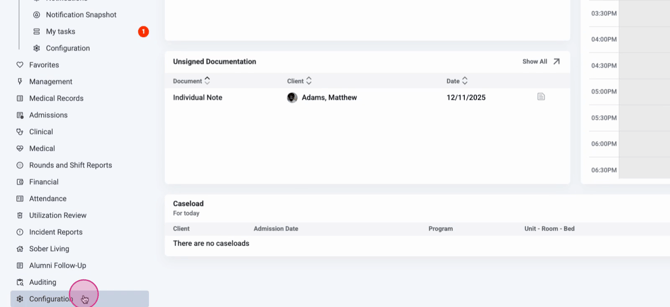
Step 1: Go to Configuration.
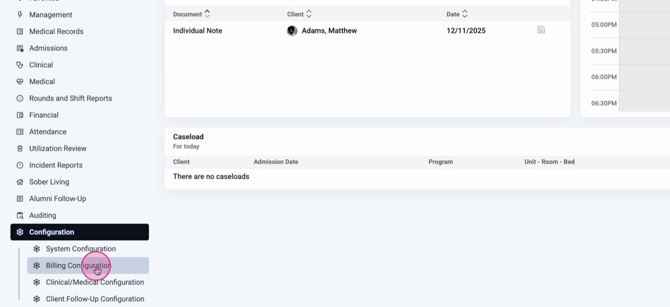
Step 2: Click Billing Configuration.
Step 3: Choose Claim Settings.
Step 4: Configure how claims automatically move to a status when certain events happen. Assign a status for each event by selecting from the dropdowns:
-
When a claim is submitted
-
When a claim is corrected and submitted
-
When a claim is voided and submitted
-
When a claim is fully allocated
-
When a claim is partially paid
-
When a claim is marked as Paid to Subscriber (PTS)
Step 5: Manage your status list in the Claim Statuses section. Click Add Claim Status to create a new status.

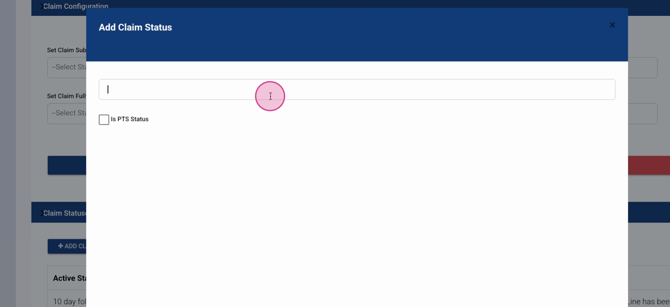
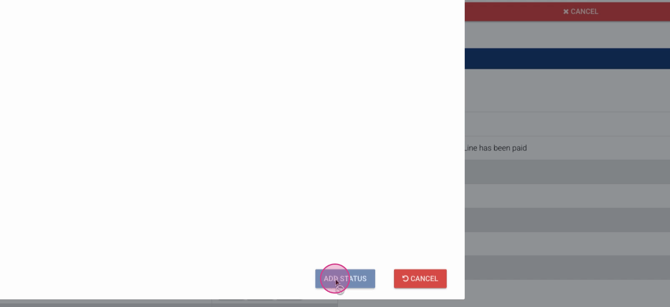
Step 6: Indicate if this status should apply to claims marked as Paid to Subscriber (PTS). Then click Add Status.
Step 7: Edit your status list at any time. Deactivate a status with the minus icon, edit it with the pencil icon, or merge duplicates with the double arrow.
Using Internal Claim Statuses in Daily Workflow
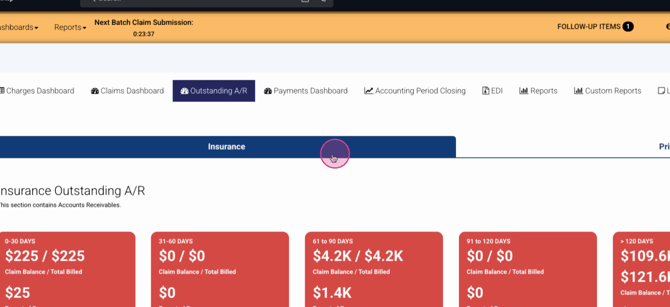
Step 1: Open the Outstanding AR dashboard.
Step 2: Select a bucket from the Insurance tab.
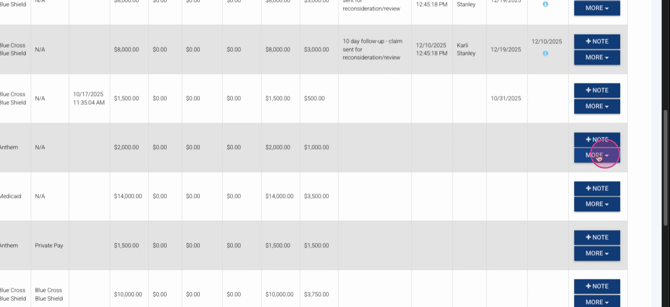
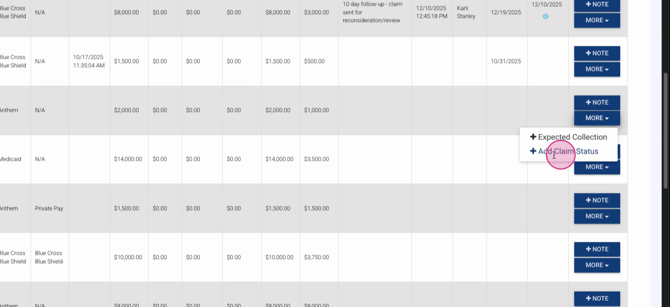
Step 3: To update a claim’s status individually, select More on a record, then choose Add Claim Status.
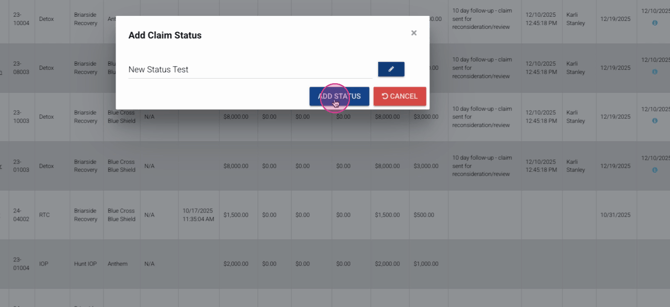
Step 4: Pick your status from the dropdown. If your role has the right permission, use the edit pencil to add a new status on the fly.
Step 5: Click Add Status to update the claim.
Step 6: To update statuses in bulk, use the multi-select tool, then choose Bulk Actions and update statuses for selected claims.
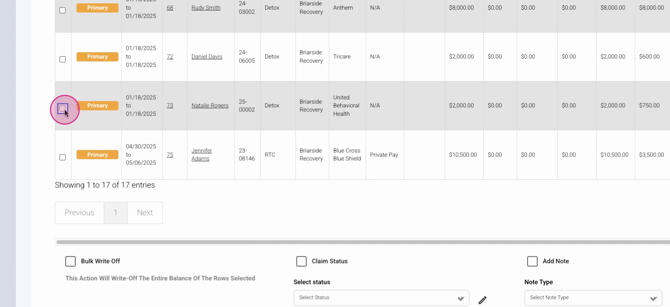
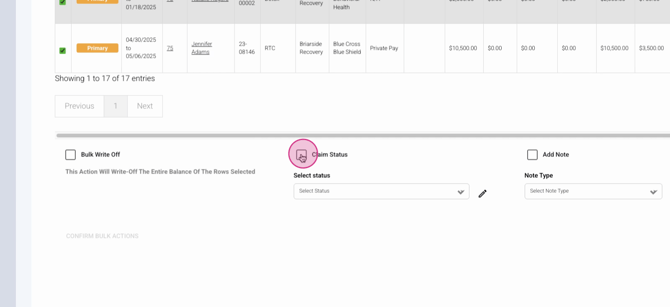
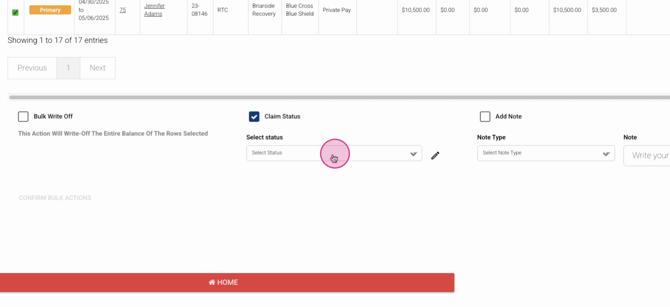
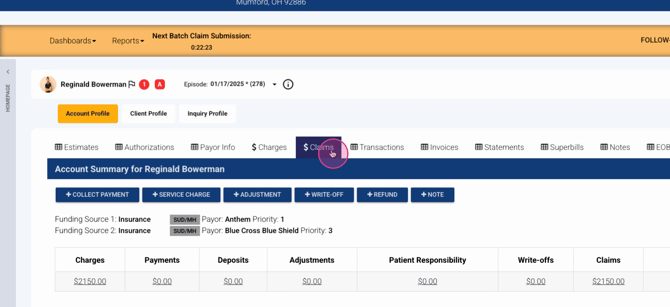
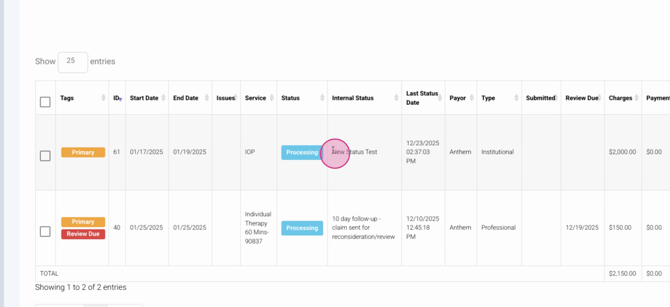
Step 7: Visit an Account Profile to see internal statuses for each claim under the Claims tab.
Internal claim statuses keep your billing workflow organized and efficient. Use them to filter, search, and update claims—individually or in bulk. For more help, check the internal documentation or contact your support team.
