
Step 1: From the Home screen, go to Configuration and select Billing Configuration.
Step 2: Select Payer Management.
Step 3: Click the Edit pencil next to the payer you want to update.
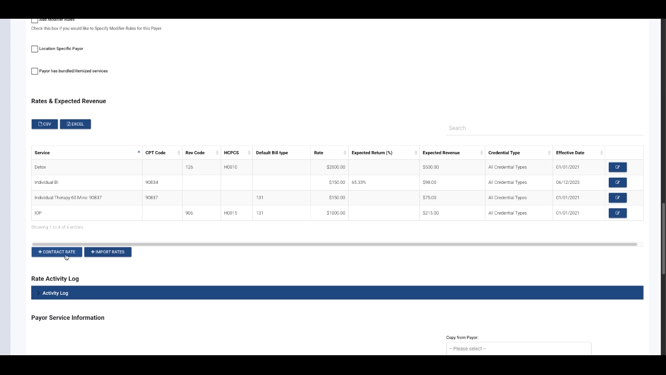
Step 4: Scroll to the Rates and Expected Revenue section. Here, you'll see a table with any existing rates for that payer and service.
Step 5: Click Contract Rate to add a new rate. A pop-up window will appear.
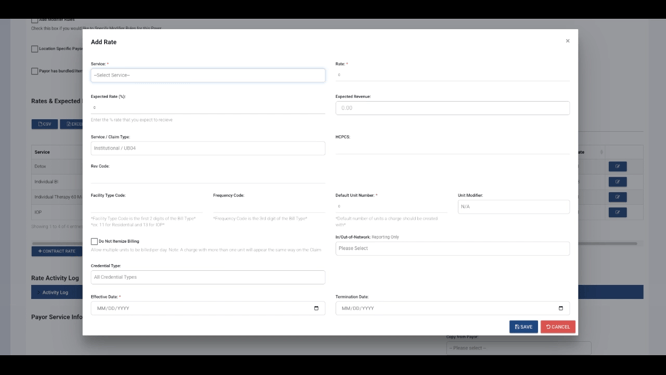
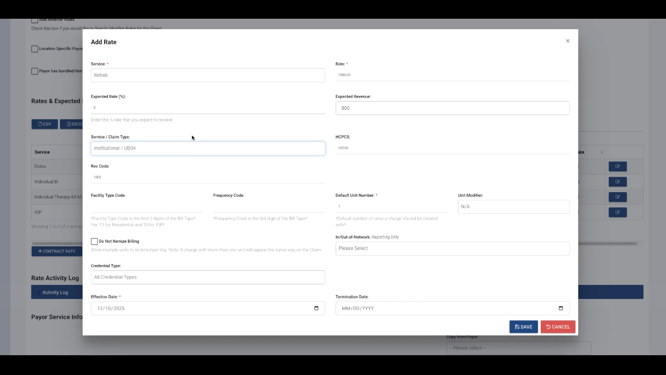
Step 6: Choose a service from the dropdown menu. The rate auto-fills from the service configuration, but you can adjust it for this payer if needed.
Step 7: Enter your expected revenue for the service. Choose either a percentage rate or a specific dollar amount that matches your contract allowance with the payer.
Step 8: Set the default claim type—institutional or professional—as needed.
Step 9: For institutional claims, enter the HCPCS and revenue codes.
Step 10: For professional claims, add the relevant CPT codes.
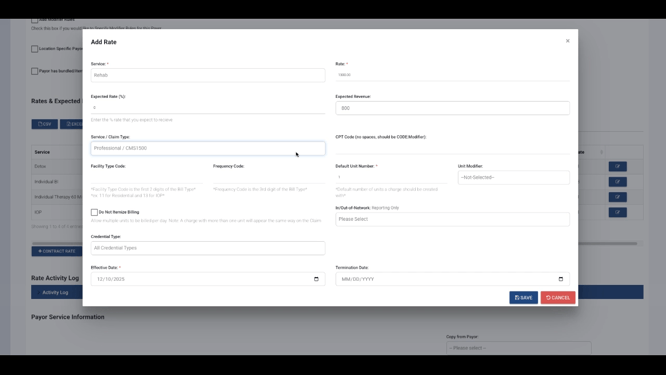
Step 11: Enter type of bill details, including place of service and frequency code.
Step 12: Set default unit numbers and the unit modifier if necessary.
Step 13: Specify the Effective Dates. Setting effective and (optionally) termination dates helps ensure charges use the correct rate. Avoid overlapping effective dates for the same service to prevent configuration issues.
Step 14: Click Save on the pop-up.
Step 15: Save the Payer record.
Now, when charges are processed for that service and payer, Lightning Step will use your configured rate and expected revenue instead of the default service rate.
Configuring contract rates and expected revenue ensures accurate billing and better revenue tracking. For more help, consult your internal documentation or contact support with questions.
