
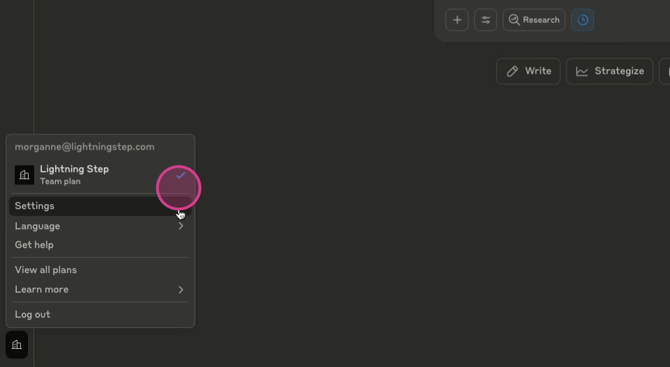
Step 1: Log into your Claude account. In the lower left corner, click on the Lightning Step organization. Then, click on Settings.
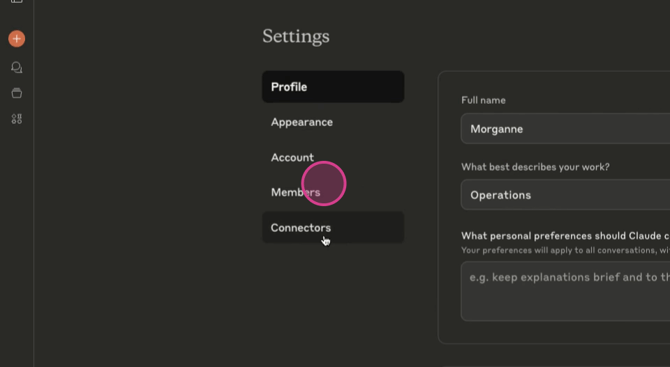
Step 2: Select Connectors from the menu. Scroll down until you see the HubSpot native connection. Make sure you're not selecting the Zapier connection.
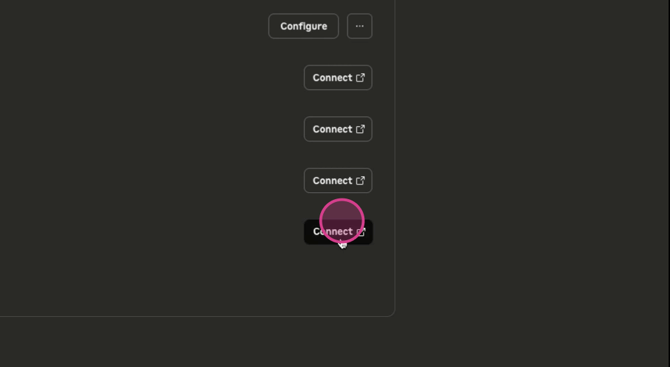
Step 3: Click on Connect.
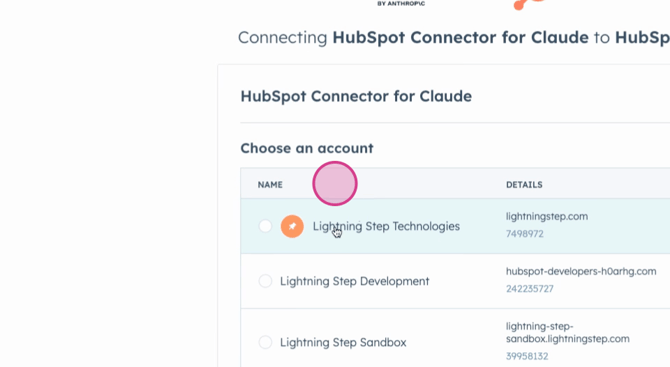
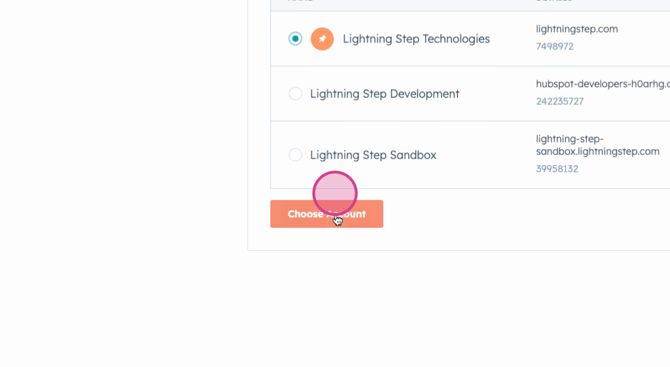
Step 4: You'll be redirected to the Connector hub. Here, select the Lightning Step Technologies account. If you have multiple accounts, choose the one you want to connect.
Step 5: Click on Connect Account.
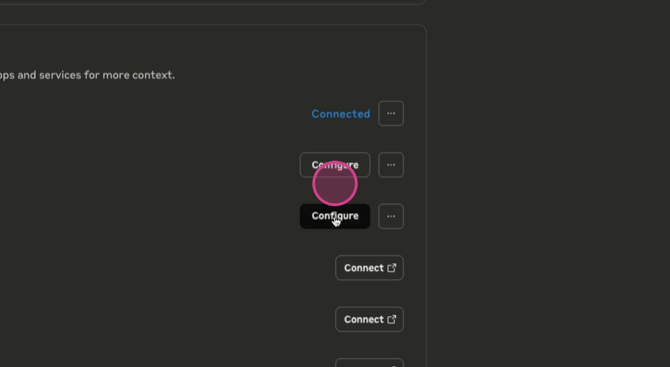
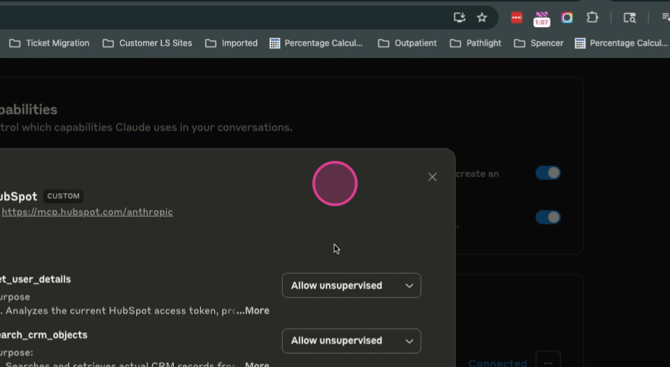
Step 6: You'll be redirected back to your Claude Connectors page. Here, you'll see that HubSpot is now connected. Click on Configure to review the prompts and settings. It's recommended to keep these as allow. Always ask permission to ensure the security of your data.
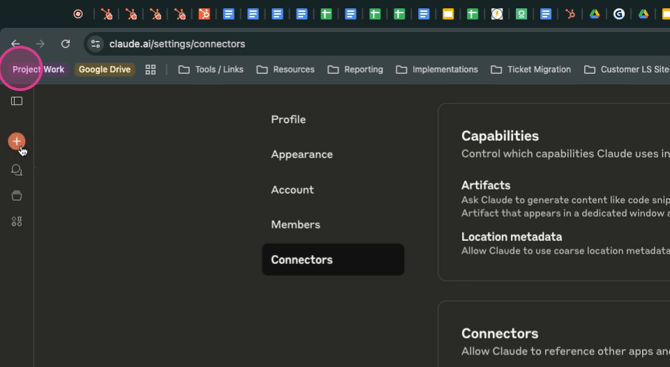
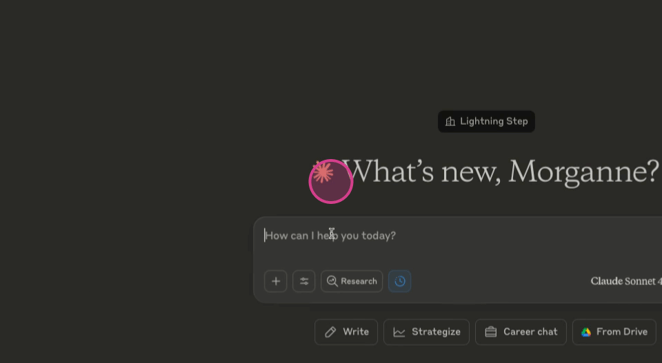
Step 7: Now, you can start a new conversation.
Step 8: Ask Claude to fetch all the tickets for a customer from your support group.
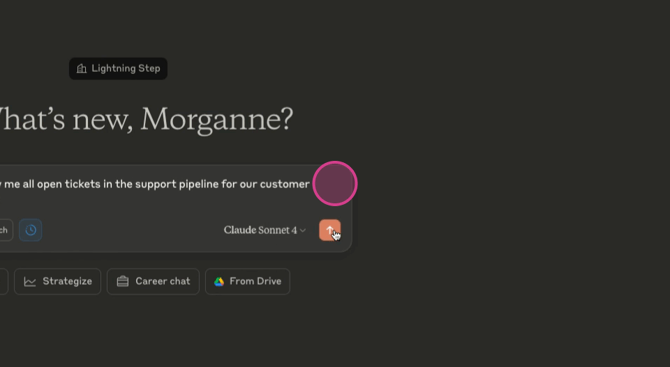
If this is your first time using the HubSpot connection, you'll be prompted to allow Claude to access the different prompts. Always click Always Allow. Claude will then start processing the prompts to understand your request. Once Claude finishes the request, it will display your request as usual. And that's it! You've successfully connected HubSpot to Claude.
