
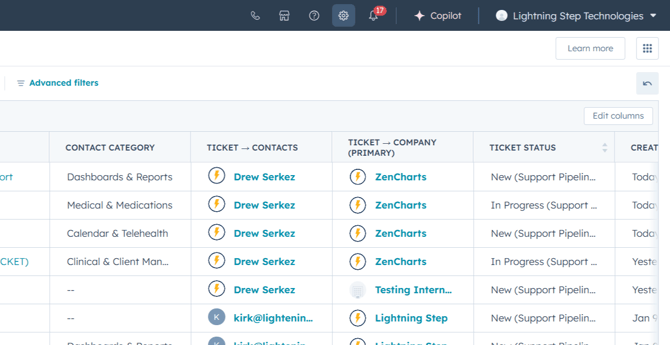
Step 1: Click on the gear settings wheel at the top of your screen.
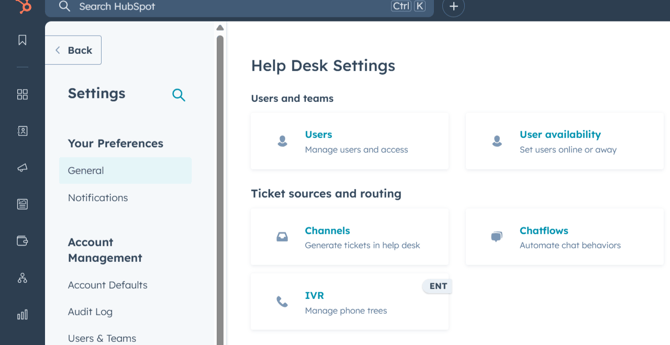
Step 2: You'll be redirected to your Settings page. Here, select General under your preferences.
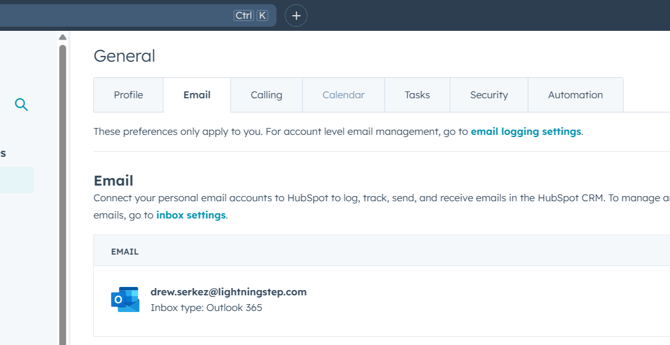
Step 3: The right side pane will update with multiple tabs. Enter the Calendar tab. Note: Your email needs to be connected for this step. If it's not, please contact Morgan or Drew for assistance.
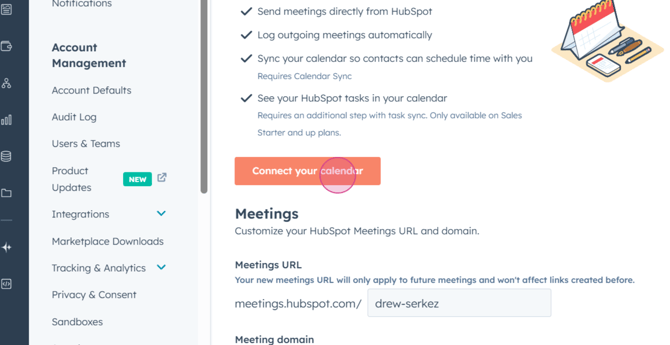
Step 4: Click on the Calendar tab. You'll see a prompt indicating that your calendar is disconnected. To connect it, click on the orange Connect your calendar button.
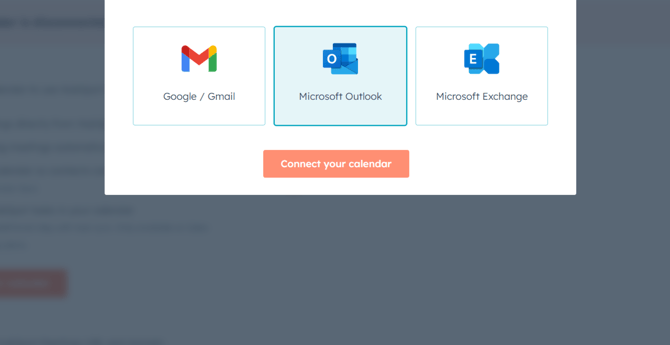
Step 5: Choose your calendar. In this example, we're choosing Outlook.
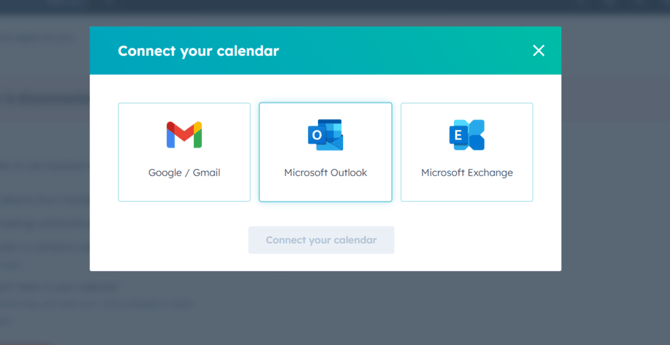
Step 6: Click on Connect my calendar.
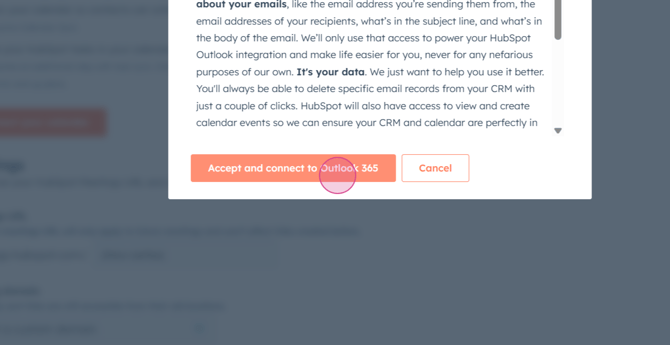
Step 7: You'll see an Accept and connect to Outlook365 option. Select this option.
Step 8: You'll be prompted to log into your Microsoft account off screen.
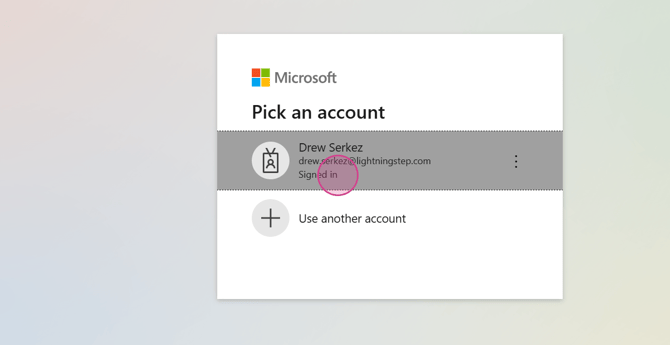
Once you're logged in, you'll be redirected back to Lightning Step. Here, you'll see that your calendar is successfully connected to your company email account. Now, you're ready to set and schedule meetings, and your availability will be accurately reflected within HubSpot.
