
Step 1: Start on the home page and click the Admissions tab.
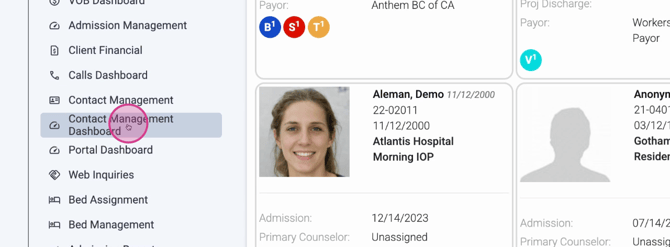
Step 2: Under Admissions, choose Contact Management Dashboard.
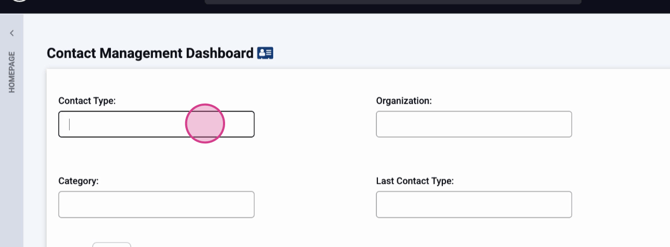
Step 3: At the top of the dashboard, use the filters to narrow down your contact list. Filter options include:
-
Contact Type: Choose between viewing organizations (like a treatment center or law office) or individual people at those organizations.
-
Organization: Filter contacts by a specific organization.
-
Staff Assigned: View organizations or contacts assigned to a particular staff member.
-
Role: See contacts by their role within the referral organization (e.g., lawyer, counselor, therapist).
-
Category: Filter contacts by categories such as addiction treatment, education, or hospital.
-
Last Contact Type and Last Contact Result: Filter based on recent interactions and their outcomes.
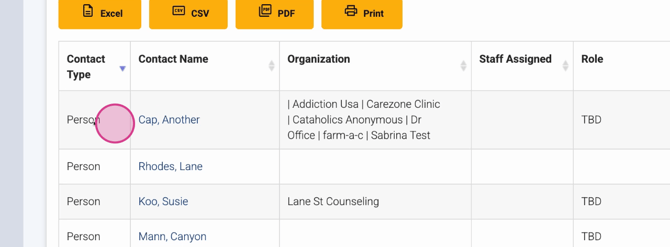
Step 4: Once you’ve set your filters, scroll down to see your contact list. Each row provides an overview:
-
Contact Type (organization or person)
-
Name
-
Organization affiliation
-
Assigned staff member
-
Role
-
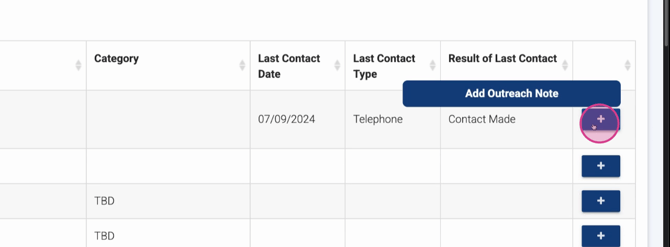
Category
-
Last Contact Date
-
Last Contact Type
-
Result of Last Contact
Step 5: To document new outreach, click the plus sign (+) on the far right of the contact’s row.
Step 6: In the outreach window, select the Contact Type, choose the Result for this interaction, add a Subject (like “discussed potential client”), and enter a detailed note.
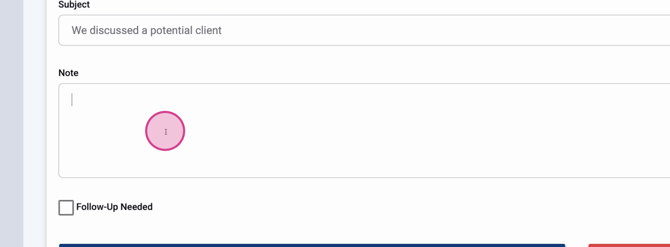
Step 7: Set a follow-up date if you need a reminder to reconnect with the contact.
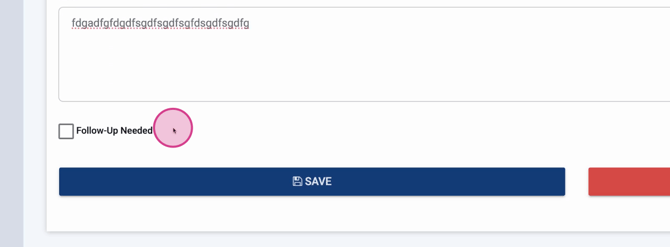
Step 8: Click Save to log your outreach note.
This dashboard gives you a fast, organized overview of all your referral outreach, saving time and making it easy to stay on top of relationships. For detailed editing and adding brand new contacts, use the main Contact Management area.
For more details, check our internal documentation or reach out to the support team if you have questions.
