
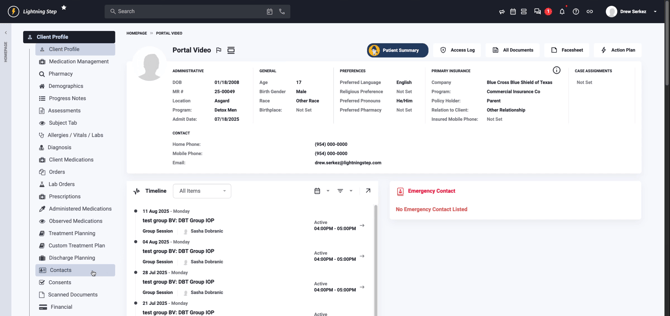
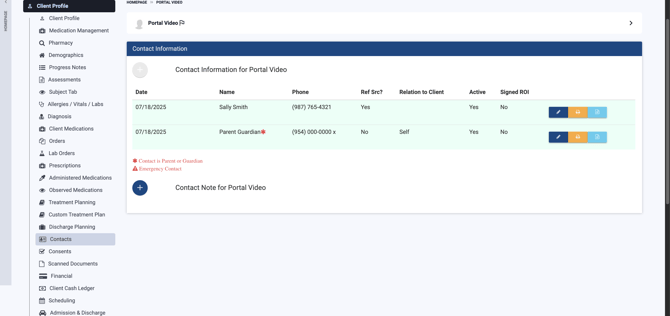
Step 1: Open the Client or Inquiry Profile Access the client's profile or the inquiry profile. Look for the menu on the left and select Contacts.
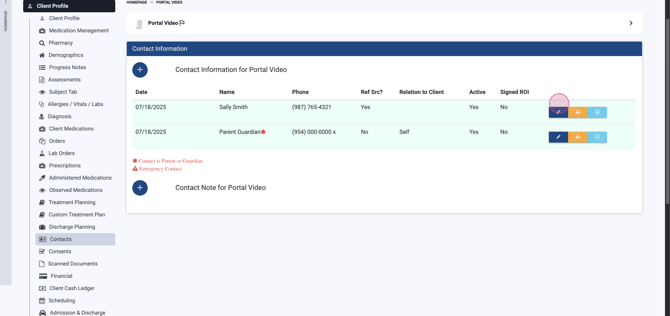
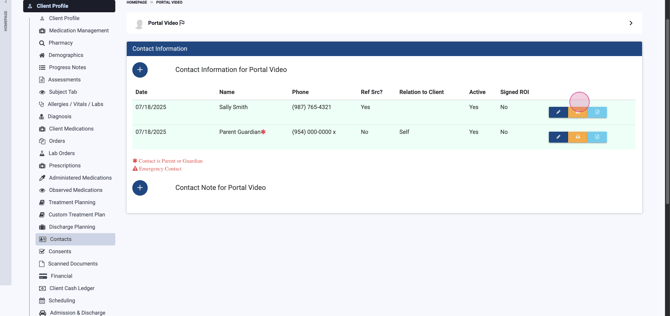
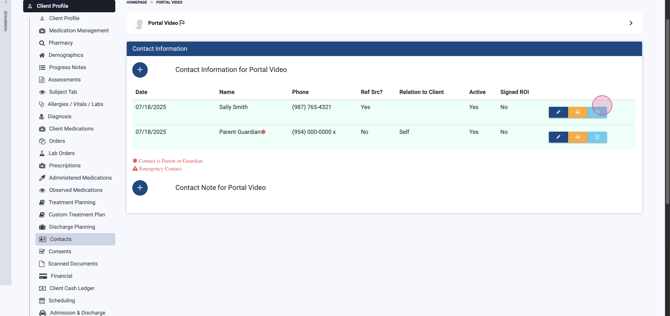
Step 2: Review and Manage Contacts View all previously added contacts—each shows the name, entry date, phone number, referral source, and active status. The ROI assignment status appears as an indicator. Use the action icons to edit, print, or generate an ROI.
Step 3: Add a New Contact Click the plus icon to start creating a new contact.
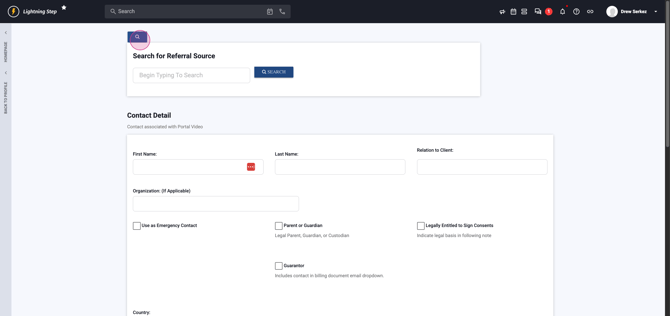
Step 4: Search or Collapse Referral Source Option If your new contact is a referral source, use the built-in quality of life tool to search their information. Otherwise, collapse the referral option by hitting the hourglass icon.
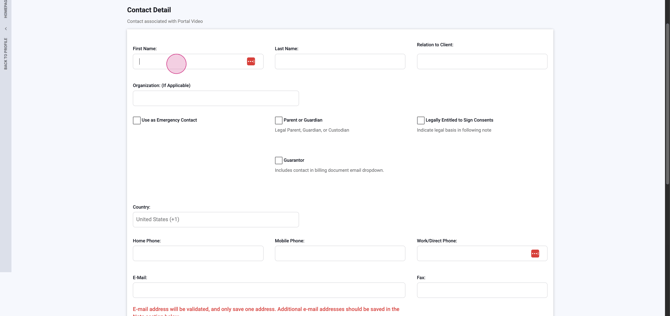
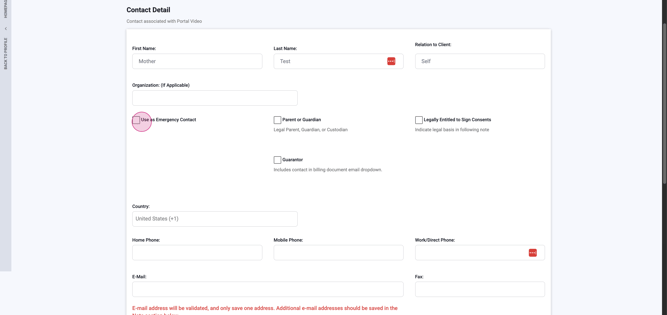
Step 5: Enter Contact Details Fill in all required fields. Add the contact's organization if relevant. Designate their relationship—select if they should be marked as an emergency contact, parent/guardian, or someone authorized to sign consents.
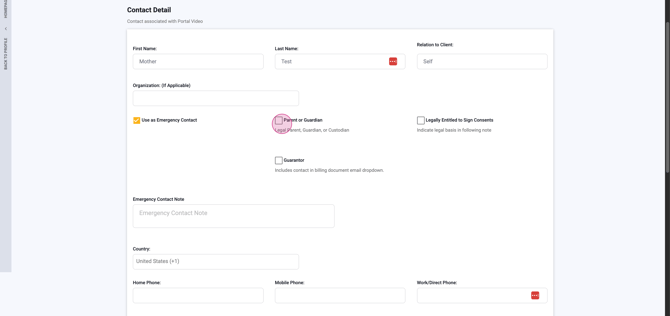
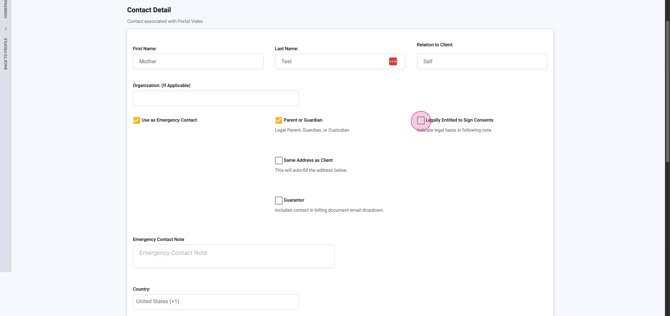
Step 6: Set Address and Financial Details Enter the contact's address details. If it matches the client's, indicate so. Mark them as a financial guarantor if necessary.
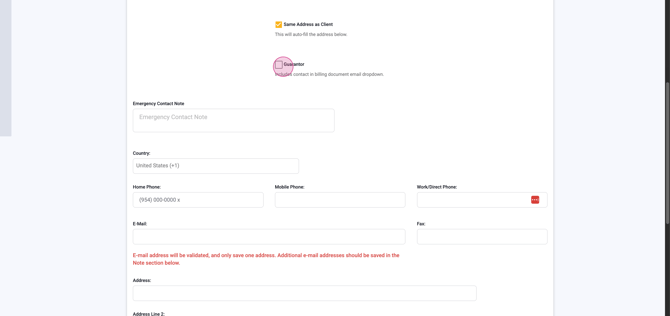
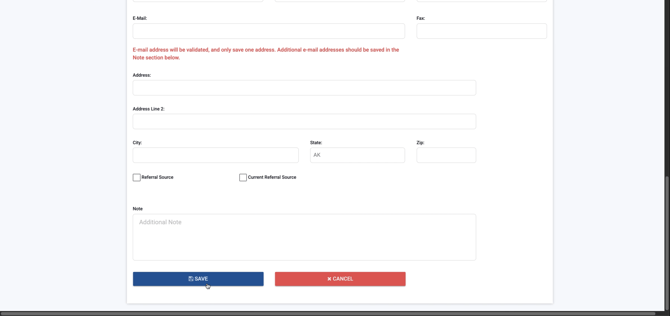
Step 7: Complete Additional Info and Notes Add email, fax, city, state, referral source status, and any general notes.
Step 8: Save the New Contact Select Save to add your contact.
Step 9: View the Updated Contacts List Your new contact appears in the listing. Use the right-side icon to generate an ROI when required.
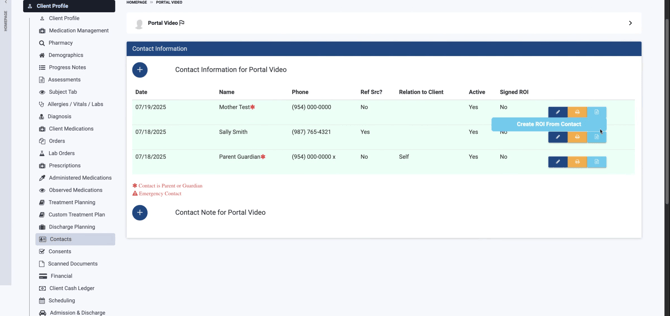
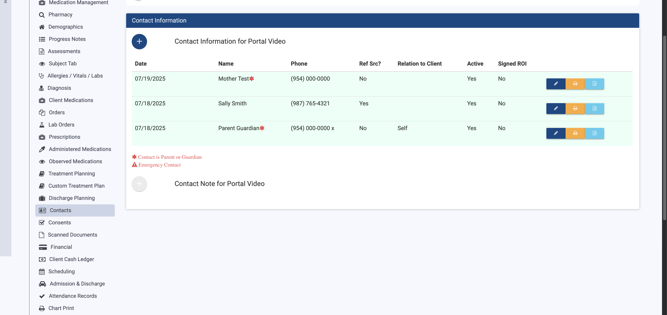
Step 10: Add a Contact Note To document communication, click the plus icon next to Contact Note for any listed contact.
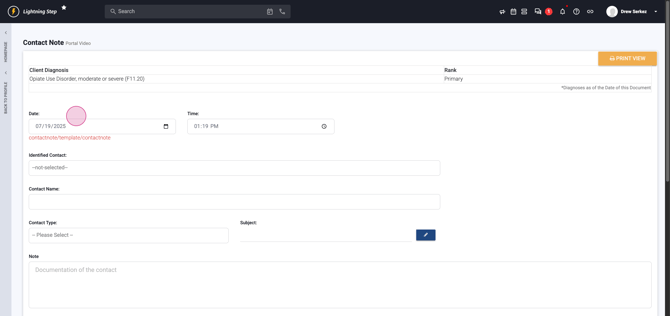
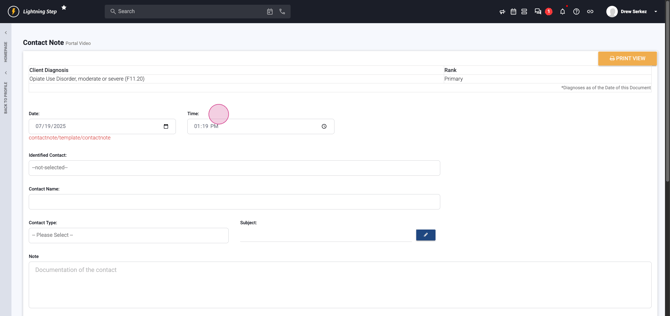
Step 11: Enter Note Details Complete all fields: note date, time, contact name, contact type, subject, your notes, and call outcome.
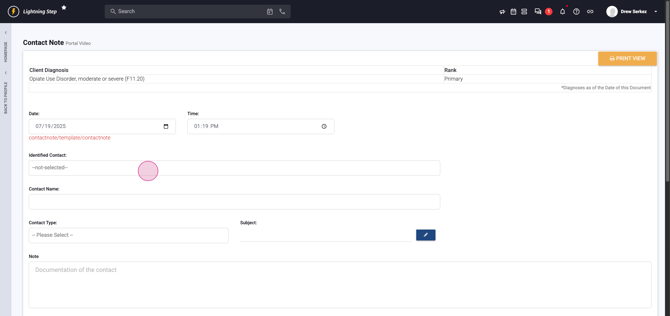
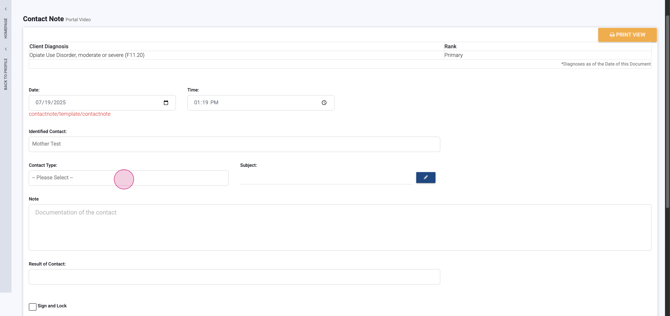
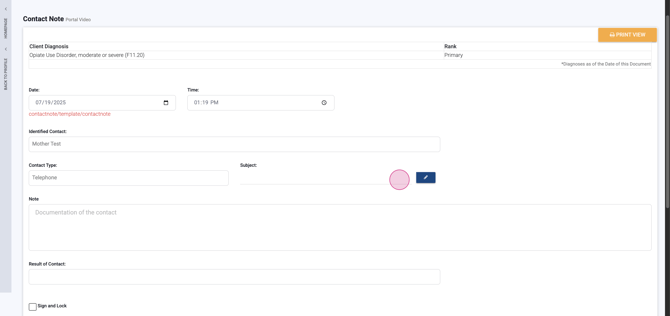
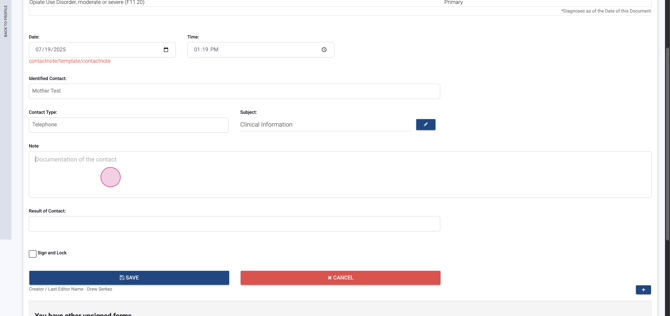
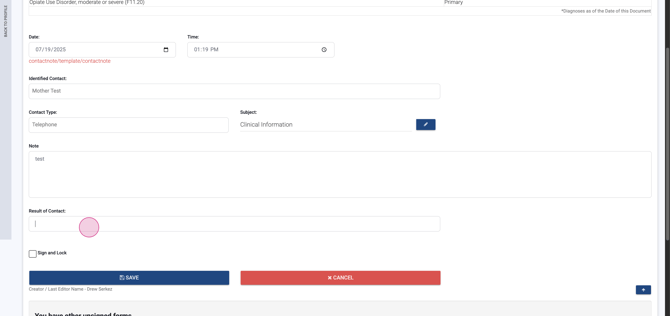
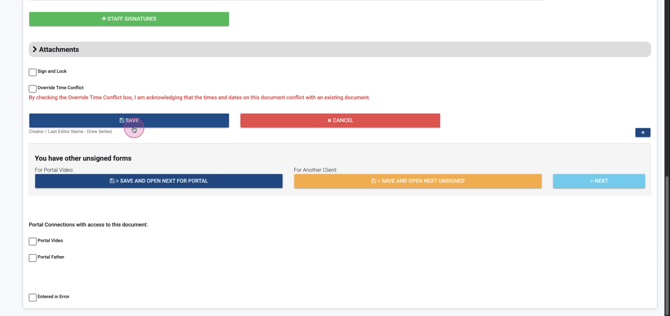
Step 12: Sign and Lock the Note Press Lock and Save. This applies your signature and prevents further edits.
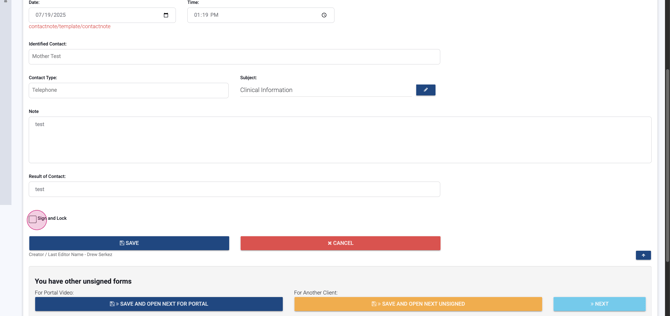
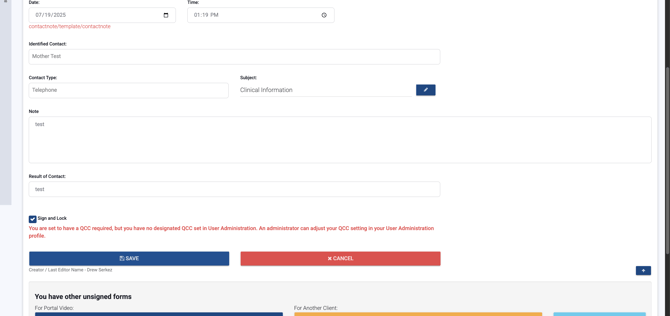
You’ve now added a contact and recorded a note. Next, let’s enter a general progress note.
Step 13: Access the Progress Notes Menu Head to the Progress Notes menu within the client profile. Menu names may differ if customized for your organization.
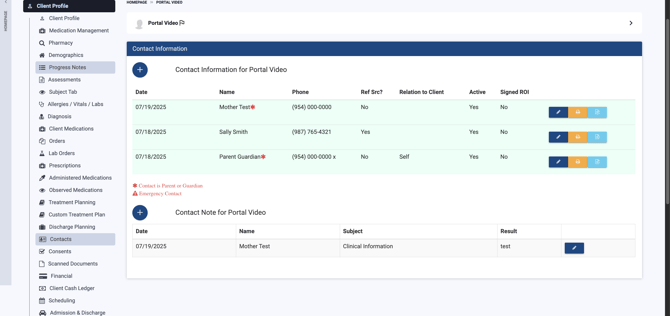
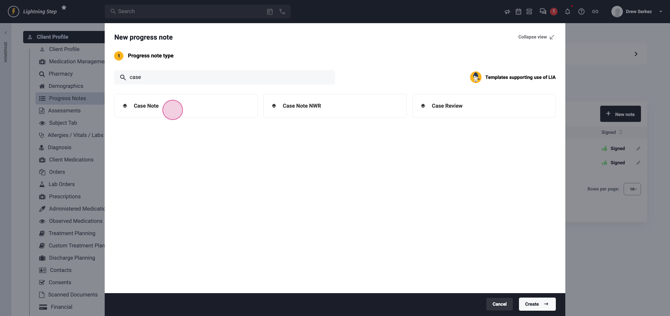
Step 14: Create a New Note Click the button to start a new note. A pop-up will appear; search for and select the client to populate the note fields.
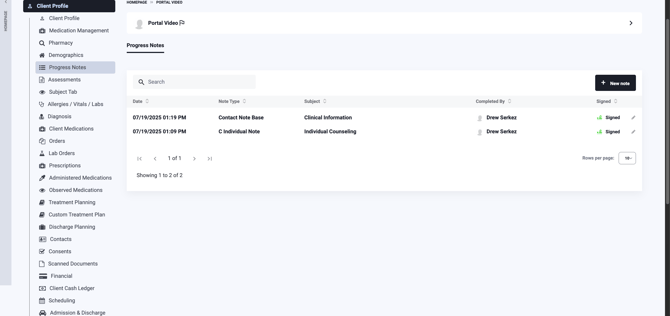
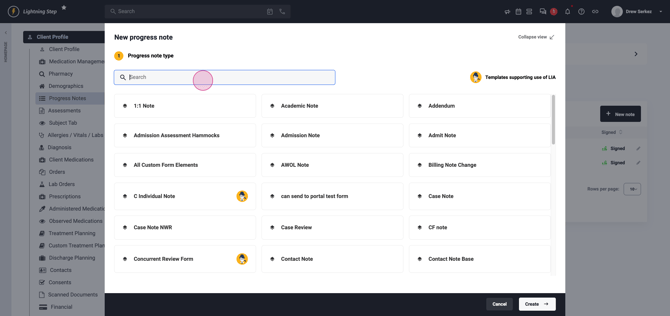
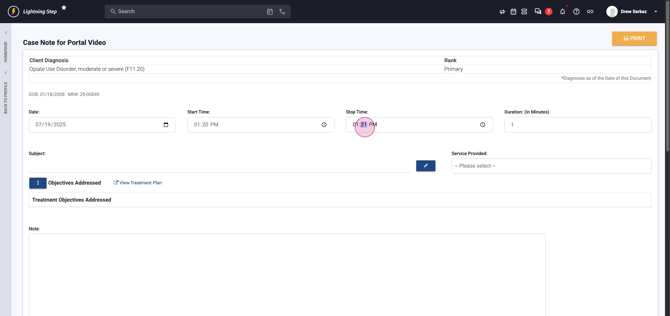
Step 15: Fill Out the Case Note Set the date, start and end times—duration calculates automatically. Record the subject, select provided services, reference treatment plan objectives, and write your main note.
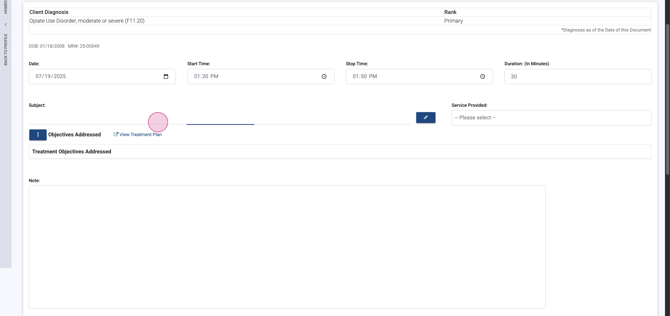
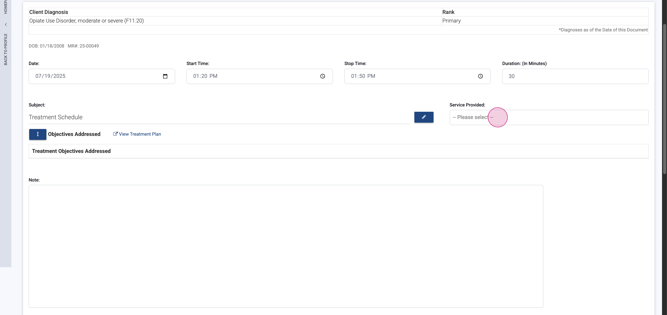
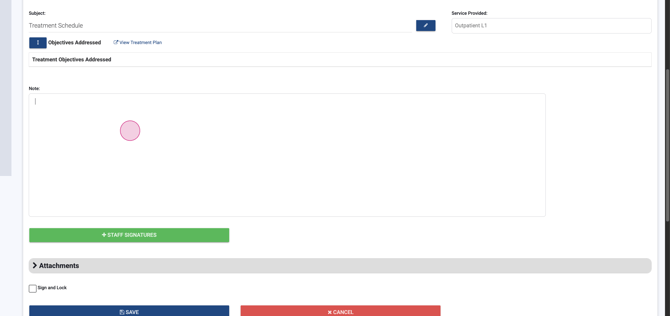
Step 16: Finalize and Lock the Note Click Sign, Lock, and Save to secure your note.
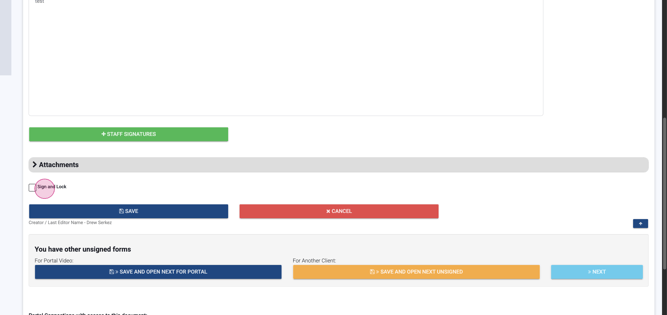
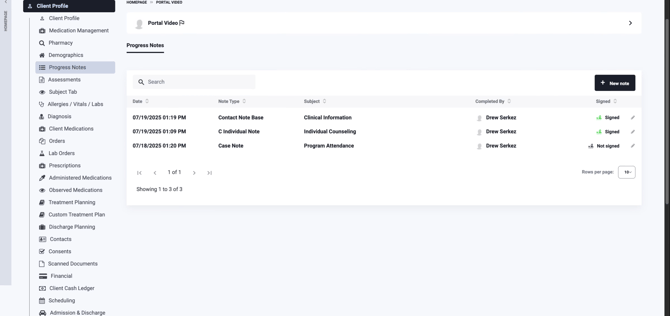
Return to the client profile—your record is updated and complete.
You’ve learned how to create contacts, add contact notes, and document progress efficiently. These steps help you stay organized and ensure collaboration across your team.
