
Navigating to the Admissions Section
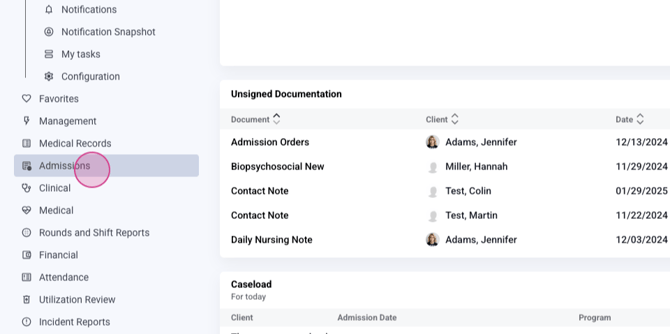
Step 1: Navigate to the Admissions section.
Adding Initial Contact Details
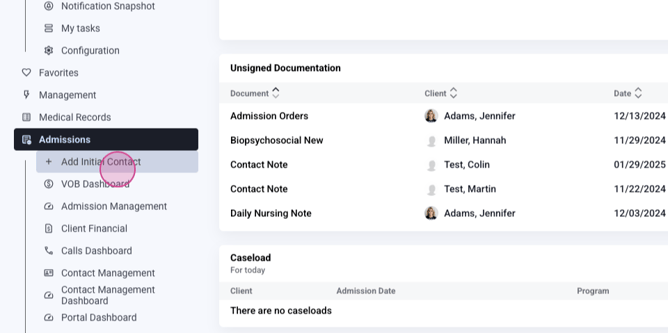
Step 2: Select Add Initial Contact.
Step 3: On the Initial Contact page, fill in the following details: - First name - Last name - Phone number - Email - Relation to the potential client
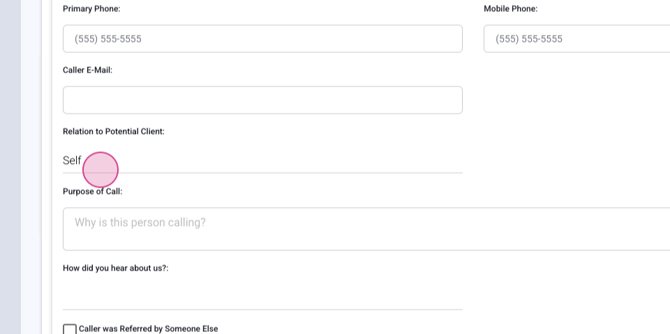
Note: - If the caller is the potential client, the system automatically captures the entered details. - If the caller is someone else, you'll have the option to add referral sources.
Providing Additional Caller Information
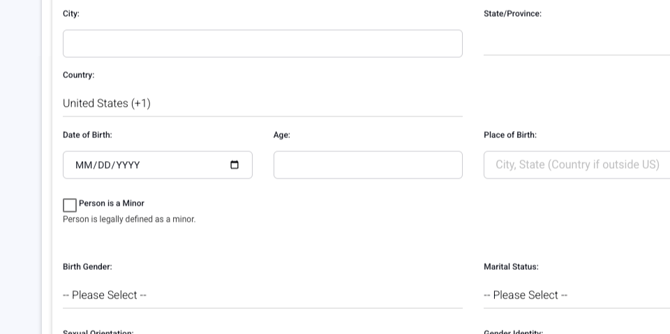
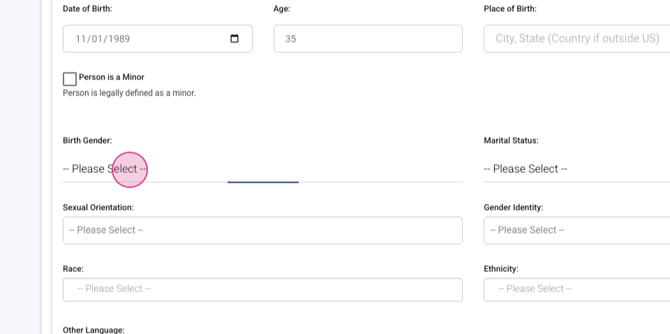
Step 4: Enter the caller's date of birth. This is a required field.
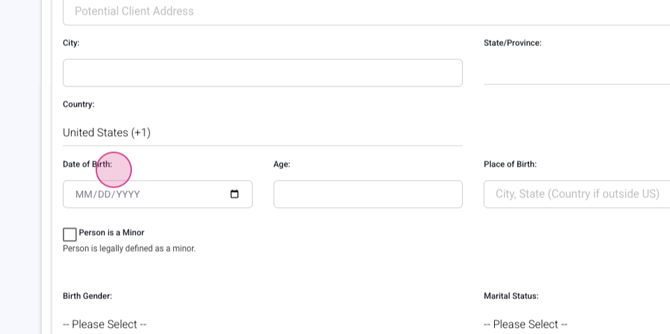
Step 5: Capture the caller's gender.
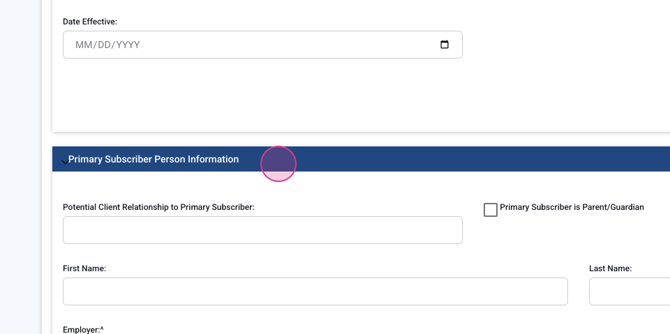
Step 6: Enter any applicable payer information, such as: - Insurance - Private payer - Scholarship - Primary prescriber information
Documenting Call Results and Scheduling Assessments
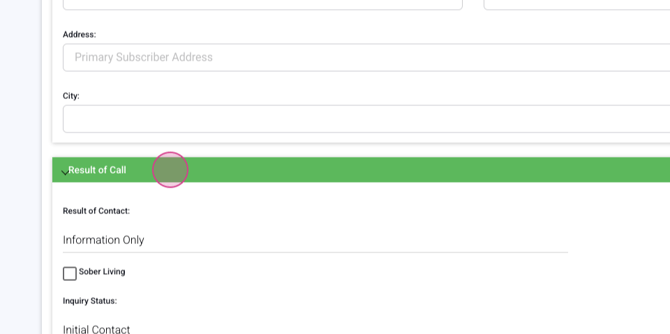
Step 7: Document the results of the call. Include details like: - Pending admission or assessment - Projected programs - Projected admission dates
Step 8: If applicable, schedule an assessment.
Saving the Initial Contact
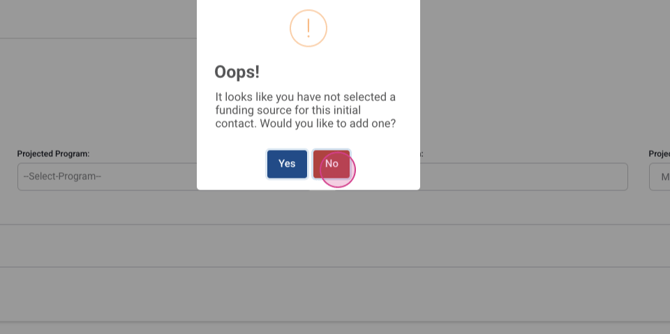
Step 9: Click Save. If you haven't selected a funding source, a pop-up will appear asking if you'd like to add one. This is a reminder and not a requirement for saving.
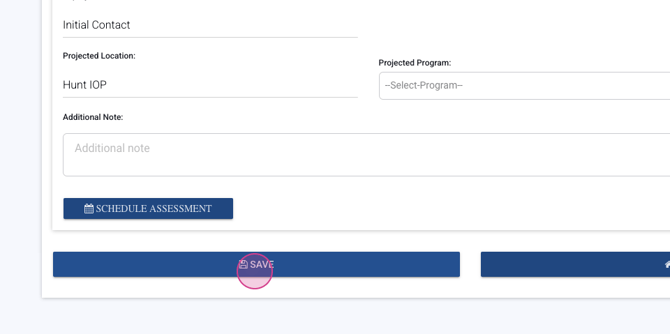
Note: - If you haven't added a funding source (e.g., insurance or private pay), the system will ask if you're sure you want to proceed without it.
Step 10: If you choose not to add a funding source, select No. The system will save the initial contact and capture them as a lead in your inquiry section.
Stay tuned for more tutorials on managing leads and inquiries.
