
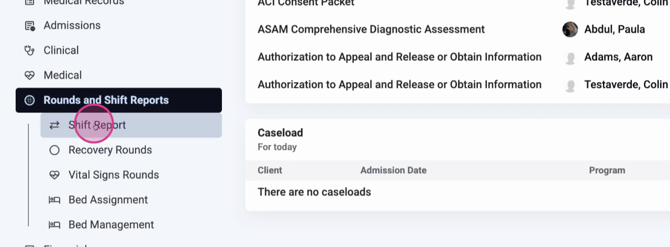
Step 1: Start on the Home page and scroll down to Rounds and Shift Reports.
Step 2: Click the Shift Reports button at the top.
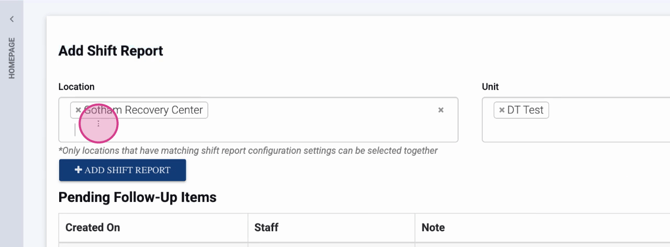
Step 4: Use the location dropdown to pick the relevant site. Filter if you manage multiple locations.
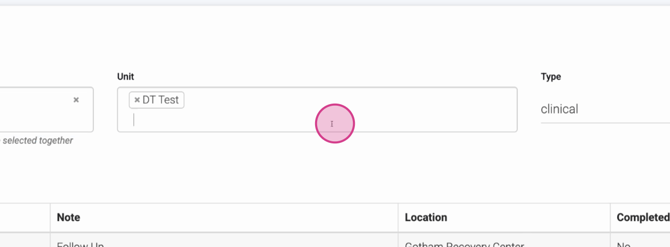
Step 5: Choose the correct Unit (e.g., Women’s Residential, Men’s).
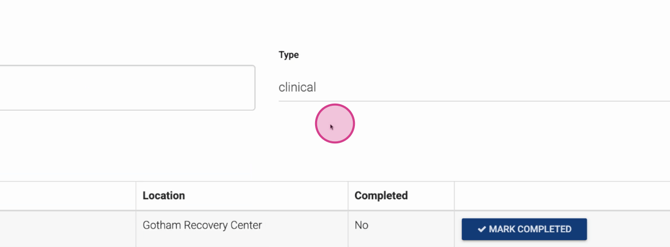
Step 6: Select the Type of Shift Report. Create types as needed for different scenarios.
Step 7: Confirm your settings. When ready, click to start your shift report.
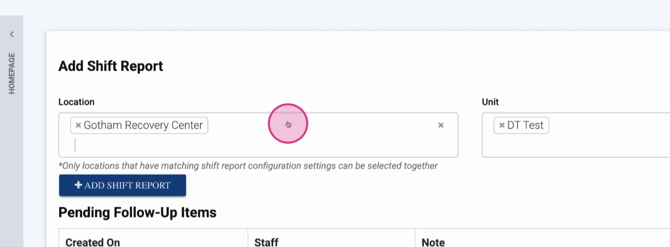
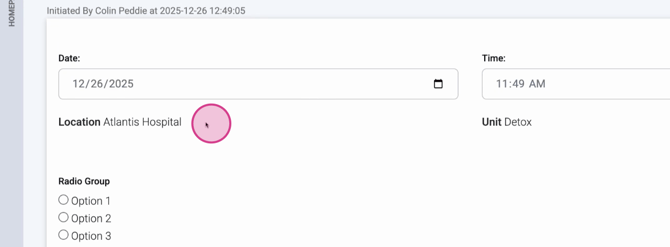
Step 8: Fill out the details. Confirm the Location, Unit, and Type of Report. The date and time auto-fill to the current moment.
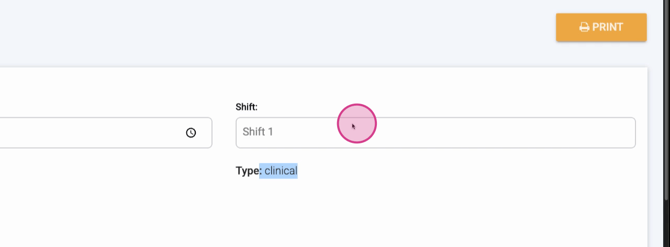
Step 9: Pick your shift, like Overnight, Morning, or Afternoon.
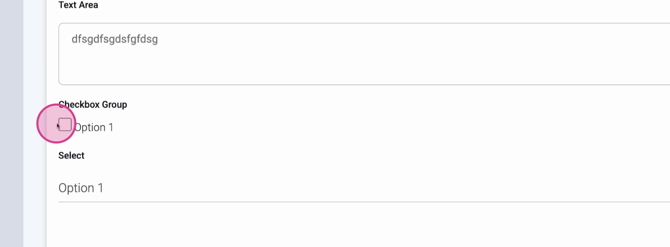
Step 10: Complete the provided form. Add all required information for your shift.
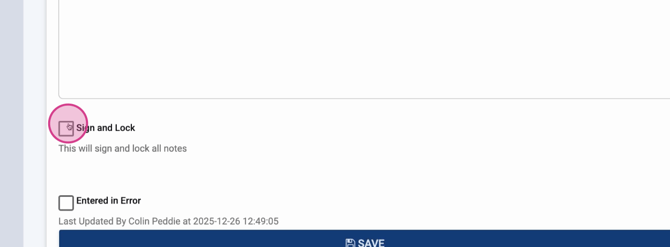
Step 11: When done, click Sign and Lock to finalize your entry, then hit Save.
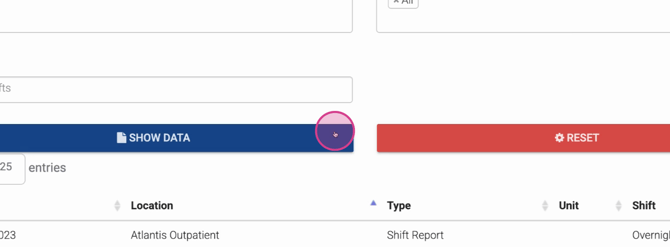
Step 12: Your shift report will show in the list. Use filters to see reports from different dates. Adjust the From and To fields as needed, then click Show Data.
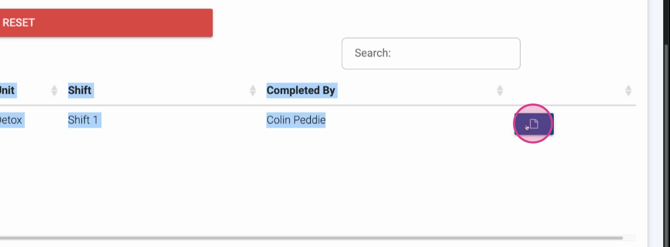
Step 13: Click the paper icon next to any report to view its full details.
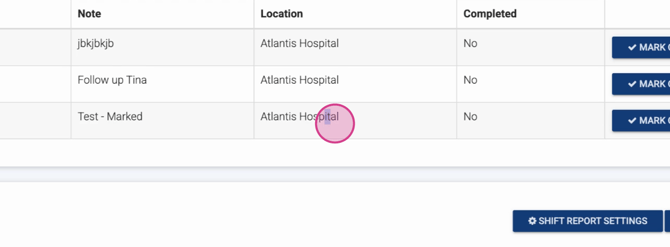
Step 14: In the detailed report, review or update pending follow-up items. Mark items as Complete when addressed.
Shift reports help you track activity, share updates, and follow up on important tasks. Use filters, types, and follow-up tracking to make shift handovers seamless and well-documented.
