
Step 1: Find the client from the census tab and select their profile.
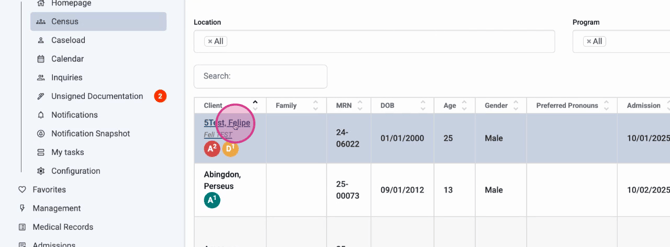
Step 2: Navigate to Medication Management.
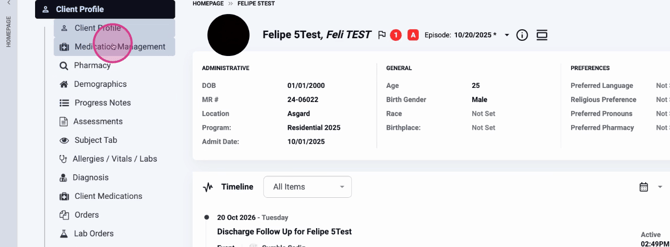
Step 3: Make sure you're in the new Medications module. Review available sections like orders, prescriptions, client-reported meds, inventory, and stored meds.
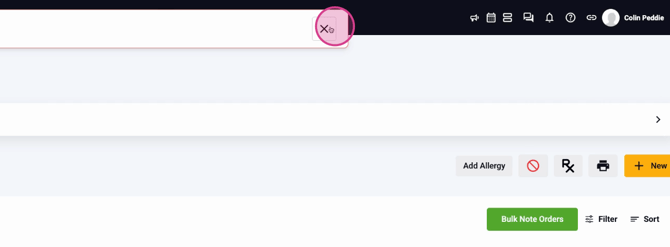
Step 4: Click New Order at the top right of the screen.
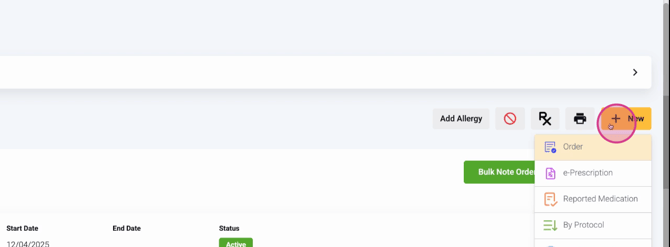
Step 5: Search for the medication name (for example, “hydroxazine 50mg capsule”).
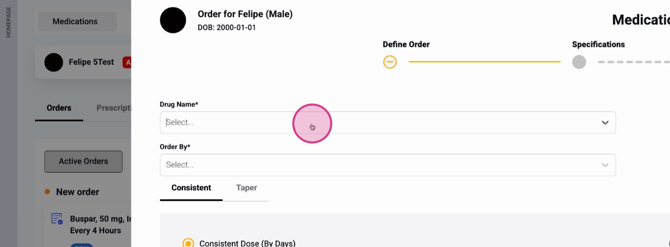
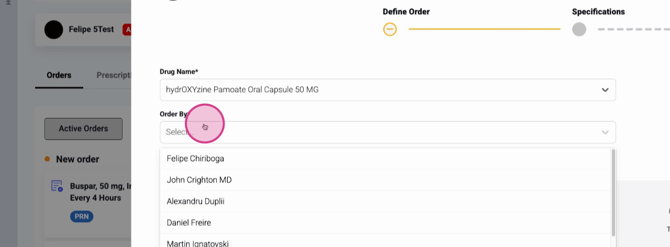
Step 6: Select who’s ordering the medication and set the dosing pattern (consistent by days, open-ended, etc.).
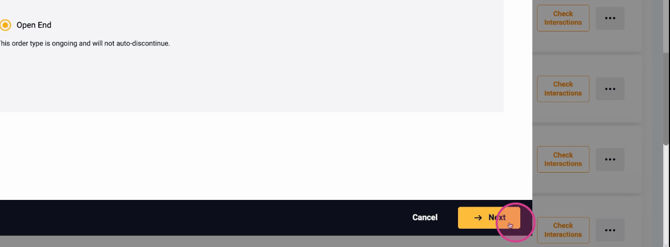
Step 7: Choose the classification, then click Next.
Step 8: Review the medication basics—name, start date, dosage form, and route.
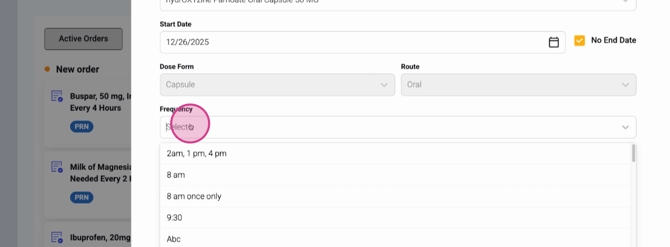
Step 9: Enter prescription details like total quantity (e.g., 30), RX number if available, and frequency.
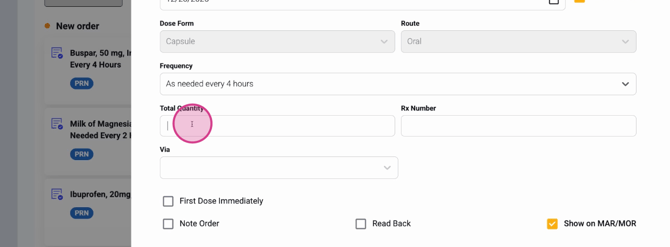
Step 10: Decide if the first dose should be prescribed and given immediately.
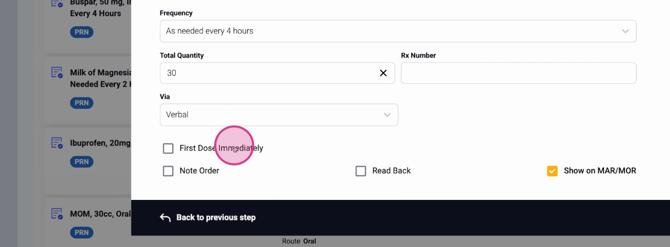
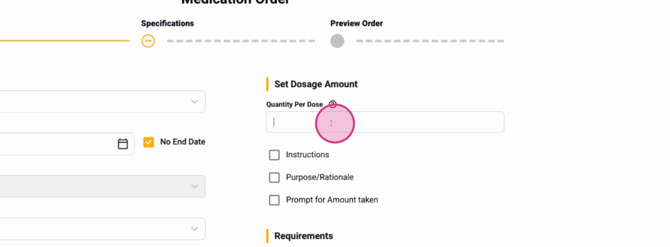
Step 11: Enter the dosage amount (quantities per dose, such as 1) and add any relevant instructions, purpose, or rationale.
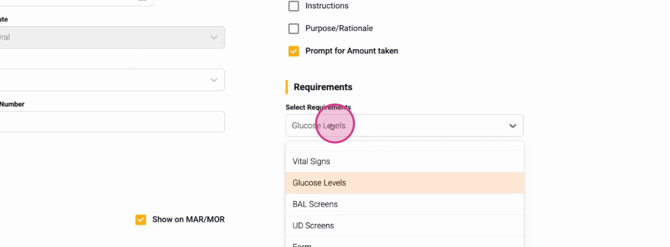
Step 12: Specify any requirements when administering the medication (for example, glucose level checks for diabetes medication). Leave blank if there are none.
Step 13: Read the order back and confirm the note.
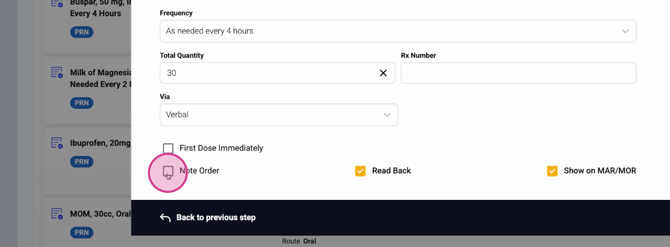
Step 14: Click Next to review an overview of your order. Confirm all details are correct.
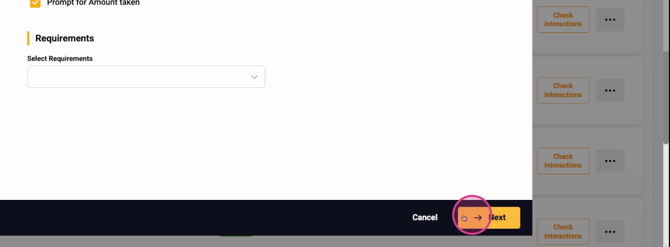
Step 15: Add staff notes if necessary, then click Save. Choose whether to save and close or save and create prescription directly from this order.
Reviewing and Managing the Medication Order
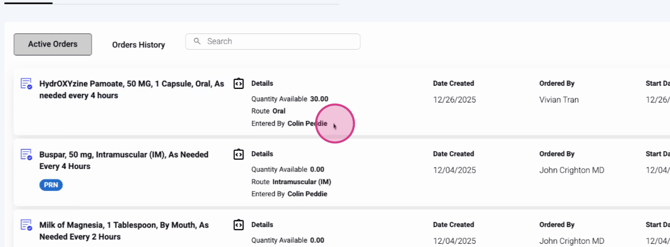
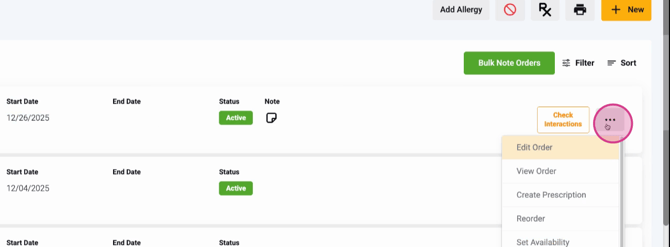
After saving, you’ll see the new medication order with all its details: creation time, who ordered it, start and end dates, notes, status, and any interactions.
Access additional actions from the three-dot menu—edit, create a prescription, reorder, set availability, and more.
The new medications module streamlines order entry and management, making everything more organized and user-friendly. If you have questions as you work through medication orders, reach out for support.
