
Step 1: From your census or homepage, locate the incident reports tab on the left side.
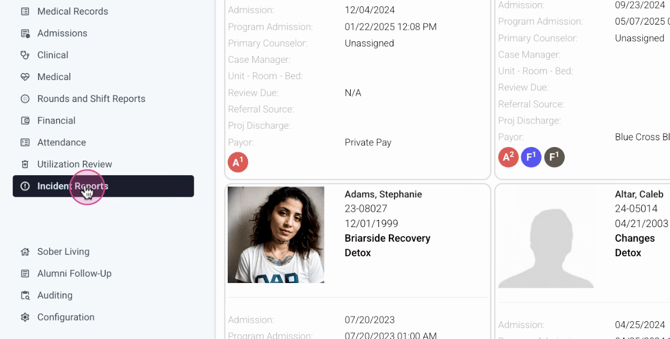
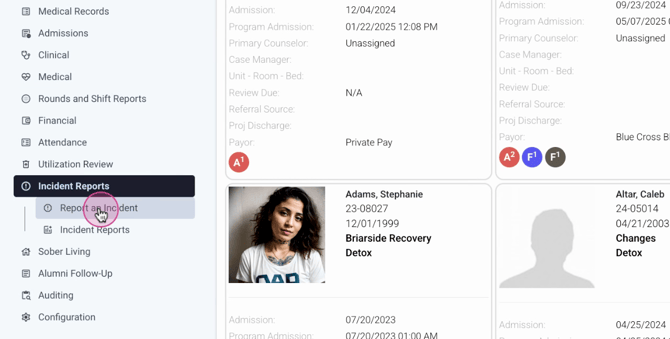
Step 2: Click on the tab to open the incident report page.
Step 3: Start by capturing the incident's date and time.
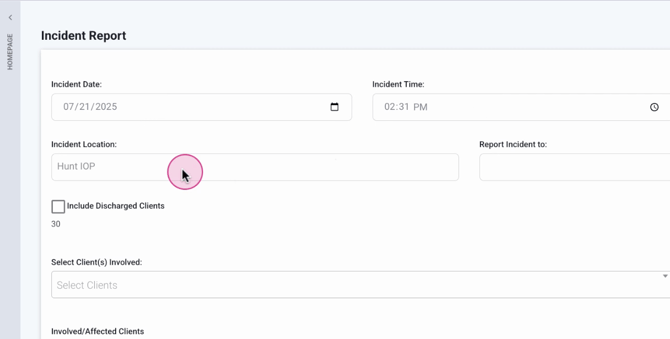
Step 4: Next, input the location of the incident.
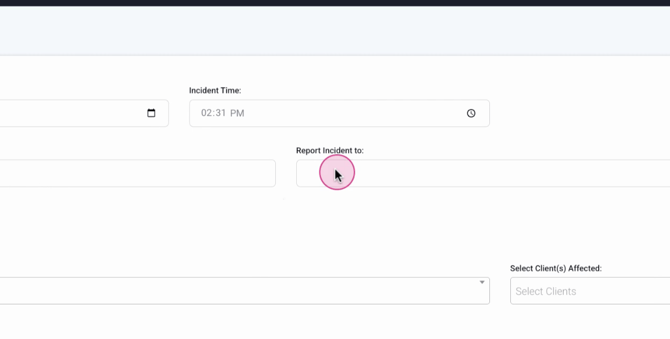
Step 5: If applicable, include any discharged clients in the incident report. This step is optional. Here, you'll select the clients involved and the clients affected.
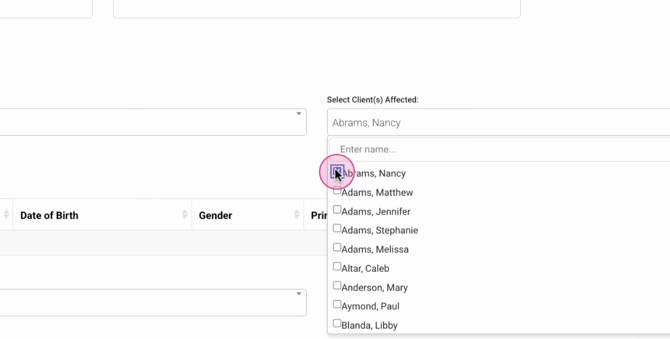
Step 6: Select the staff members involved and affected by the incident.
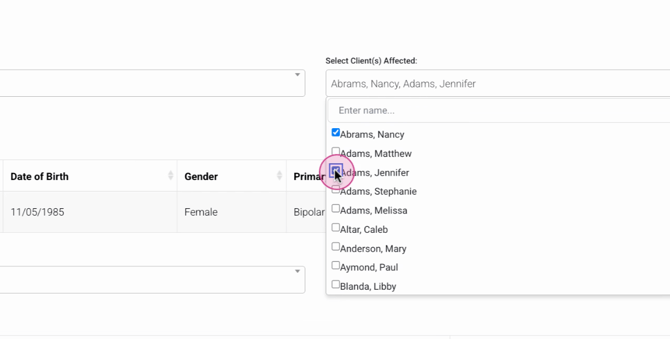
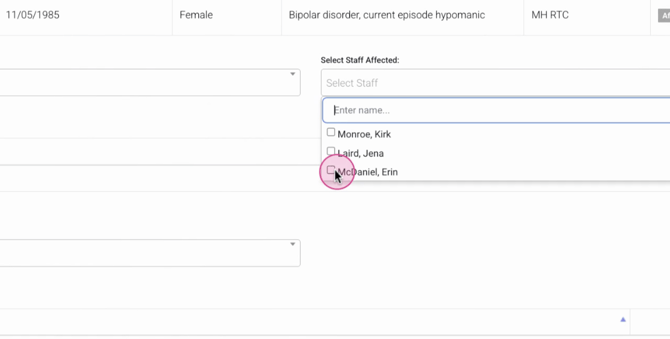
Step 7: Choose the relevant categories for the incident.

Step 8: You'll then see fields for the type and severity of the incident. Fill in these details.

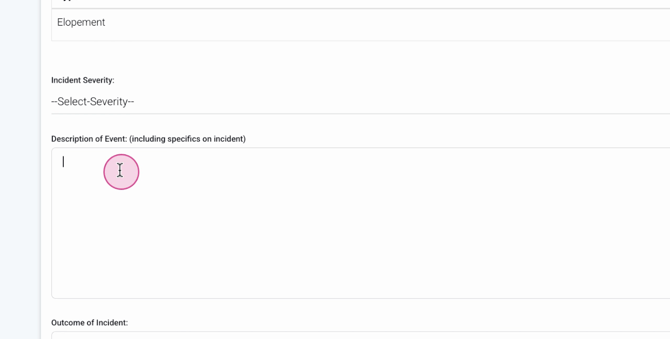
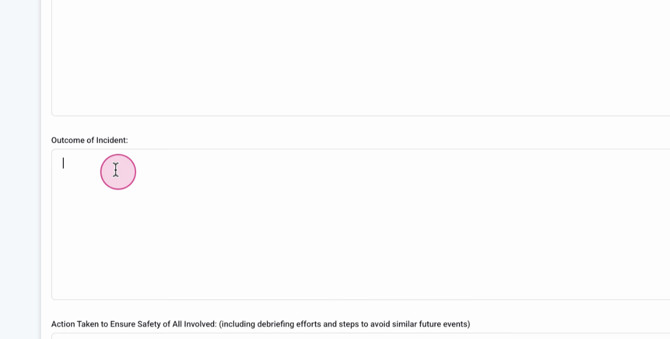
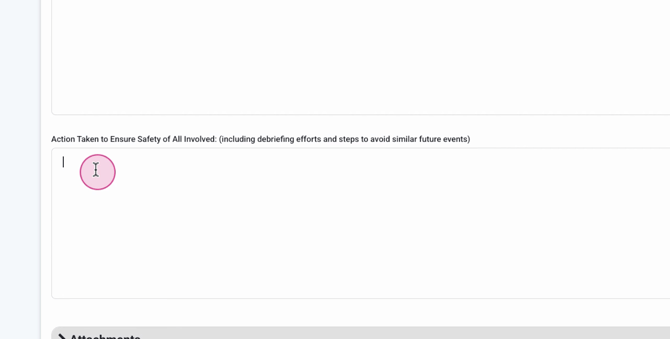
Step 9: Provide a description of the event, the outcome of the incident, and the action taken.
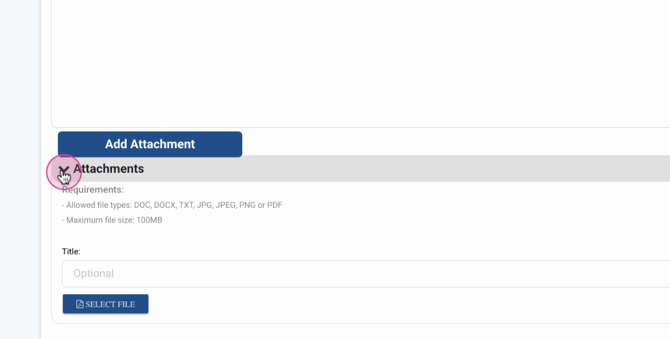
Step 10: If necessary, attach any relevant files.
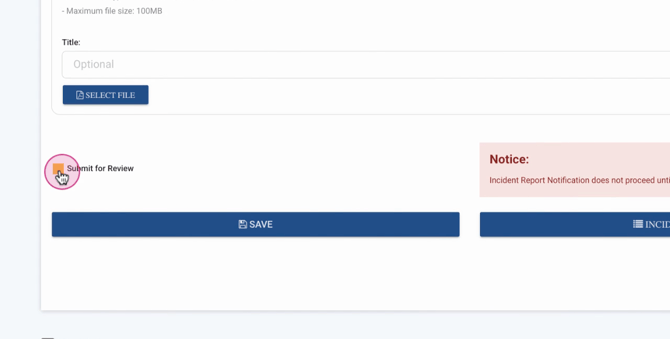
Step 11: Submit the report for review and save it.
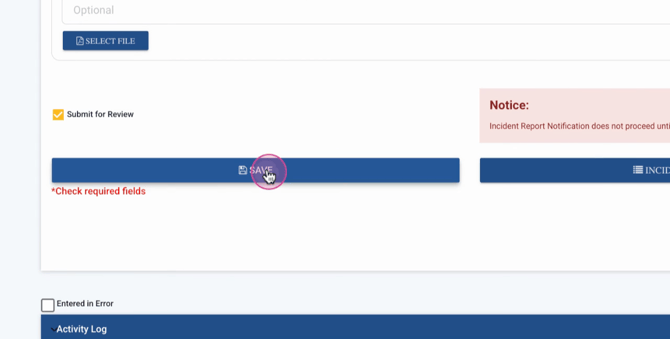
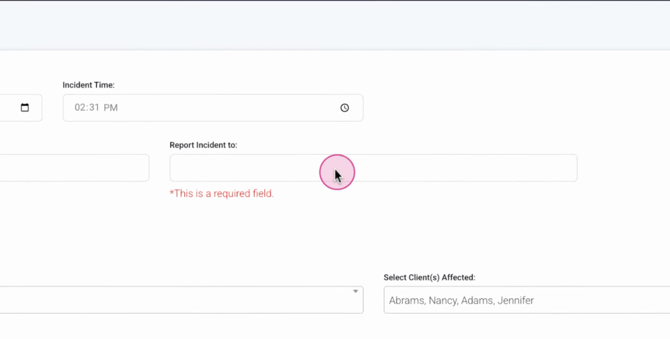
Please note: The field for reporting the incident to is required. You'll need to select compliance. Once saved, the report will be sent to the compliance group for review.
