
Step 1: Launch ClueSo and sign in using your organization credentials.
Step 2: Click Record on the dashboard to start a new screen recording.
Step 3: Pick your recording source—choose Browser Extension (for guided in-browser capture) or upload an existing video. If prompted, follow on-screen instructions to install the extension.
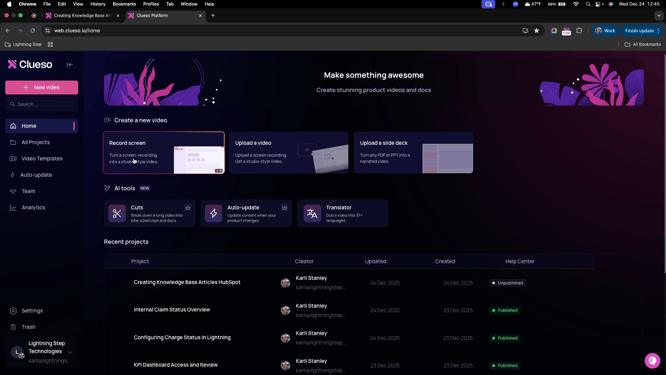
Step 4: To produce a narrated walkthrough, upload a slide deck or PDF, or choose to record your screen live.
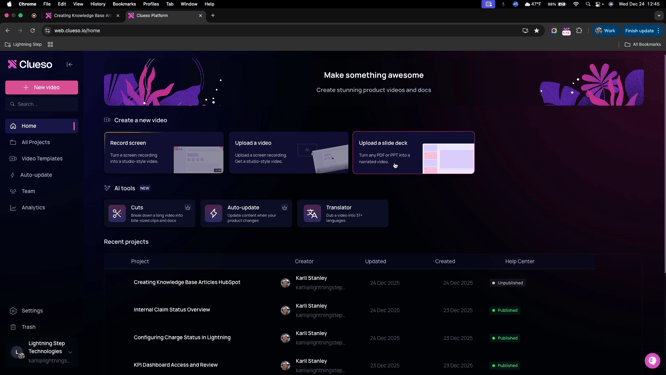
Step 5: As you demonstrate each step, clearly explain what you’re doing and why. Explain any best practices or important context.
Step 6: When your recording finishes, review the captured file under My Videos.
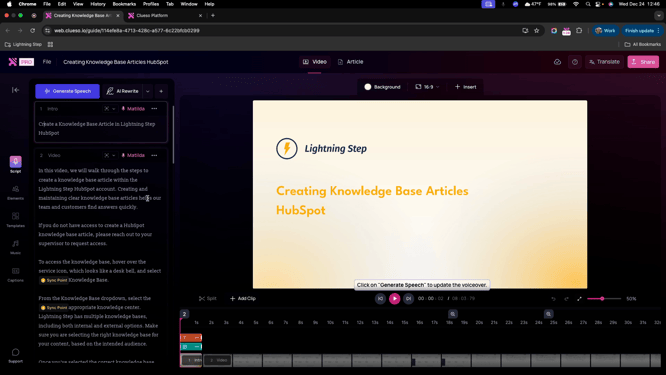
Editing Your Video and Script
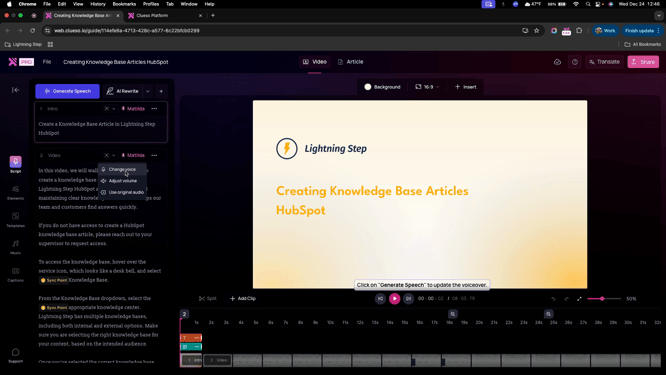
Step 1: Use the Voice dropdown to confirm Matilda is set as the narration voice. If not, select Change Voice and pick Matilda.
Step 2: Make sure your video has a branded intro. Use the preloaded title slide template and add a clear, concise name.
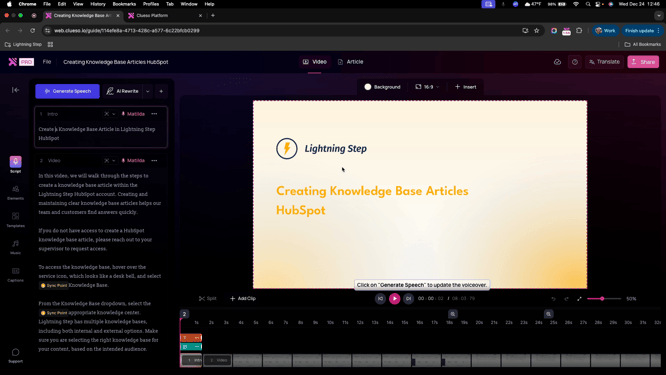
Step 3: Carefully proofread the auto-generated script for grammar, clarity, and unwanted content.
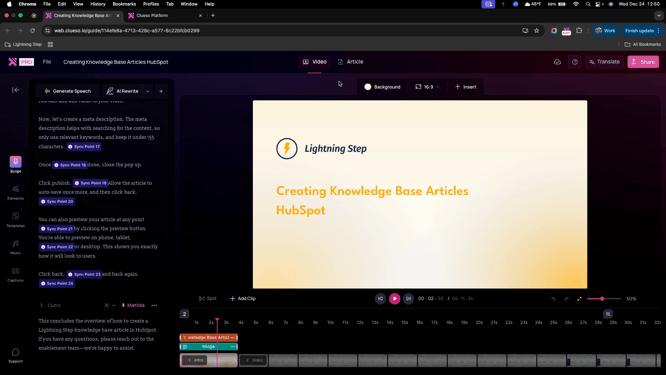
Step 4: Preview the recording once to confirm everything is in sync, especially if ClueSo added auto-content.
Step 5: Click Generate Speech to synthesize voice with your visuals. This usually takes less than one minute.
Step 6: Play the video after speech is generated. Watch and listen to check for accuracy, pacing, and sync between narration and visuals.
Step 7: To adjust sync, select script text, type "/", then choose Add SyncPoint. Use the sync panel to drag and align video segments with narration.
Step 8: Reference the in-app documentation if you need a refresher on sync points.
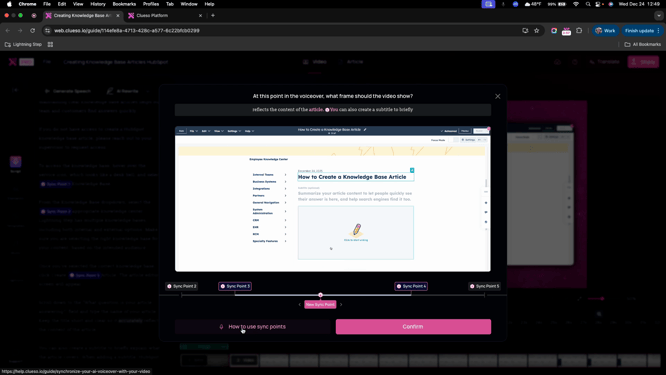
Step 9: Insert brief pauses with a forward slash to break up narration where needed—especially at key transition points.
Step 10: After every change to your script, intro, or outro, click Generate Speech to update the audio.
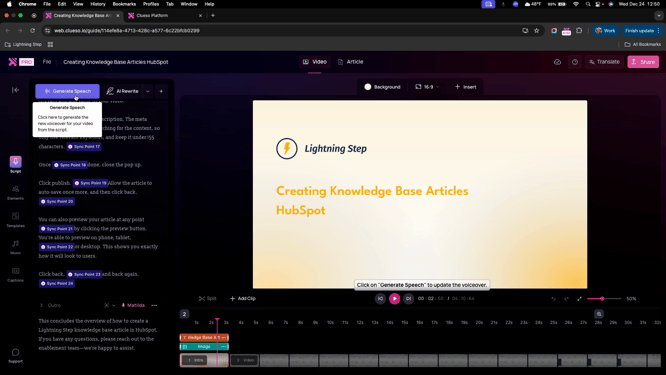
Step 11: Keep your finished videos under five minutes—ideally less than four—to ensure viewer engagement. Break longer topics into separate recordings.
Generating and Editing the Article
Step 1: Once your video is ready, switch to the Article tab. ClueSo will auto-generate a step-by-step article based on your video and script.
Step 2: Proofread the article. Check spelling, grammar, and that screenshots are clear and relevant.
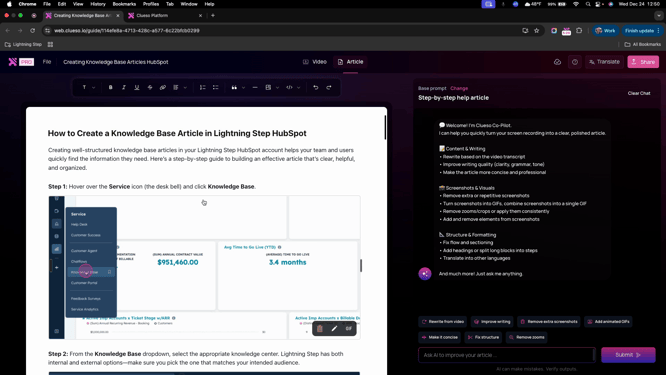
Step 3: To format or style your article, either use the AI prompt tool or manually edit the text. Use the on-screen editor for tweaks.
Step 4: Remove unhelpful screenshots by clicking the trash can on the image.
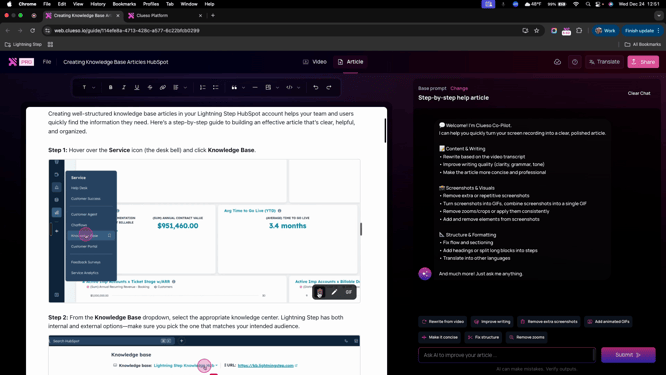
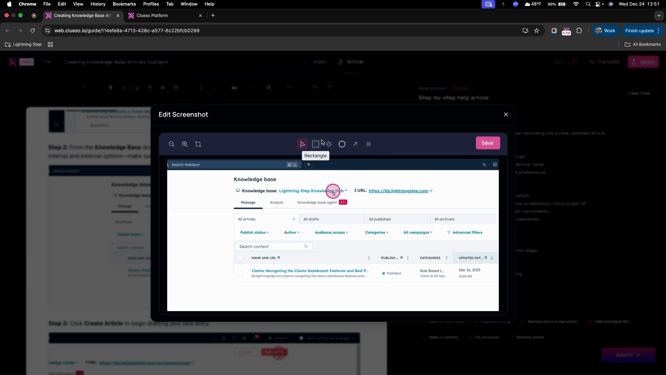
Step 5: Click Edit Screenshot to highlight, blur, or circle items in an image. Add new screenshots by selecting Insert Image, scrolling through your video, and picking the most helpful frame.
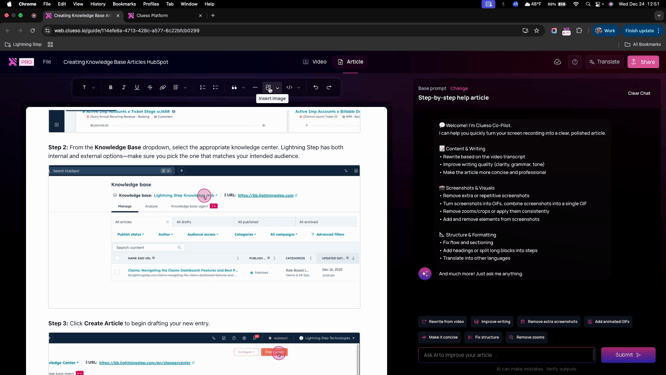
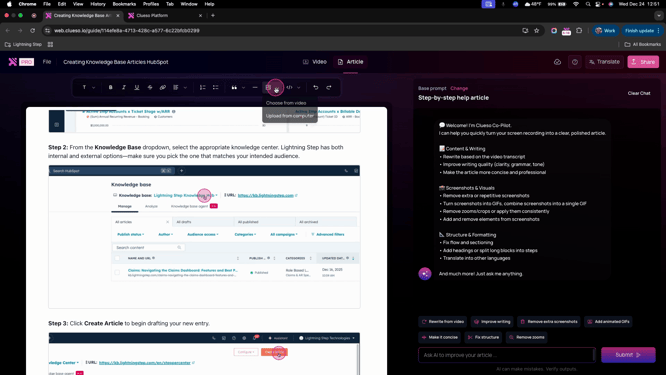
Step 6: When your article looks perfect, copy its contents.
Publishing Your Knowledge Base Article
Step 1: Paste the article into your HubSpot knowledge base.
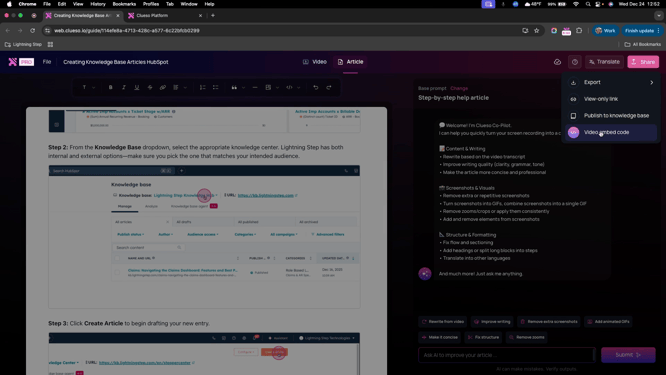
Step 2: For video playback, open the Share menu and select Embed Code.
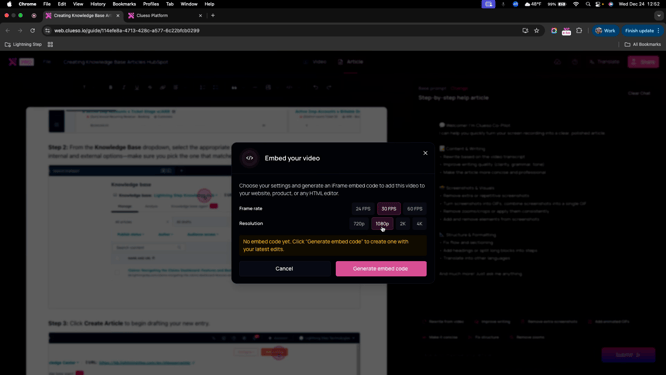
Step 3: Set the frame rate to 30 FPS and ensure the resolution is at least 1080p.
Step 4: Click Generate Embed Code and wait for processing.
Step 5: Insert the embed code into your HubSpot page for seamless video playback.
Congratulations! You’ve now built and published knowledge base documentation using ClueSo. If you have questions, reach out to your enablement team for help.
