
Step 1: Understand When to Use a Custom QCC Plan
Standard QCC assignment on the QCC Dashboard only lets you choose one counselor. If your workflow requires splitting document review responsibilities between multiple counselors, use a custom QCC plan.
Step 2: Access the Custom QCC Plan Option
On the QCC Dashboard, select the test user assigned the counselor role. Choose the custom QCC plan option from the drop-down at the top.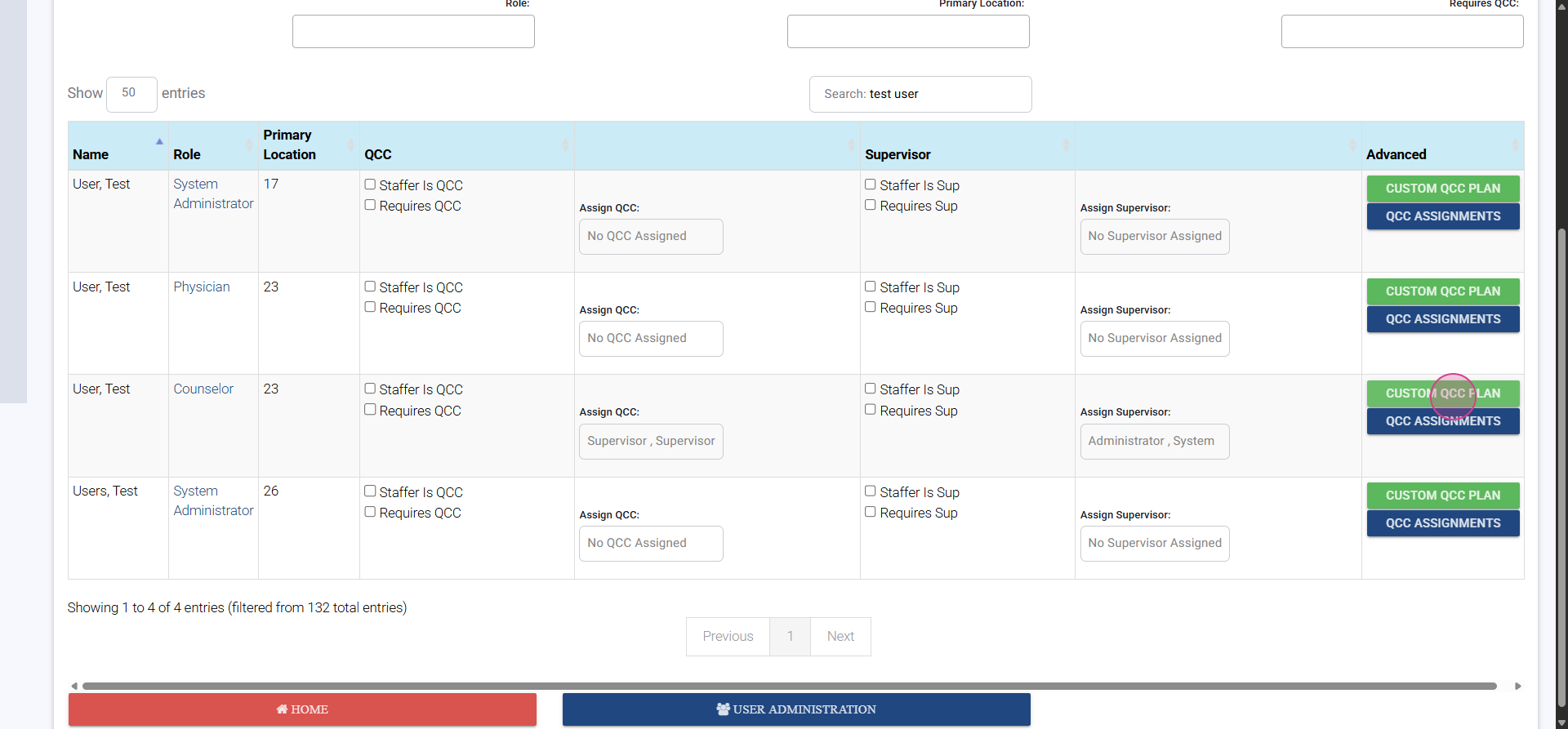
Step 3: Open Patient QCC Settings
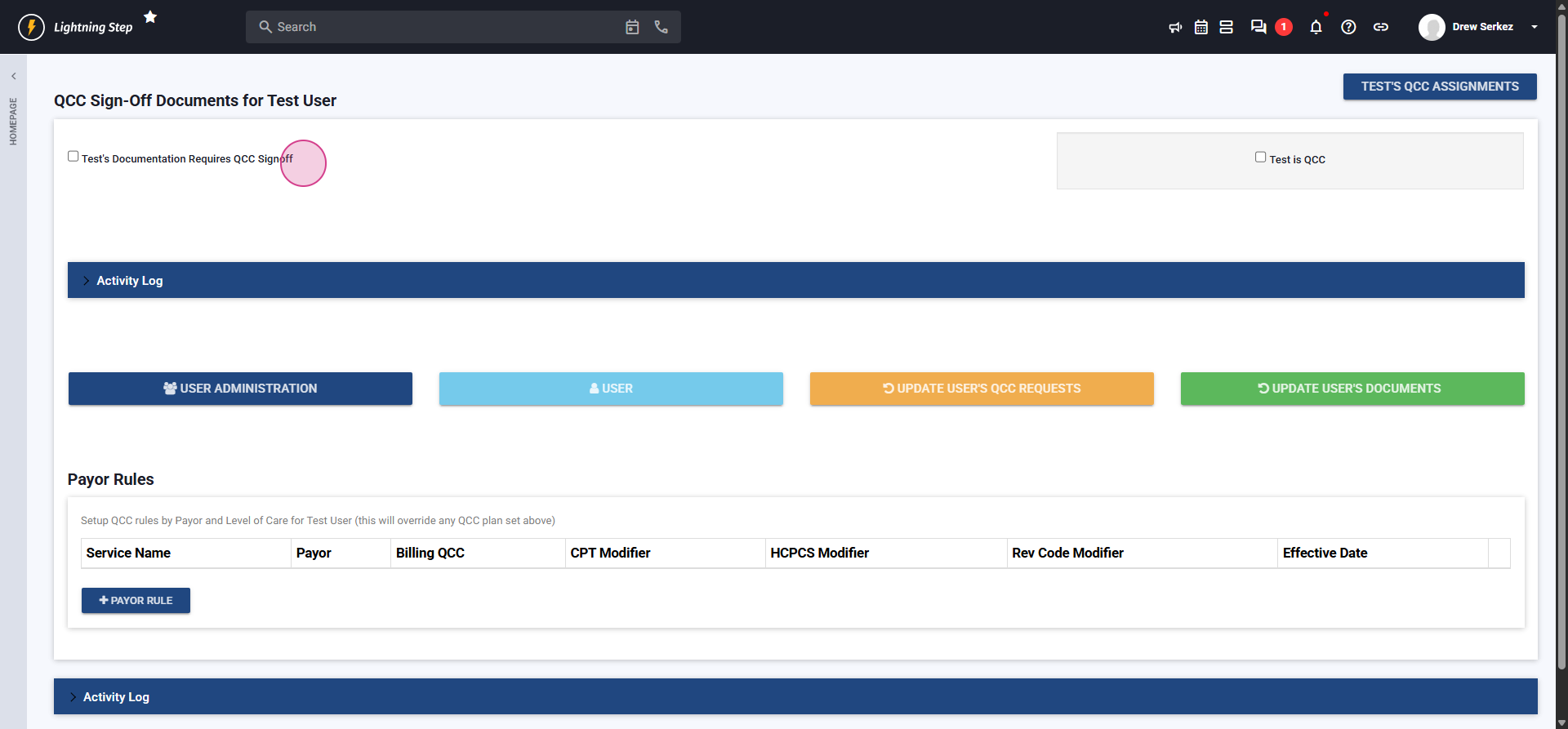
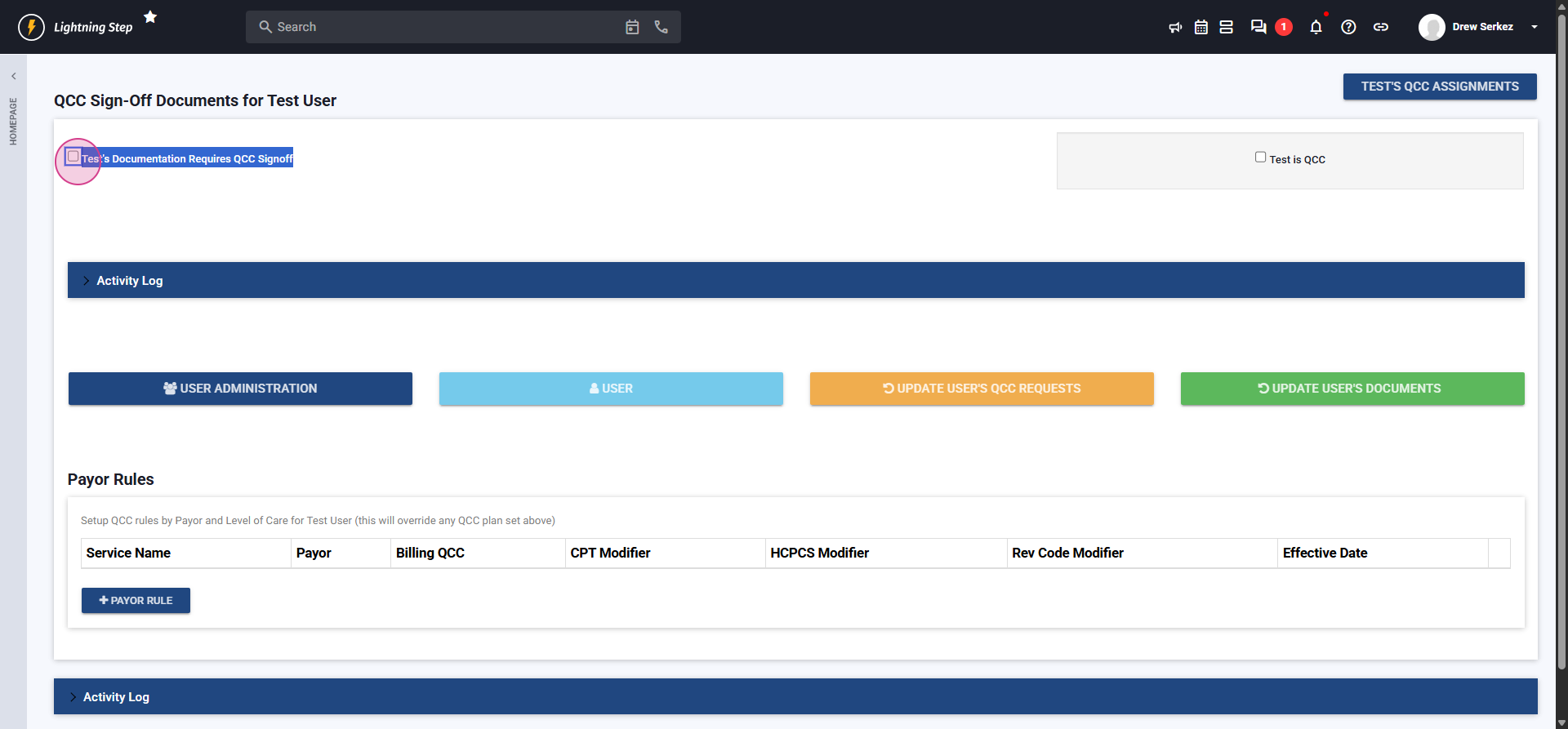
You'll be redirected to the patient’s QCC settings. Check the box to require QCC sign-off for this patient’s documents.
Step 4: Change Designated QCC to Custom Plan
Notice the supervisor assignment from the previous screen. Change the designated QCC from an individual to the custom QCC plan option at the top of the drop-down.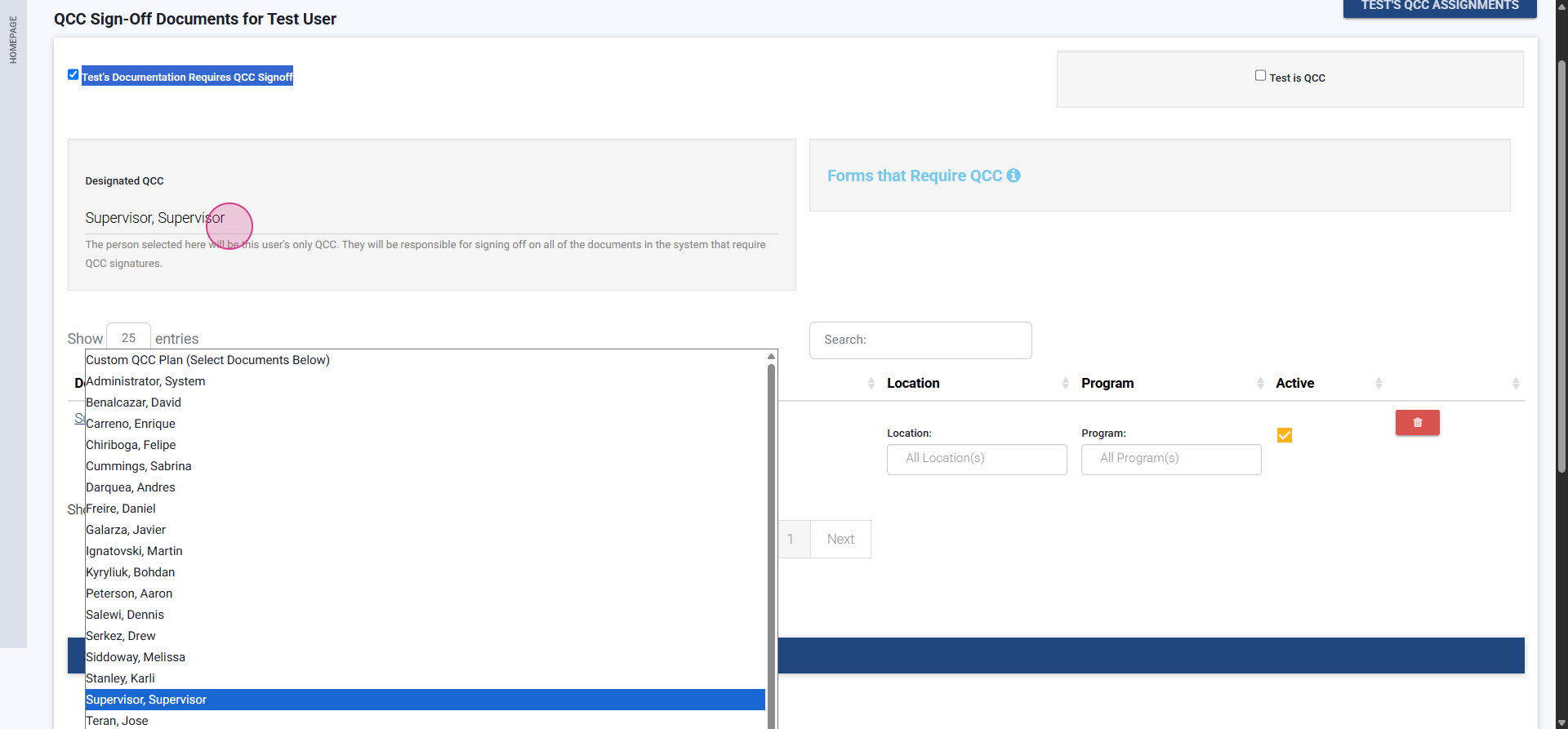
Step 5: Select Documents for the Custom Plan
When you select custom QCC Plan, a new drop-down appears. Use this to pick which documents the plan will cover.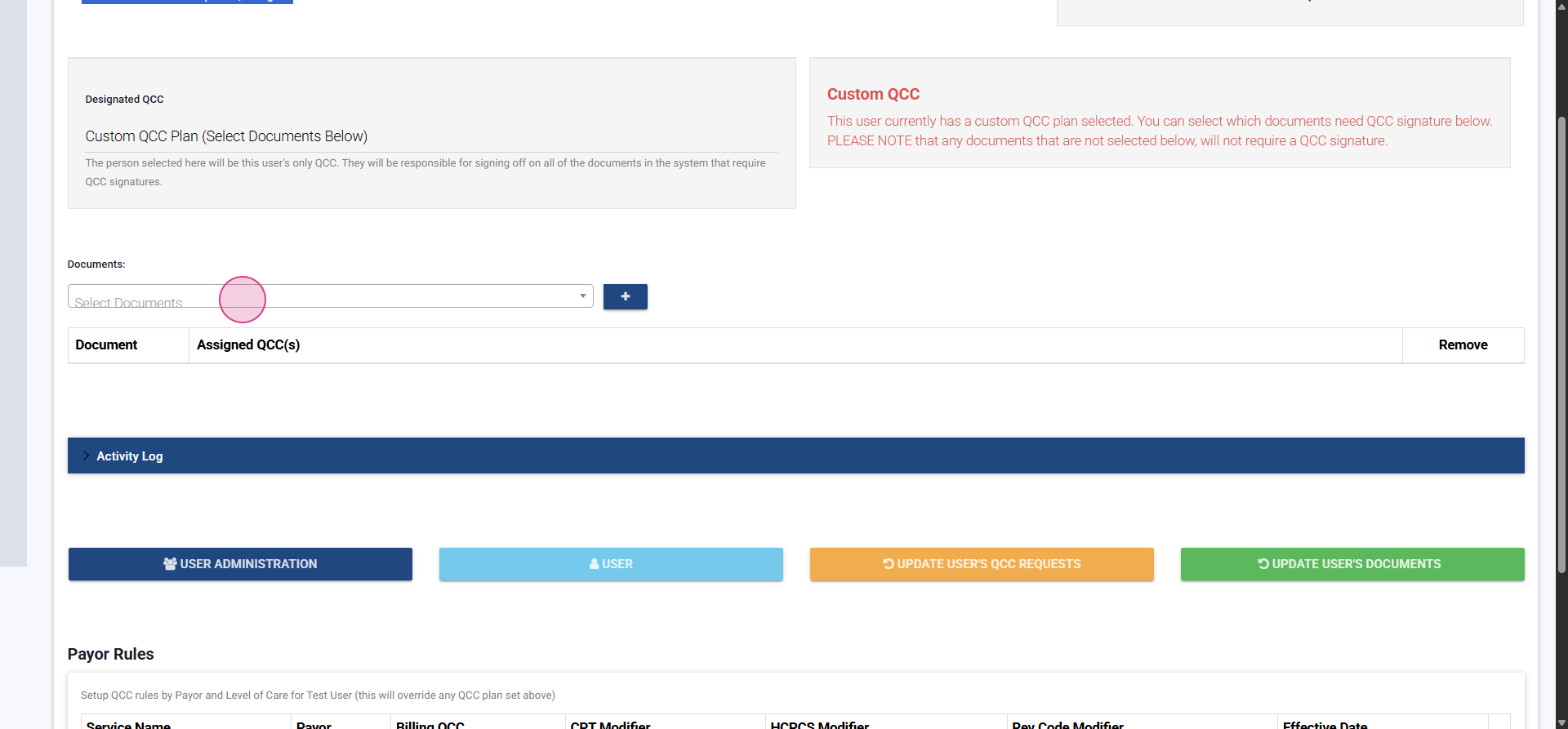
Click the drop-down to select the relevant documents. Only forms set as available for QCC will appear here. For example, select Addiction Assessment,
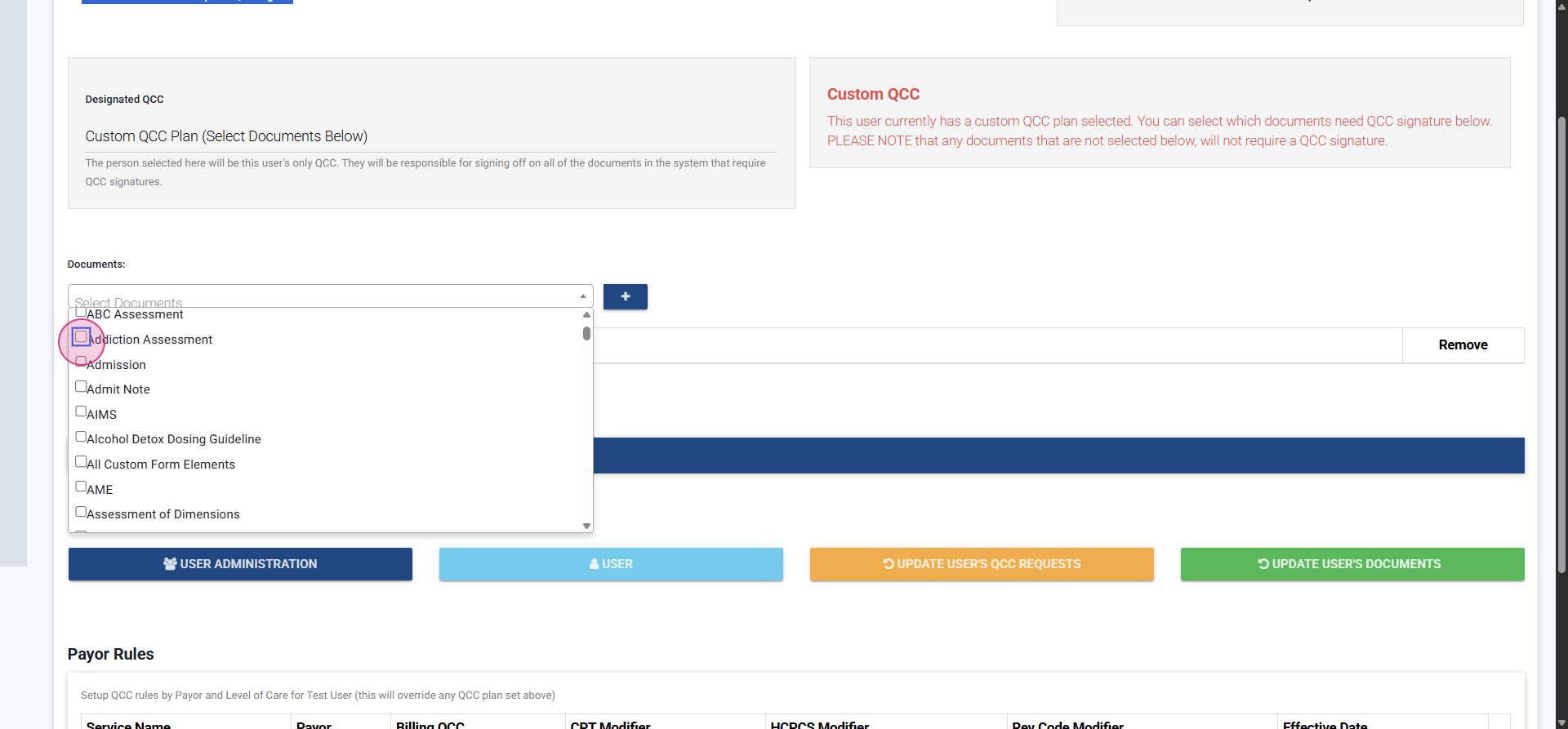
Admit Note,
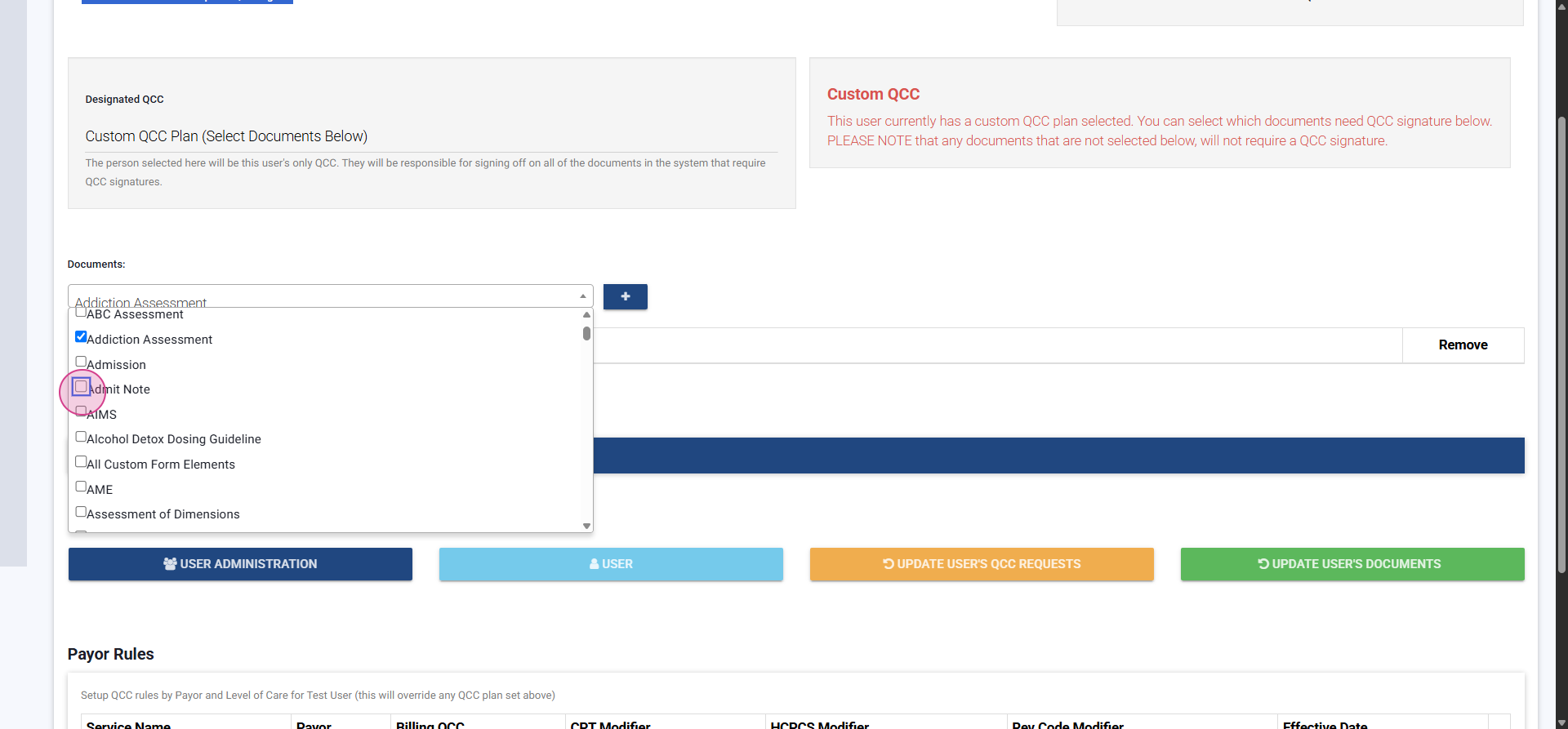
Assessment of Dimensions,
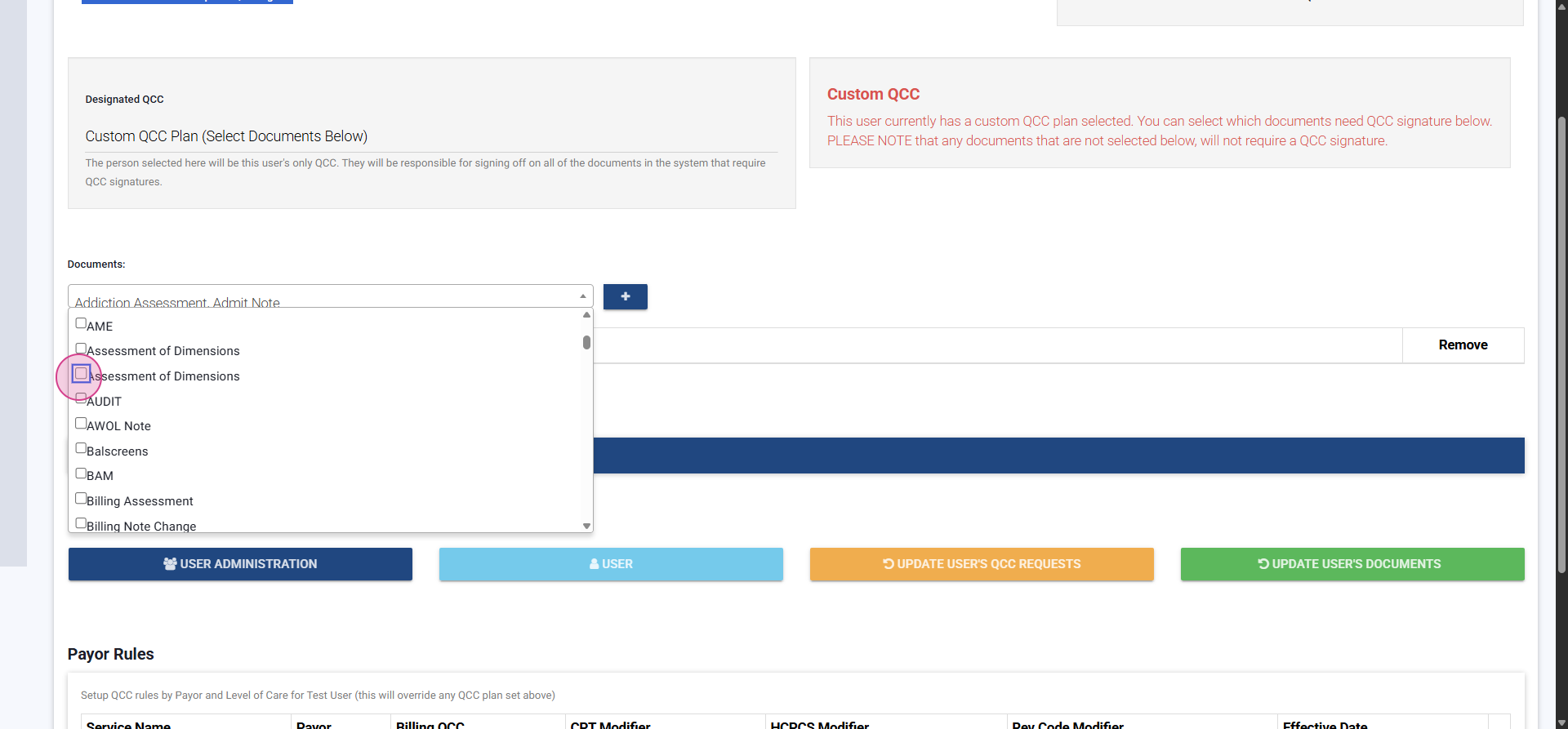
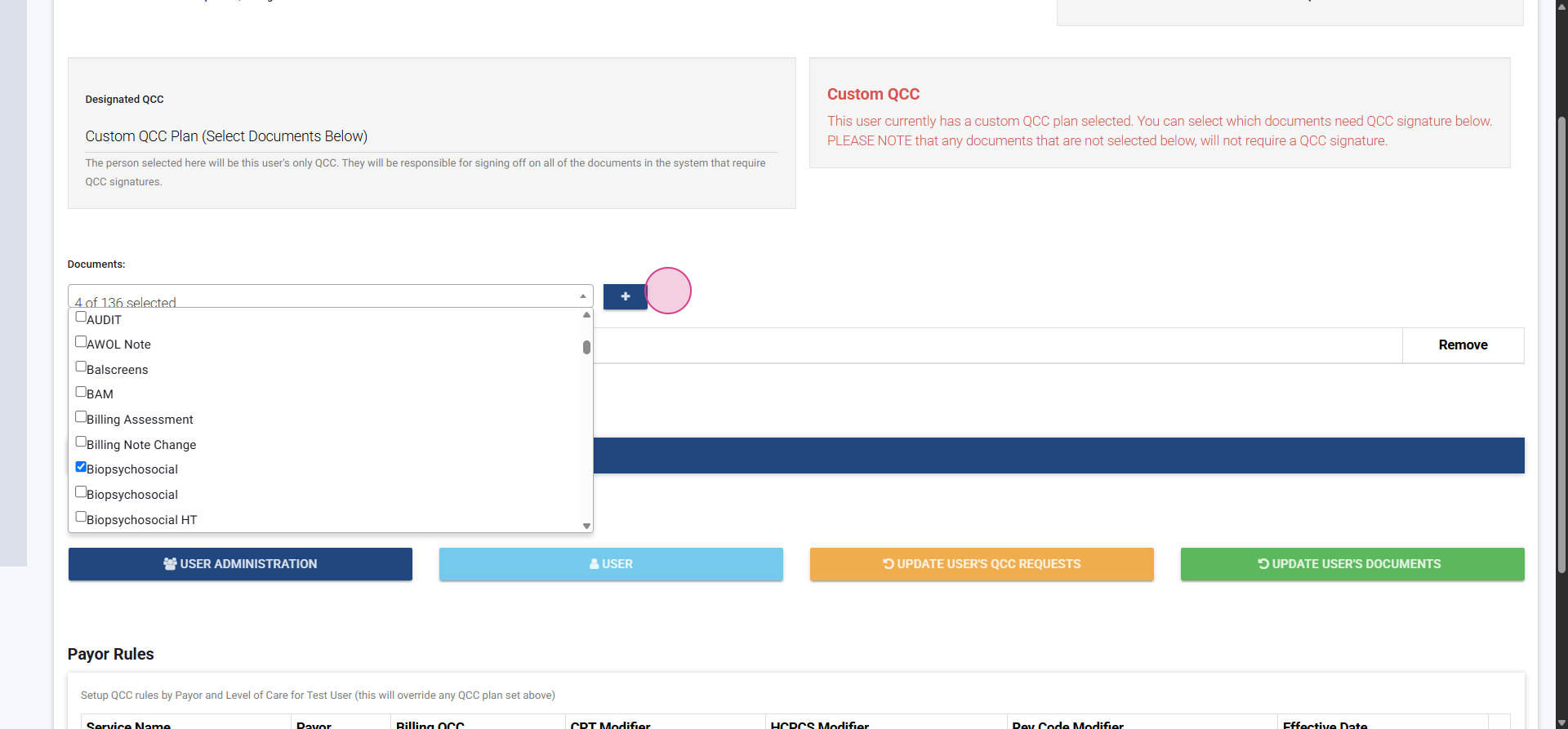
and Biopsychosocial.
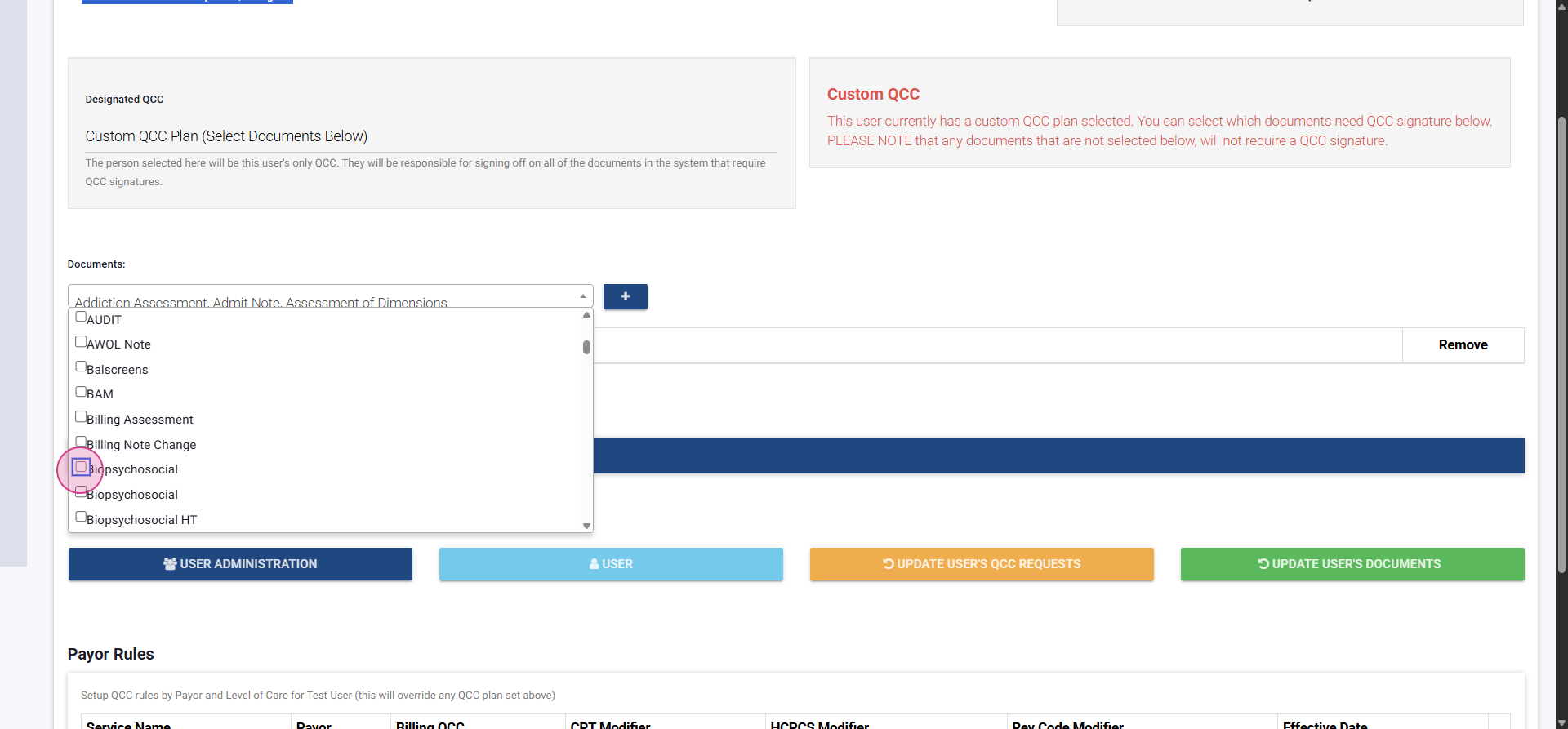
After you choose the forms, click the blue plus icon next to the drop-down to confirm selection.
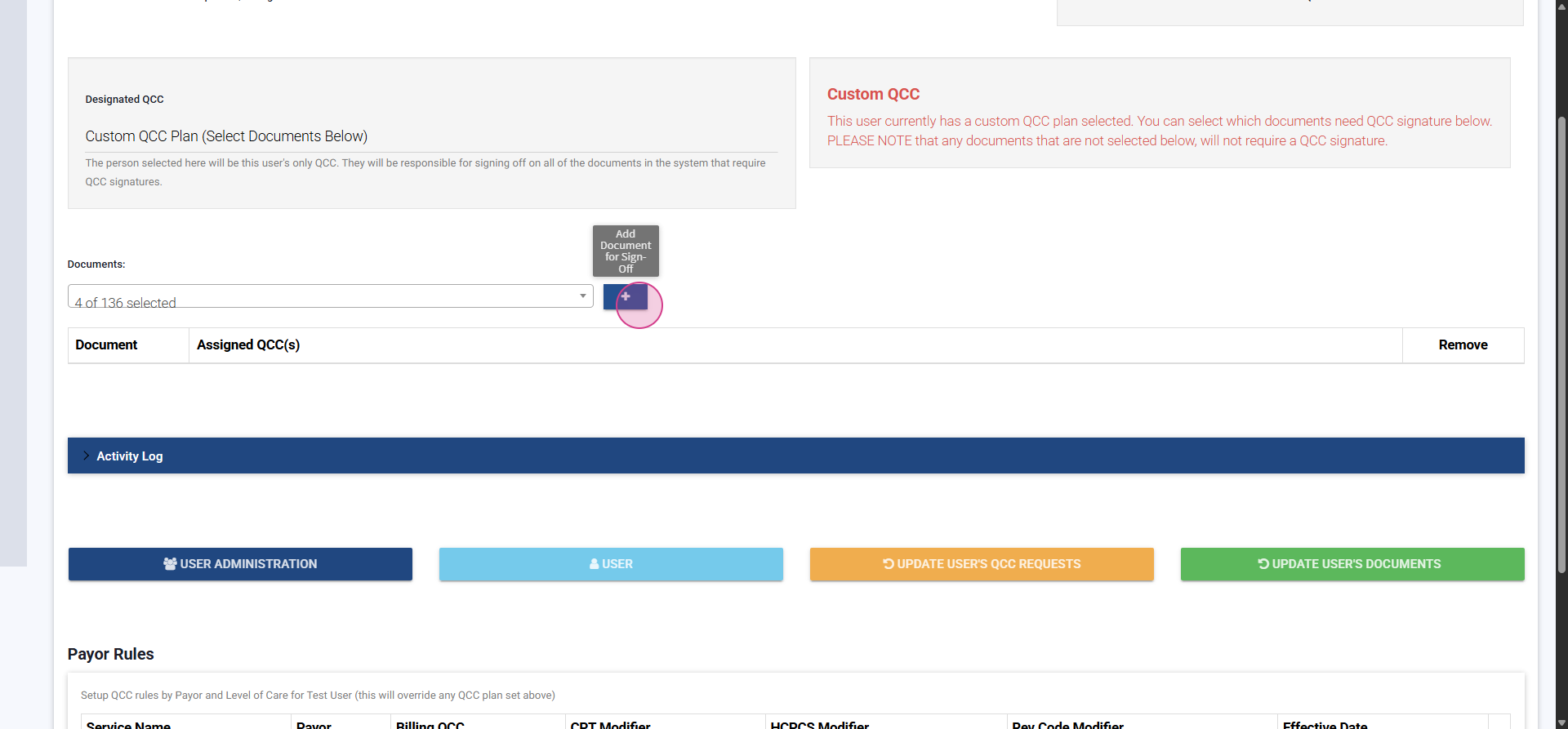
Step 6: Assign Reviewers to Each Document
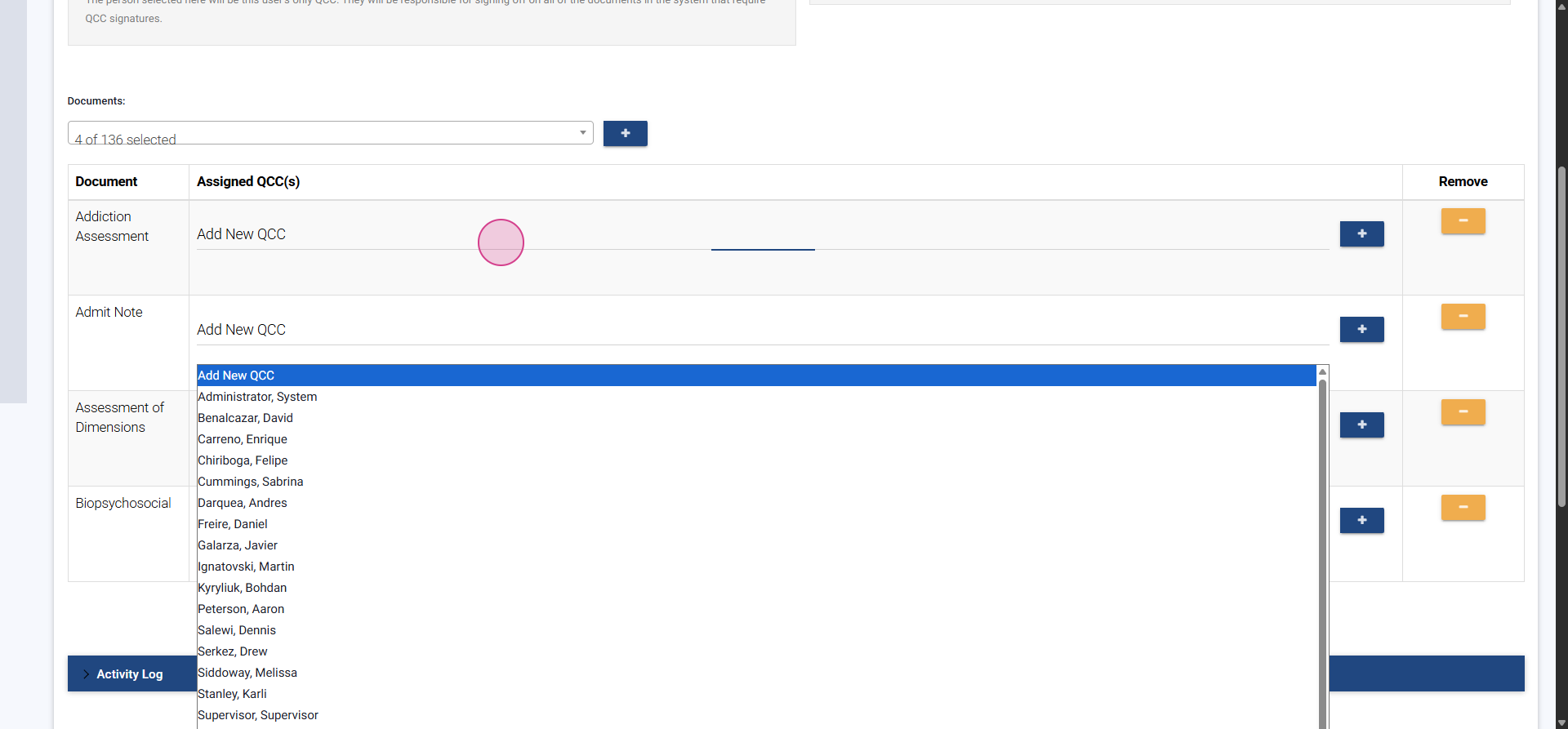
Now assign who should review and sign each document. You can split review responsibilities by selecting a different user for each form.
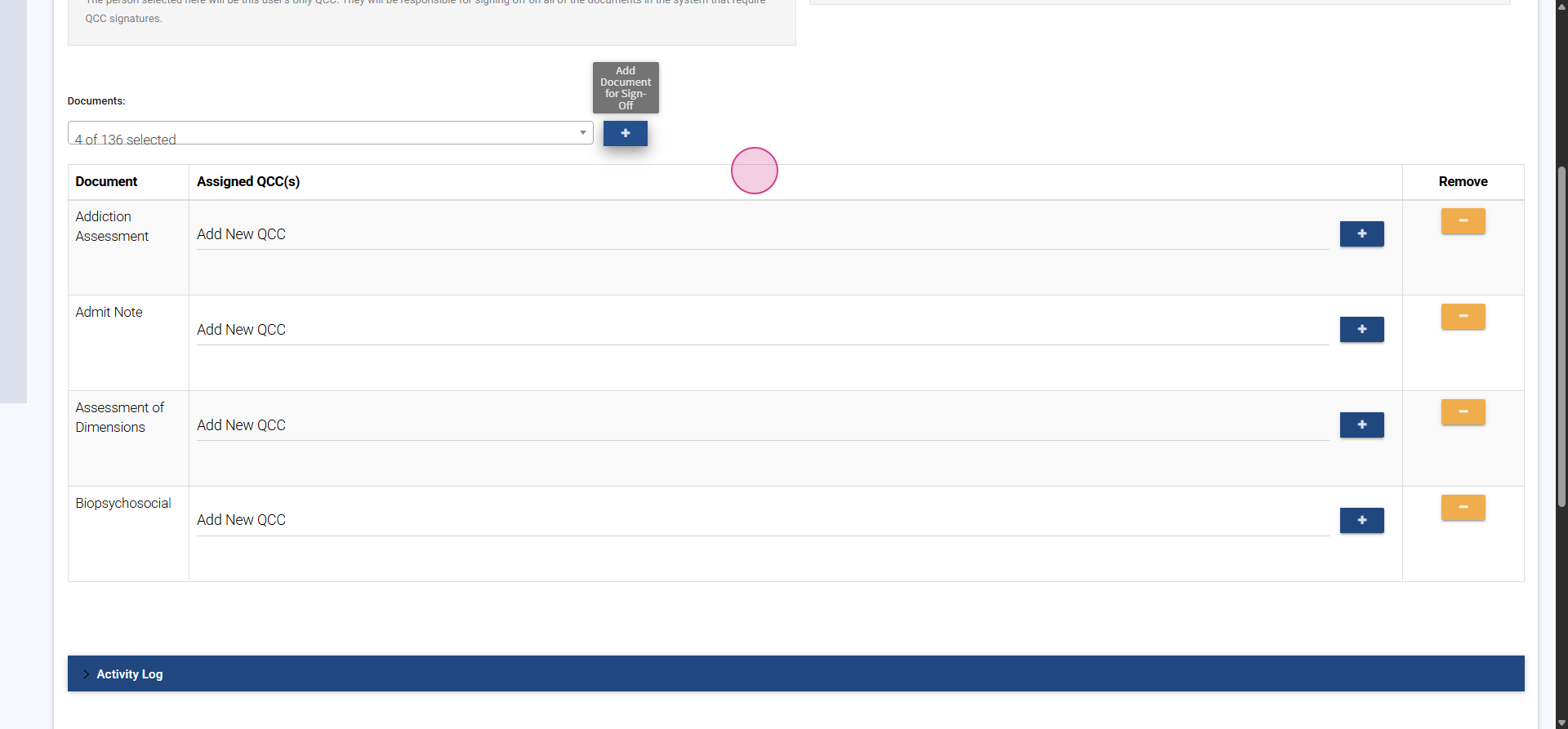
For example, for the Addiction Assessment, select Supervisor as the QCC from the drop-down, then click the plus icon next to their name.
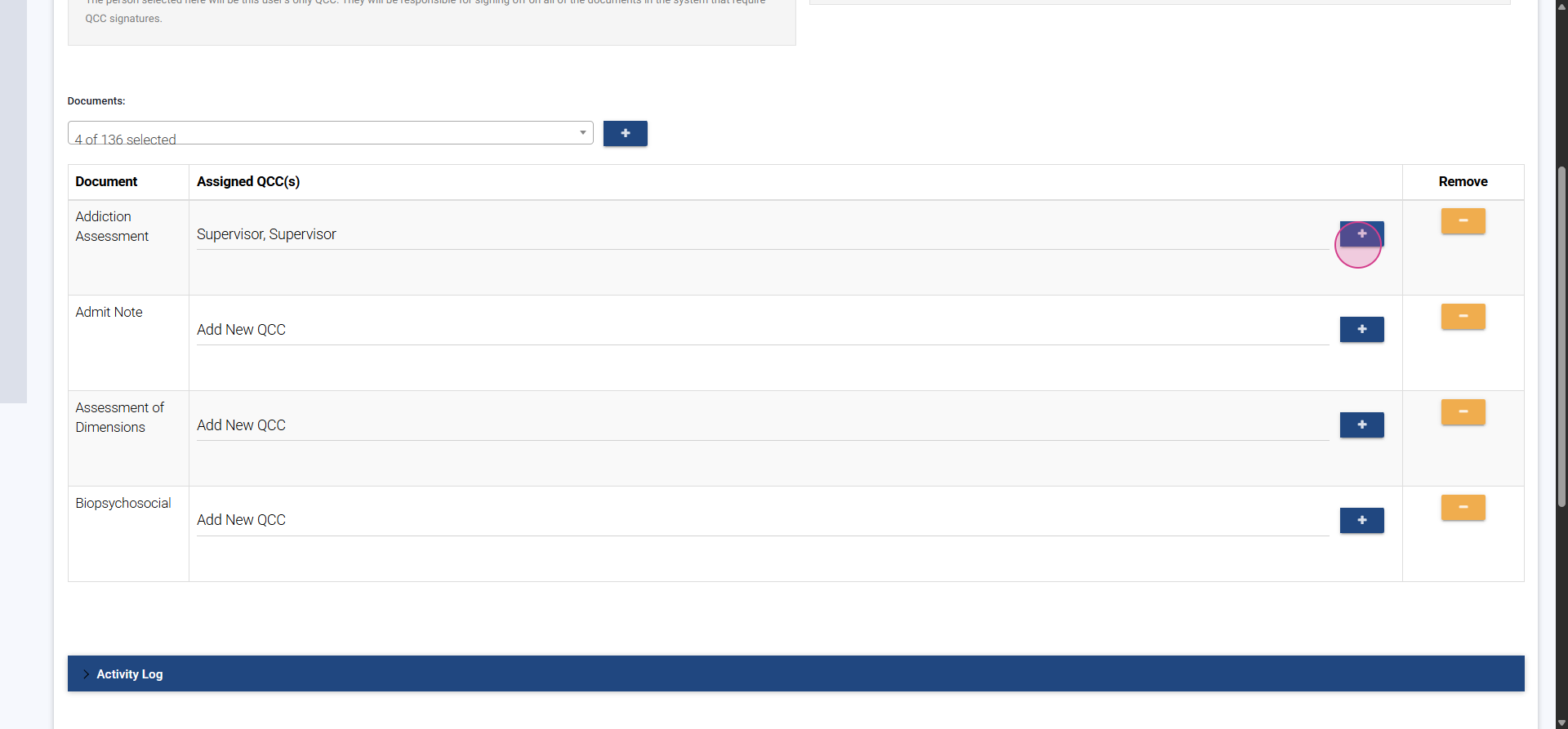
Review assignment will also set a start date, which can be backdated.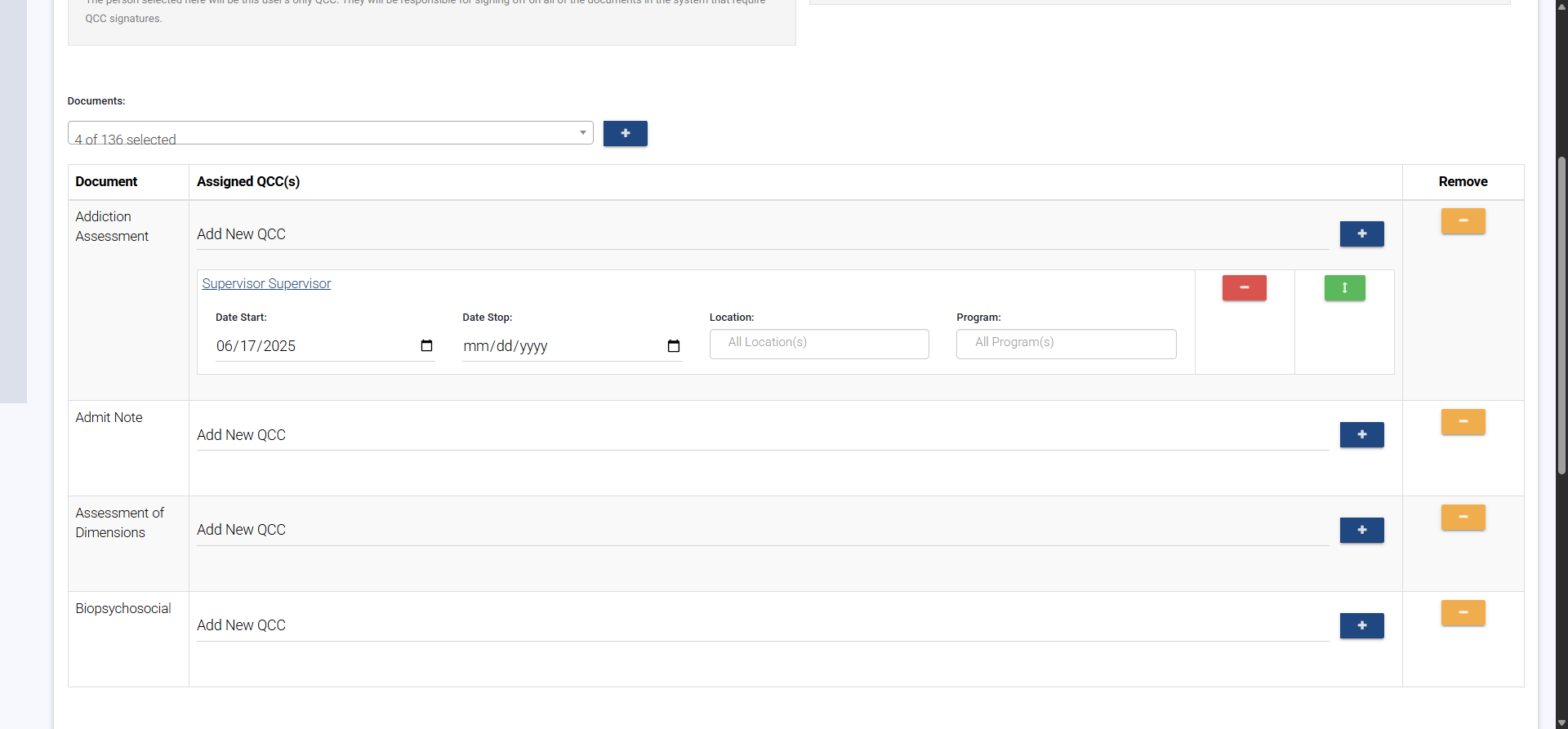
You can also filter options by location
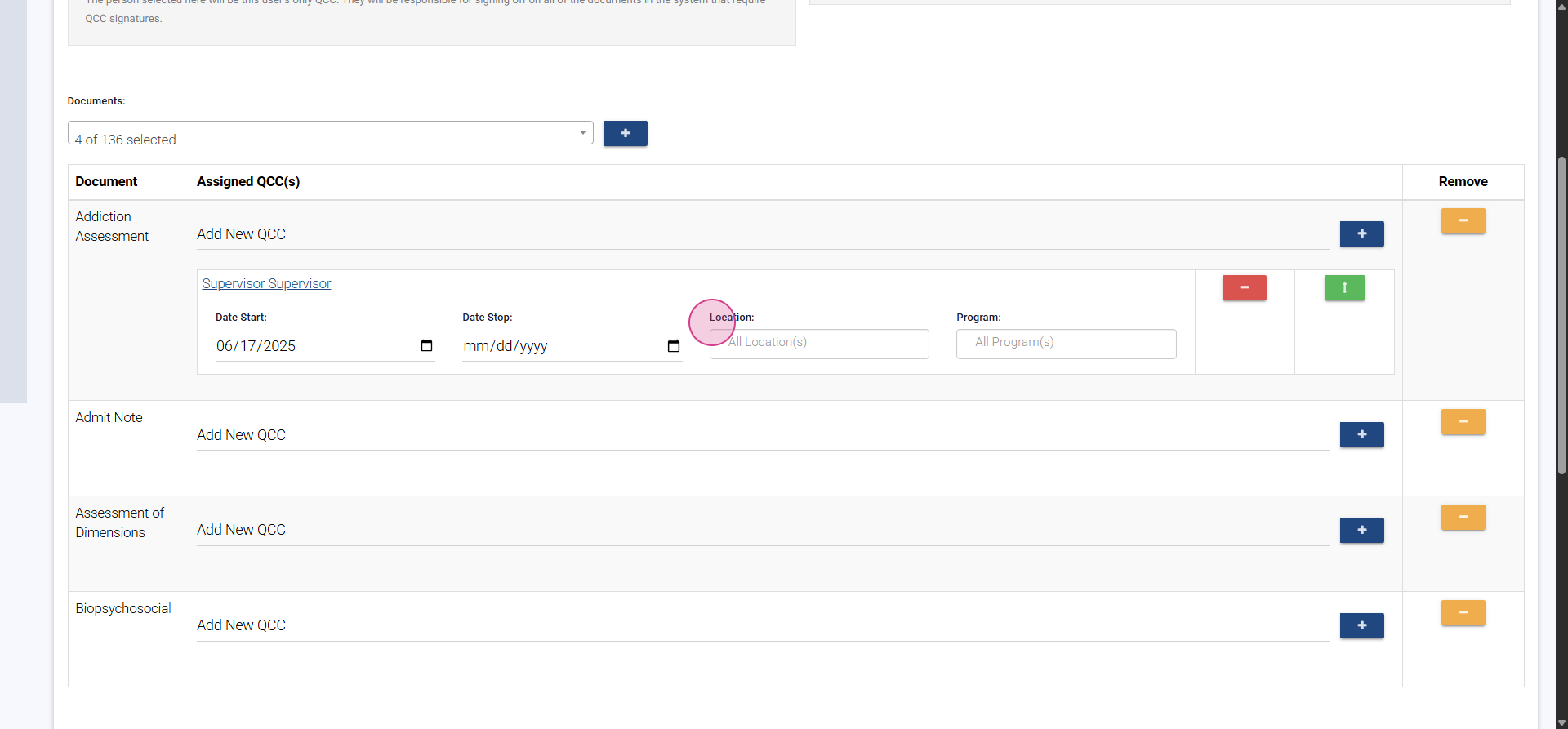
or by program.
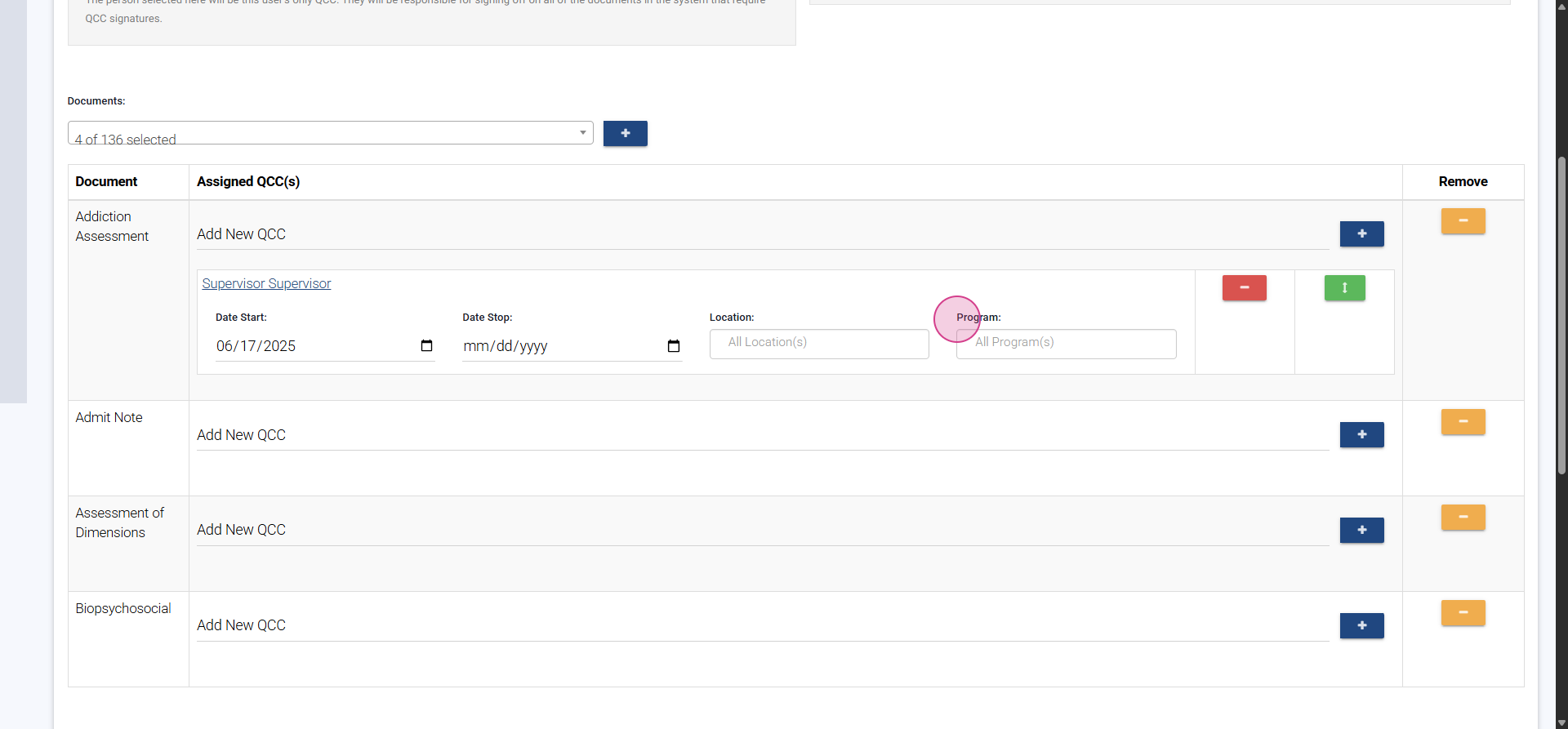
If the Admit Note needs a different reviewer, select Drew Serkis, then click the plus icon.

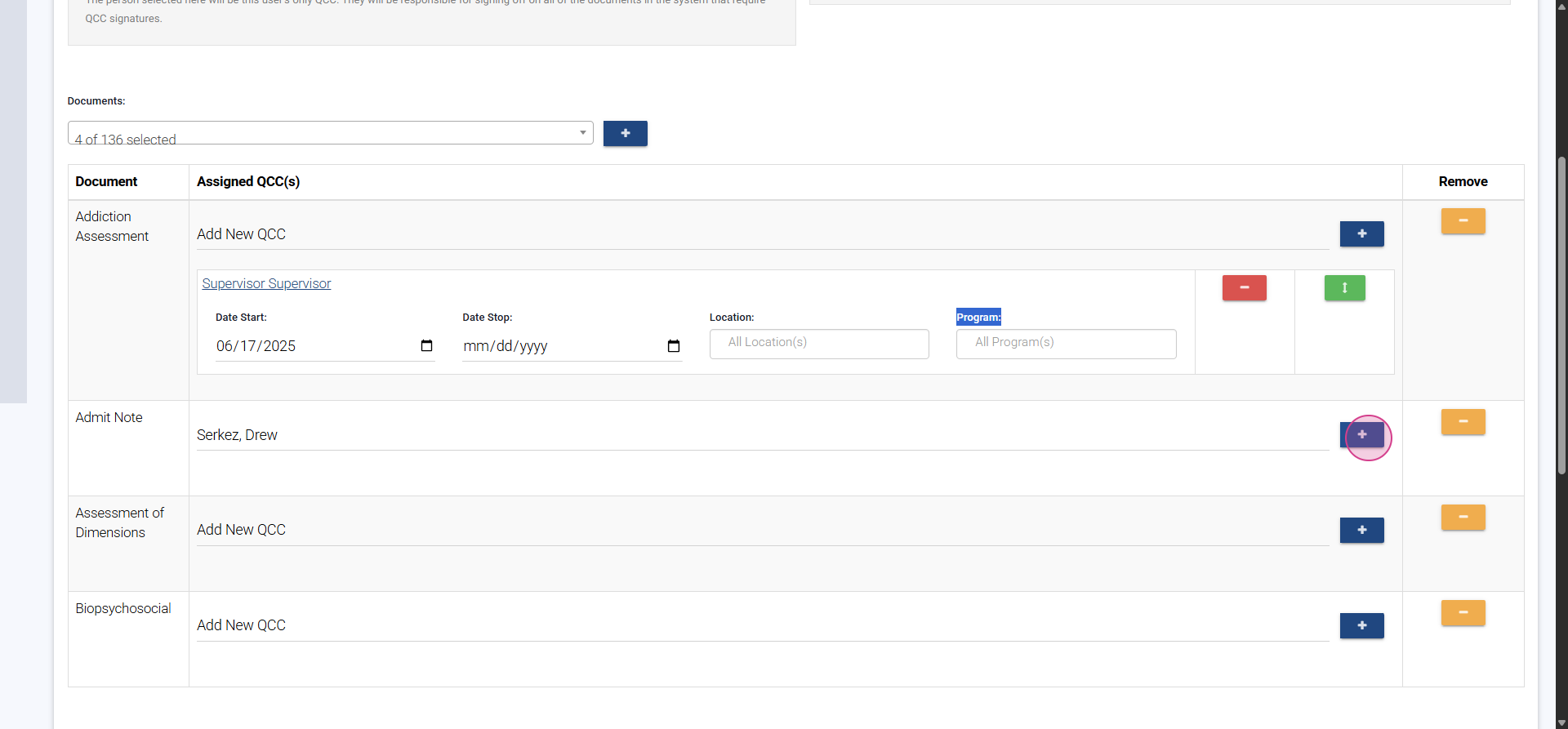
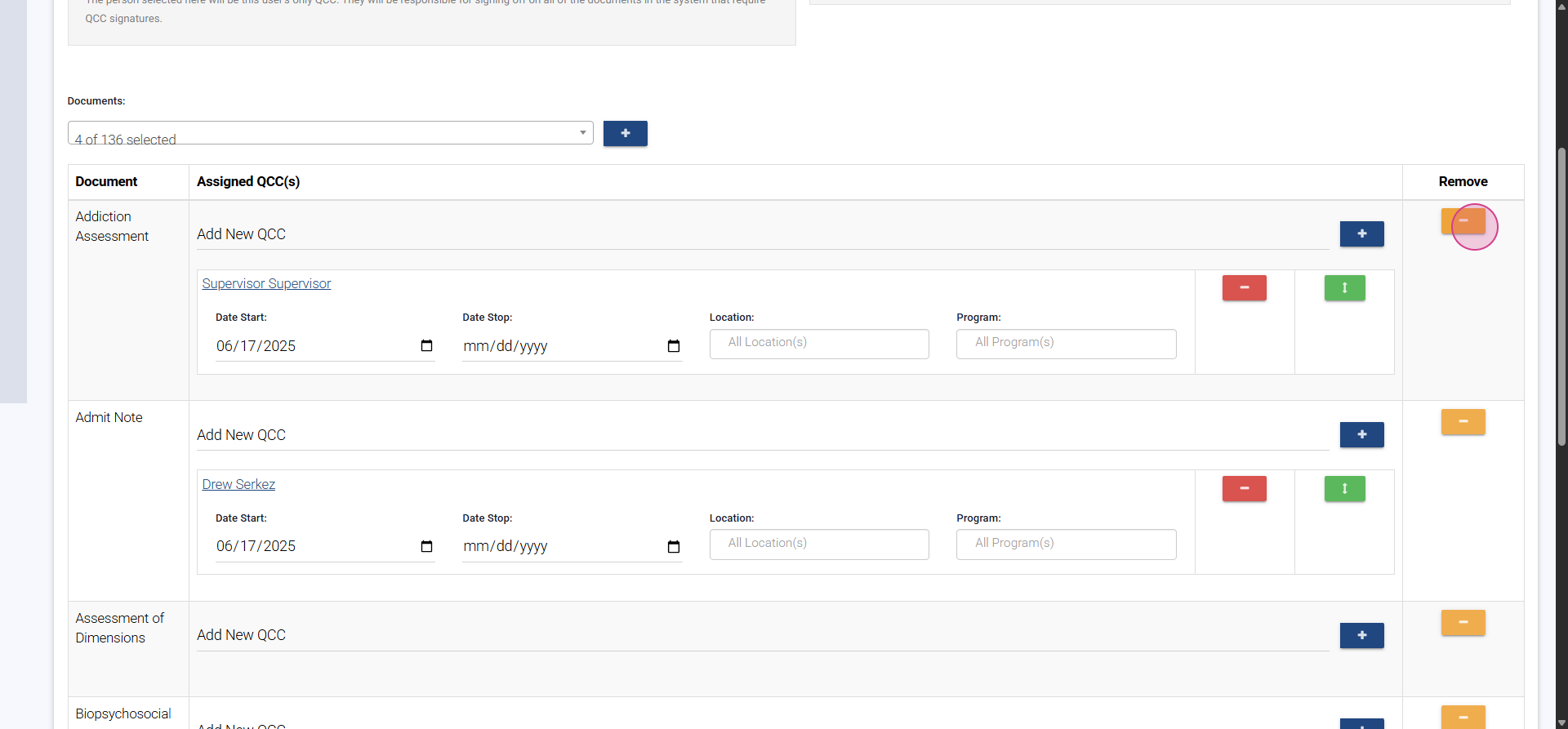
Now, Supervisor reviews the Addiction Assessment and Drew reviews the Admit Note.
Step 7: Assign Multiple Counselors to a Single Document
To assign more than one counselor to a document, first remove previous assignments by clicking the yellow minus icon.
Repeat the form selection and, for the new QCC, select two counselors — for example, Supervisor and Drew.
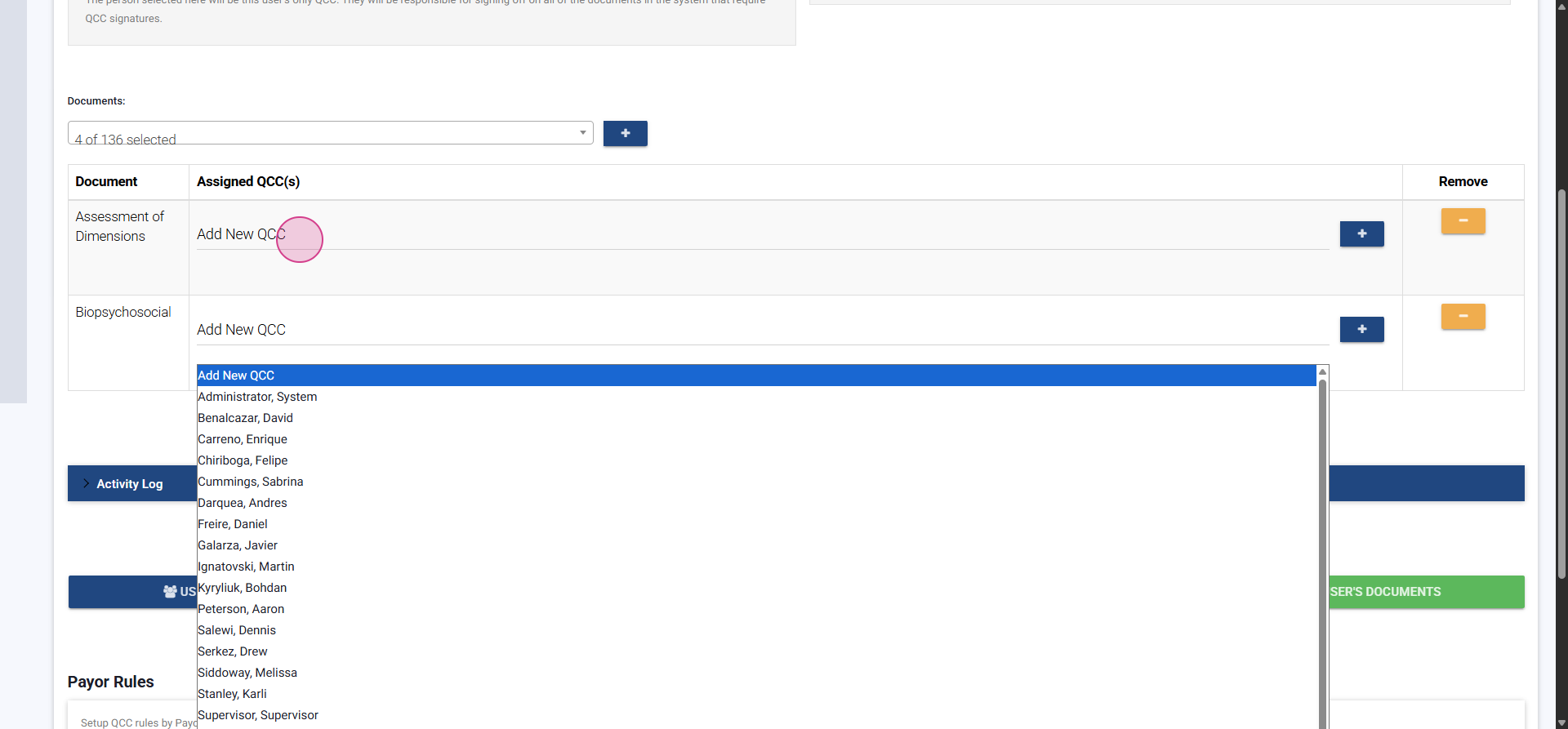
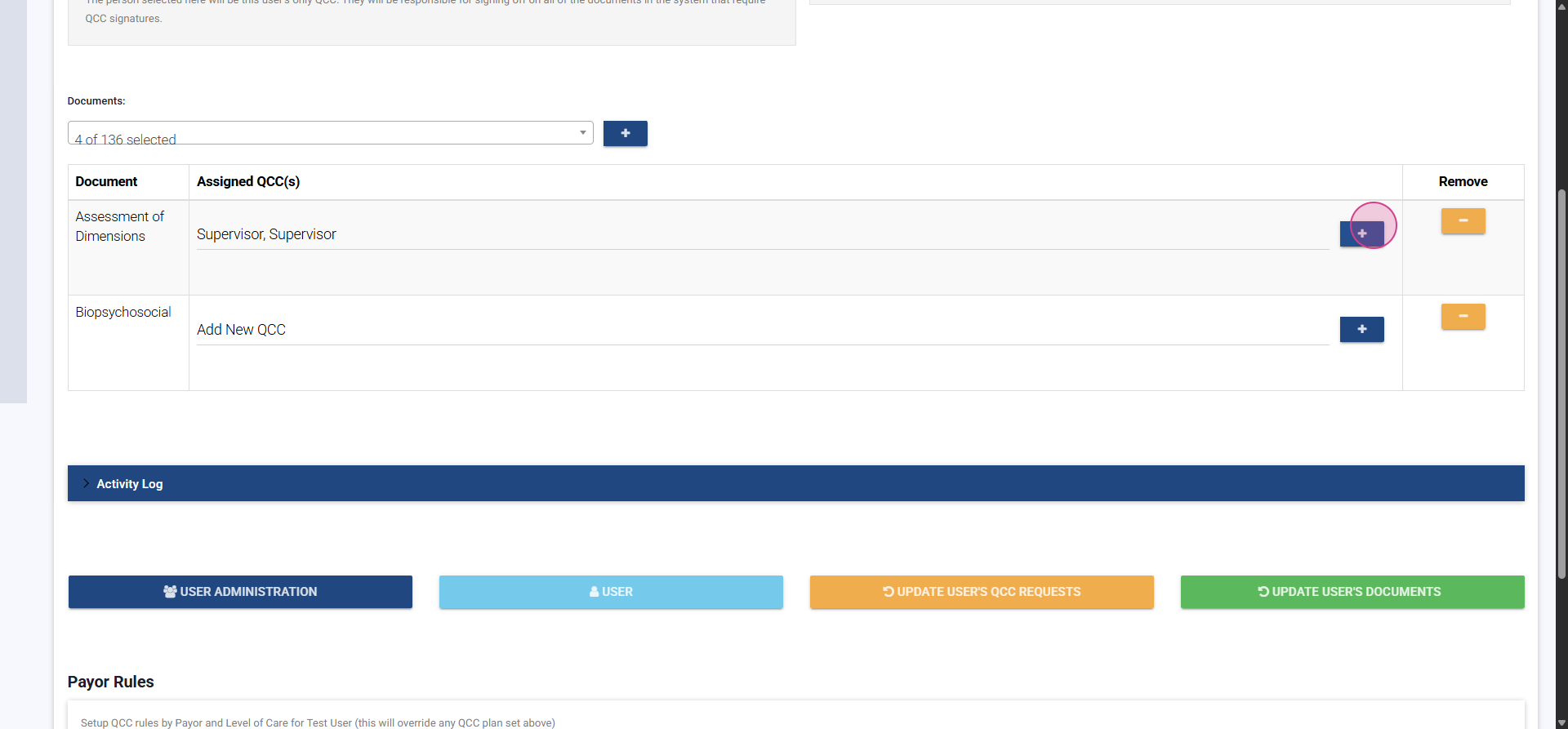
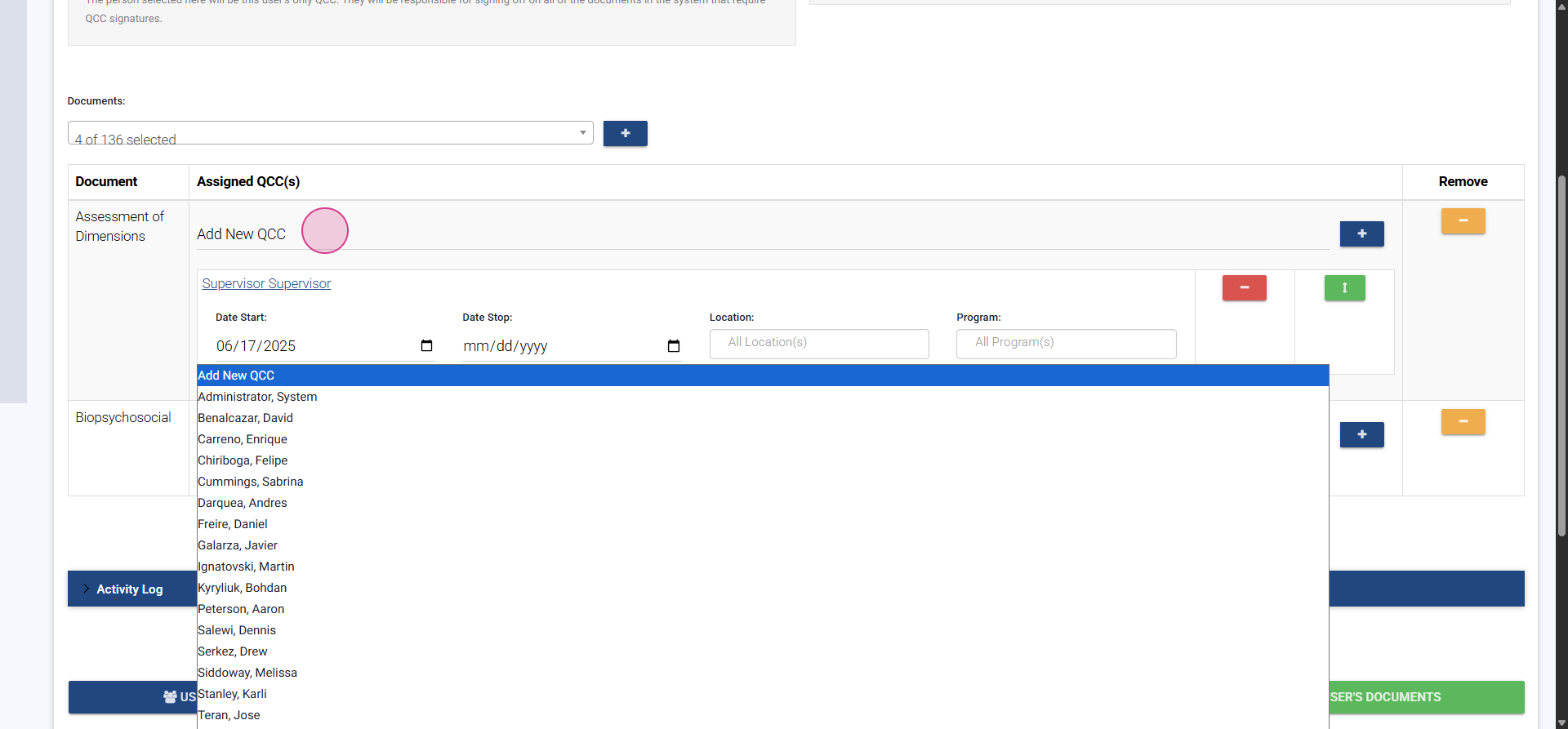
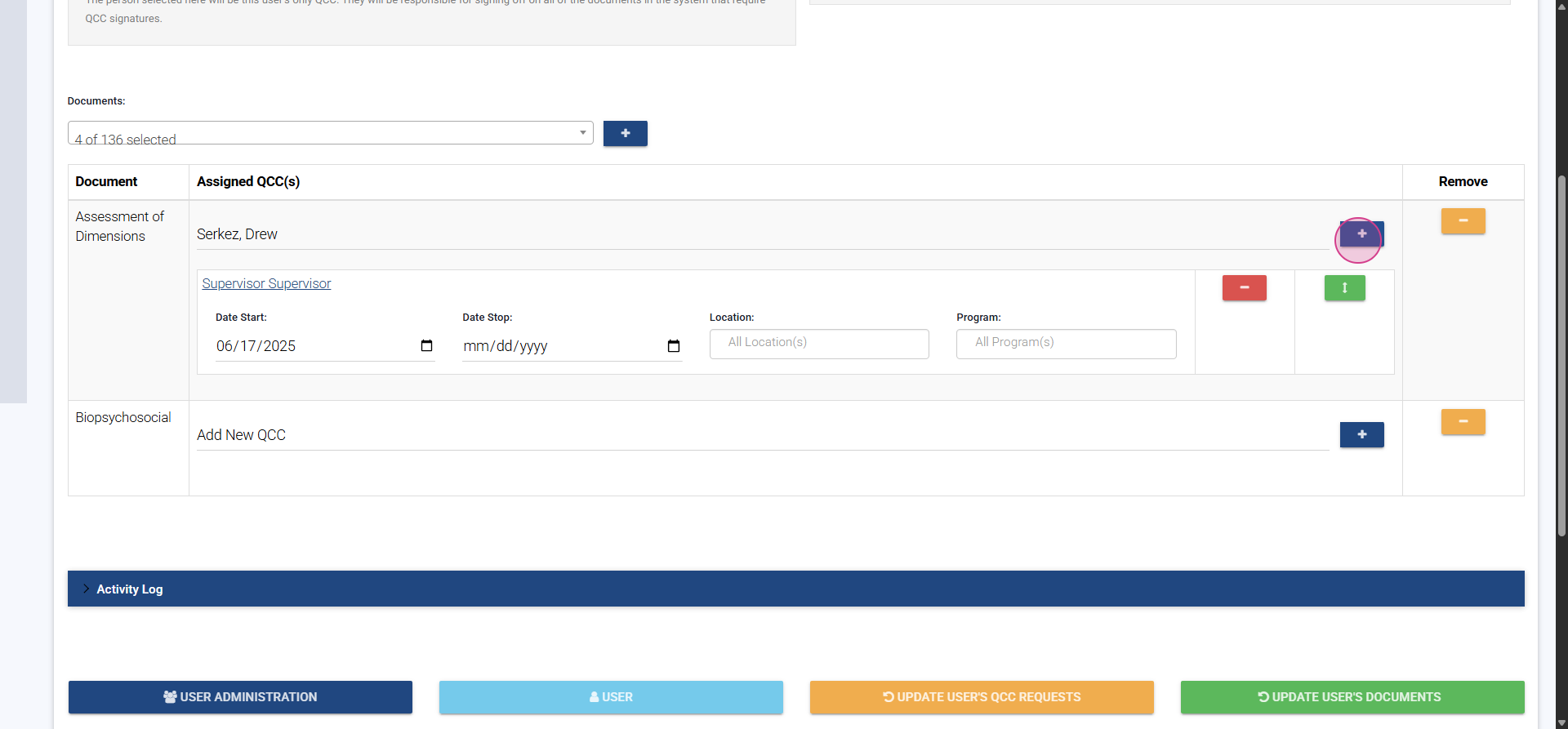
Both are now assigned to review the same document. Only one signature will appear; whichever counselor completes the review first will have their signature shown, and others can remove the completed action from their queue.
Apply the same process to other forms, such as the Biopsychosocial. Choose Supervisor,
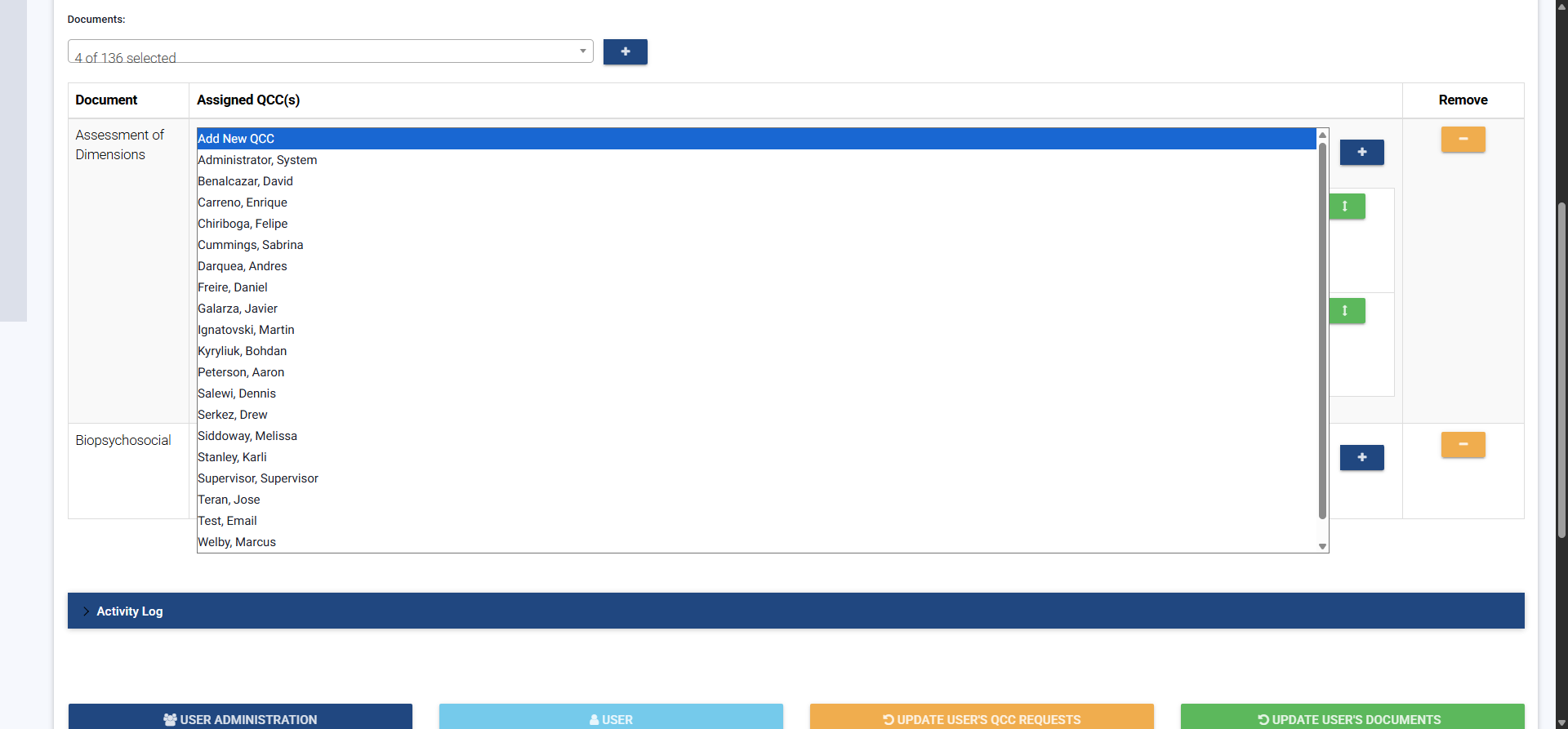
click the plus icon,
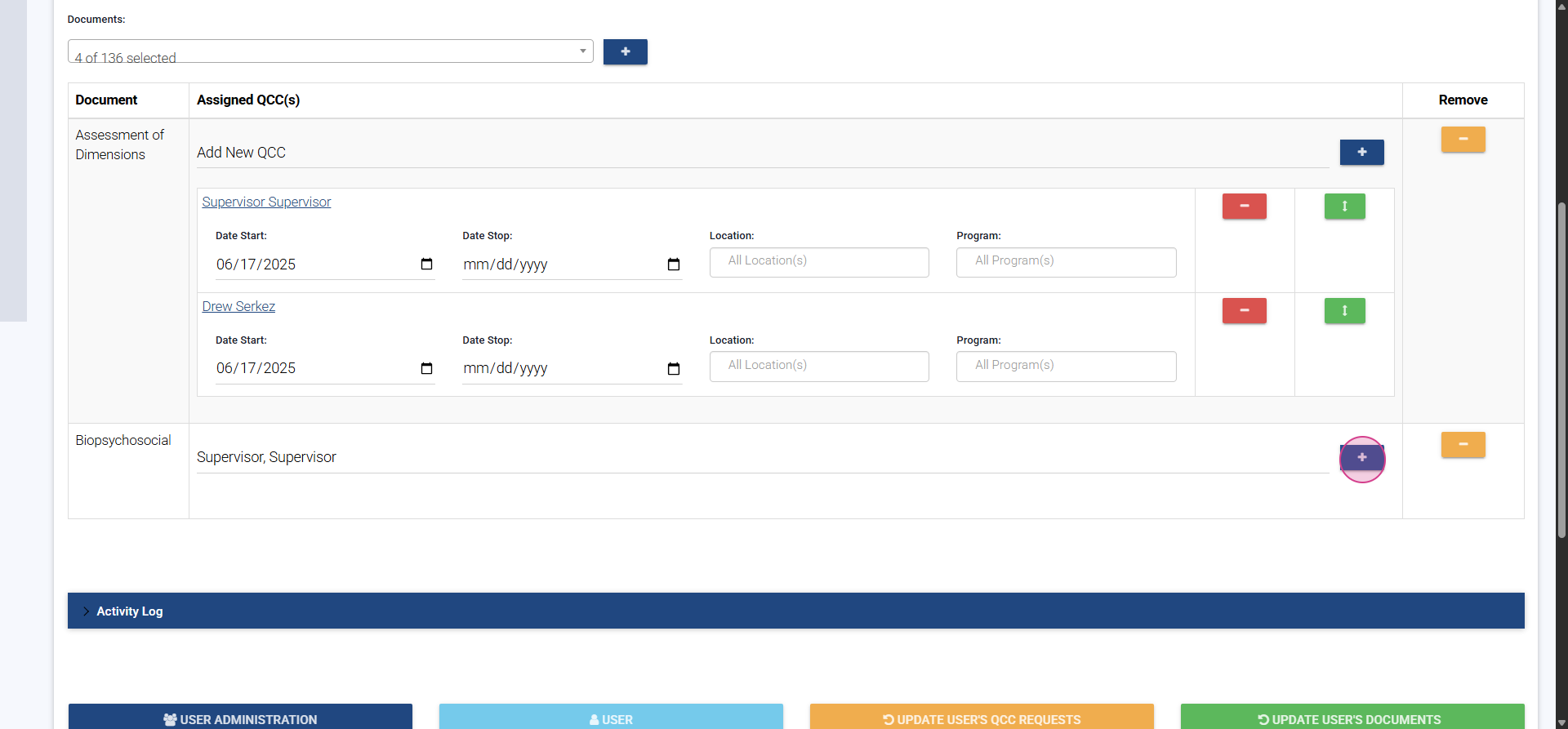
select Drew,
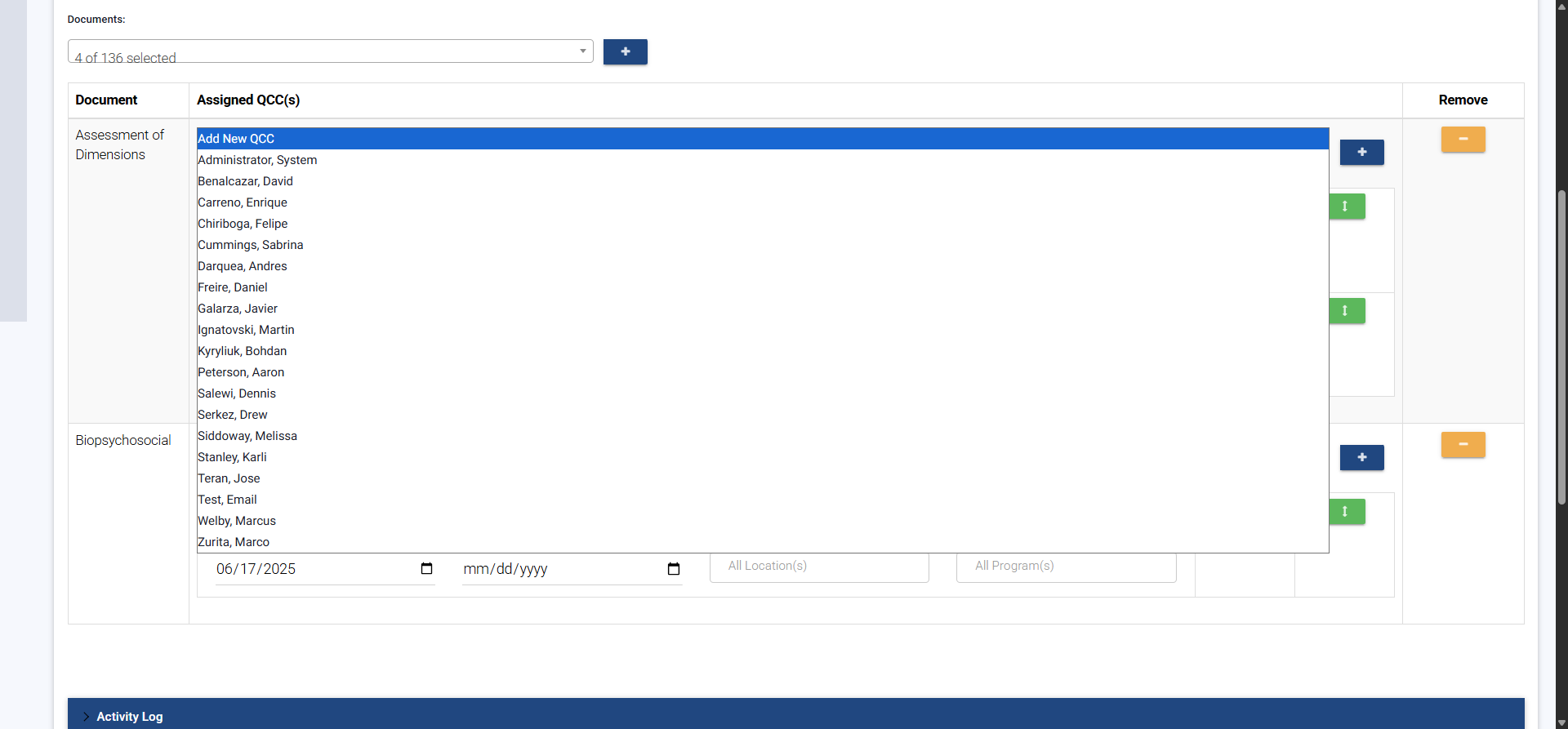
and click the plus icon again.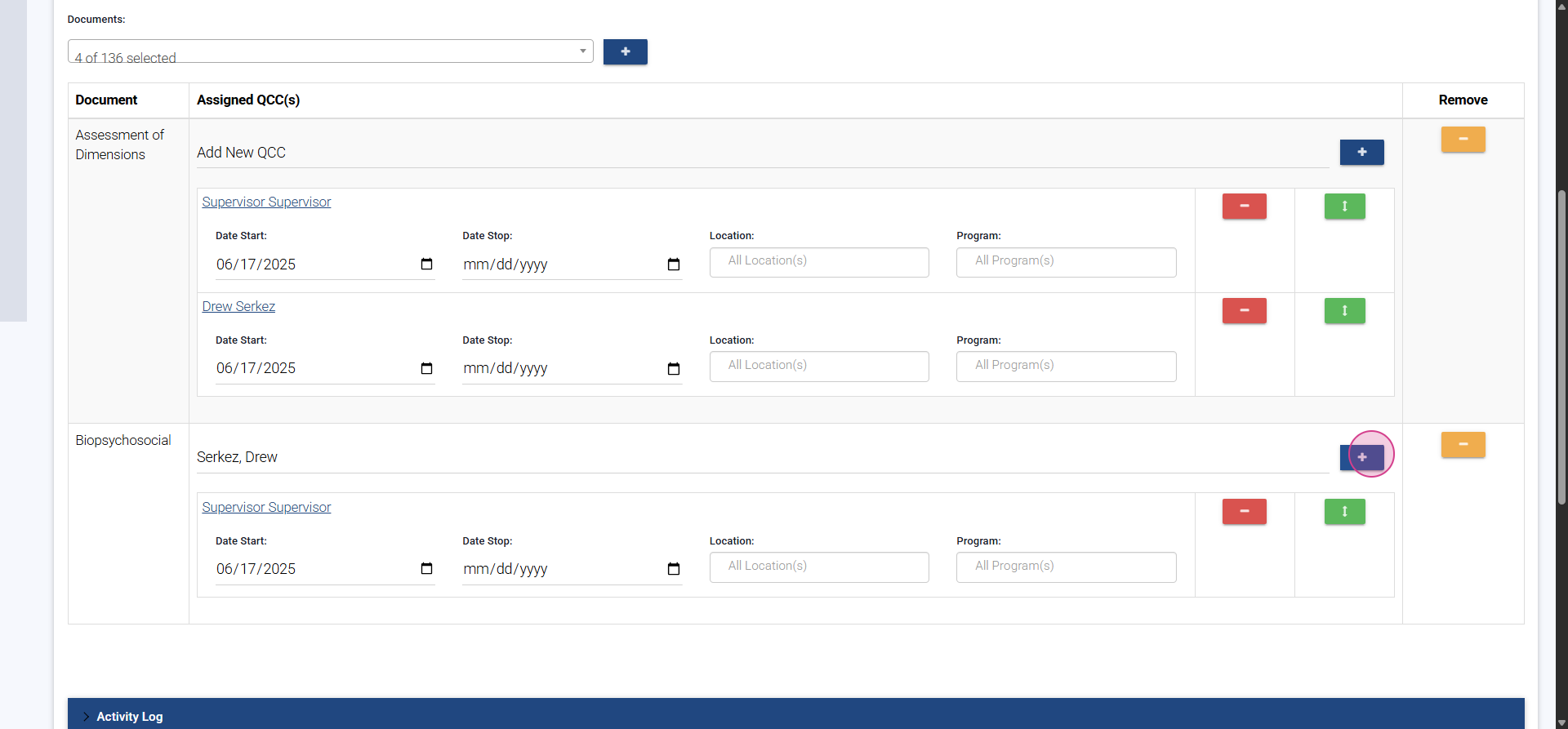
Step 8: Update Start or Stop Dates if Needed
Update the start or stop date for each assignment. The stop date is especially useful if someone leaves your organization or changes roles.
Summary
By following these steps, you’ll create a custom QCC plan tailored to your team and workflow, assigning reviewers to specific documents and giving your organization more flexibility and control over document review assignments.
