
Step 1: Identify your reporting goal
Decide what information you want your report to highlight. In this example our goal is to track inquiries, including their status, admissions, and projected locations.
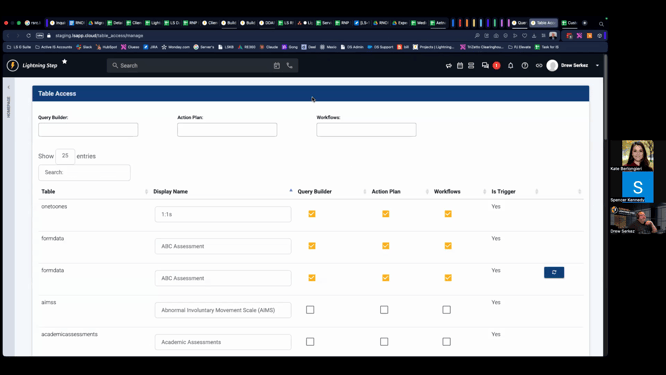
Step 2: Confirm table accessibility
Go to System Configuration and check Table Access. Make sure the relevant tables (like inquiry, admission, and location) are accessible in the Query Builder.
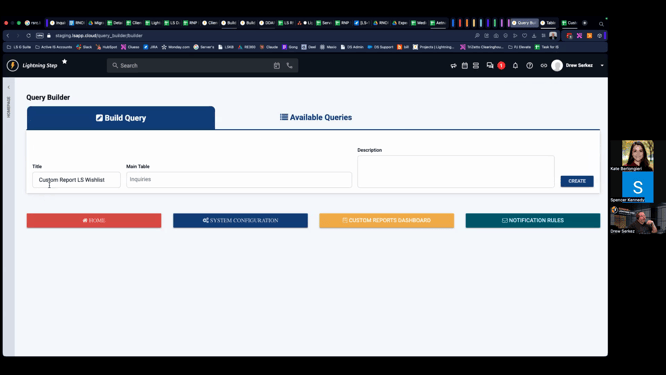
Step 3: Start building your query
Open the Build tab in Query Builder. Name your query, select your primary table (e.g., inquiry), and add a description if needed.
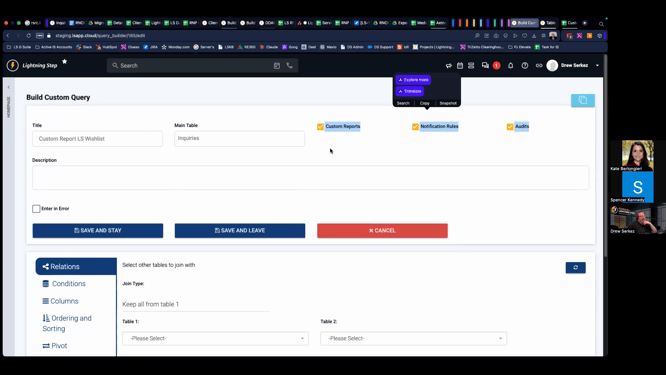
Step 4: Set query usage options
Choose whether the query will support reports, notifications, or audits. Keep all options checked for maximum flexibility.
Step 5: Join related tables
Use the Relations tab to join additional tables, such as admission and location. Match IDs common to both tables (like inquiry id or client id) to link data accurately.
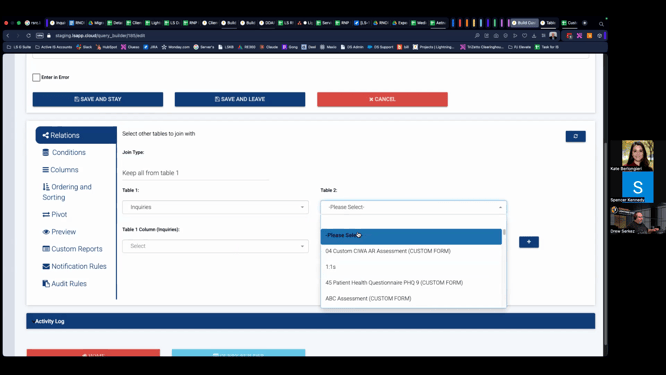
Step 6: Configure join logic
Typically, leave the join type as keep all from Table 1. Table 1 is your primary; Table 2 contains related data.
Step 7: Add and refresh joins as needed
If changes or new joins don’t show up in columns, refresh the tool or page to update available selections.
Step 8: Set filters and conditions
Add conditions to narrow results. For example, filter out records marked as “entered in error” so only valid entries appear.
Step 9: Select columns to display
Choose which fields to show, like MRN, First Name, or Location. Pick columns from joined tables as needed for your analysis.
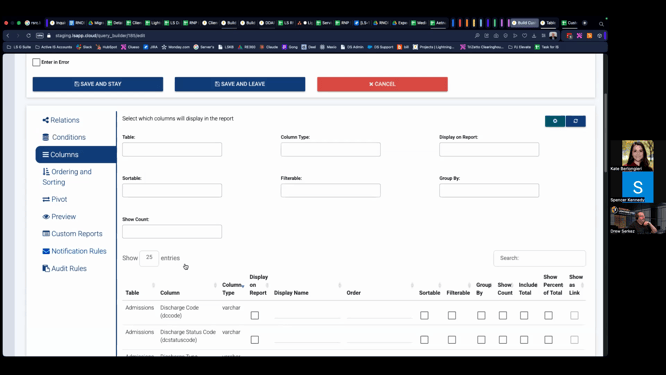
Step 10: Test your report output
Open the new query in Custom Reports. Use date ranges or other filters to test and preview your results. If you see duplicate entries, investigate conditions or consider grouping.
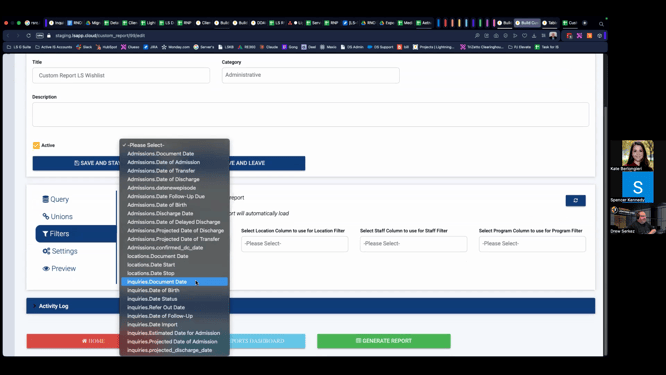
Step 11: Group data to remove duplicates
Apply grouping (such as by inquiry id) to display unique entries. This helps consolidate duplicate lines resulting from joining multiple tables.

Step 12: Add extra context columns
Include fields like admission date, admission status, and primary staff assigned as needed.
Step 13: Review, troubleshoot, and adjust
Check your output for expected results. If some fields appear confused or missing (like projected vs. actual location), verify the correct columns from joined tables. Export your results as needed.
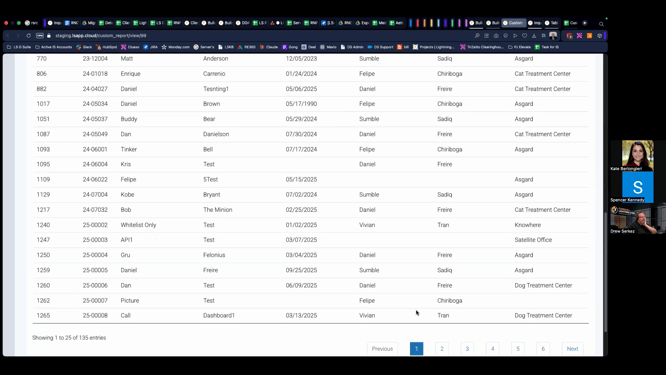
Building complex reports may require iteration, but the Query Builder gives you the flexibility to adjust joins, conditions, and outputs. The more you explore joining tables and grouping, the more sophisticated—and useful—your reports become. Don’t hesitate to revisit table access or consult your team if a field seems unavailable. With these steps, you’re ready to handle robust custom reporting for any workflow.
