
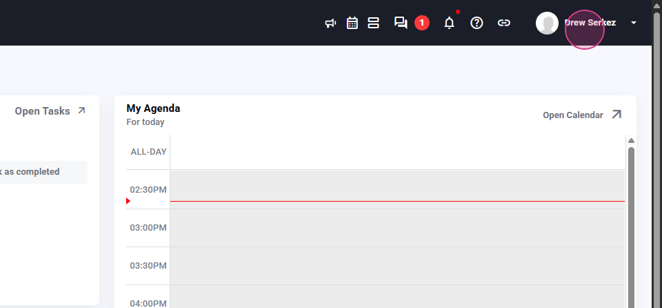
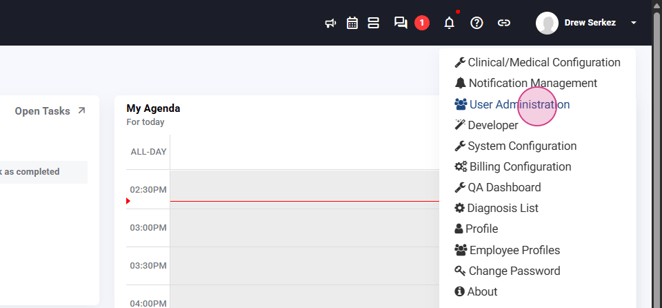
Step 1: Start by clicking on the Name menu located at the top right corner of your screen. From the drop-down list, select User Administration.
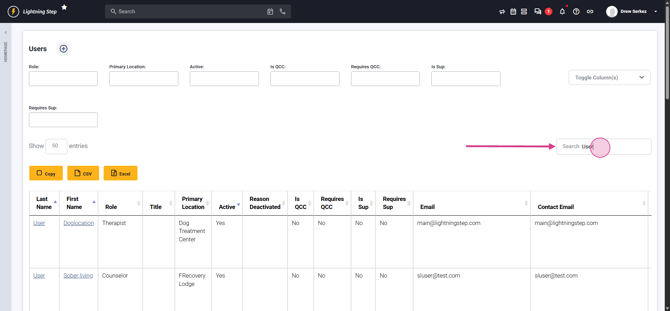
Step 2: Use the search bar in the upper right of the table to find the user you want to disable. You're able to search by name or email.
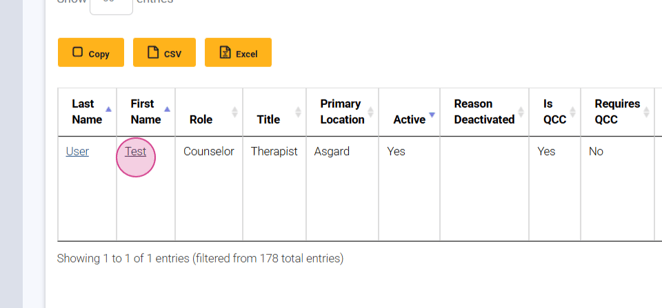
Step 3: Once you've found the user, click on their name to access their user profile.
Step 4: Scroll to the bottom of the user profile. Here, you'll find a checkbox labeled Active for active users. If it's checked, the user is active.
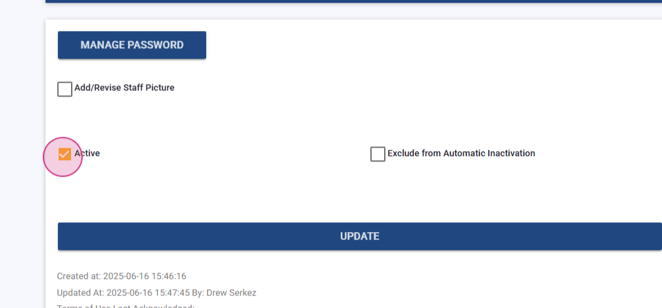
Step 5: To disable the user, uncheck the Active button and then press the Update button. Be aware that setting a user as inactive will remove them from all notification lists, user groups, and therapy groups. Any client follow-ups currently assigned to the user will be reassigned to the person who disabled the user profile. To avoid this, reassign the client follow-ups before disabling the user. If the user is a supervisor, reassign all of their reporting before inactivating their account.
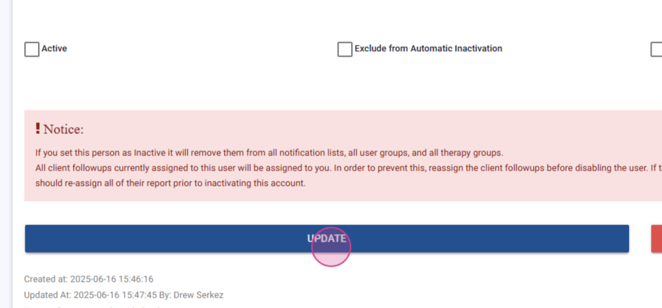
Step 6: After pressing Update, the user is now inactive. Disabled users will appear with a pink background on the User list screen.
