
Step 1: Open the client's profile and go to Med Management.
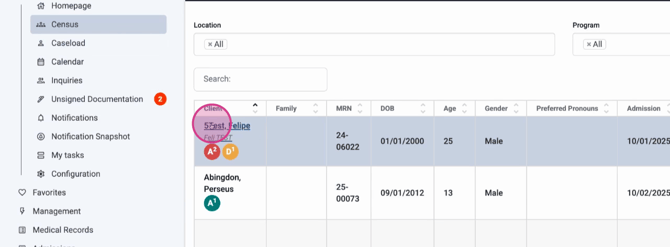
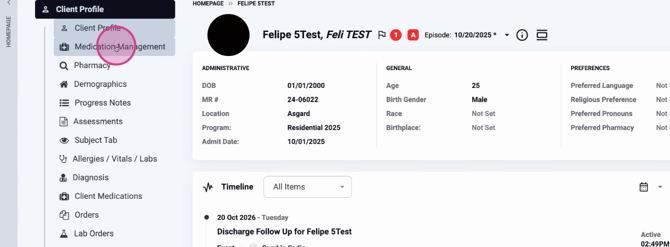
Step 2: Find and select the medication order you want to discontinue.
Step 3: Click the three dots next to the order.
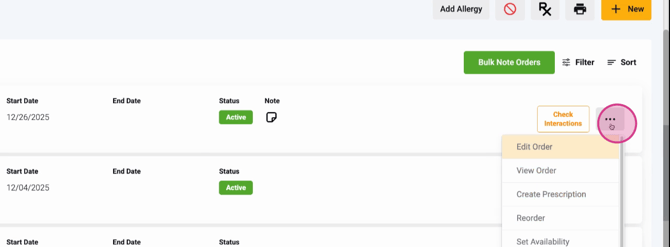
Step 4: Scroll to the bottom and select Discontinue.
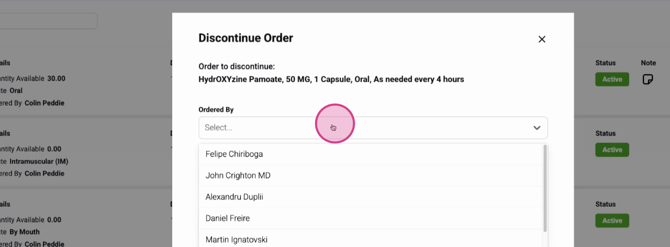
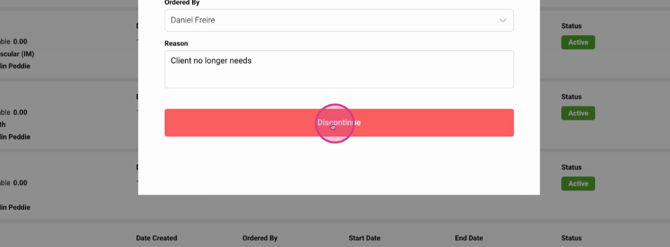
Step 5: Choose who ordered the medication, add a reason for discontinuation, and confirm by clicking Discontinue.
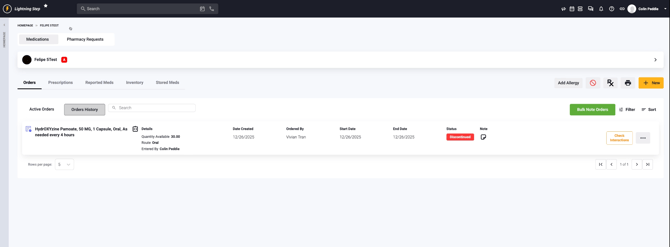
Step 6: The medication will move from the Active Orders list to the Order's History and show as discontinued.
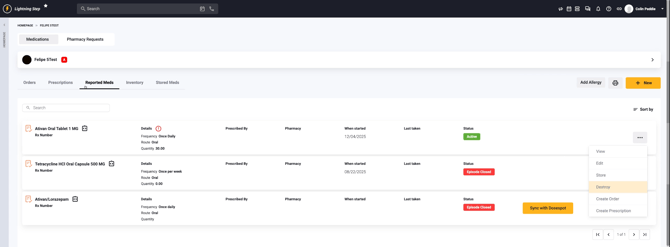
You can use the same process to discontinue prescriptions and reported medications. If needed, use the Destroy option to remove reported meds entirely.
Step 7: To discontinue or destroy any medication, always return to the Orders tab, select the inactive order, click the three dots, and choose Discontinue or Destroy.
Keeping your records updated by discontinuing or destroying medications ensures patient safety and accurate charting. If you have any further questions, reach out for support.
