
Accessing the Edit Claim Screen
-
Claims Dashboard: You can enter the Edit Claim Screen by selecting claims from the dashboard and using the edit controls, maintaining a seamless workflow from claim search to editing.
-
Drafted Claims Queue Integration: From drafted claims, you can open claims directly for editing, providing quick access to work in progress.
Key Features of the Edit Claim Screen
The Edit Claim Screen brings together a range of tools and panels for efficient claim management:
-
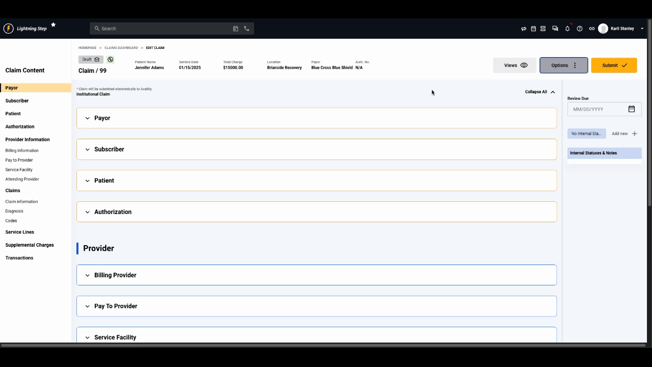
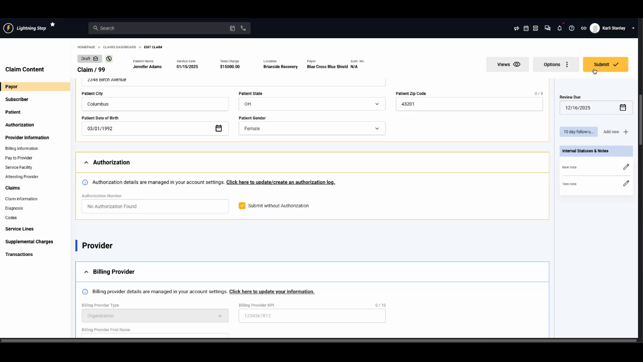
Sticky Header with Claim Details: Essential claim information—such as status, claim number, service date, total charges, location, payer, and authorization—always stays visible at the top, so you never lose track of the basics while scrolling.
-
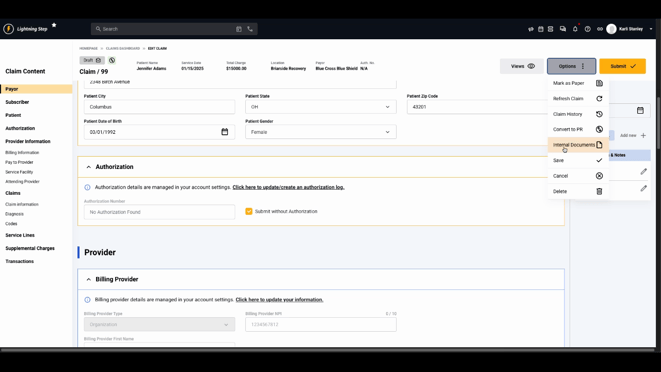
Action Buttons and Menu Options: Prominent buttons enable actions like switching between claim views, accessing claim options, or submitting the claim for processing. The options menu supports additional tasks, including marking the claim for paper processing, refreshing, viewing claim history, converting to patient responsibility (if enabled), and managing internal documents.

-
Claim Content Panel for Navigation: A clickable table of contents on the right serves as a navigation guide, letting you jump directly to different sections of the claim record. The current section is highlighted for easy orientation.
-
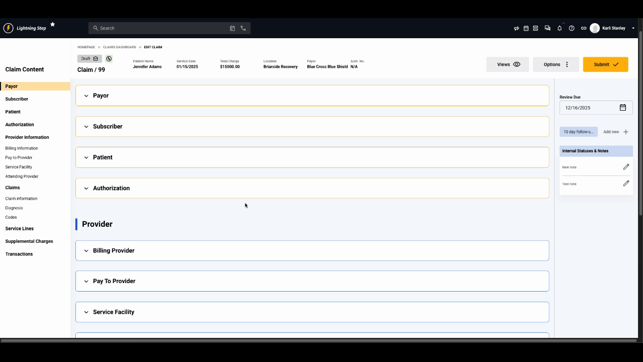
Status and Notes Area: Below the navigation, the screen displays critical information, such as detected errors, next review due date, internal status, and recent notes. Updates to review dates or notes are logged for clearer communication and accountability.
-
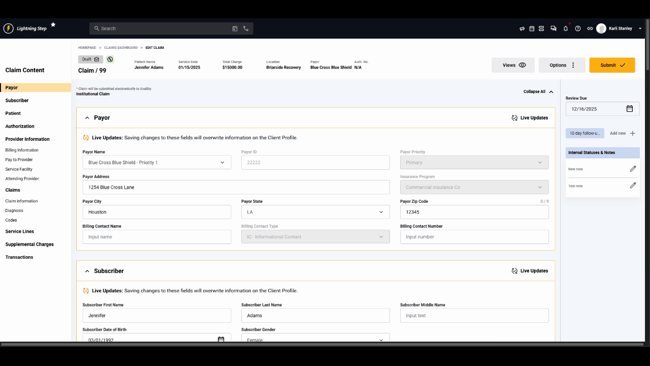
Editing Panel: The main editing area organizes information into collapsible containers, so you can focus on specific claim components. Most data is editable, while certain configuration-controlled or critical fields remain locked to preserve billing and revenue accuracy.
-
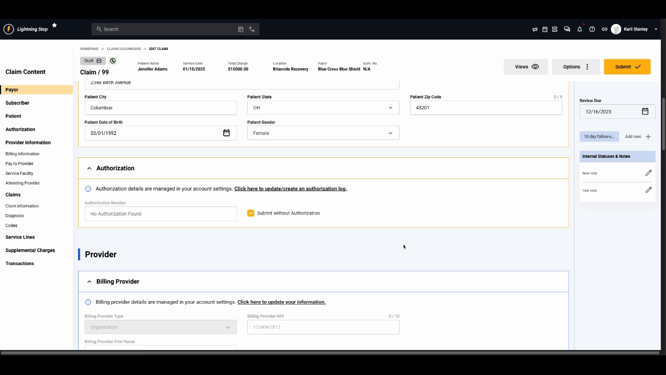
Guided Edits and System Links: For some details that can’t be updated directly (due to system settings or permissions), prompts or links indicate where changes must be made elsewhere in the system.
-
Submission Controls: After making updates, the submission area allows you to save, submit, revert, or delete claim details. Submission may be restricted if validation rules aren’t met, prompting further correction.
-
Document Management: Internal documents can be attached to the claim for secure, payer-excluded recordkeeping. This aids collaboration and compliance without sharing unnecessary materials outside your organization.
Purpose and Benefits
The Edit Claim Screen ensures claim data is always current and validated. By centralizing both major actions (editing, submitting, tracking) and supporting information, it minimizes workflow friction—reducing errors while saving time. The interface supports compliance through strict validation and audit trails, and it improves team communication by capturing notes and document attachments alongside claim edits.
Best Practices for Using the Edit Claim Screen
-
Regularly review both editable and system-controlled claim fields for any required updates or corrections.
-
Use the navigation panel and collapsible editing containers to quickly focus on relevant sections or data, avoiding information overload.
-
Maintain clear, useful internal notes and document uploads for audit and collaboration purposes.
-
Address any flagged errors or missing information before submitting to avoid processing delays.
-
Always save changes intentionally, as certain edits may lock fields or trigger downstream workflows.
Adopting these practices ensures claims stay accurate and complete, supporting faster processing and a more reliable audit trail. For more details on specific workflows or permissions, consult internal documentation or contact support as needed.
