
Step 1: Open your article in the editor and place your cursor at the top of the content section.
Step 2: Wait for the rich text editor toolbar to appear.
Step 3: Click Insert, then select Embed from the dropdown.
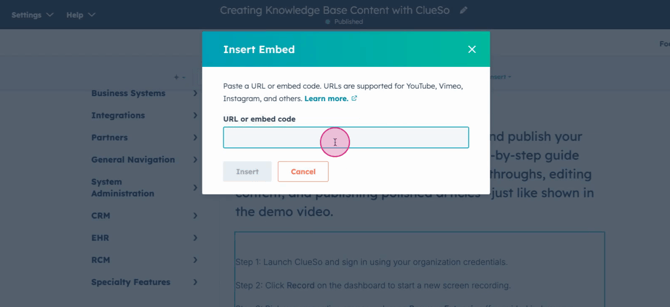
Step 4: Paste the embed code or URL for your video in the provided field. Check the preview to make sure the video displays as expected.
Step 5: Click Insert to add the video to your article.
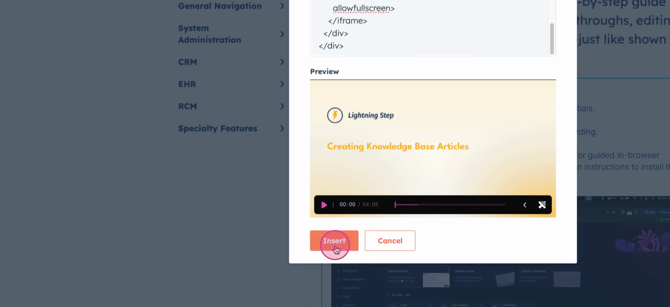
Step 6: Select Preview to see how the embedded video looks alongside your content.
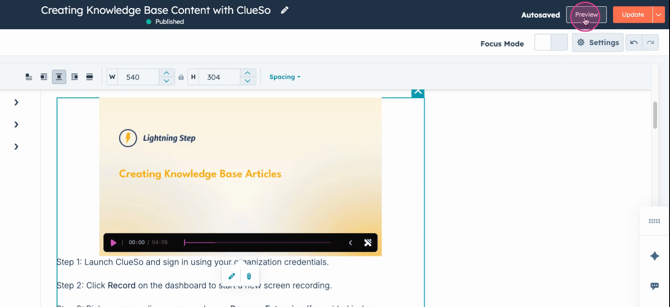
Step 7: If the video doesn’t fit well, copy the embed code. Ask Claude or ChatGPT to adjust the sizing so it fits a HubSpot knowledge base article panel. Paste the new code back into the Embed field if needed.
Step 8: To update the video, use the Edit (pencil) icon, or delete the embed and add a new one.
Step 9: Make sure all article settings match the knowledge base article creation guidelines. When ready, hit Publish or Update.
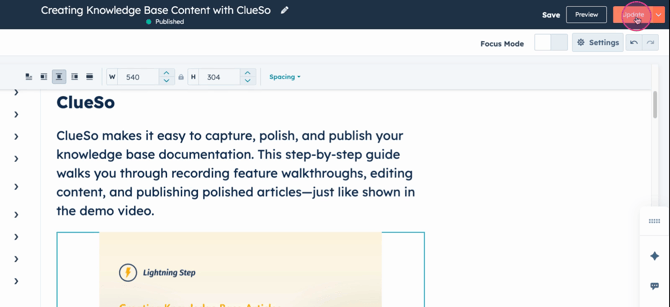
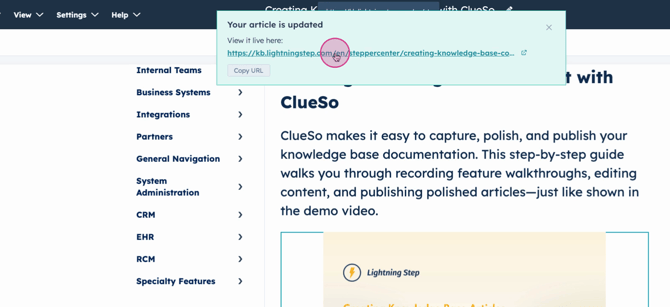
Step 10: After publishing or updating, use the link provided to view your article. Note that video embeds might take a moment to appear.
Adding both text and video helps users get the most out of your knowledge base—whether they prefer to read, watch, or both. If any issues come up, the enablement team is ready to help!
