
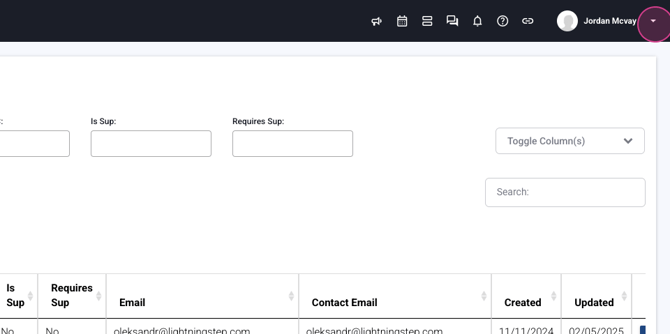
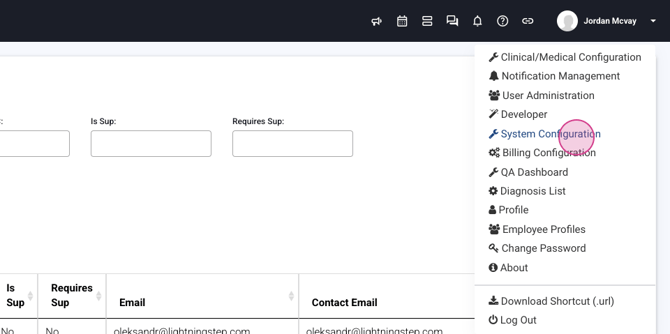
Step 1: Go to the Menu and open System Configuration.
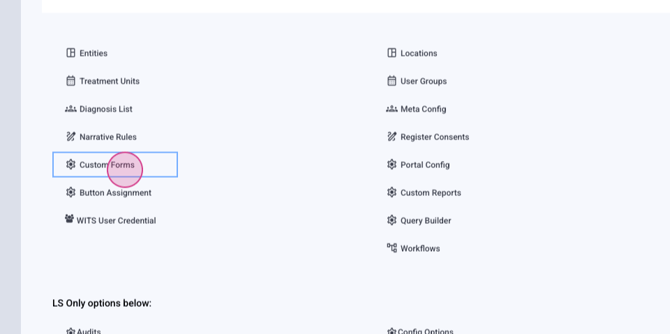
Step 2: Navigate to Custom Forms and select the form where you want to enable Lia.
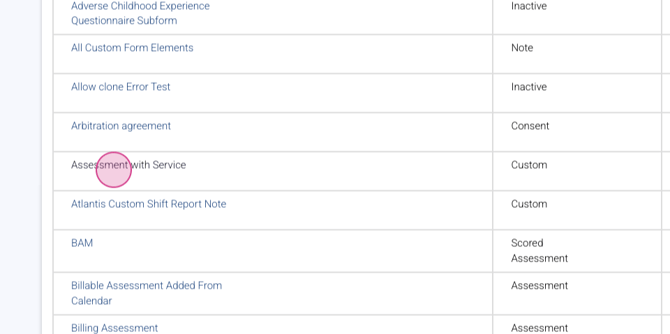
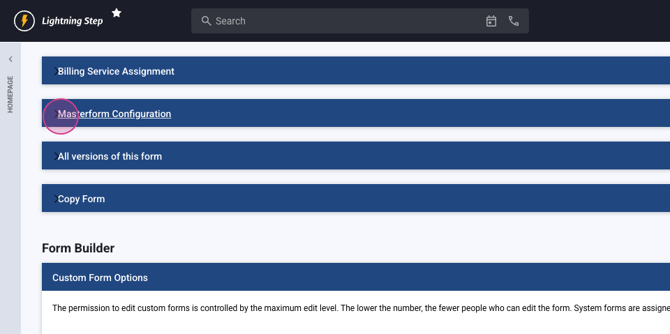
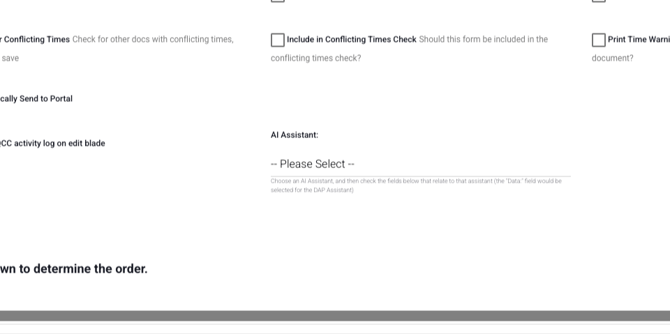
Step 3: Open the Master Form Configuration. Scroll to the bottom right and choose the AI assistant you'll use. Select either DAP (Data Assessment and Plan) or SOAP (Subjective, Objective, Assessment, and Plan) from the drop-down menu. For this example, we'll use a DAP note.
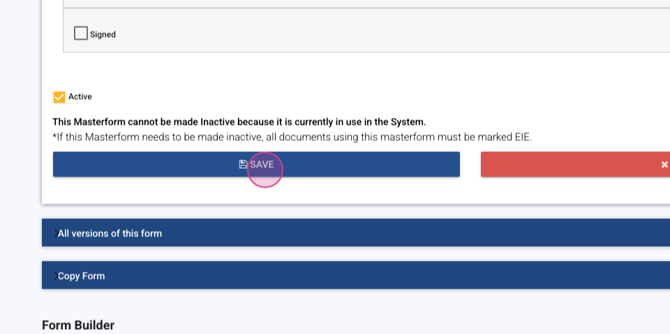
Step 4: Save your settings. You'll be redirected to the Form Builder. Drag and drop a text area into the form, then duplicate it twice.
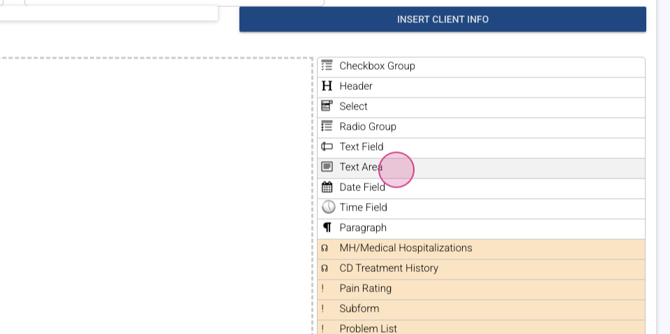
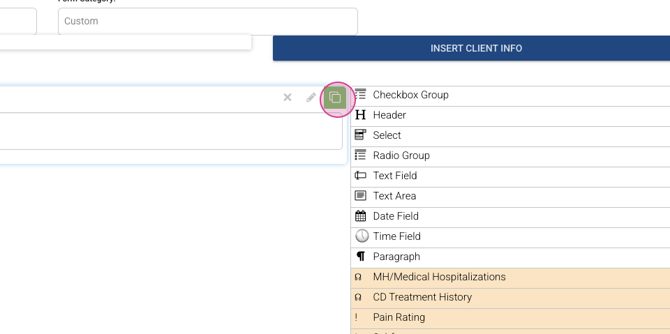
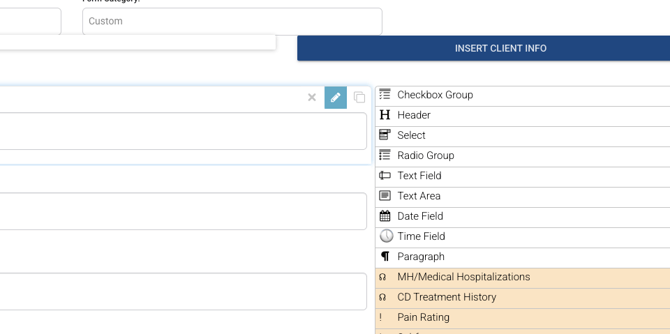
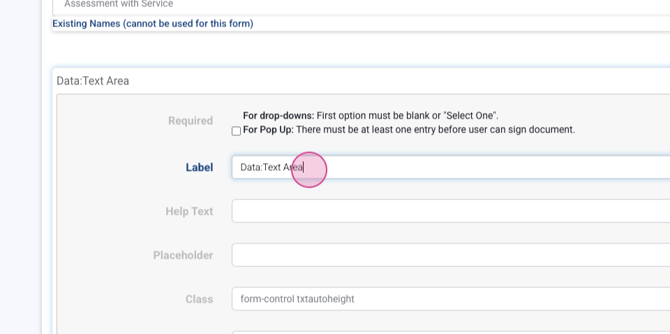
Step 5: Edit the text areas to match the titles Data, Assessment, and Plan. Enable the option to Get Value from AI Assistant, add the required rows, and close the window. Repeat this for all text areas.
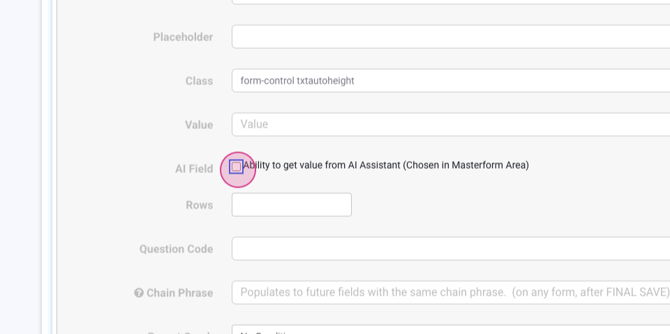
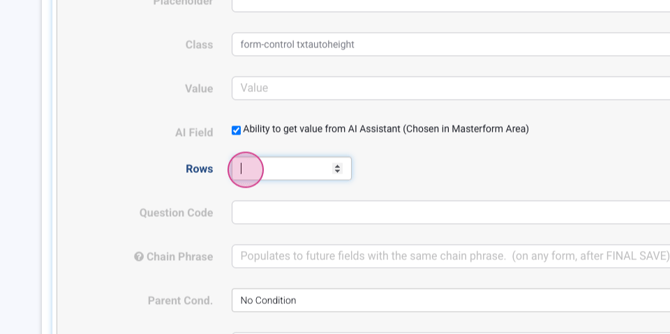
Step 6: Once everything is configured, including any additional documentation or items in the form, select the LIA-generated note in the form. These fields will now pull data from the AI assistant. Don't forget to save your changes.
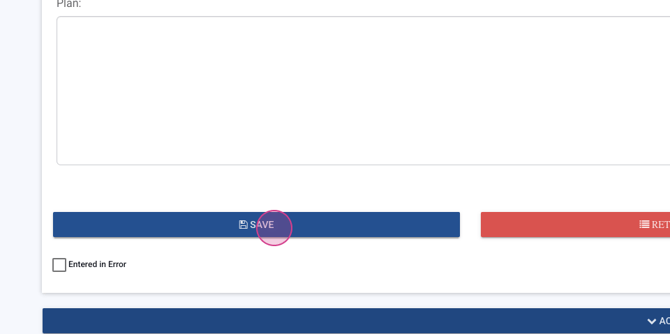
Your form is now equipped with the Lightning Intelligent Assistant.
