
Step 1: From the Home screen, click Financial.
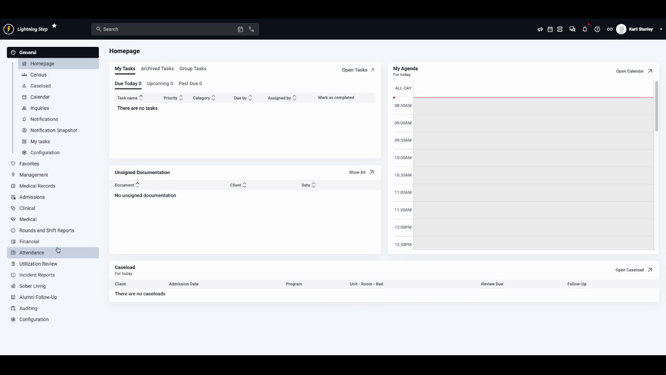
Step 2: Click Financial Dashboard.
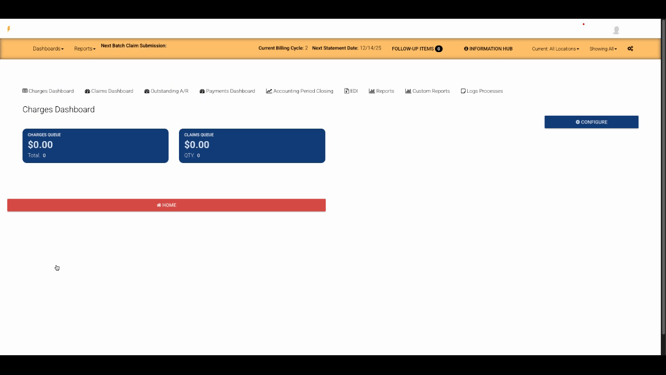
Step 3: Start on the Charges dashboard. Review charges in the Charges Queue — these are charges that dropped automatically but aren’t official yet. Approve or remove charges here. In the Claims Queue, you’ll see insurance charges that have been approved but aren’t on a claim yet. Review and create claims as needed.
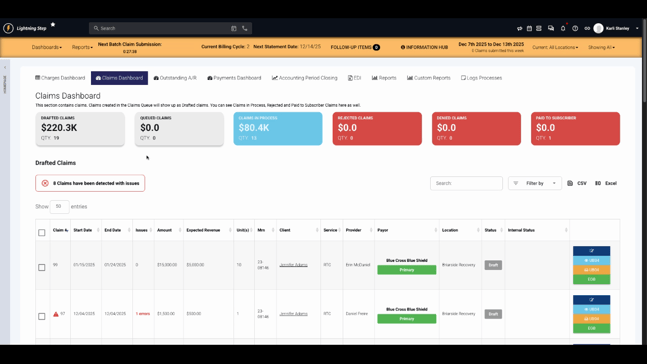
Step 4: Move to the Claims dashboard. This area sorts claims by status:
-
Drafted: Created, not yet submitted.
-
Queued: Marked for submission and will be sent in the next batch.
-
In Process: Submitted but no rejection or remittance received.
-
Rejected: Claims that haven’t entered the adjudication process due to rejection.
-
Denied: Claims with a denial code on the remittance.
-
Paid to Subscriber: Claims paid to the patient, with outstanding patient responsibility.
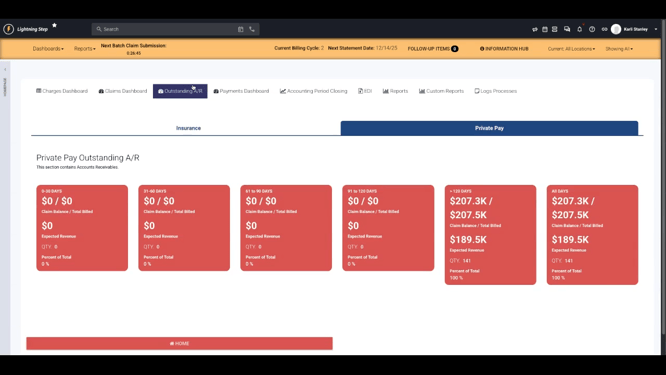
Step 5: Outstanding AR: See aging buckets for accounts receivable that’s still uncollected. Review by insurance or private pay.
Step 6: Access the Payments dashboard to manage unposted client and insurance payments. Use this area as a work list for payment posters. Check for accounts with credit balances as well.

Step 7: Visit the Reports tab to find a library of financial reports and descriptions. Use these resources to locate and run the reports you need for deeper insights.

The Financial Dashboard gives you a centralized way to manage and monitor your revenue cycle. For more in-depth help with any feature, check the internal documentation or contact the support team.
