
Step 1: Start from the home page of Lightning Step.
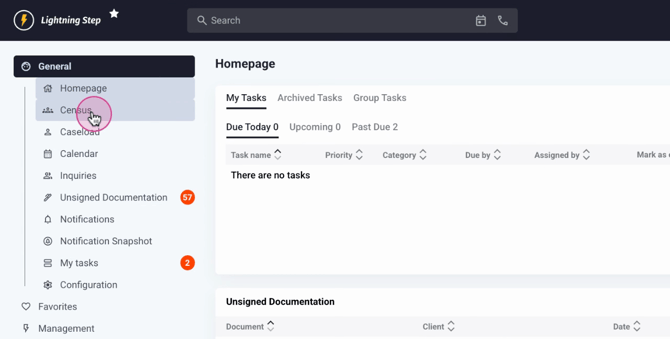
Step 2: Click on my census.
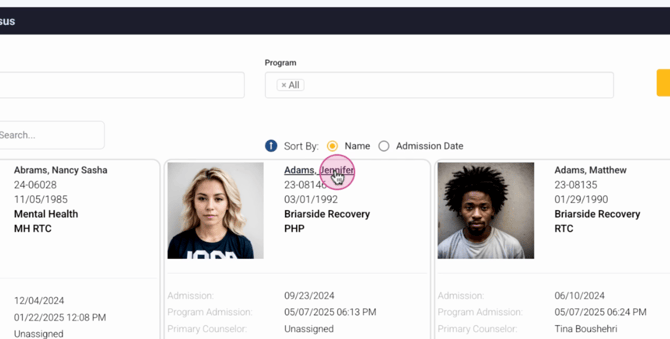
Step 3: Choose your patient and enter their patient chart. The patient chart will appear as shown.
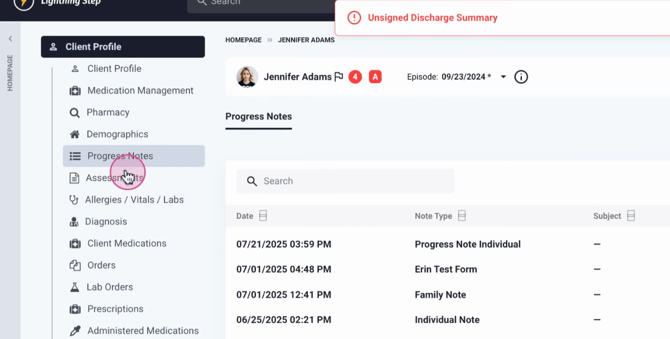
Step 4: Look at the left-hand tabs. You'll find all your progress notes in one of these tabs.
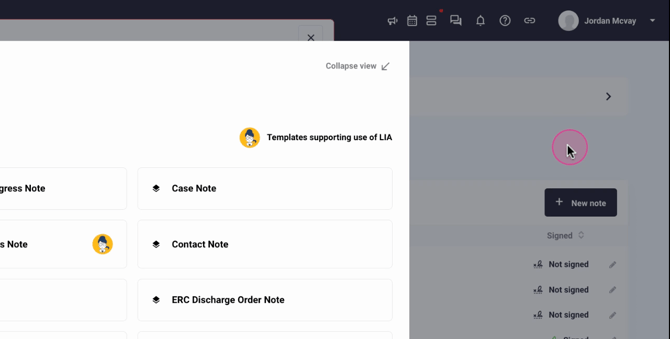
Step 5: To create a new note, select New note and choose the type of note you want to generate.
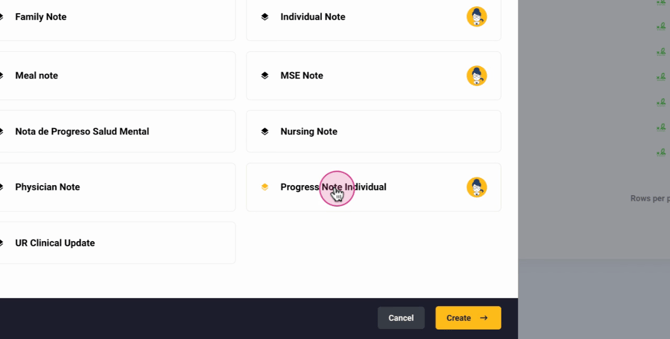
Step 6: Select the note and click Create.
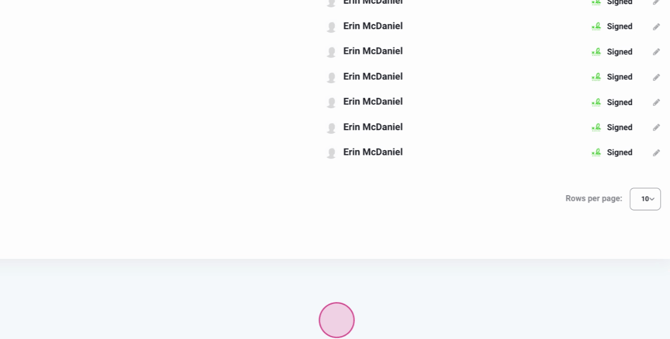
Step 7: Exit this section.

Step 8: The process for assessments is similar. Go to Assessments.
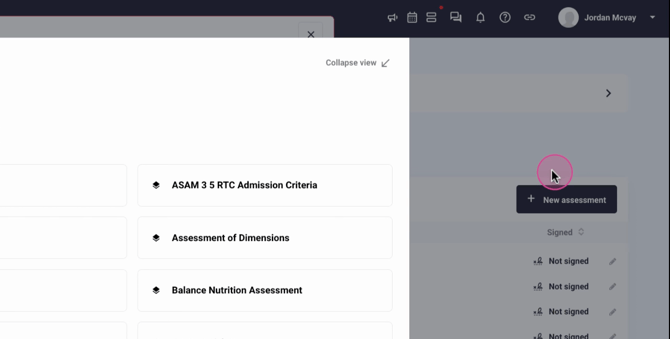
Step 9: Click on new Assessment and choose the document you want to complete.
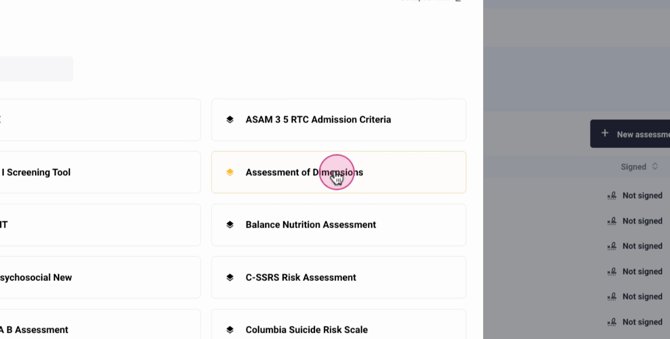
Step 10: To complete an assessment of dimensions, select the document.
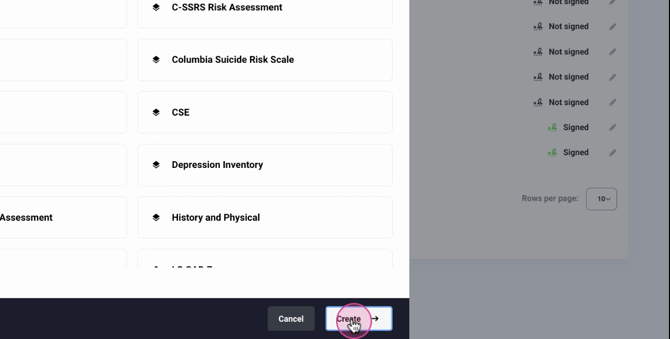
Step 11: Click Create. This will take you to the selected document.
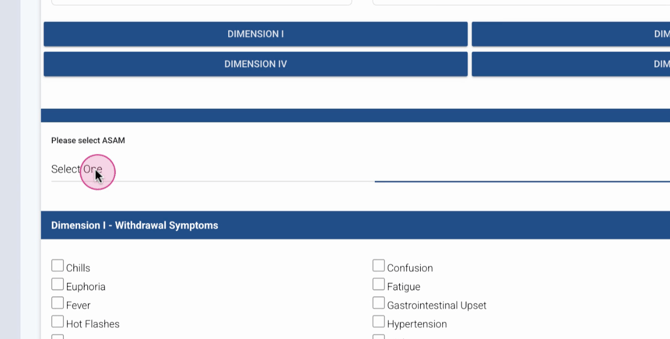
Step 12: Choose the type, complete the document step by step, then sign, lock,
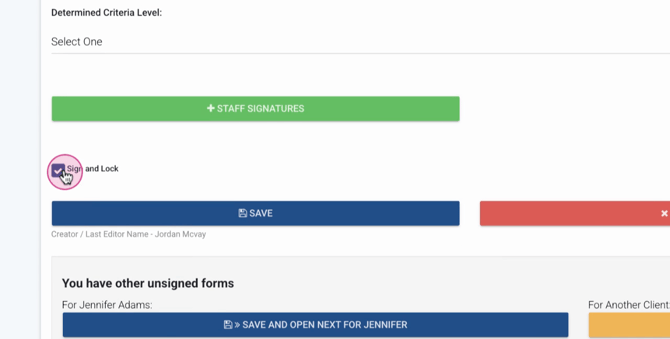
Step 13: Save your work. You'll see that you've completed the assessment of dimensions for the selected client.
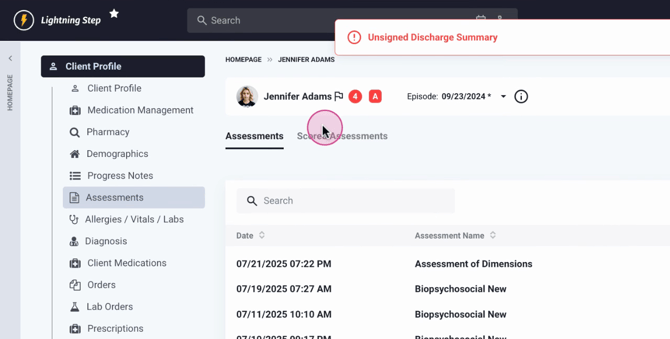
Step 14: Scored assessments are also found under this tab. Here, you'll see any PHQ9, CALS, or CWAS scores associated with the documents, provided they are signed.
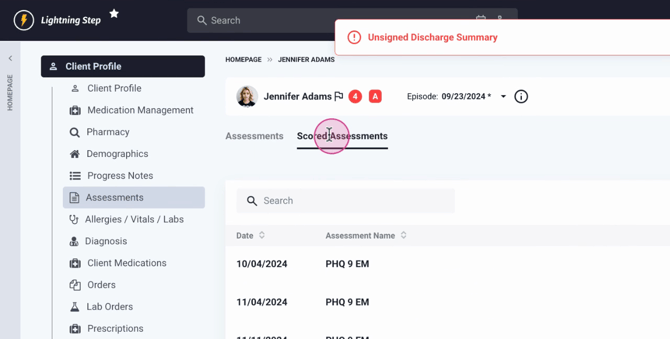
Step 15: Additional documentation can be found under
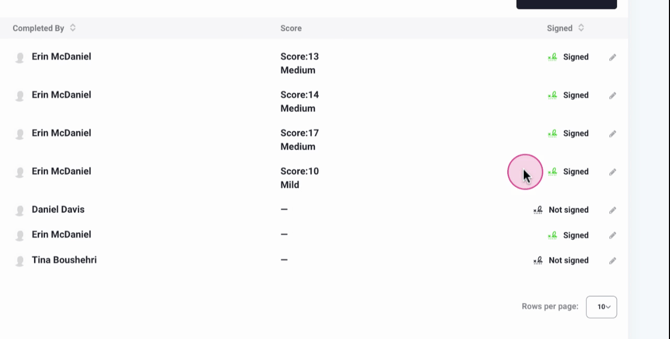
Step 16: Allergies, Vitals, Labs, or Medical tabs, as well as any treatment planning. Discharge planning can be found on the left, and financial documents are under the respective tab.

Step 17: Most of the time, you'll be accessing Notes and assessments.
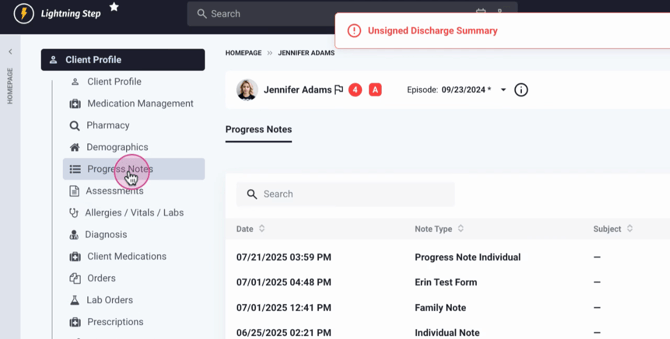
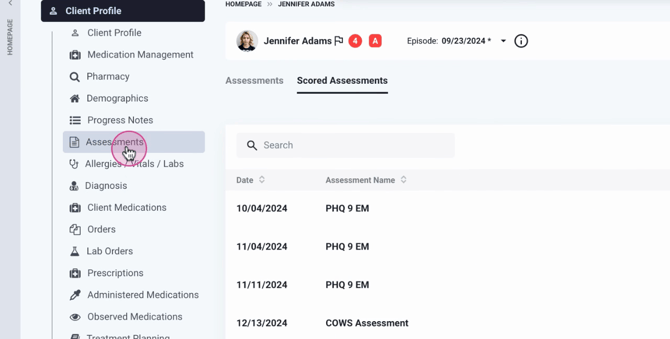
This concludes the general overview of how to find and complete notes and assessments within Lightning Steps.
