
Step 1: Go Home with the Lightning Step Icon Start at the top left of your screen. The Lightning Step icon works as your home button. Click it anytime to return to your default homepage, no matter where you are in the app.
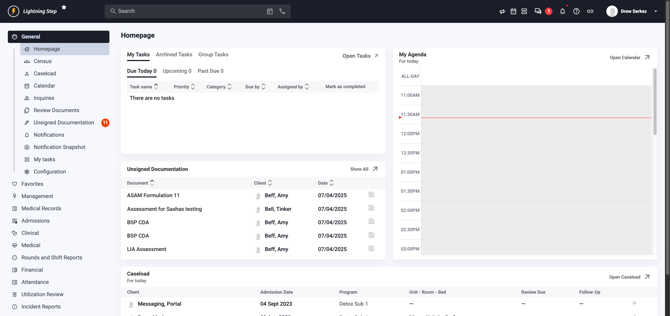
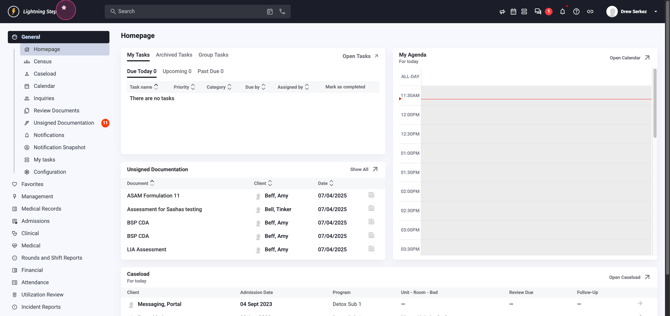
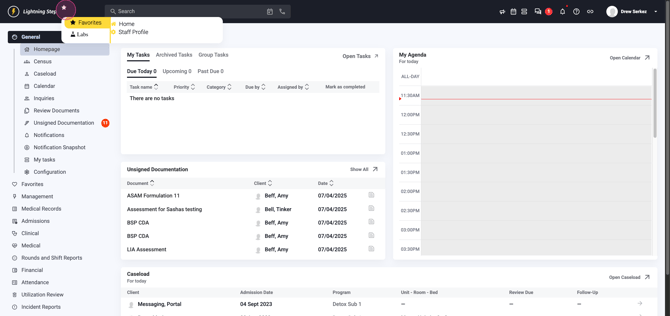
Step 2: Access Your Favorites Right next to the Lightning Step logo, find the Favorites icon. Set your favorites from your user profile so you can quickly access important pages.
Step 3: Use the Master Search Bar The main navigation includes the Master Search bar at the top. Use it to search by client name, inquiry, or caller name.
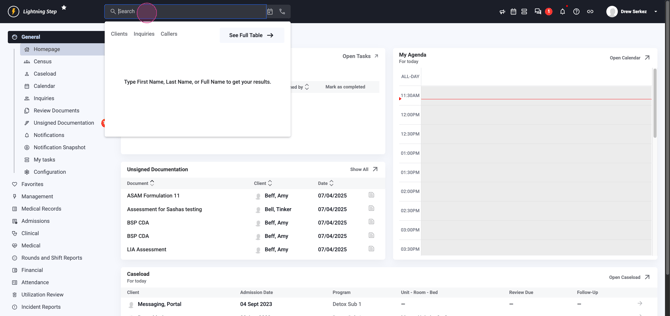
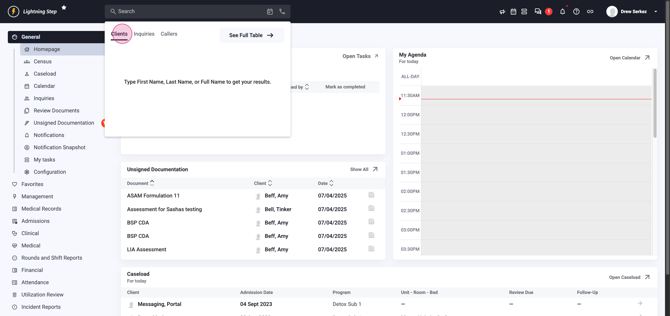
You can also search using a date of birth or phone number for quick results.
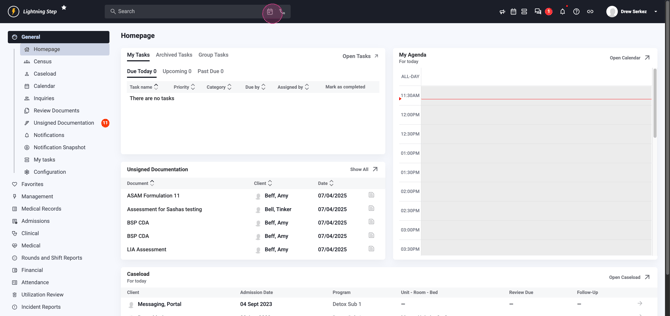
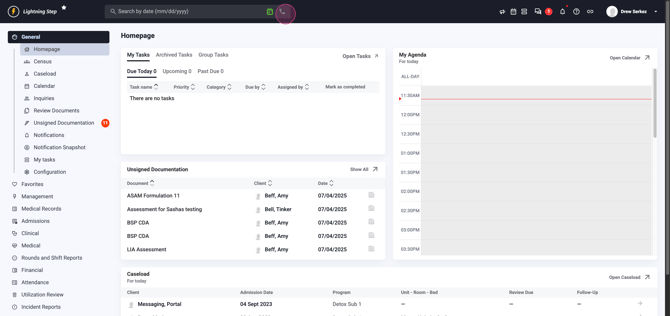
Step 4: Find System Features in the Top Navigation Bar.
Look to the right of the top navigation bar for these features:
- Announcements
- Calendar
- Task list
- Messaging between staff and patients
- Notifications
- Support portal
- Task list with links to your current page
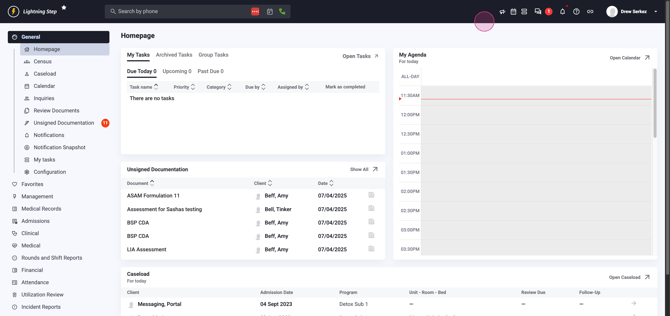
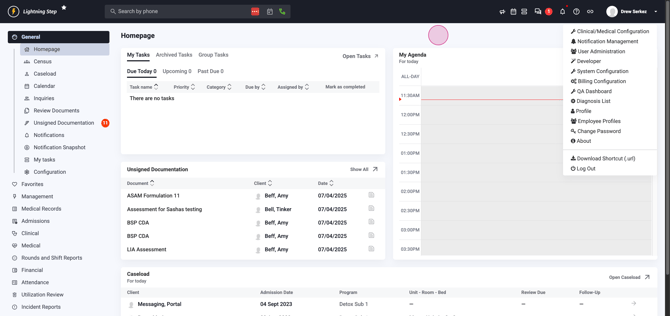
Step 5: Manage Your User Account On the upper-right, select the User dropdown labeled with your username. Menu options include user administration, system configuration, billing configuration, profile edits, changing password, downloading a shortcut, or logging out — depending on your access level.
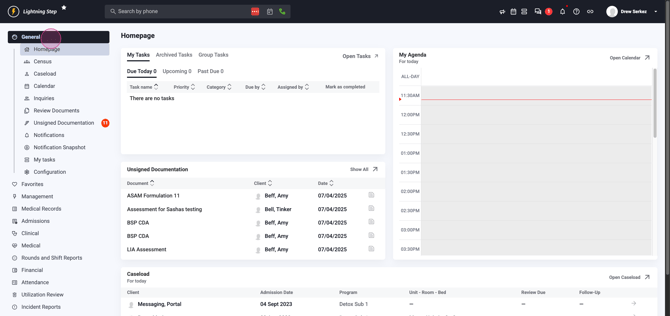
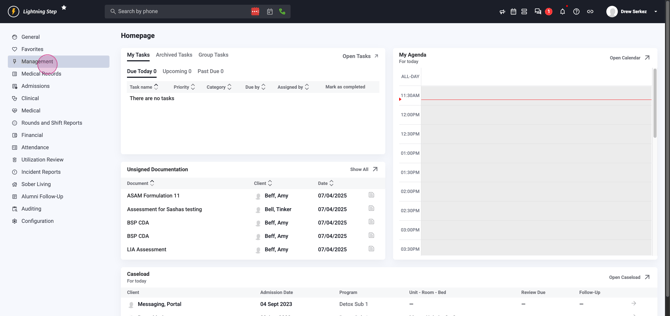
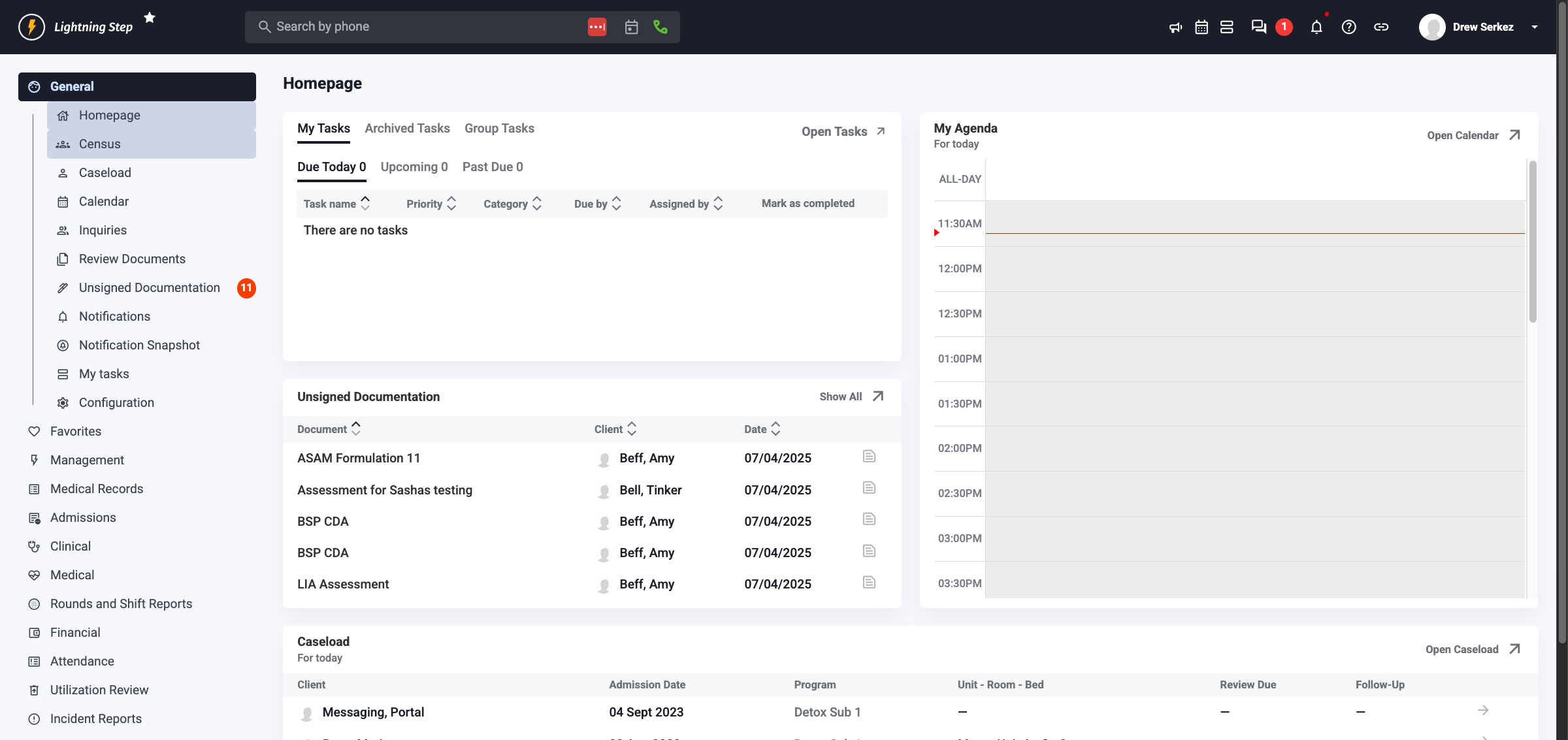
Step 6: Navigate Through the Menu Sidebar On the left, explore the Parent and Child menu structure. Collapse or expand Parent menus to reveal Child menus. Menu options change based on your permissions.
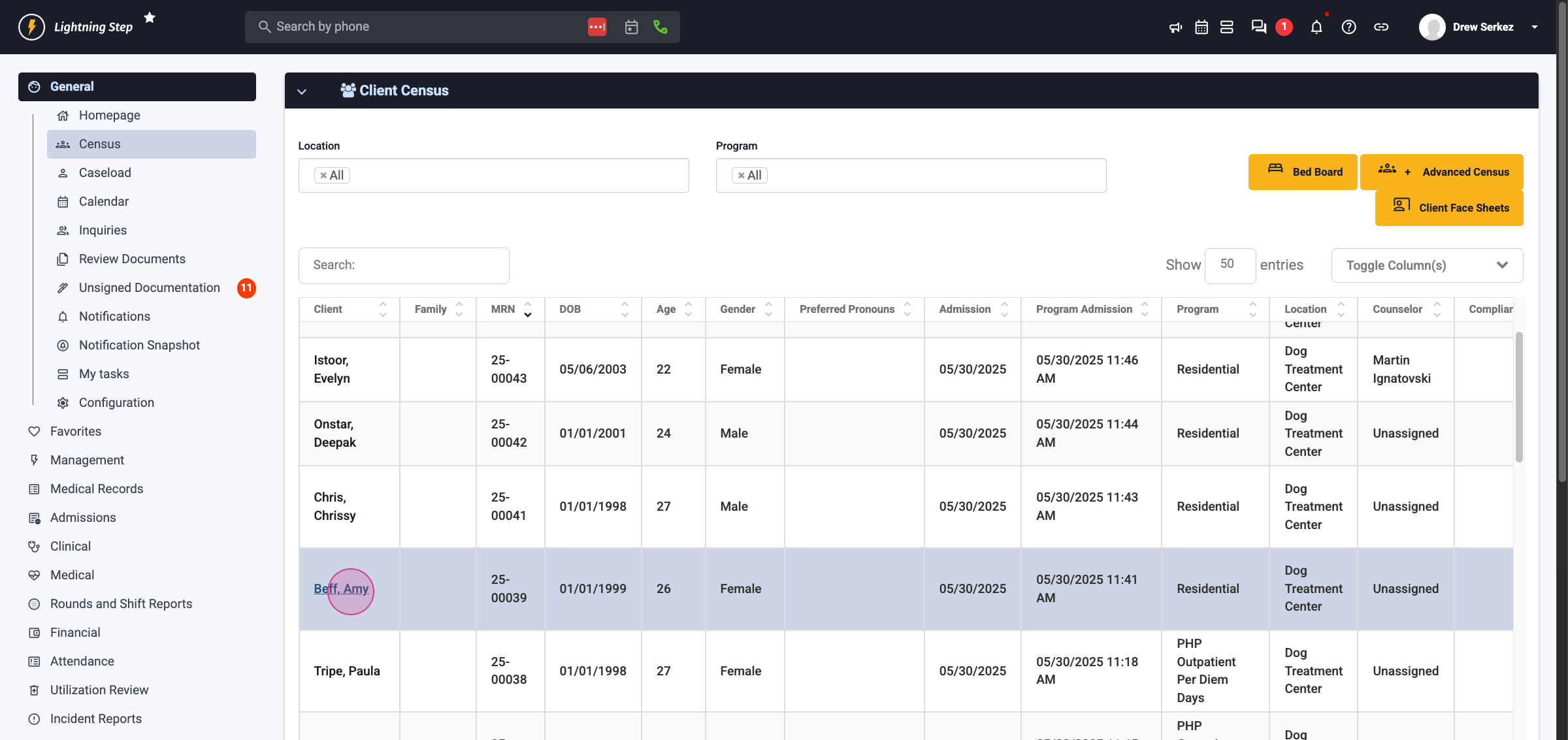
Step 7: Find and Open Client or Inquiry Profiles Go to the Census or Inquiry page and choose a patient's name to access their profile.
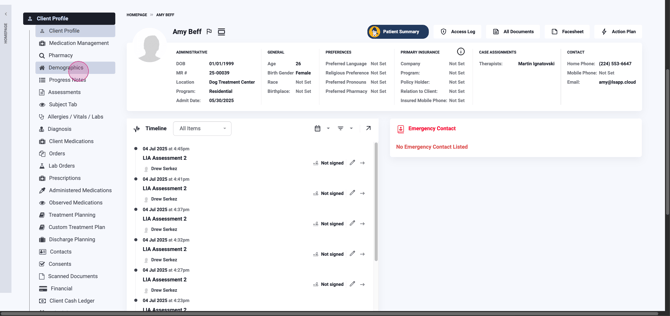
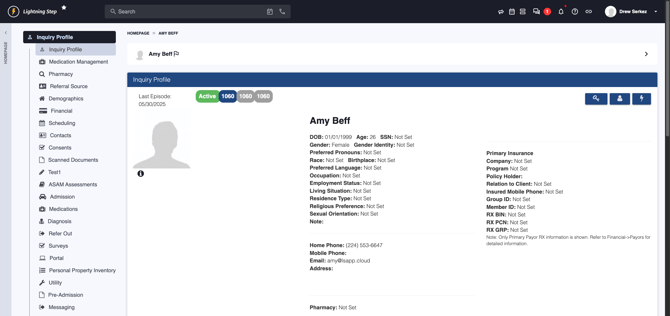
Once inside a client profile, you'll find menus on the left again. Select these menus to update notes, client-reported medications, orders, pharmacies, or other details. The right side updates accordingly. Some menu selections may redirect you to new pages.
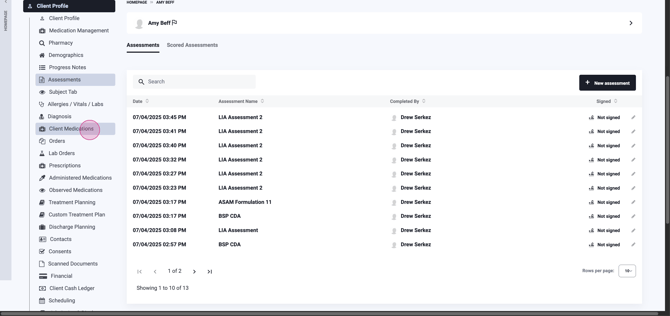
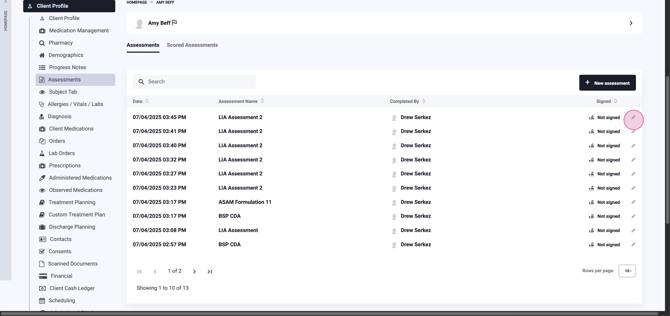
Step 8: Retrace Steps with Breadcrumb Navigation Use the breadcrumbs on the left to move back to your homepage, or to the top of any profile or section you’re working in.
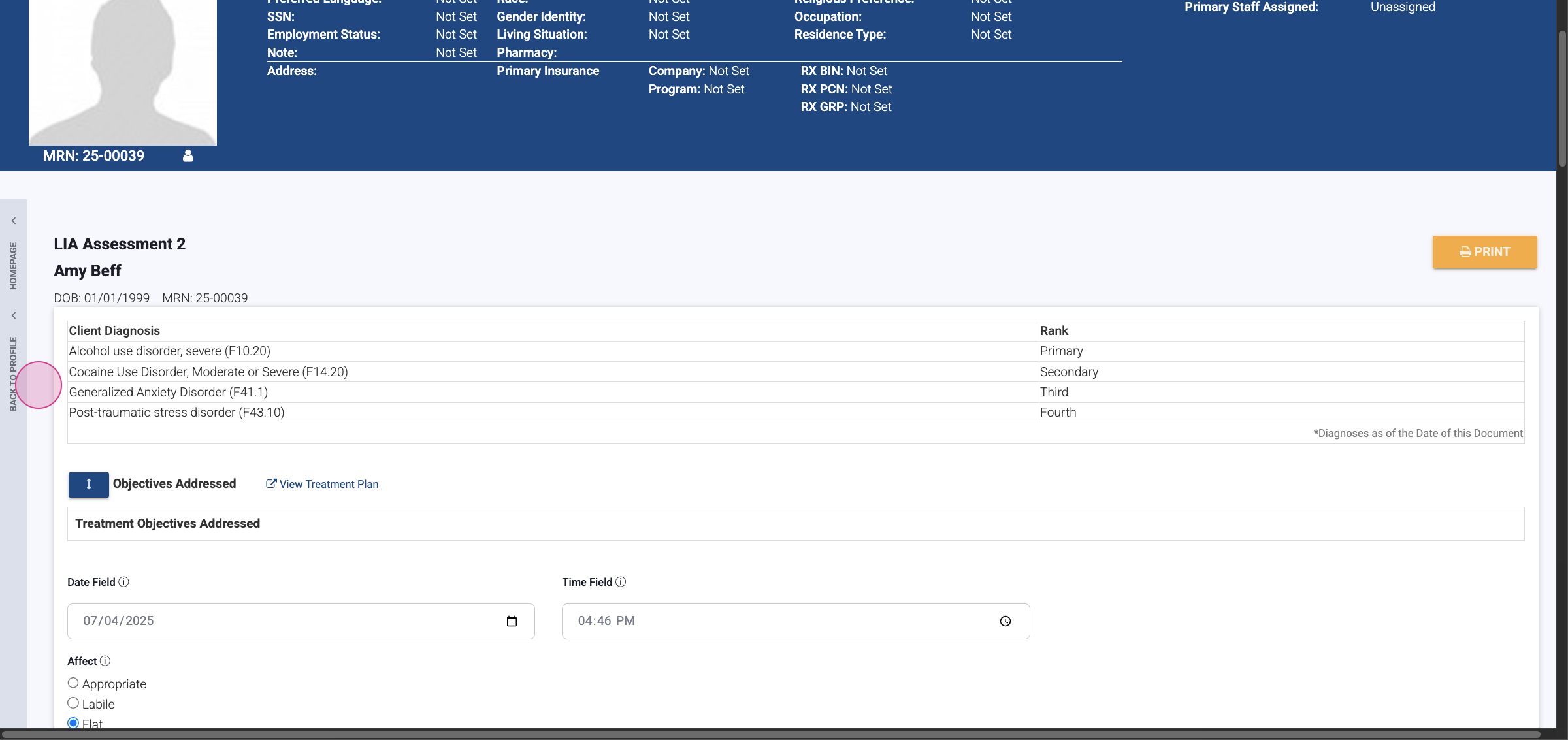
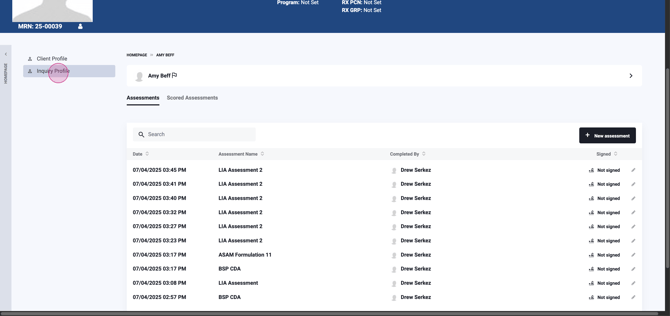
Step 9: Switch Between Profiles Quickly Collapse the Profile Parent menu to access secondary Parent menus for Inquiry or Account profiles. Clicking a parent menu shifts you directly into the corresponding profile. You can always click the Lightning Step icon to return home.
You’re all set with core navigation in Lightning Step! By following these steps, you'll move confidently through the system and access everything you need.
