
Generating Charges from Individual Appointments
Step 1: Schedule a new appointment on the calendar.
Step 2: Select the client for the appointment.
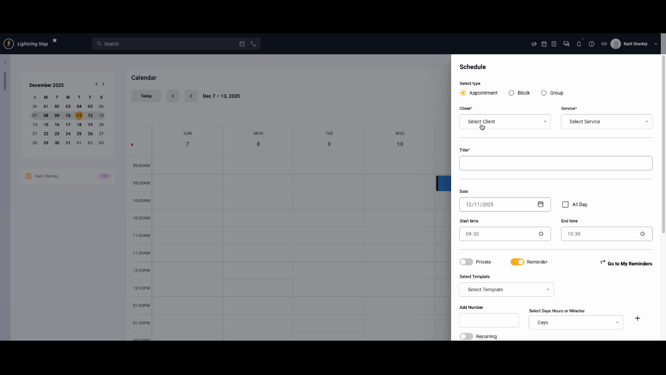
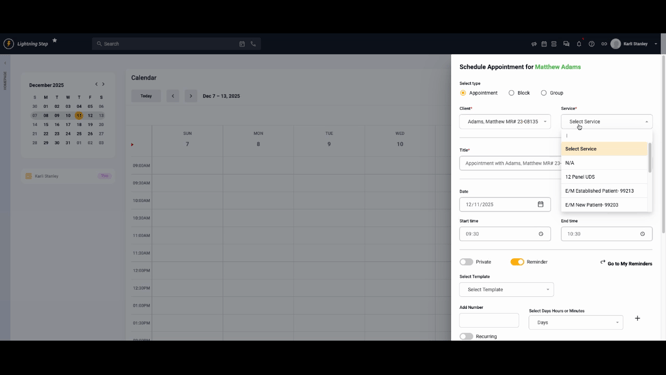
Step 3: Choose the service from the list. Only services set as visible on the calendar will appear.
Step 4: Click Save to add the appointment to the staff member’s calendar.
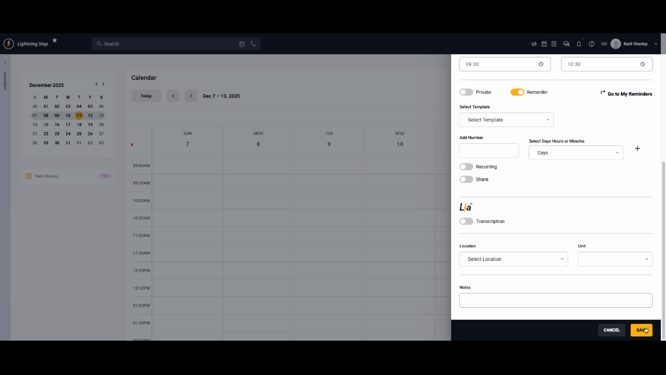
Anyone viewing the staff's calendar will see this scheduled appointment.
Step 5: When the appointment time arrives, click on the appointment and toggle Create Documentation.
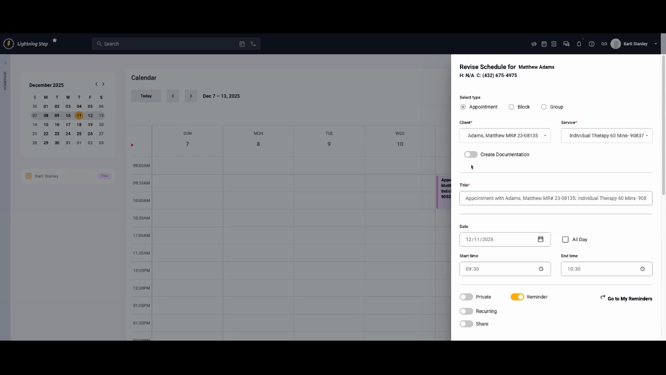
Step 6: From the document dropdown, select the form linked to the chosen service. These documents are available if connected via charge forms or billing assignments.
Step 7: Click Save Revision. The document form will open for the client.
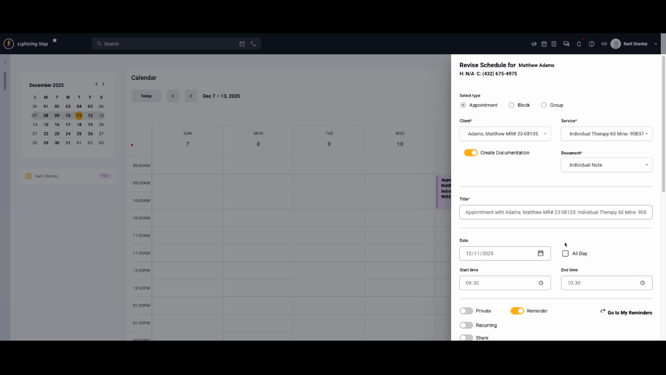
Step 8: Complete the document. If billing configurations are set up for the service and form, a charge generates automatically after finishing the documentation.
Generating Charges from Group Appointments
Step 1: Open the calendar and select the time for the group appointment.
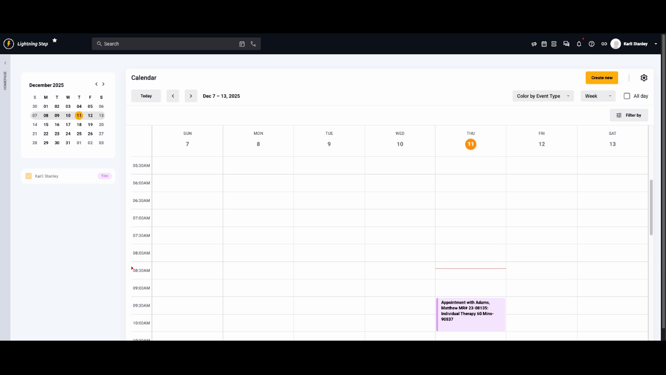
Step 2: Choose the group type.
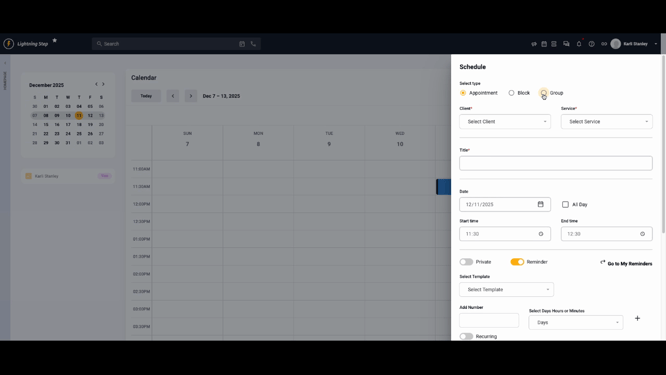
Step 3: Select the specific group. Enroll clients either by using Auto Enroll (if enabled) or by enrolling them manually. Double-check all appropriate clients are enrolled.
Step 4: Choose the content template for the session.
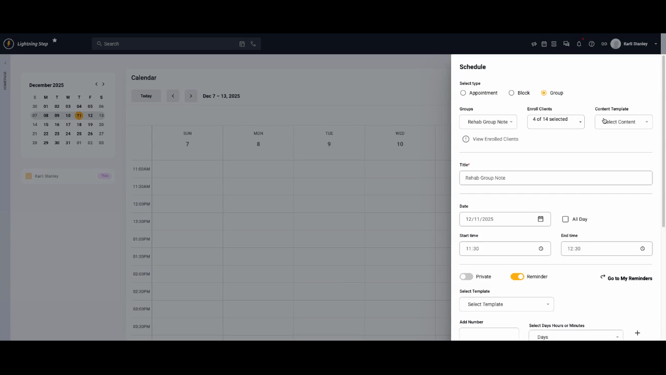
Step 5: Click Save to confirm appointment details.
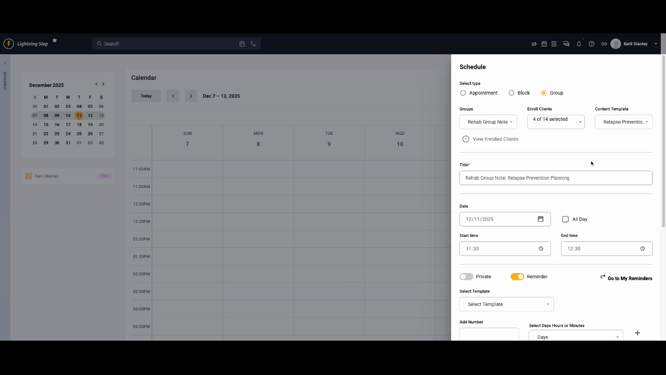
Step 6: Mark attendance for each client during the group session. This keeps an accurate record on every client profile.
Step 7: To begin the session, check Start Group Session.
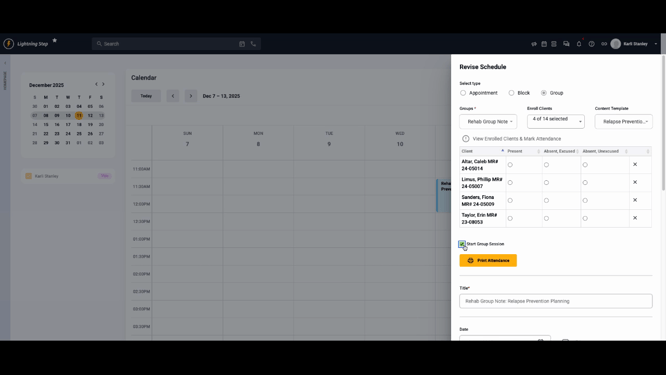
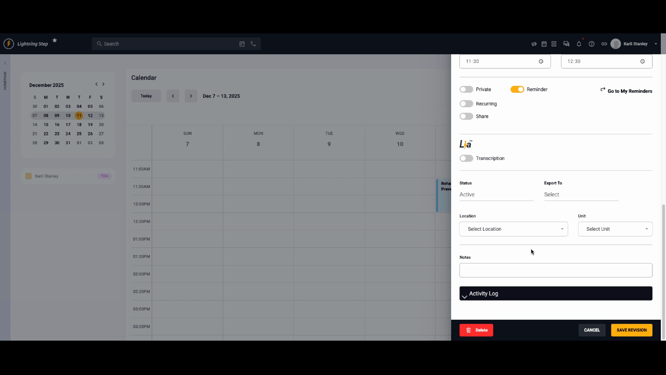
Step 8: Click Save Revision to open the relevant documentation form.
Step 9: Update attendance as needed in the opened form.
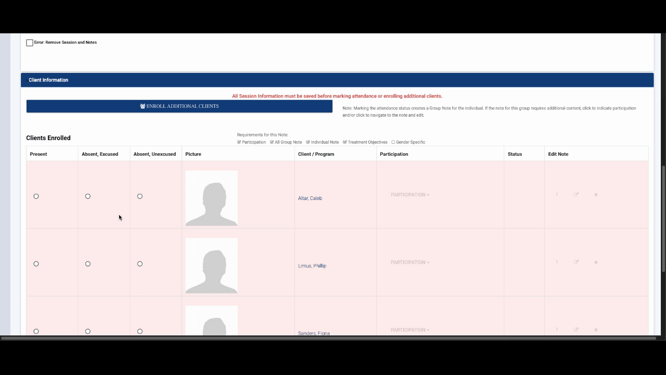
Step 10: Complete, sign, and lock the form. Charges generate automatically for attending clients if your configurations allow.
Conclusion
Generating charges from both individual and group calendar appointments keeps your billing process accurate and tied directly to service documentation. Review service and billing configurations regularly to ensure a smooth workflow. For more details, check your internal documentation or reach out to support if you need assistance.
