
Step 1: Log in to HubSpot. Once logged in, navigate to the CRM section by clicking on the CRM icon on the left-hand sidebar. This icon is the third one from the top, resembling a book with a person on it.
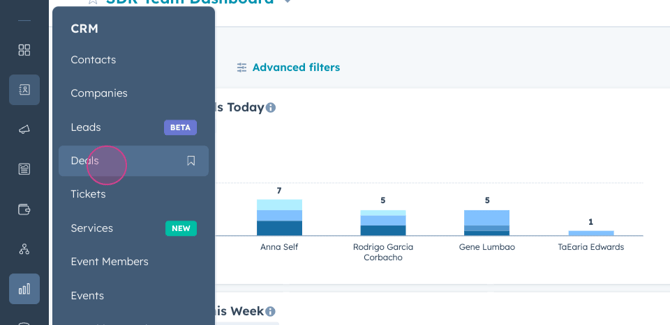
Step 2: Click on Deals within the CRM section to proceed to the deals dashboard.
Step 3: Before creating a new deal, familiarize yourself with the filters at the top of the deals page. These filters allow you to configure and manage the view of open, pending, and closed deals, including their details. Feel free to adjust these filters to suit your daily workflow needs, saving views that are most relevant to you.
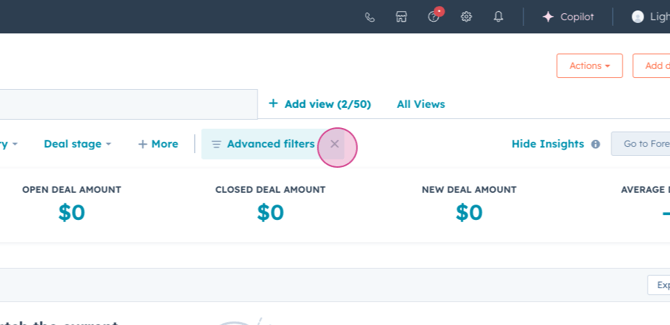
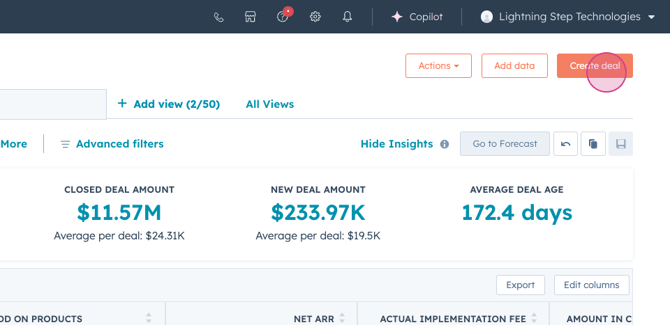
Step 4: To start creating a deal, click on Create a Deal, located in the upper right-hand corner of the deals dashboard.
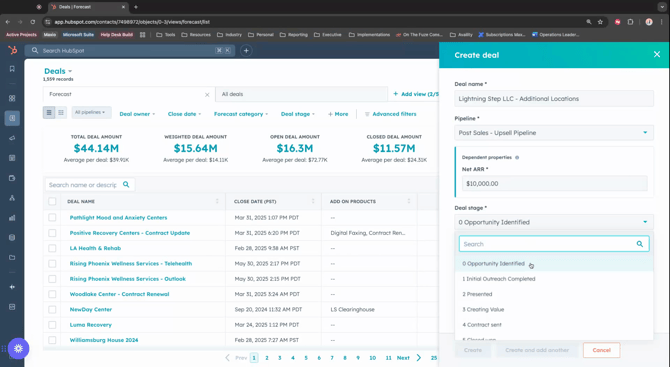
Step 5: Begin by naming your deal. Always use the customer's name as the deal name. For example, enter "Lightning Step". Then, add a space, a hyphen, and another space, followed by specific details that distinguish this deal from others. In this example, you would add "additional locations" to indicate that Lightning Step wants to expand.
Step 6: After entering the deal name and details, you'll see the deal's pipeline. This pipeline is crucial for tracking the progression of your deal.
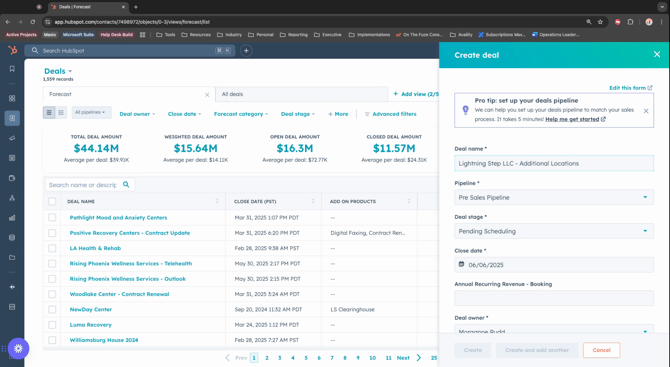
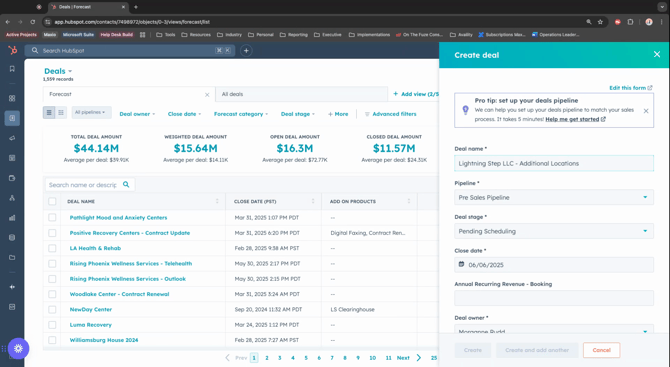
This tutorial will guide you through the process of creating a deal in the pipeline, focusing on selecting the appropriate pipeline stage and entering dependent properties like net ARR.
Step 1: Start by selecting the appropriate pipeline stage for your role. The dropdown menu offers various selections, such as Presales, Sales, Post Sale, Upsell Pipeline, and Renewal. Each corresponds to different team workflows, such as SDR motions for Presales and AE motions for Sales. For Customer Success Managers (CSM), the relevant stages are Upsell Pipeline and Renewal.
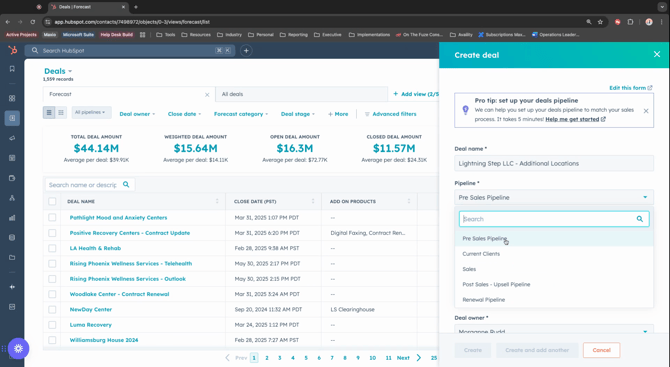
Step 2: After selecting the pipeline stage, click on the specific action you're undertaking. In this example, we're focusing on expansion, so click on Upsell.
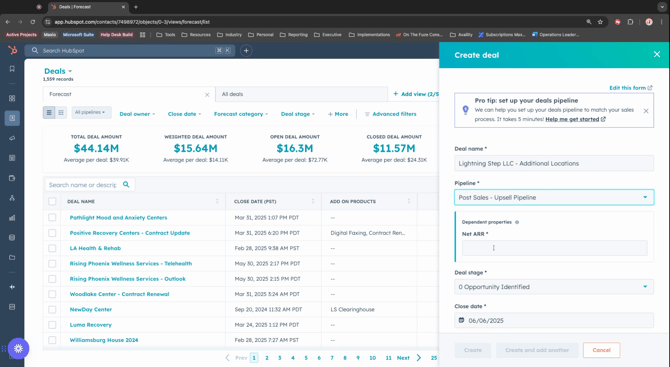
Step 3: Enter the net Annual Recurring Revenue (ARR) in the provided box. This is crucial for tracking the difference between the customer’s current ARR and the ARR with the new expansion. For instance, if the customer currently pays $20,000 annually and you're proposing an additional service costing $10,000 annually, enter $10,000 as the ARR difference.
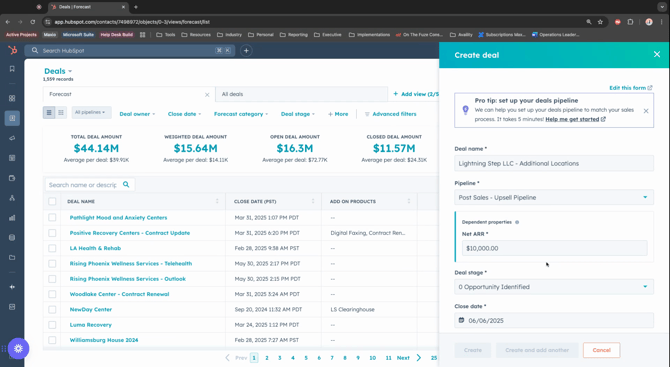
Step 4: Choose the appropriate deal stage from the dropdown menu. It should automatically set to Opportunity Identified. This stage is used when you've recognized a potential upsell opportunity based on customer interactions or indications. This stage is appropriate when you have either briefly discussed the potential with the customer, presented a demo, or explained how the service could benefit their business and return on investment (ROI).
By carefully following these steps and choosing the right options, you'll effectively manage your deals and track potential upsells within the pipeline.
Deal Options
Step 1: Update the deal stage by setting it to Presented when the customer shows interest in the option you've offered. This indicates that you have formally presented the deal to the customer.
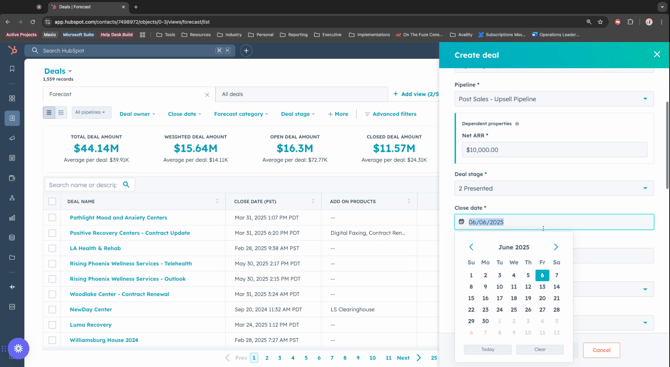
Step 2: Estimate the close date by entering your best guess on when the customer might be interested in expanding. The default setting is approximately 120 days from the creation of the deal, but you can edit this date as needed throughout the deal lifecycle.
Step 3: Skip entering the annual recurring revenue (ARR) booking for now. If this is an expansion deal, the ARR would include your current contract plus any expansion, which could total to $30,000. For new business deals, enter the total ARR value you anticipate from the new customer contract.
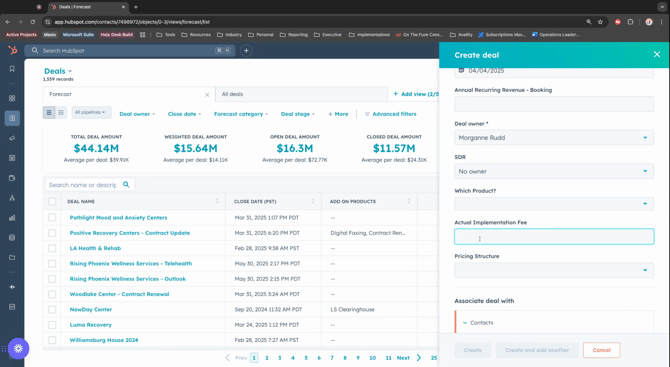
Step 4: Confirm the deal owner, which should automatically populate with your name. Change this only if necessary, though typically you won't need to.
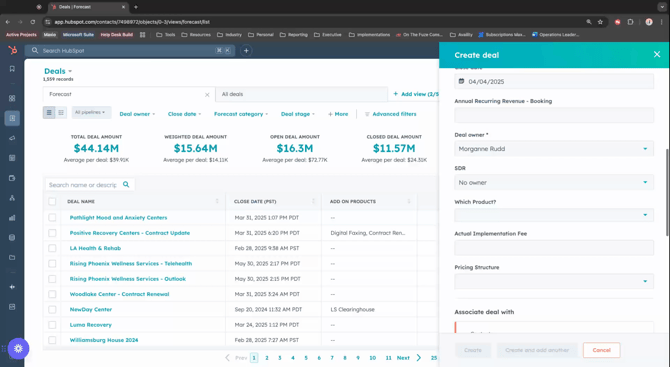
Step 5: Assign a Sales Development Representative (SDR) to the deal if applicable. Note that for expansion deals, an SDR may not be involved.
Step 6: Select the product involved in the deal if known. Options might include EMR and Billing, Billing EMR, or LS Lite.
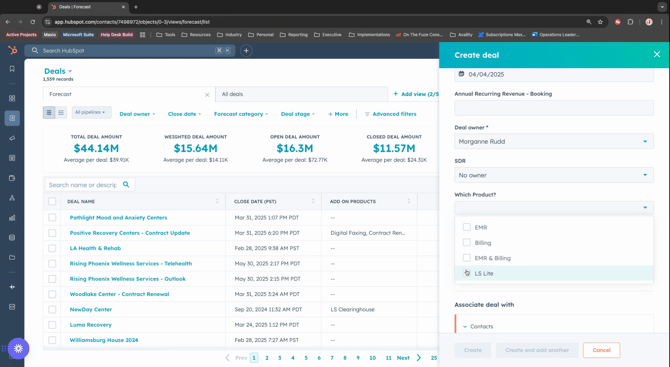
Step 7: Enter any applicable one-time fees such as implementation, integration, or setup fees in the designated box. For instance, if the deal involves adding a new location, you might add a $5,000 one-time fee.
Step 8: Ensure every deal is linked to both a contact and a company, as this is mandatory for deal association.
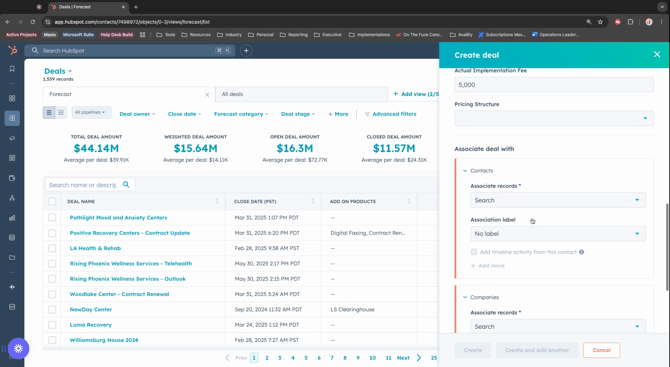
Selecting the Contact
Step 1: Start by searching for the contact you need to associate with the transaction. Make sure to select the correct contact, as contacts can be linked to multiple companies.
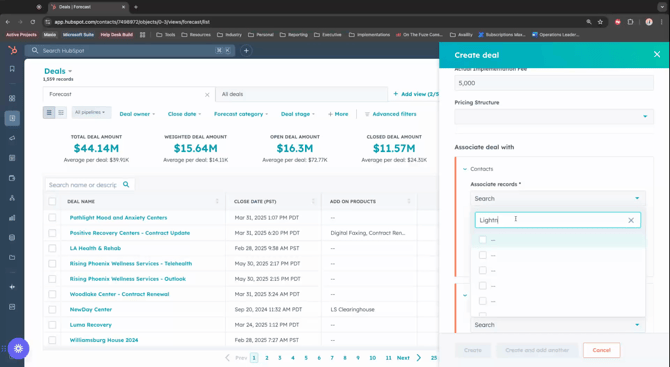
Step 2: Verify the contact's email address to ensure accuracy. If the contact is not found in the system, use the search bar in the upper left-hand corner to double-check.
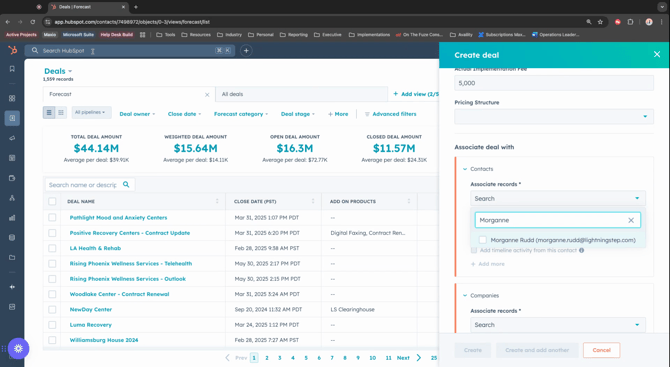
Step 3: If the contact still doesn't appear, add them to your contacts and then return to this page to select them. For this example, designate the contact as an executive sponsor, who will be the decision-maker.
Step 4: Next, select the company associated with this contact. This field is usually auto-populated through system automations when acquiring a customer. However, if it is not, you may need to create a company. Always consult with your leaders before doing so to ensure proper protocol is followed.
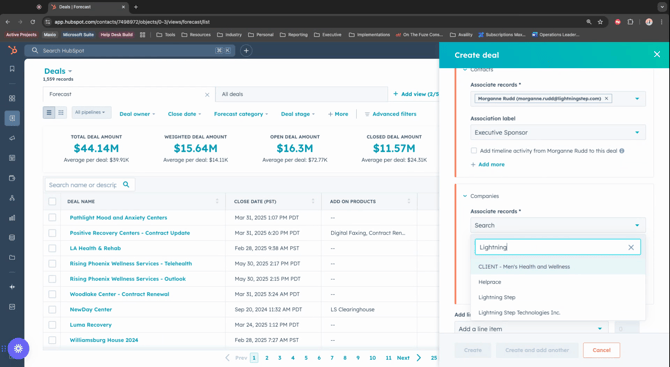
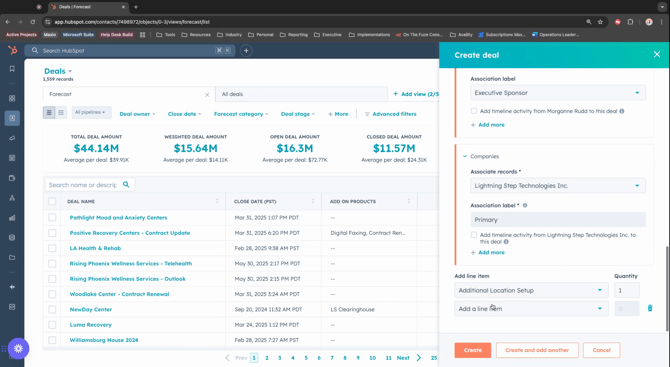
Step 5: After selecting the company, you'll see the "Add Line Item" section, which allows you to manage and edit transaction details throughout the deal's progression.
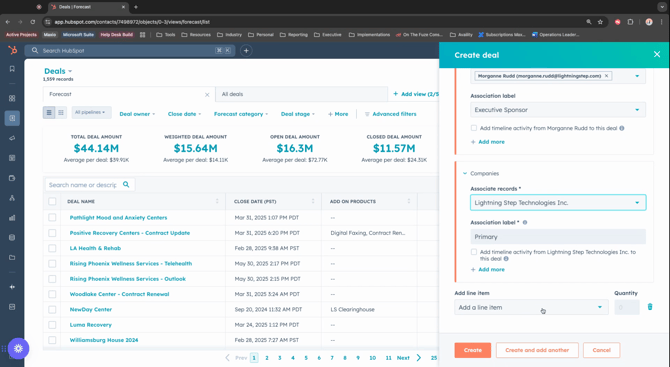
Step 6: Use this section to add products from your product book that you intend to sell to the customer.
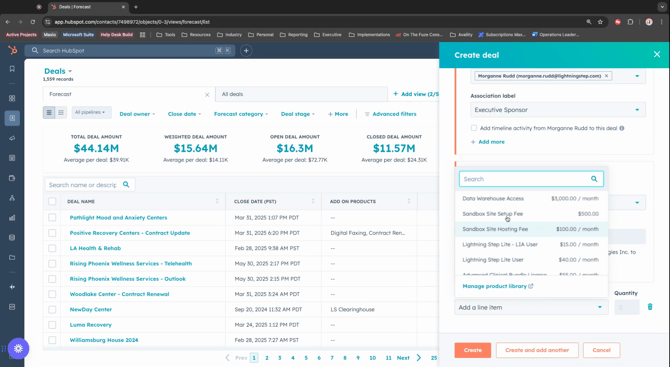
Step 7: Enter additional details as needed for the transaction. For instance, you might add a new site or location at this stage.
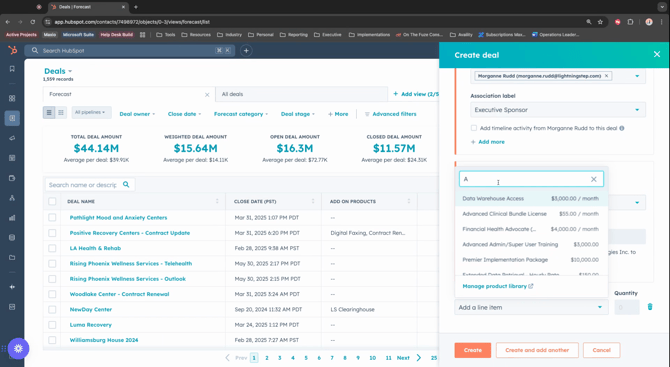
Step 8: Specify any setup costs associated with the new addition. For example, if adding a new location, input the setup fee.
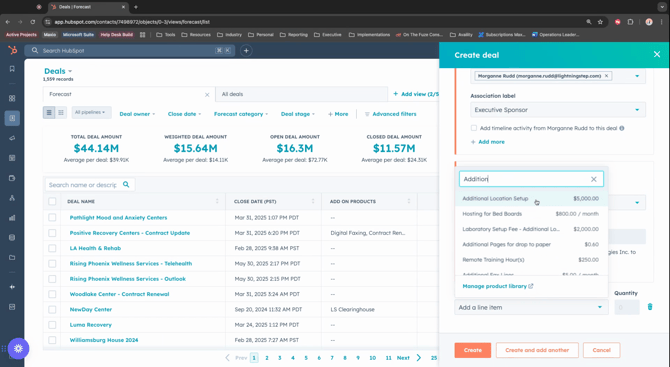
Step 9: Finally, add any recurring monthly charges related to the new location or service you have added.
Filling out the Deal
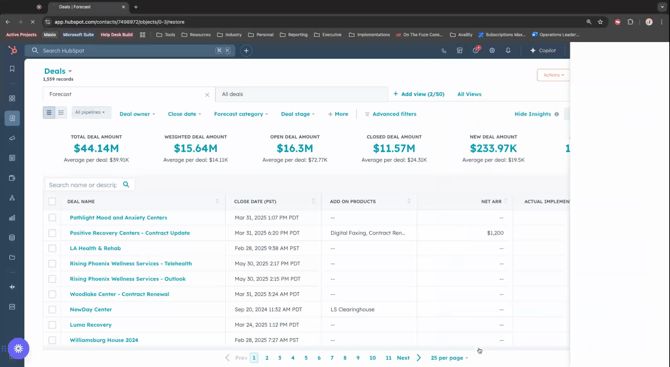
Step 1: Click Create to initiate a deal.
Step 2: Observe the left side of the deal page where you'll find the About This Deal section. This part includes the initial fields you filled out during the intake process.
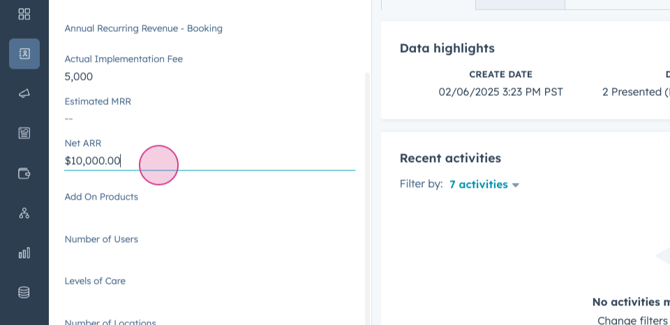
Step 3: Update the Net ARR as necessary.
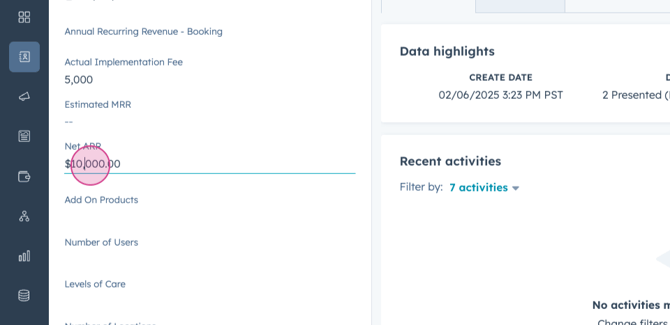
Step 4: Continue to fill in details such as the number of users, levels of care, and number of locations as you converse with the customer.
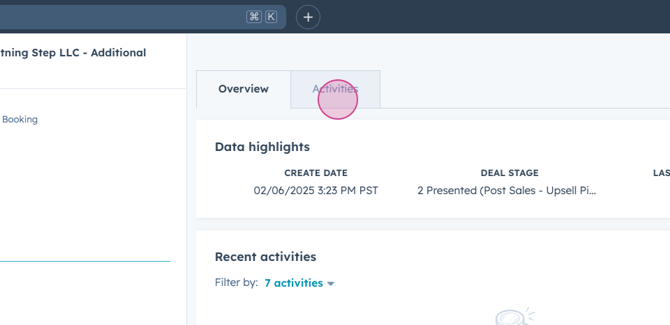
Step 5: Focus on the Activity section located in the middle of the page, where you'll spend most of your time managing the deal.
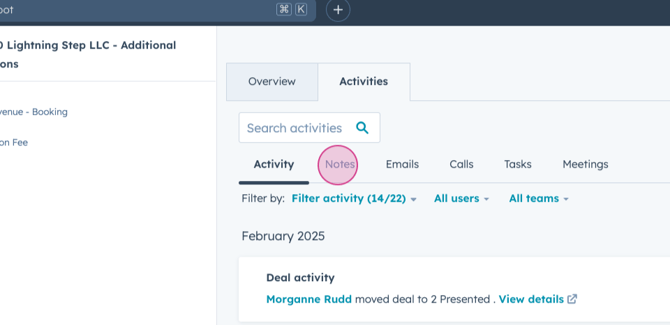
Step 6: Log new notes here whenever you communicate with the customer.
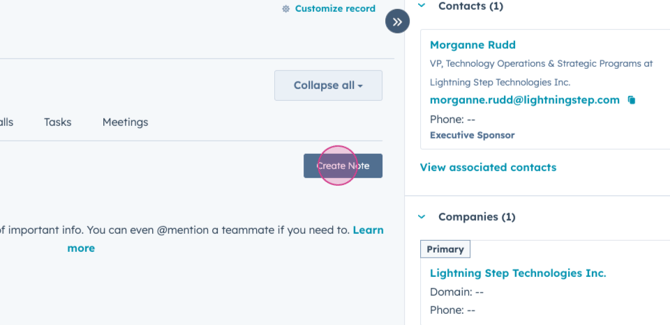
Step 7: Create a note detailing the outcomes of your conversations with the customer.
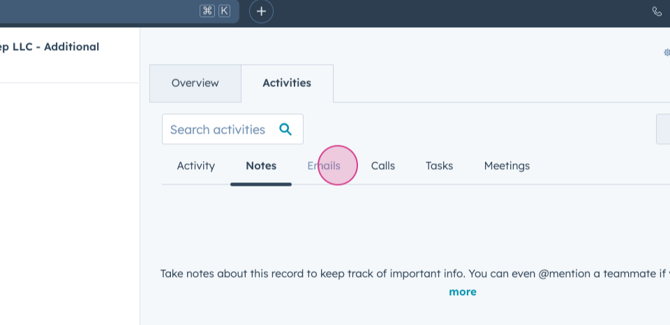
Step 8: Send an email directly from this section.
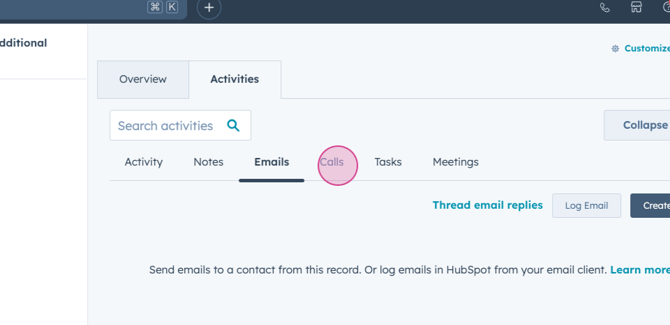
Step 9: Make calls from within the deal to maintain communication fluidity.
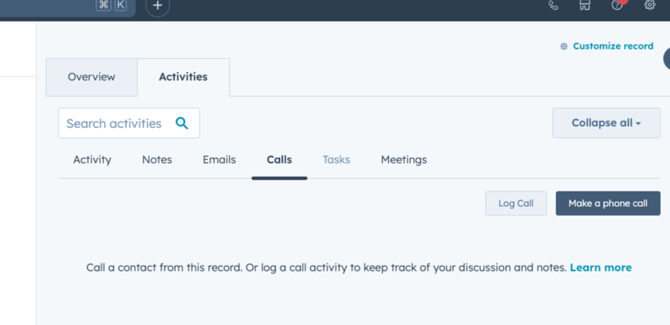
Step 10: Assign tasks to yourself or others directly from the deal to keep track of action items.
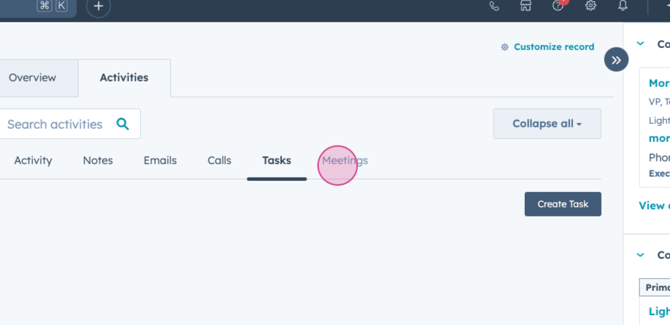
Step 11: Optionally, create meetings through the deal to discuss further actions.
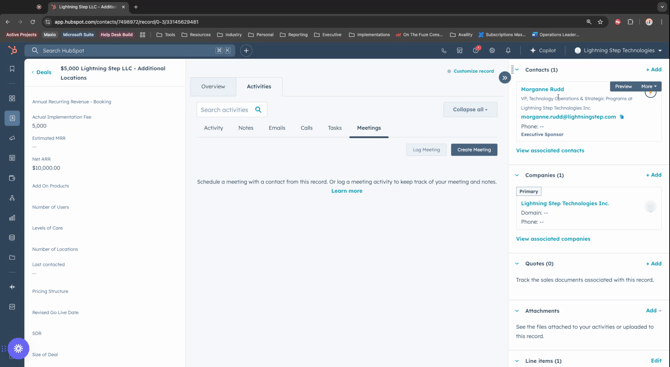
Step 12: Regularly update your Activities tab, as this will serve as the primary source of truth for the deal.
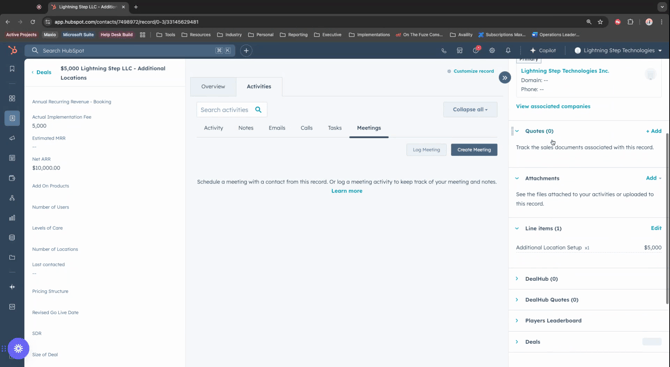
Step 13: Check the right side for critical connected records such as the contact and company you selected earlier.
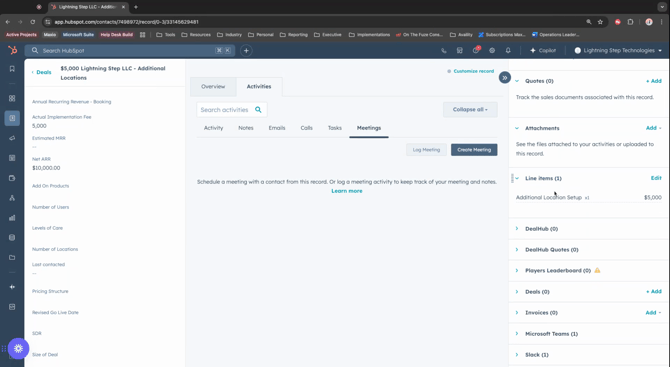
Step 14: Access any related quotes, which will be discussed in more depth in a later session.
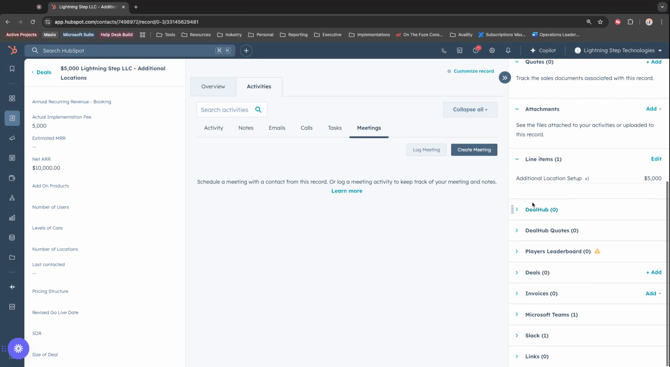
Step 15: Attach necessary documents to the deal.
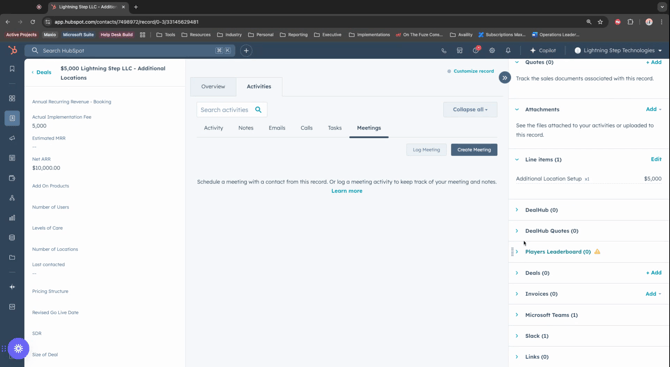
Step 16: Review the line items that were added to the deal.
