
Step 1: From your profile, select Consents in the left-hand menu.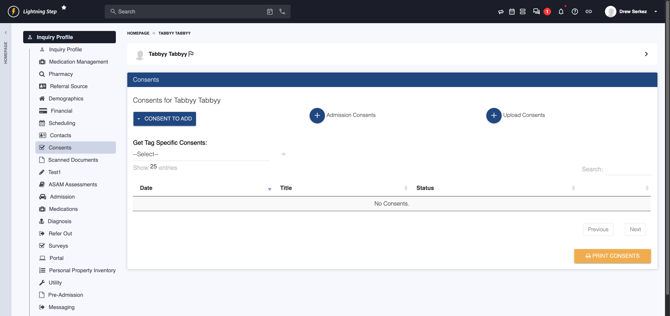
Step 2: To create an individual consent, click the blue Consent to Add button.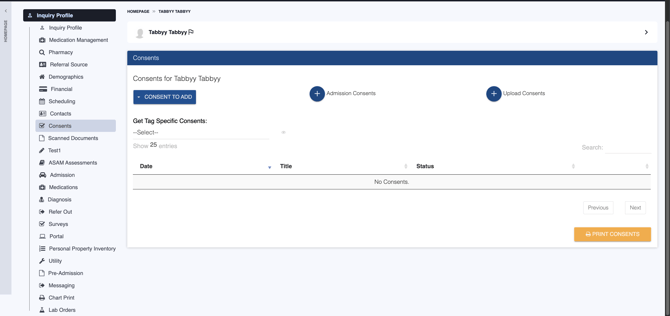
Step 3: Pick the required consent form.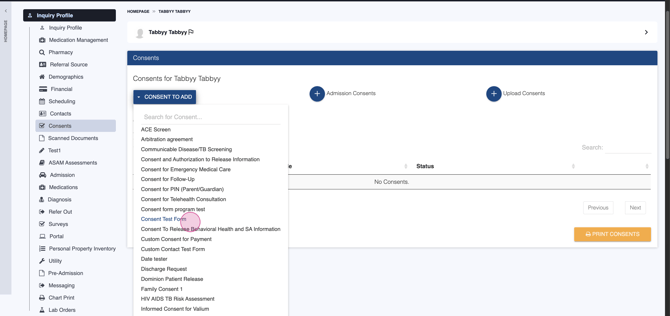 The system creates it, then redirects you to complete the process.
Step 4: Review and select any necessary options in the consent form.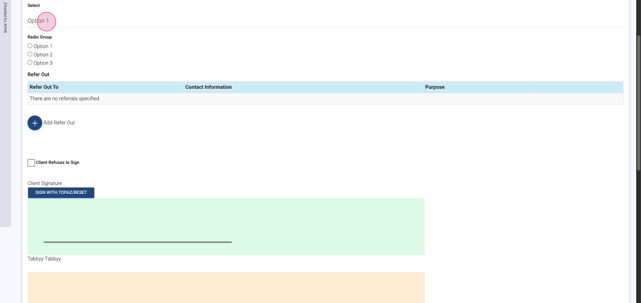
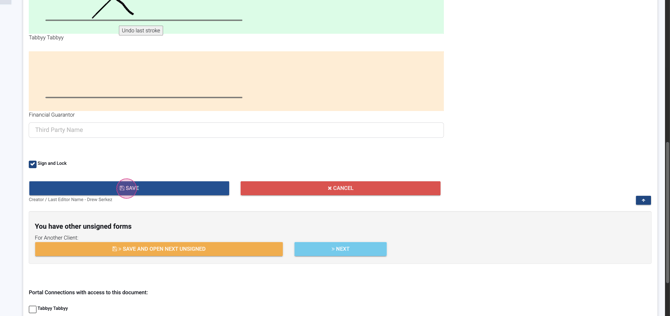
Step 5: Have the client sign off.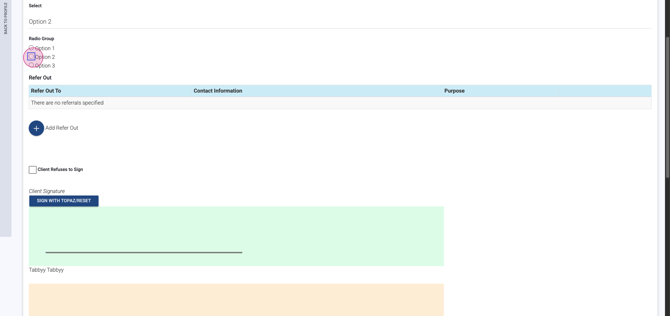
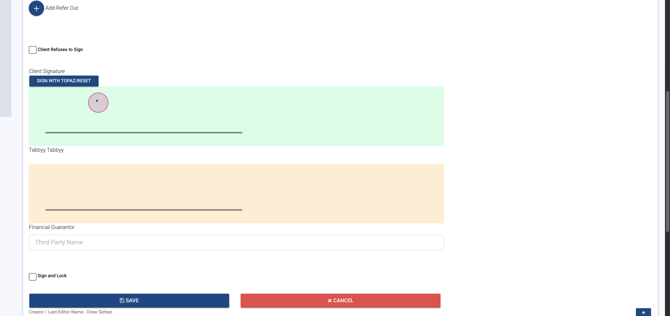
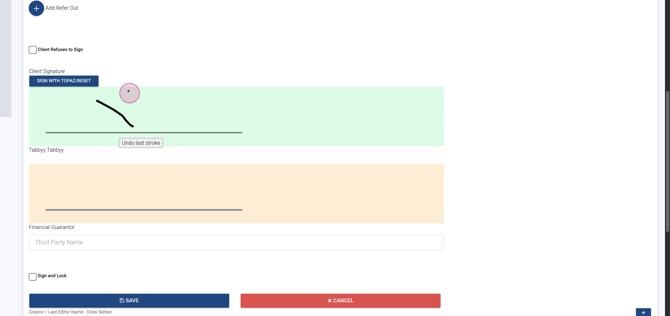
Step 6: Use Sign, Lock, and Save to finalize the document.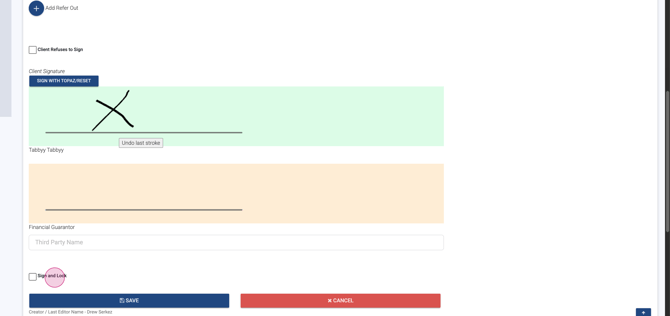
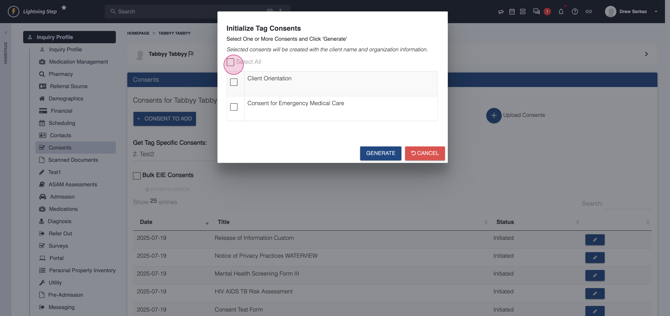
Step 7: For group consents, choose Admission Consents to open batch options.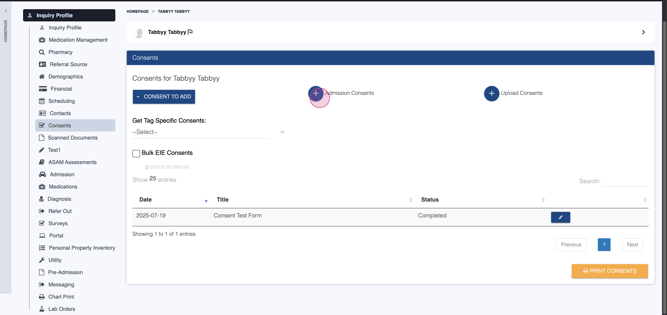
Step 8: Select all, some, or deselect batch consents as needed.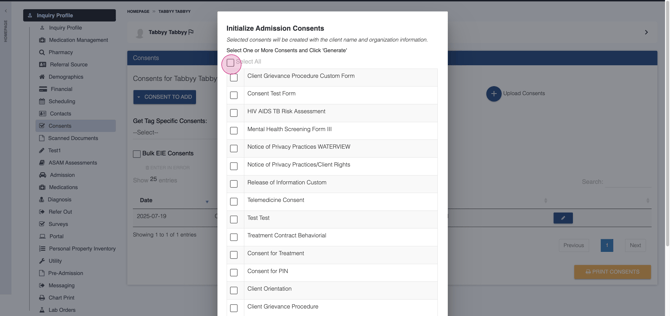
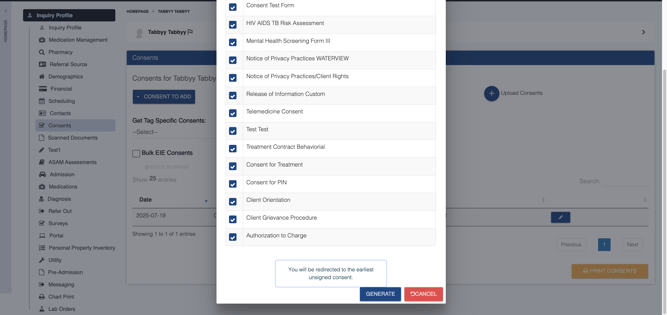
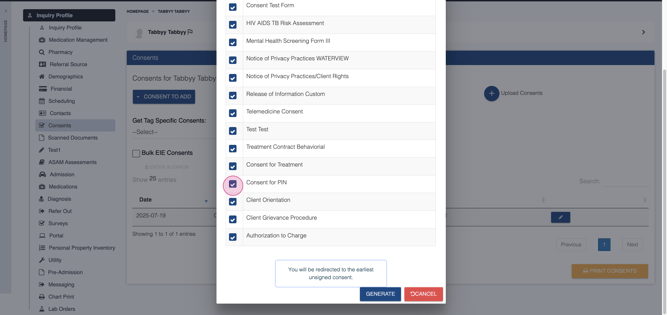
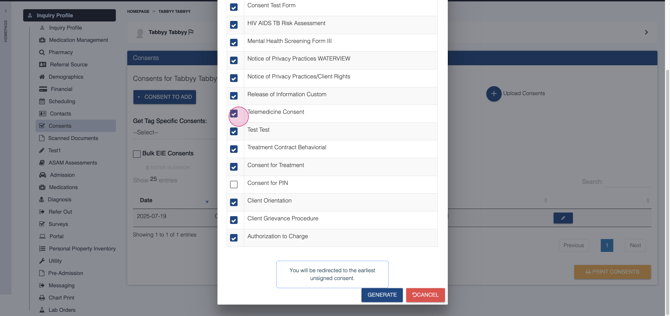
Step 9: Click Generate to create and queue all your selected consents.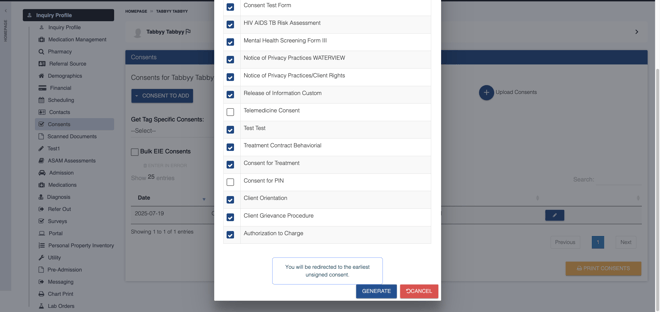
Step 10: Complete each consent form—review, enter data as required, and collect the patient’s signature.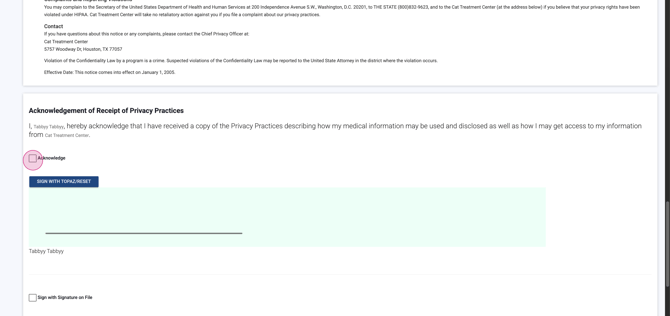

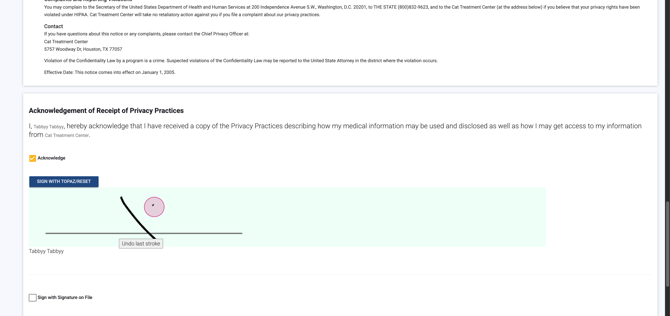
Step 11: If a witness signature is needed, sign behind the client.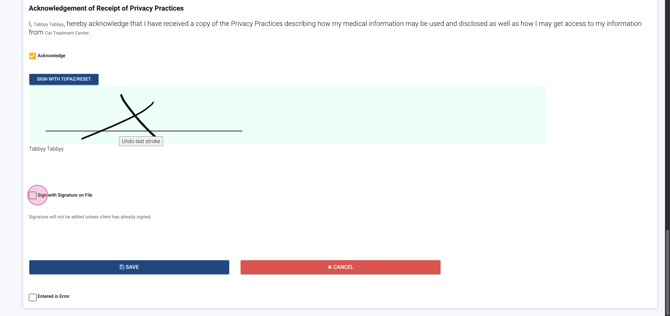
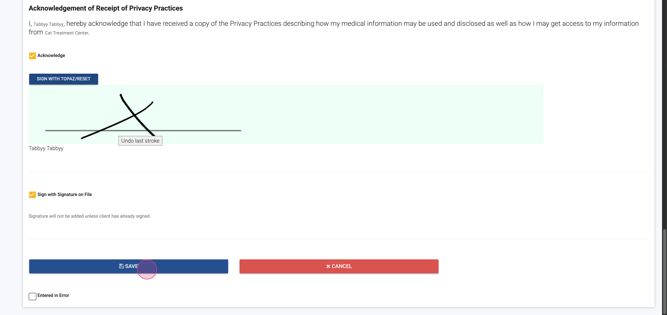
Step 12: Click Save on each consent to store the details.
Step 13: The system automatically loads the next consent for completion.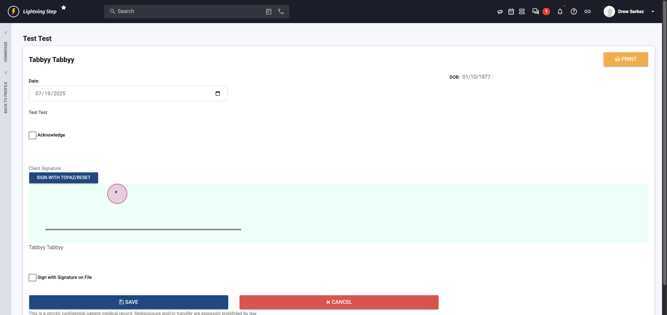
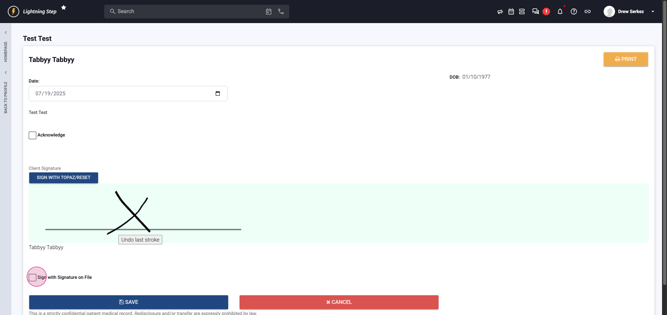
Step 14: To pause before finishing, click Cancel.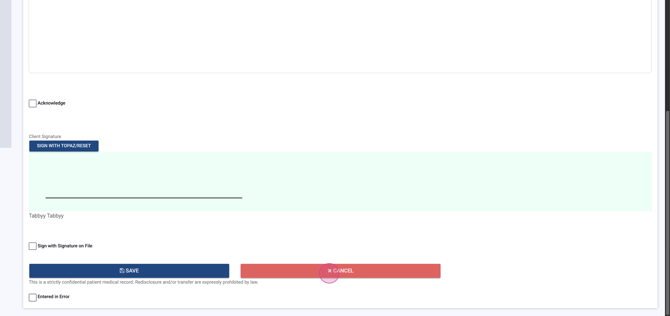
Step 15: The system asks you to acknowledge remaining unsigned consents—you can batch sign if you like.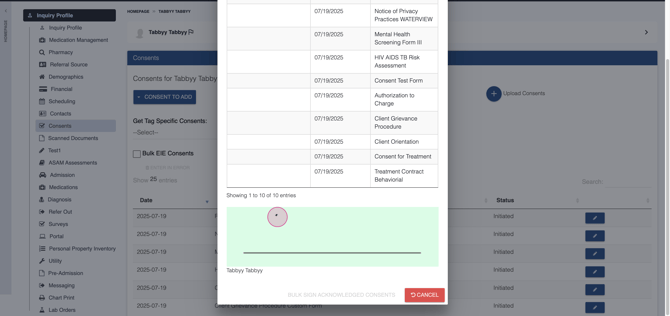
Step 16: To filter by location, program, or tag, use the drop-down selector; choose your consents and click Generate.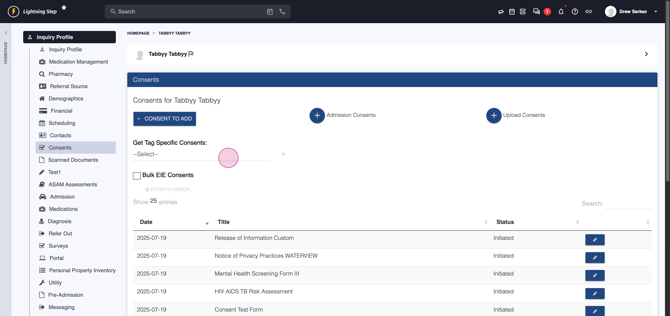

By following these steps, you'll efficiently create, review, and complete required consents—all in one place.
