
Step 1: Start from your home page. Navigate to the Financial section.
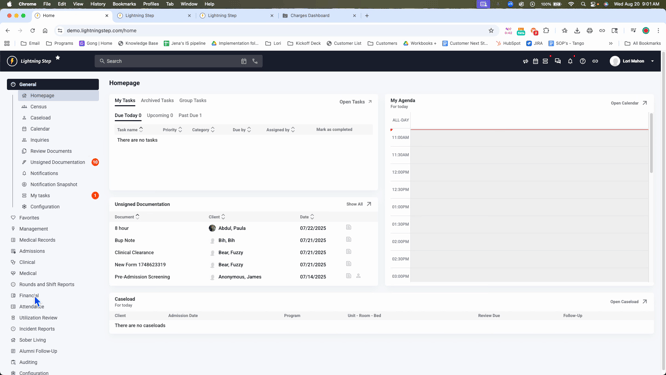
Step 2: From the Financial section, proceed to the Financial Dashboard.
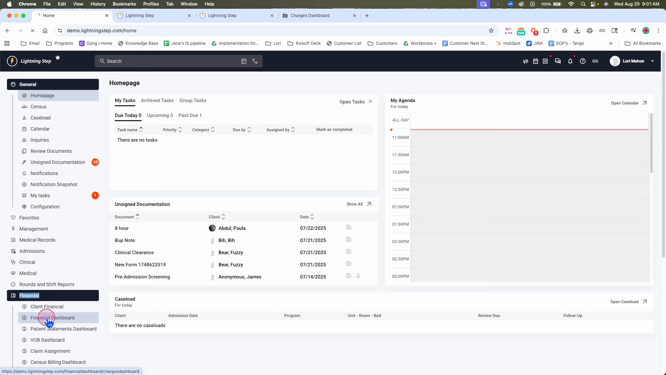
Step 3: In the Financial Dashboard, find and click on the Claims Dashboard.
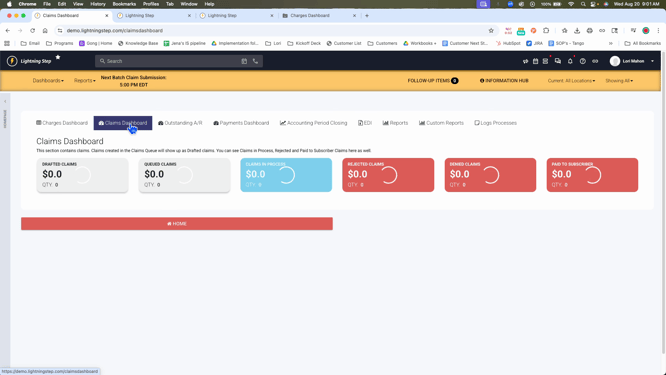
Assuming you've already processed the claim through the charges queue and the claims queue, you'll find it in the Claims Dashboard in a drafted state.
Step 4: Click on the drafted section.
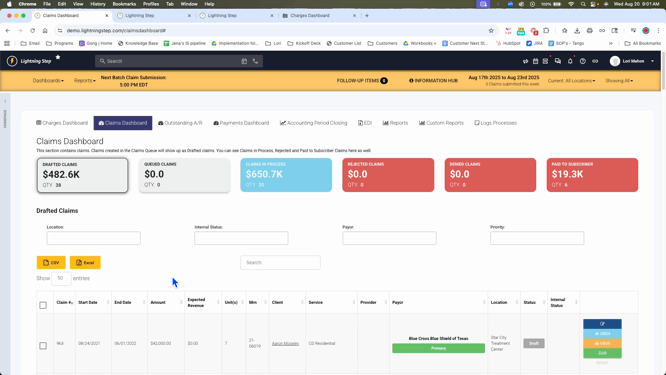
Step 5: Choose a claim to move, for example, claim 963. Click on the small
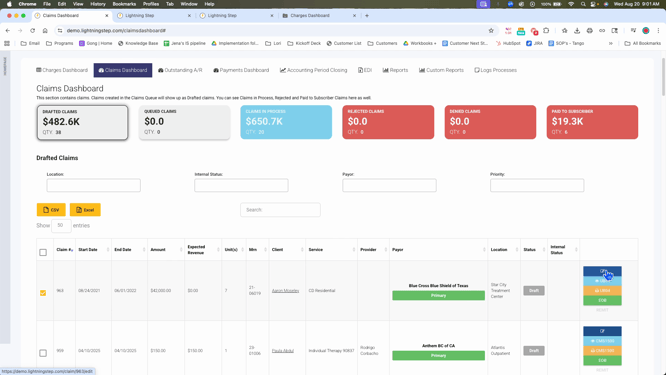
pencil icon to edit the claim.
There are two methods to move the claim:
Method 1: Mark the claim as paper, scroll down and
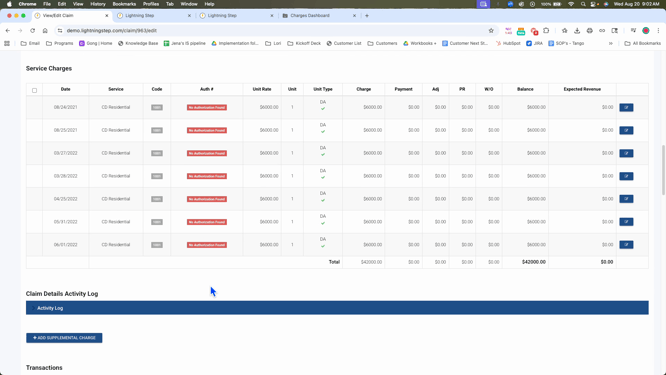
click save. The claim will then move to processing.
Method 2: Mark the claim as processing and confirm the status.
For this tutorial, we'll use Method 1.
Step 6: Mark claim 963 as paper, scroll down, and click
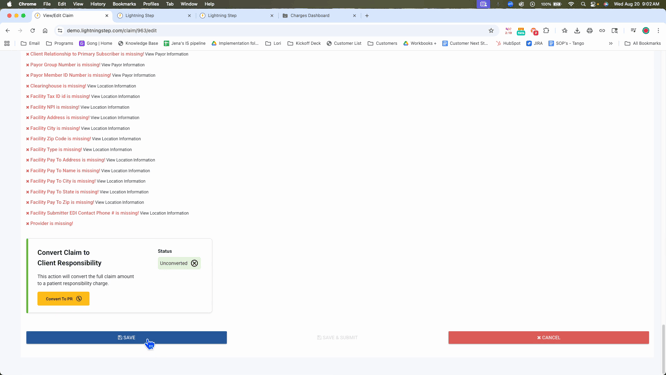
save. The claim will now show under the client's account, indicating it's in processing and awaiting payment.
Verifying the Claim's Status
Step 7: Go back to the Financial section, then to the Financial Dashboard.

Step 8: Navigate to the outstanding AR section.
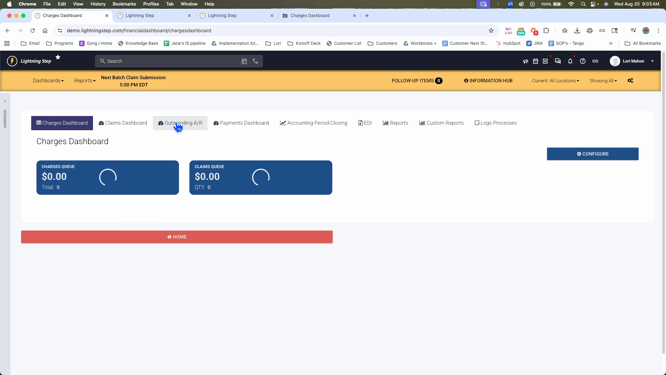
Step 9: Select all days.
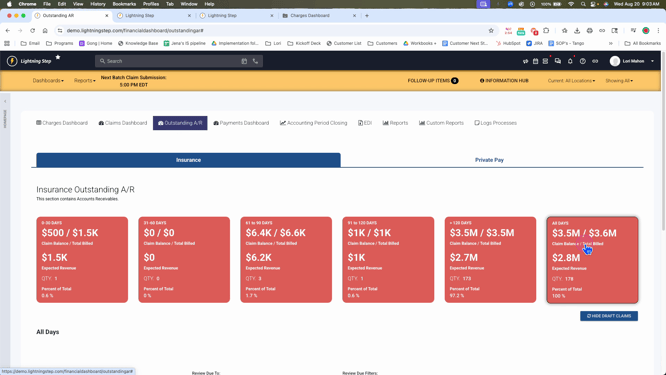
Step 10: Search for the claim number, in this case,
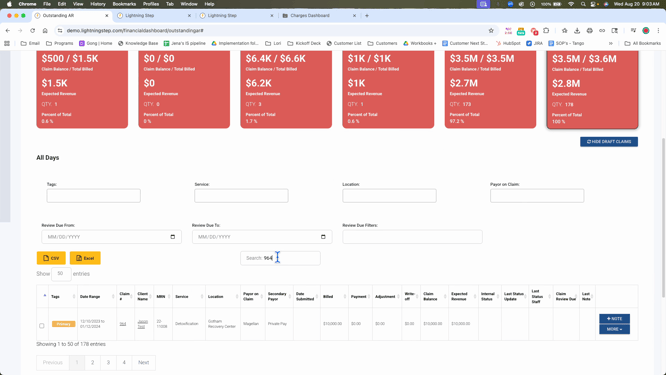
963. The claim should now appear as marked as paper, saved, and moved out of your claims, bypassing the clearinghouse. It's now waiting for payment.
And that's how you manually move a claim through the process.
