
Step 1: Go to the portal menu on the left side of your profile.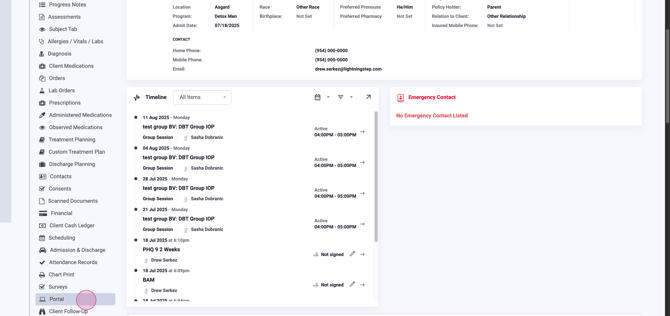
Step 2: In the 'Portal Documents Management' table, click the blue button to open the 'Manage Portal Documents' menu.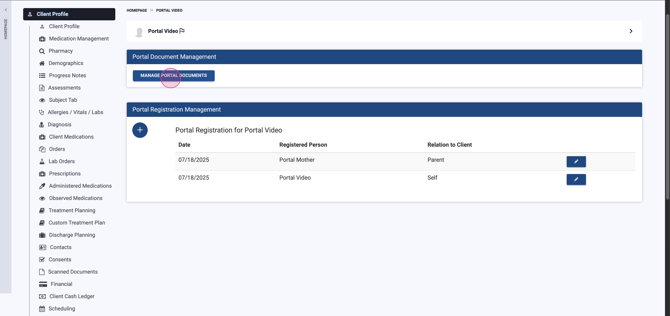
Step 3: The Portal Management Tool appears with four expandable panels: Consents, Surveys, Notes & Assessments, and Manage Connections.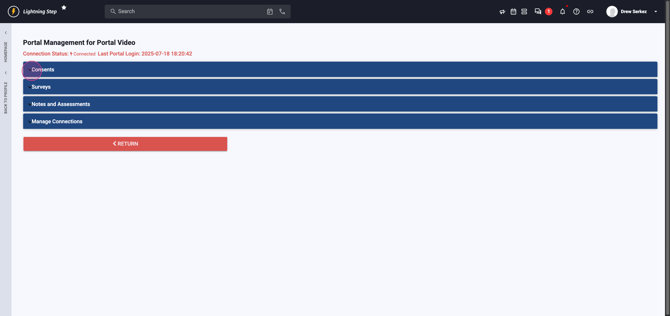
Step 4: In the Consents panel, all consents are whitelisted by default. If multiple connections exist (like a patient and a guardian), toggle each person's access to documentation individually.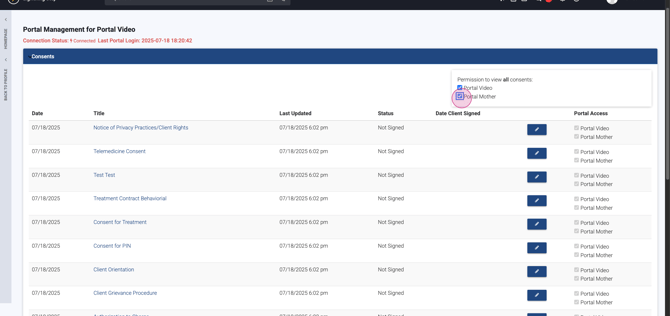
Step 5: Use the master permission switch at the top right of the table to manage access for all consents.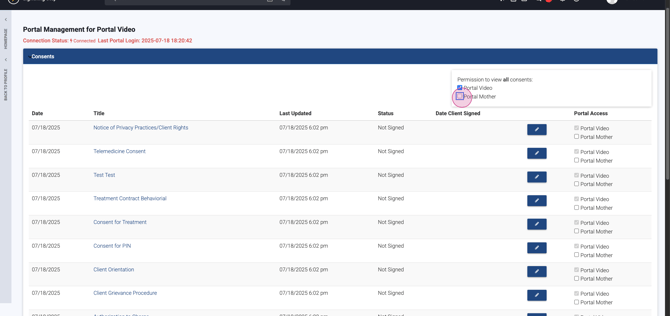
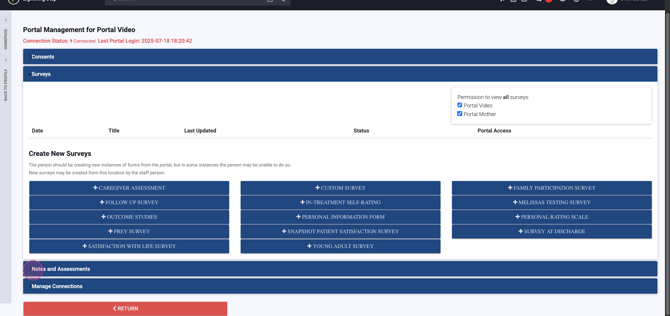
Step 6: The Surveys panel shows that surveys are available by default. Populate surveys directly from this tool, or let patients complete them through their portal access.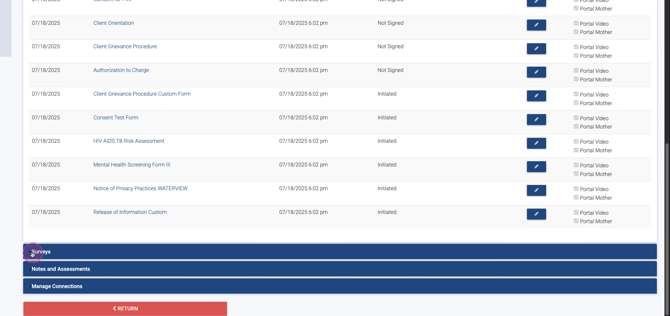
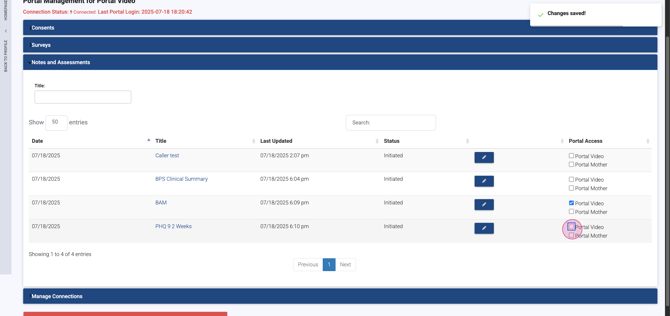
Step 7: In the Notes & Assessments panel, progress notes and assessments aren't available in the portal by default. To show a specific assessment, enable its checkbox on the right.
For example, make the BAM assessment and the PHQ9 visible in the portal.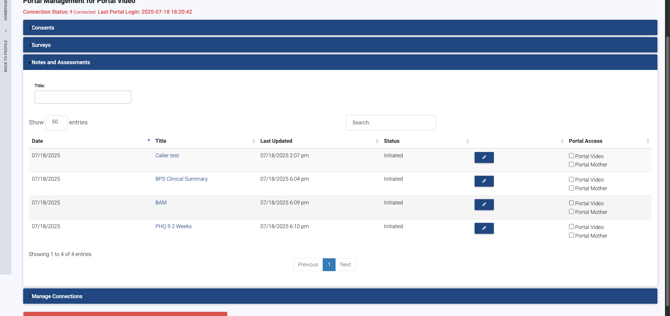
Step 8: In the Manage Connections table, perform user actions as needed.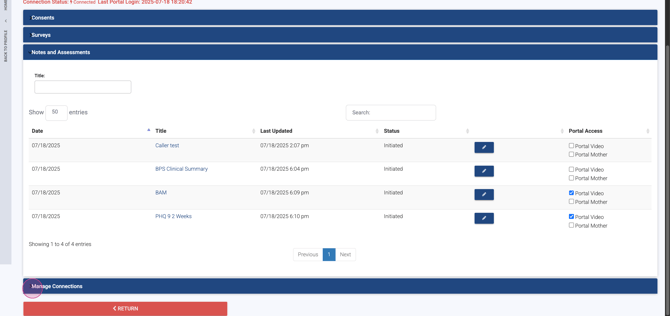
- To remove access (such as after a compromised email), click the 'X'.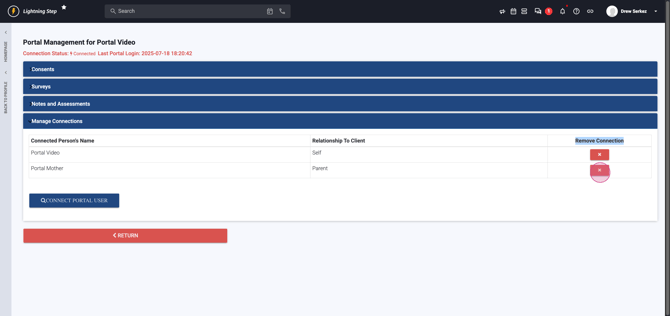 - To add a new portal user, click 'Connect Portal User.'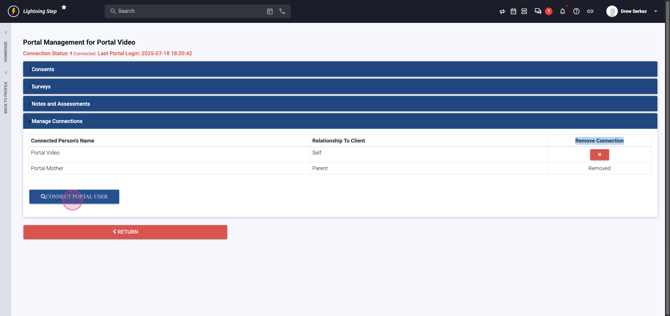
Step 9: Search for and select the user you'd like to connect. In this example, pick 'Portal Father.'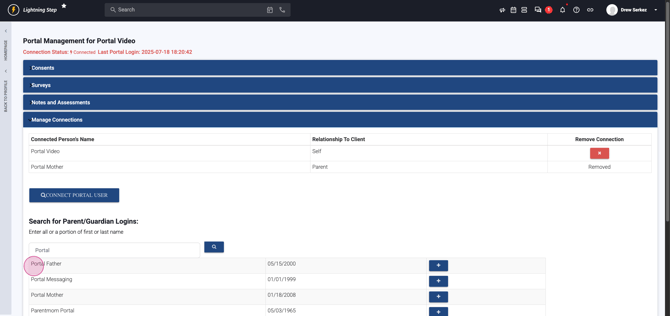
Step 10: Click the blue plus button to add the selected user as a connection for this patient.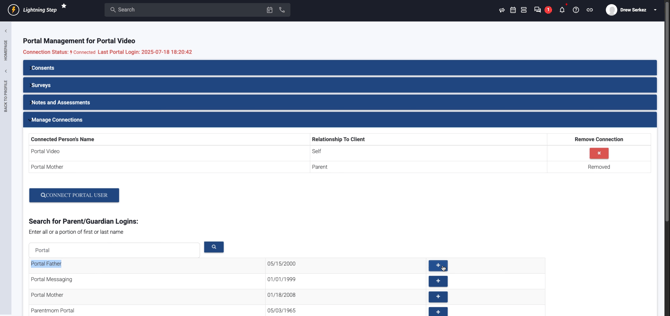
Step 11: Refresh the page to see the new connection. You'll notice the 'Portal Father' is now linked as a parent guardian for portal access.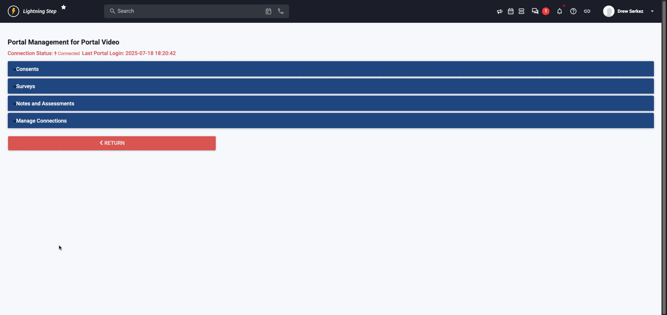
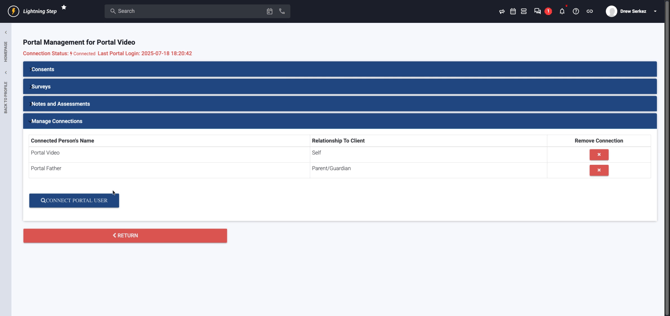
Step 12: When finished, click the red Return button at the bottom of the screen to exit Portal Management.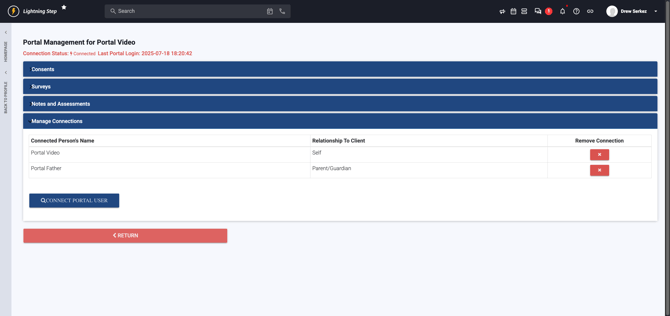
You're all set! You now know how to manage portal documentation settings and connections exactly as shown in the demonstration.
