
Step 1: Navigate to the client profile of the patient you want to transfer or discharge.
Step 2: From the left menu, select the Admission and Discharge option.
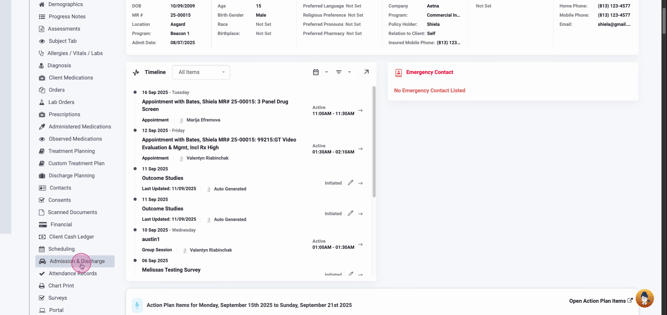
Step 3: A table labeled Admission Discharge Transfer for the patient will appear on the right side.
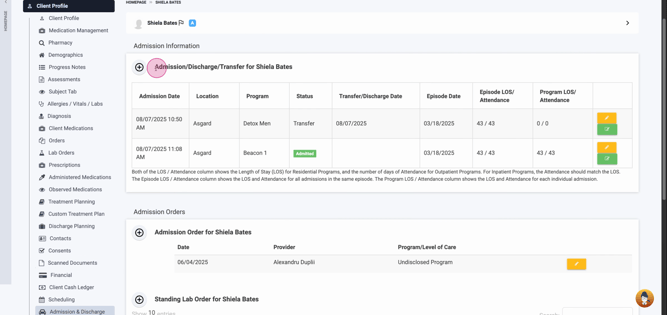
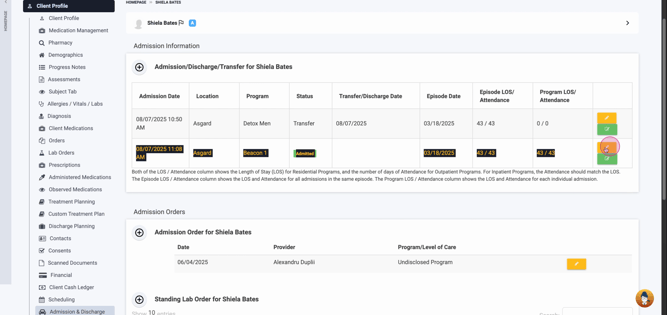
Step 4: Identify the admitted line item for the patient, usually the last one listed on the table.
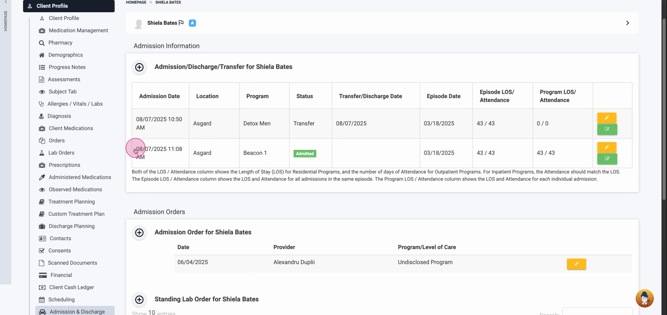
Step 5: Press the yellow pencil icon to enter that admission.
Now, let's review how to transfer a patient.
Step 6: You'll see options to either transfer or discharge the patient on screen.
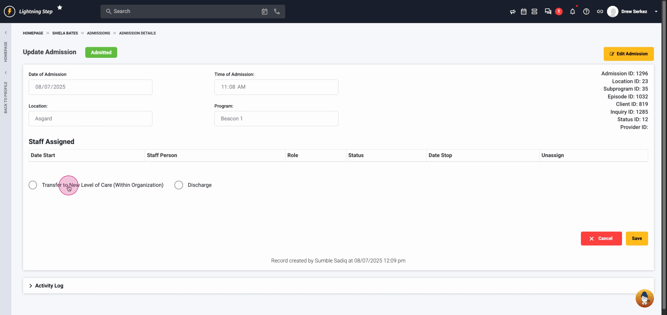
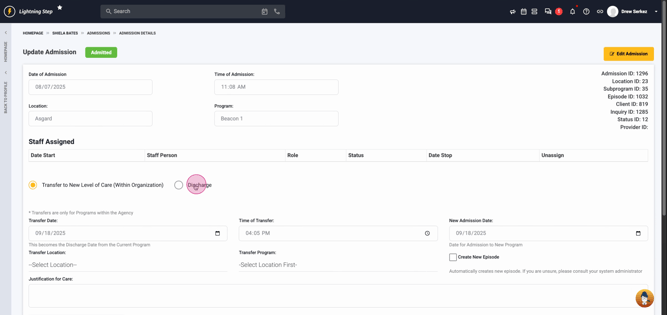
Step 7: Choose Transfer. This will prompt you with conditional values.
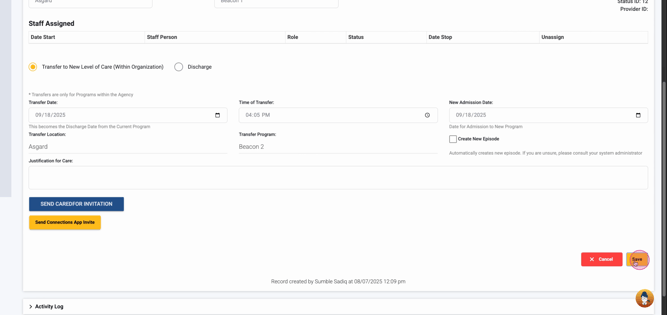
Step 8: Enter the transfer date, transfer time, the new admission date for the program they're transferring into, and the location and program the patient will be transferring to.

Note: You have an option to create a new episode of Care if necessary. This is an optional setting on an independent server. If not needed, leave it off.
Step 9: If necessary, discontinue medication orders or action plans.
Step 10: Click Save to complete the transfer. You'll be redirected back to the client profile.
Step 11: You'll see that the patient has been admitted to a new program based on the information you entered.
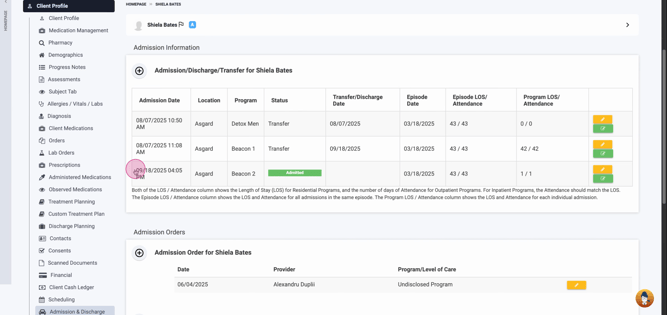
Now, let's review how to discharge a patient.
Step 12: Go to the same yellow pencil icon for the most recent admission and enter.
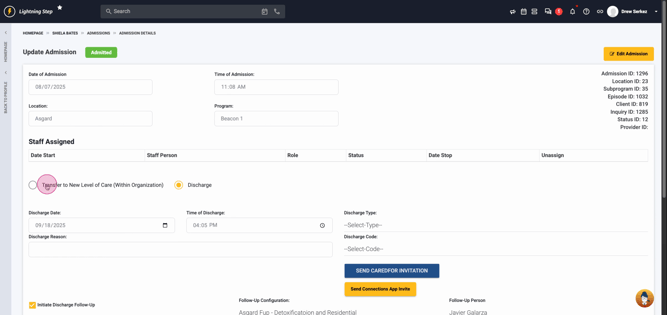
Step 13: Choose the Discharge option.

Step 14: Enter the discharge date, discharge time, the discharge type, a text-driven discharge reason, and the discharge code.

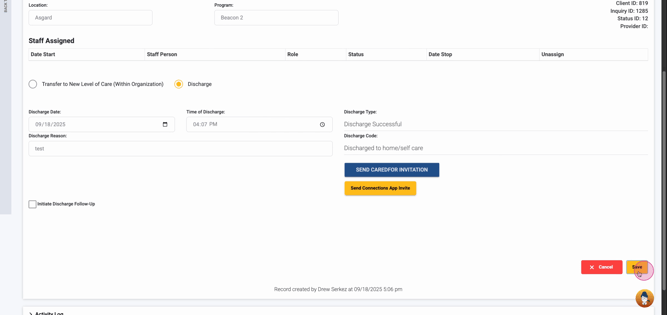
Note: You'll also have the option to initiate a discharge follow-up cadence if configured on your server, along with which configuration will be initiated and the team member responsible for the follow-ups. If undesired, uncheck this option.
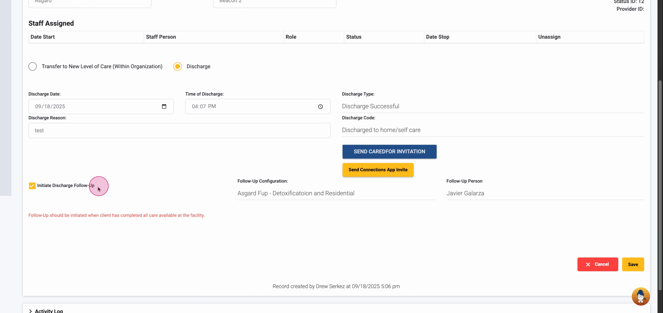
Step 15: Click Save to complete the discharge. You'll be redirected back to the client profile.
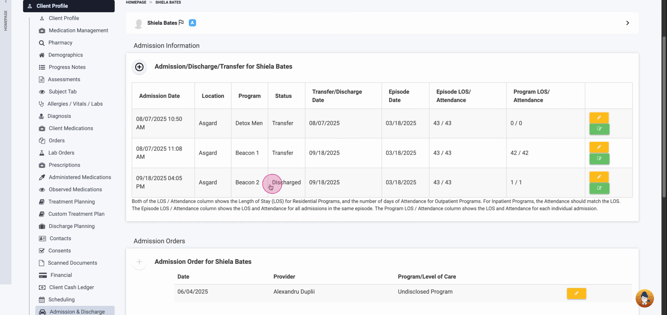
Step 16: You'll see that the patient is listed as discharged in the admission table.
Step 17: Go back to the census. You'll see that our test patient, Sheila, now has a pink background listed on the Census. A discharged patient will drop off the Census at the end of the calendar day at midnight.
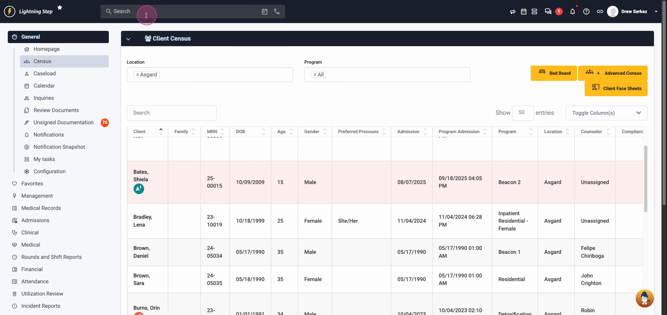
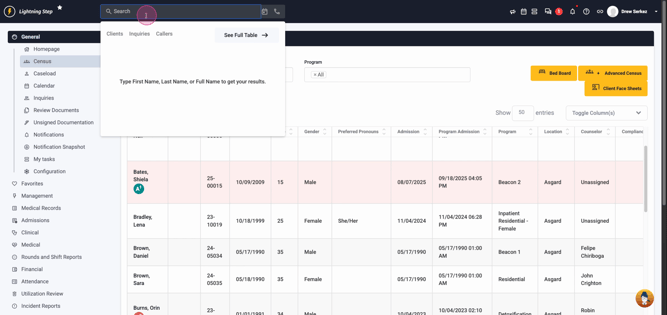
Step 18: To search for a discharged patient that is no longer on the Census, use your master search bar at the top of your screen.
Thank you for following this tutorial.
