
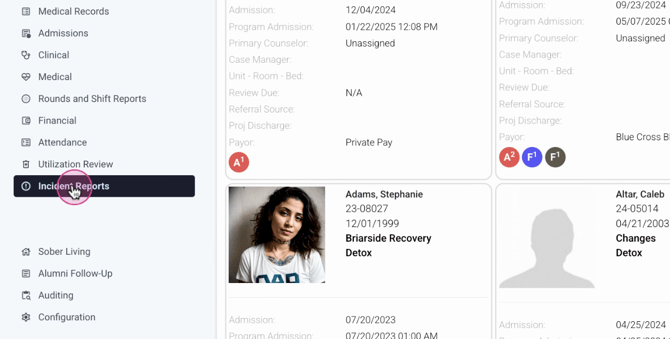
Step 1: From your homepage, look to the left to find the Incident reports option.
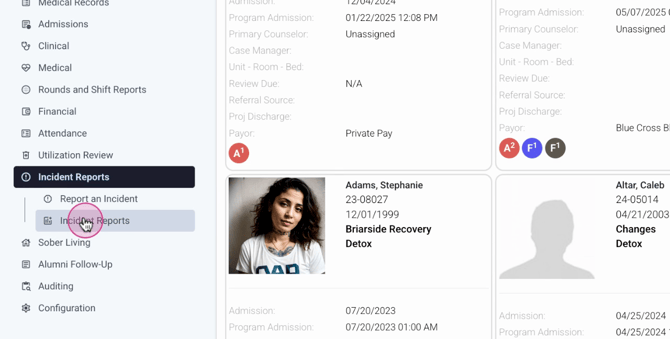
Step 2: Under Report and Incident, locate the Incident Reports tab.
Step 3: Here, you're able to input your desired date range. Note that it defaults to a month. You're also able to select specific locations or Incident types, as well as choose the Reported by or Reported to options, and the current status.
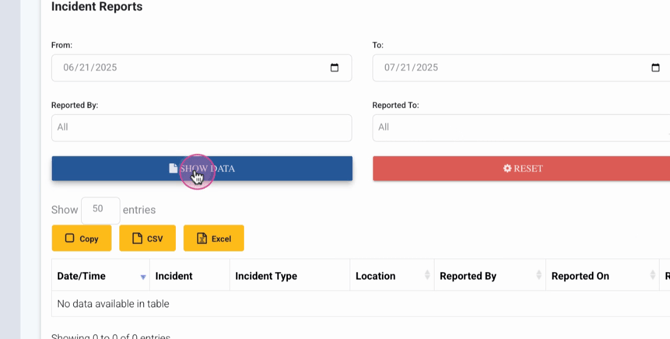
Step 4: Click on Show Data.

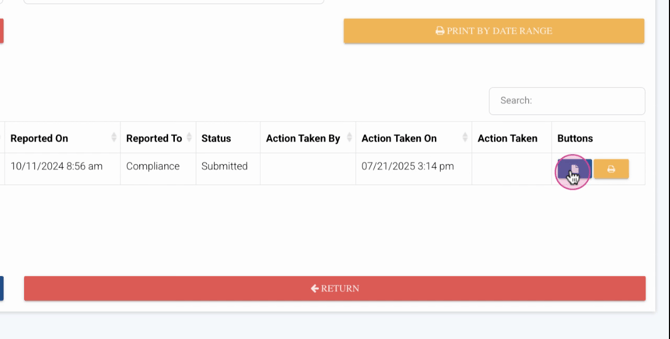
Step 5: Once you've clicked Show Data, you'll see details such as the date and time of the incident, when it was reported, who reported it, who it was reported to, the current status, and when action was taken.
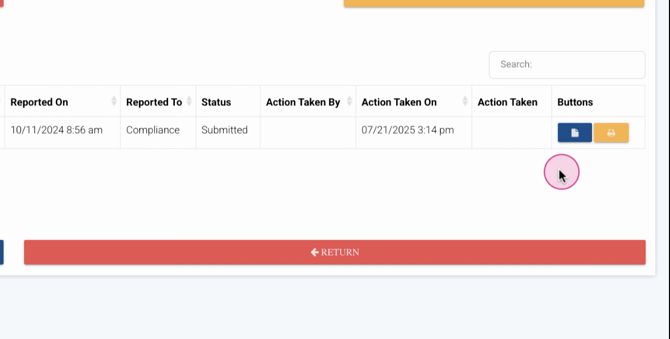
Step 6: You have the option to print or edit and review the submitted incident report. However, you won't be able to change any of the information.
Remember, if you're part of the Compliance group, these reports will be routed to you. However, you'll only be able to view certain Incident reports. These include reports that you've submitted, reports submitted by those you supervise (if you're a supervisor), and reports where you're a member of the designated review group, that is, compliance.
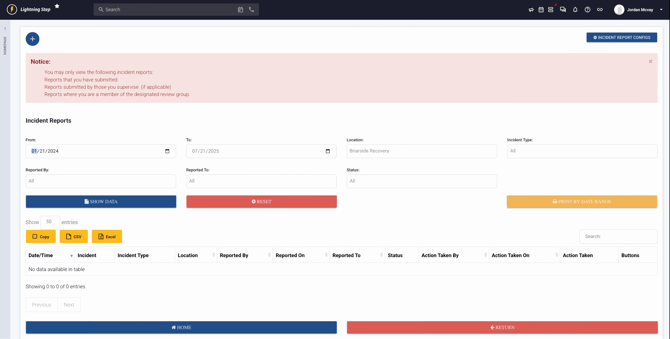
This dashboard is a great tool for reviewing all incident reports and taking action from a compliance standpoint. If you need any help, don't hesitate to contact Lightning Step Support or your Customer Success Manager.
