
Step 1: Go to Configuration in the main menu.
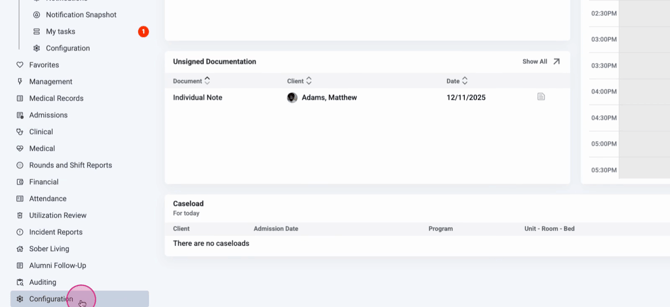
Step 2: Select Billing Configuration.
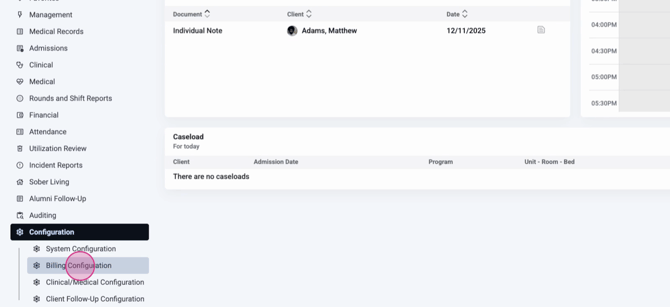
Step 3: Click on Charge Settings.
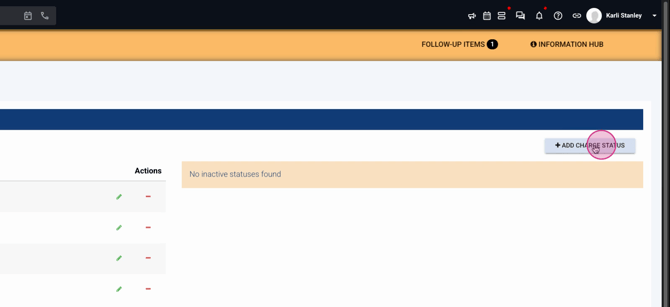
You’ll see a list of active and inactive charge statuses if any are already set up.
Step 4: Click Add Charge Status to create a new status.
Step 5: Enter a name for your status. This name appears throughout the app.
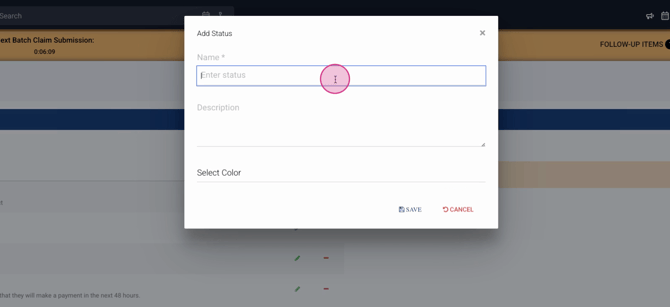
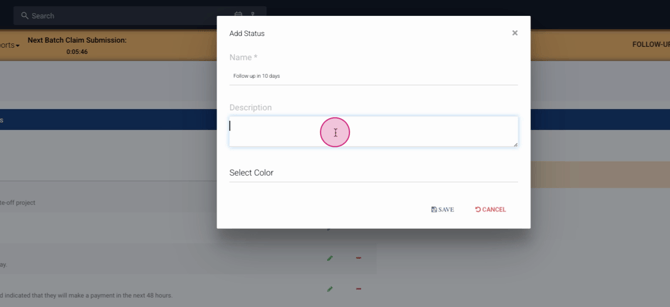
Step 6: Add a description for extra context.
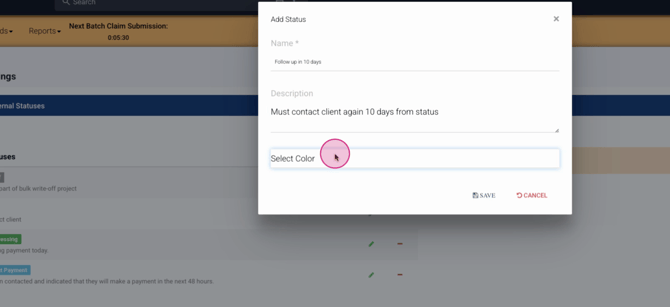
Step 7: Choose a color to associate with the status.
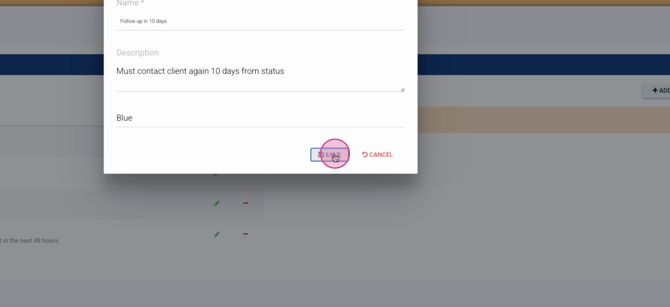
Step 8: Click Save. The new status now appears in the active column.
To deactivate a status, click the minus button next to it.
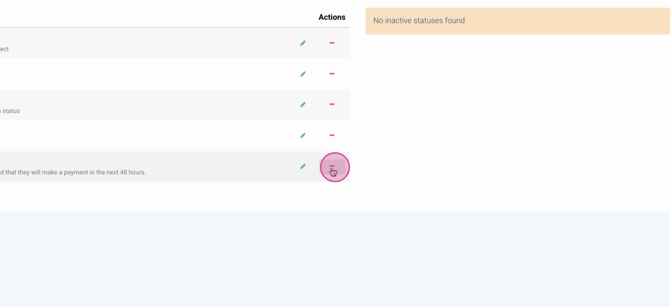
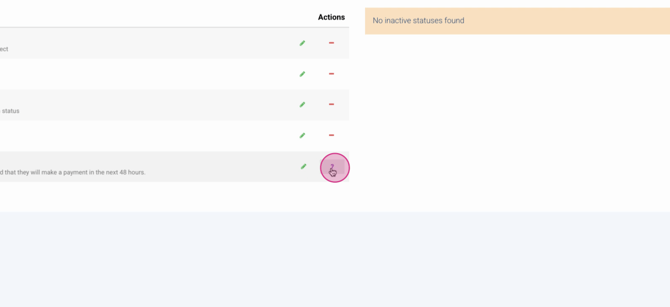
Then, confirm by clicking the question mark. The status moves to the inactive column.
To reactivate, click the plus sign next to the inactive status.
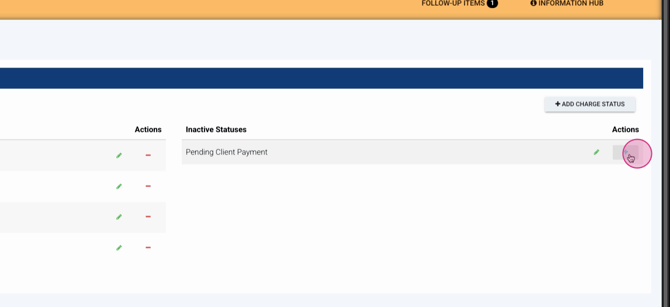
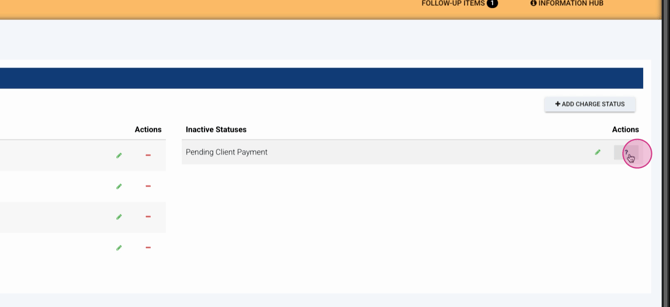
Confirm the action. Your status returns to the active column.
Now that you’ve configured your charge statuses, let’s see how they work on charges.
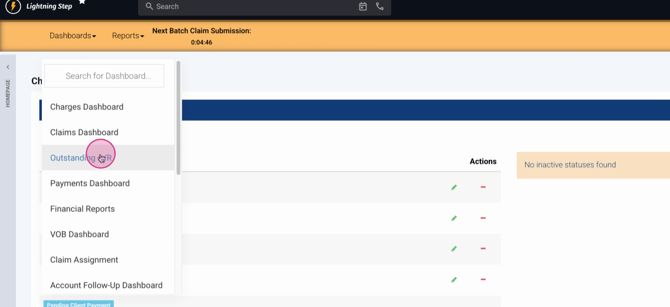
Step 1: Go to the Outstanding AR Dashboard.
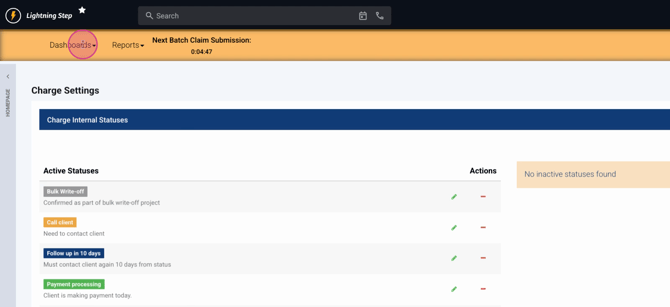
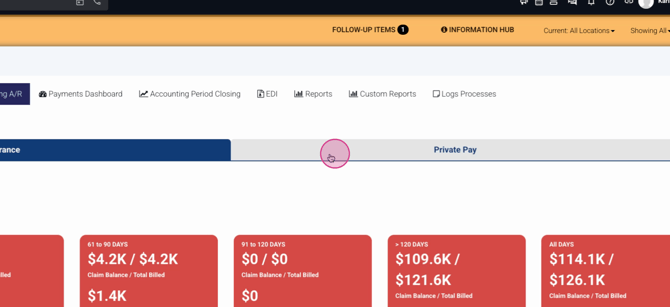
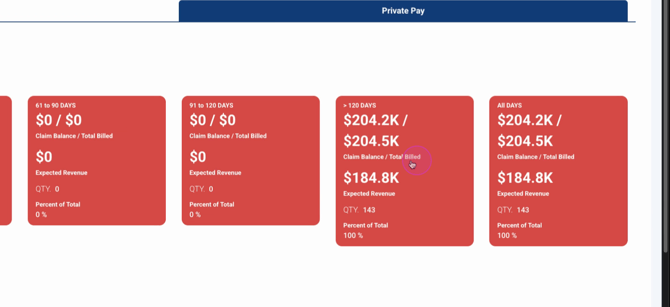
Step 2: Within the Private Pay tab, select a bucket to view specific charges.
Step 3: For an individual charge, click the Status button and pick a status from your configured list.
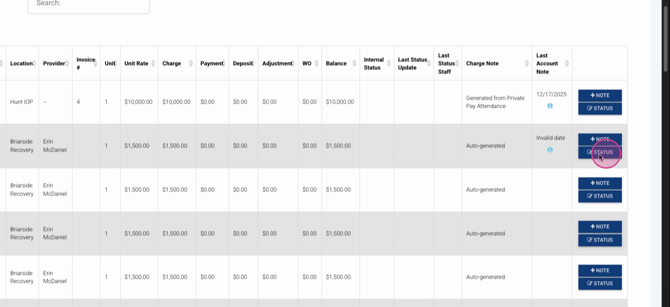
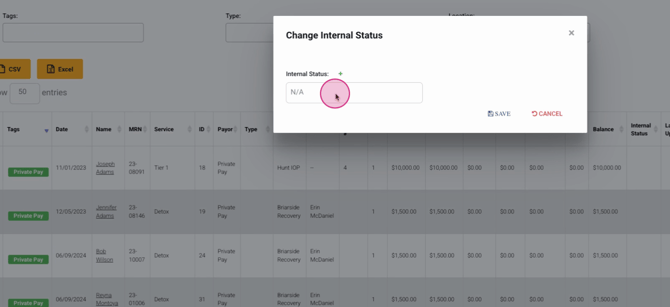
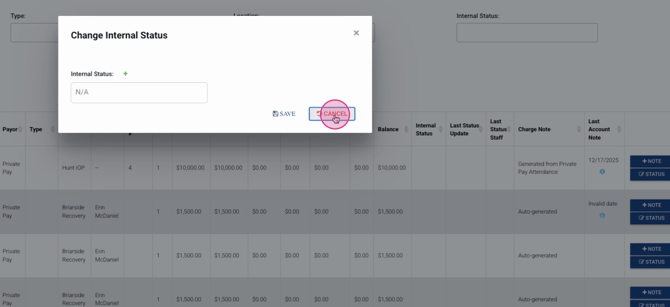
If your role allows, you can add a new status directly from the pop-up.
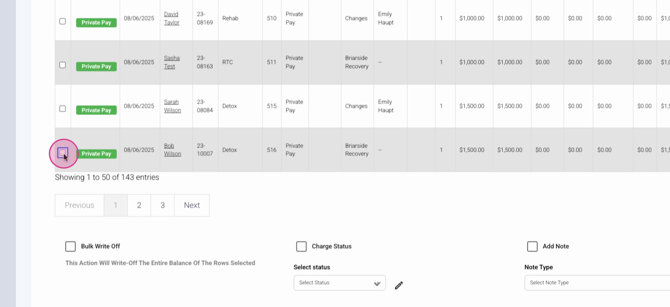
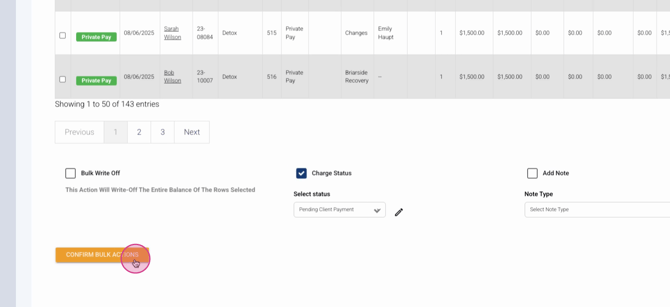
Step 4: To update multiple charges, use the Bulk Action menu. Multi-select the desired charges, open the menu, and choose Charge Status.
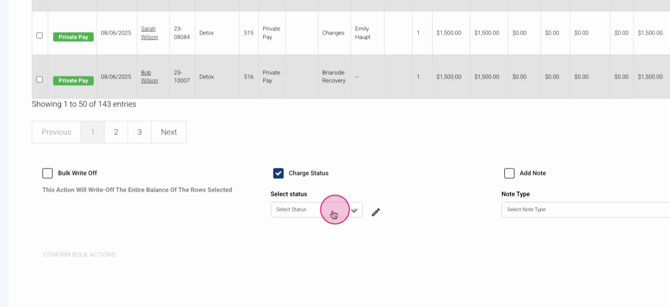
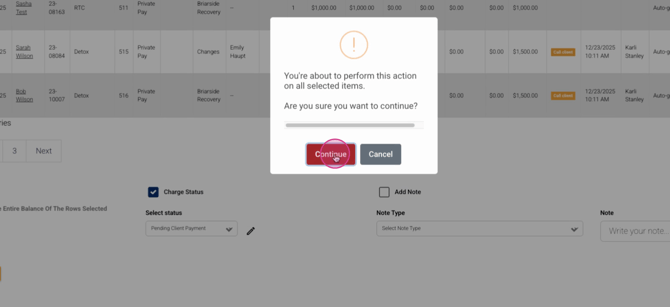
Step 5: Confirm your bulk action.
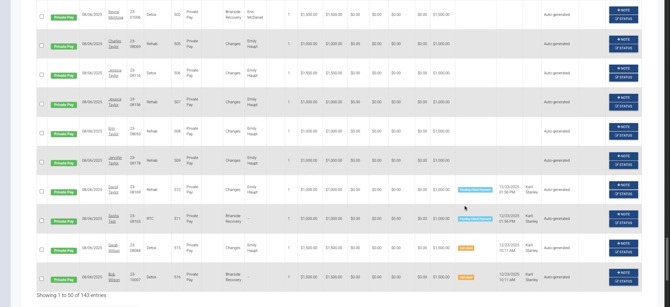
After refreshing the dashboard, you’ll see the updated internal status—including the date, time, and staff member.
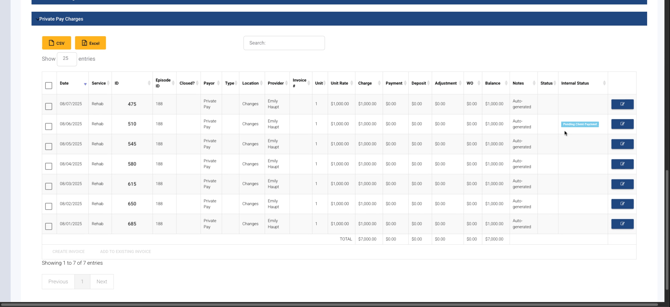
Step 6: To view a charge’s status on an account, open the Account Profile. You’ll find the status detail on each charge.
Internal charge status makes it easier to organize, track, and report on billing activity. For more in-depth guidance, check your internal documentation or contact support with questions.
