
Setting Up Invoice Templates
Step 1: Go to Configuration > Billing Configuration > Billing Documents.
The Invoice tab opens by default.
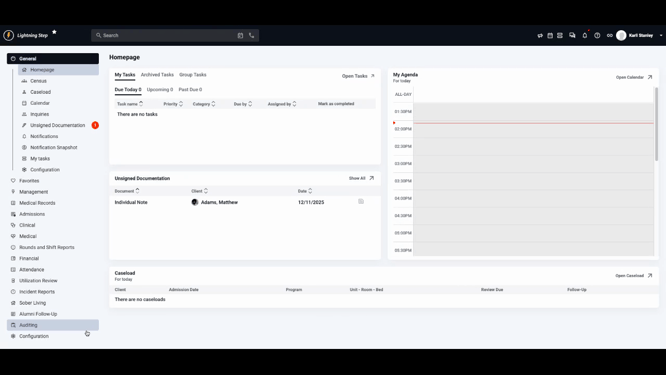
Step 2: Choose the facility location from the location dropdown.
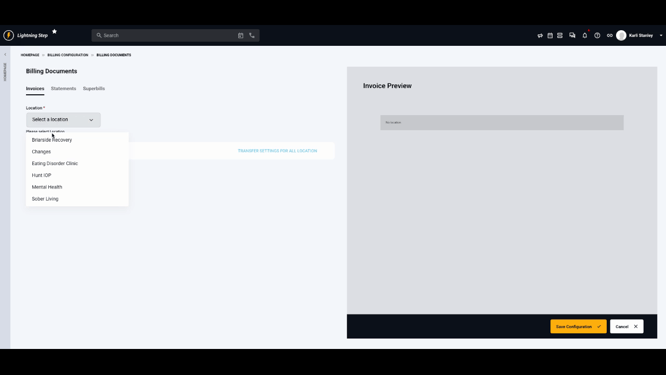
Step 3: Adjust the background and text colors for headers and footers.
Add a logo if you want it to appear in the upper left corner. The logo will be chosen from the location's uploaded logo.
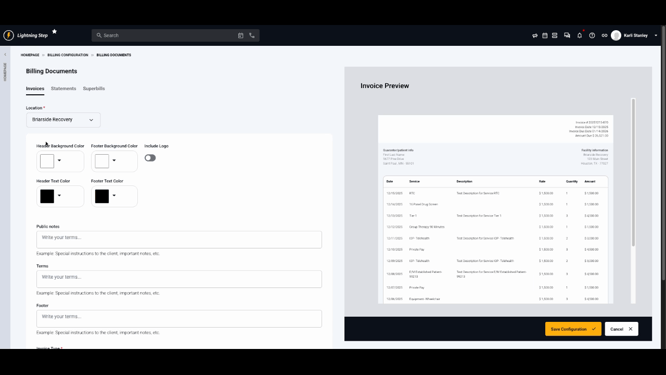
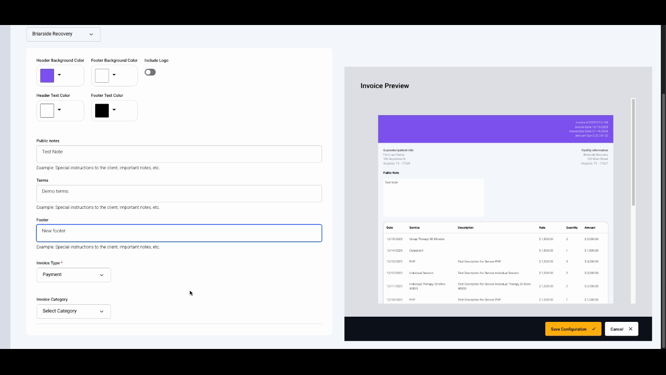
Step 4: Add default notes, terms, and footers to automatically appear on all invoices for this facility.
Set a default invoice type and category if needed.
Watch the preview update in real time to see your changes.
Step 5: Click Save Configuration to apply your settings.
Creating and Sending an Invoice
Step 1: Open a client’s account profile and go to the Charges section.
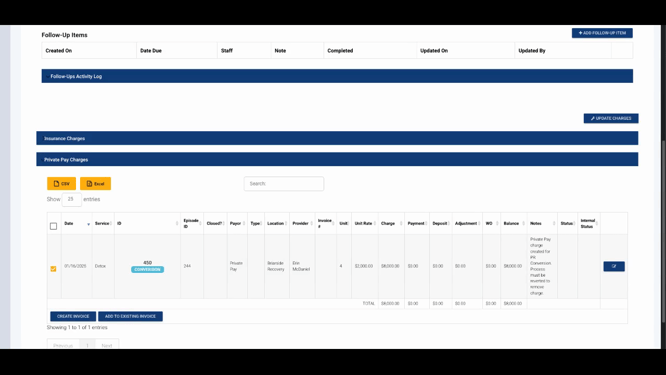
Step 2: Scroll to Private Pay Charges.
Select the charges you want to include on the invoice.
Step 3: Click Create Invoice.
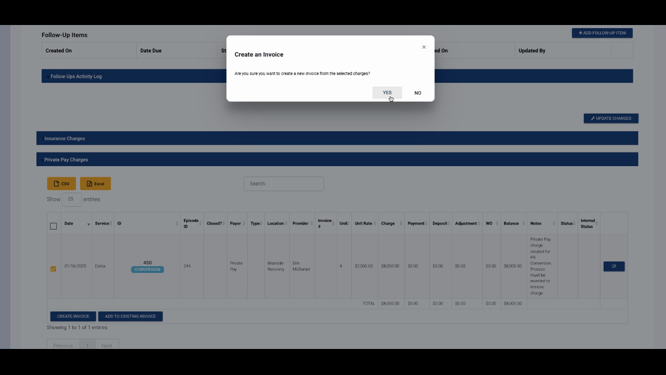
Step 4: Confirm the selected charges.
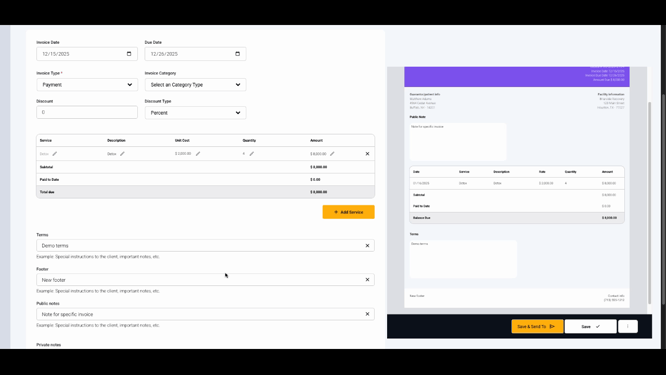
Step 5: Review and edit the invoice in the Invoice Edit screen.
Change any field as needed—the details auto-fill from your configuration, but you can adjust them.
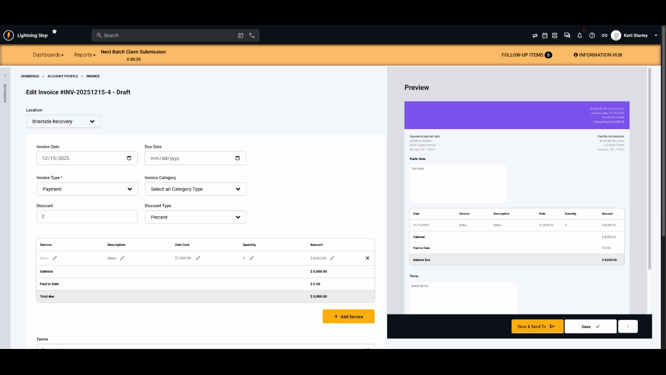
Step 6: Watch the real-time preview for a copy of what the client will see.
Step 7: Click Save after editing.
Step 8: Use the Action menu to:
-
Mark the invoice status.
-
Download a copy.
-
Collect a payment.
-
View linked payments.
-
Create or link a payment plan.
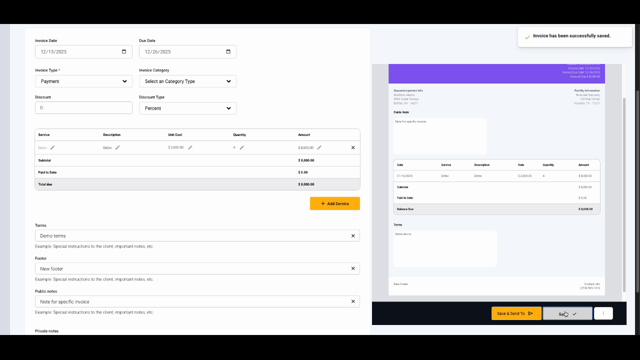
Step 9: To send, choose Save and Send.

Step 10: For portal delivery, you can also send an email notification to alert the client.

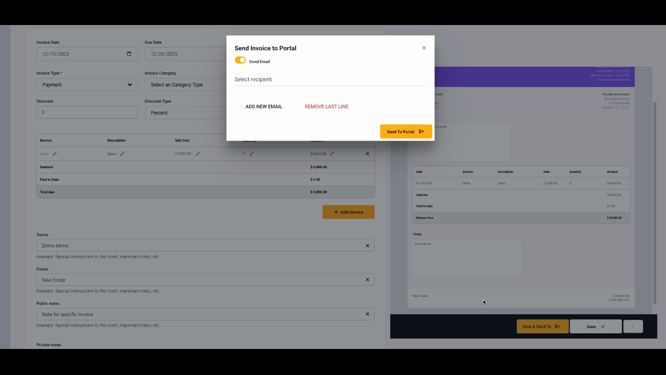
Step 11: If emailing, select the recipient, customize the subject and message, and check the sent/viewed history.
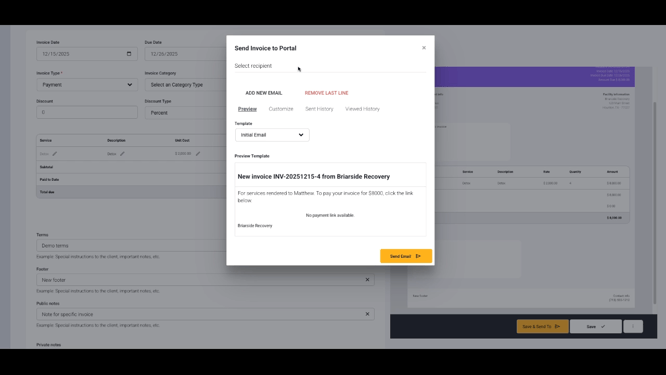
Once sent, your client can access, review, and pay their invoice directly from their portal or email.
Conclusion
Invoice templates simplify and standardize your billing process. Creating and sending invoices in Lightning Step is straightforward, with plenty of options to customize and track payments. For more help, check the internal documentation or contact support.
