
Step 1: Locate the assessment fields where LIA can assist. Notice the new Generate LIA button above these fields.
Step 2: Click Generate Using LIA. LIA will process and populate the summary field in a few moments.
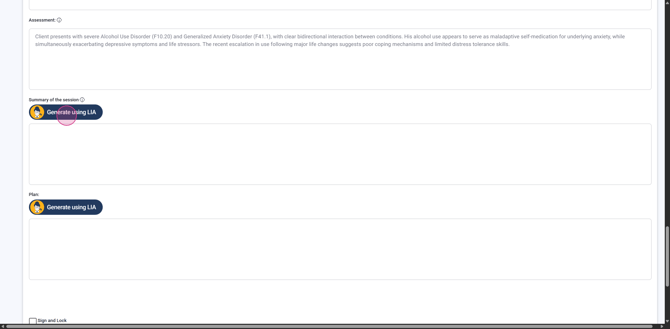
Step 3: Watch for a confirmation pop-up signaling that the AI has successfully generated your content.
Lets look at how to enable LIA for Assessments
Step 4: Switch to the form builder to set up assessments so they work with LIA.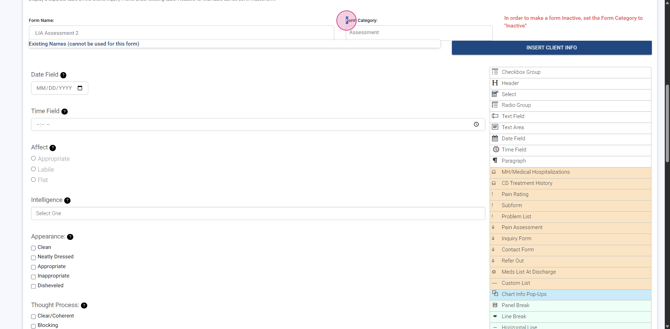
Step 5: In the form builder, verify the form category is set to Assessments.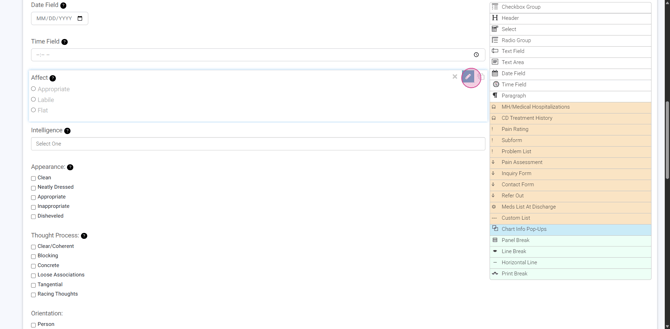
Step 6: For each form element you want LIA to use, expand the element settings. Enable the Send data to AI Assistant checkbox.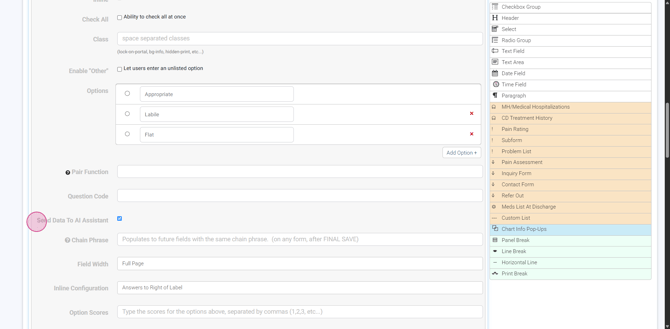
Step 7 When you want LIA to generate content for a field, locate and enable the Ability to Get Value from AI Assistant checkbox in the element’s settings. This option ensures the Generate from LIA button appears on your assessment.
Step 9: Save your form builder settings to finalize your setup.
You’ve now enabled LIA to support and automate your assessments. Enjoy streamlined AI-powered data capture!
